
Google Chrome has an option that translates the text of the web pages you visit. Your change in this method will not apply to the Chrome browser Menus and Settings. If you are looking for ways to switch the language of Google Chrome to your native language, here’s what you should do.
Change Google Chrome Display Language
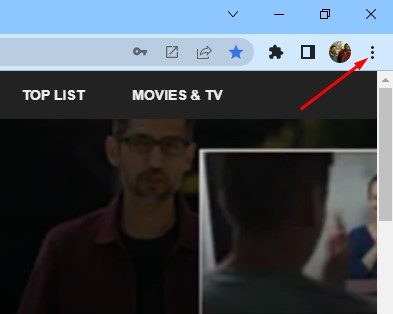
1. Open the Google Chrome browser on your Windows PC. Tap on the three dots in the top-right corner.
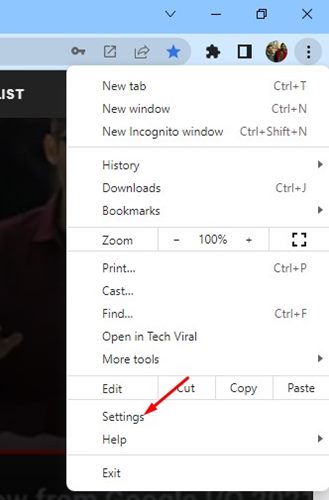
2. Tap on Settings.
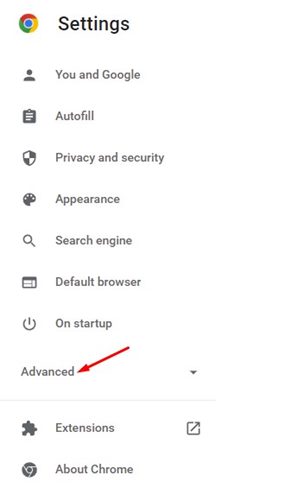
3. Expand the Advanced section in the left pane.
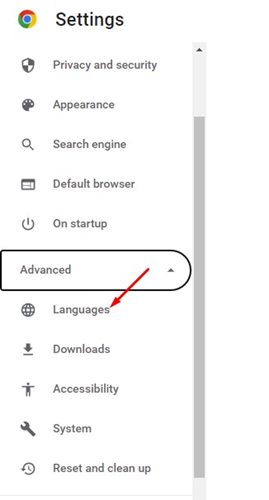
4. Click Languages.
5. On the right pane, click on the Language dropdown.
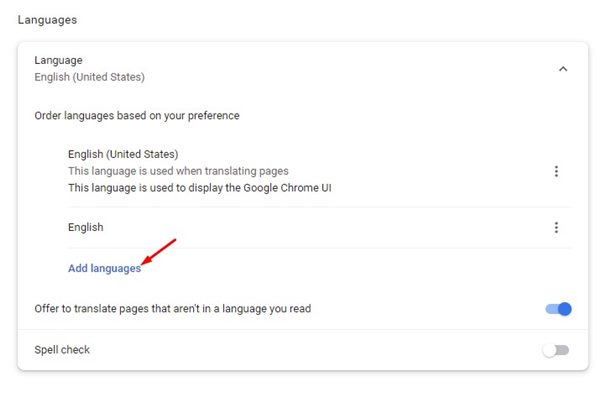
6. To add your language, click on the Add Languages.
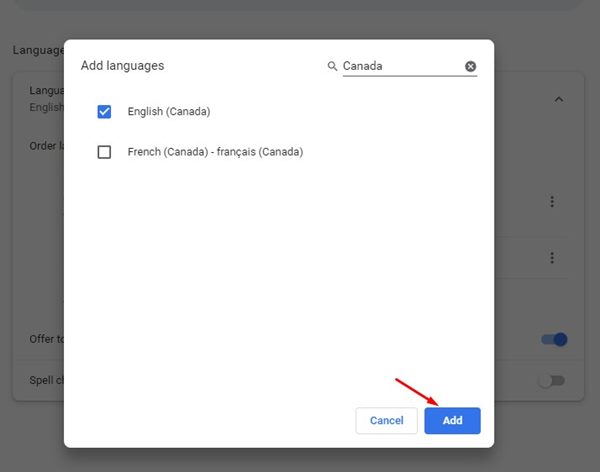
7. Select the language you want to use and click Add.
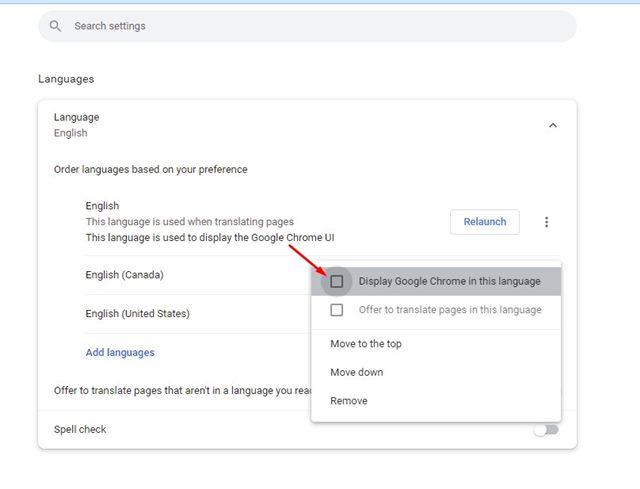
8. Once the language has been added, tap the three dots beside it and check the ‘Display Google Chrome in this language’ option.
9. To change the language of sites that aren’t in your language, you need to enable the toggle for Offer to translate pages that aren’t in your language.
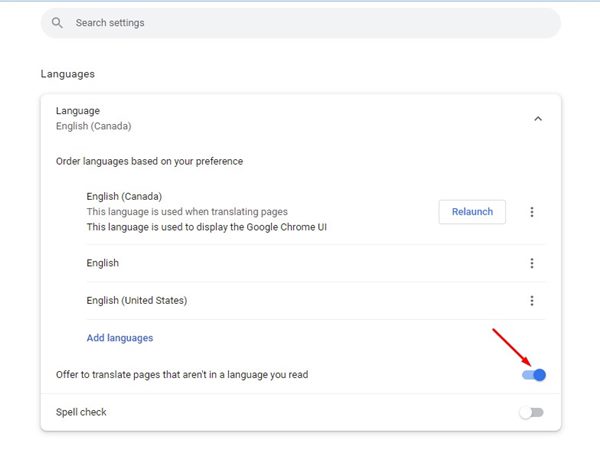
10. Click on Relaunch.
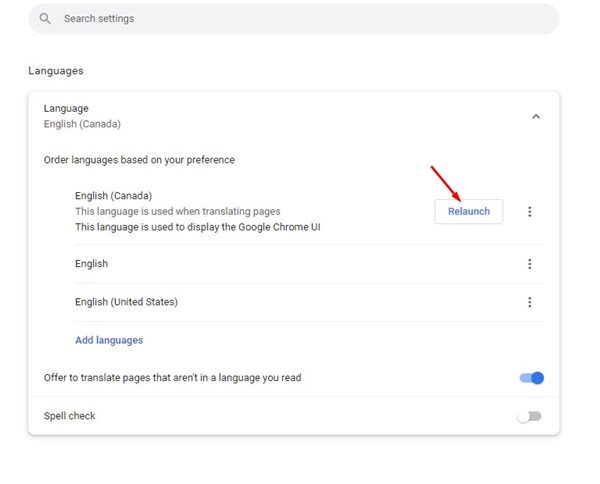
After the restart, you will find your new language and age on the Chrome menus and Settings.
That’s all about changing the display language in the Google Chrome browser for desktop. You need to follow the same steps to roll back the changes or switch to a different language.
The post How to Change Display Language in Google Chrome appeared first on TechViral.
from TechViral


0 Comments