

Sound Equalization or Loudness Equalization is a Windows 11 feature that equalizes the sound levels on your computer. The feature is supposed to balance the fluctuating volume levels on your Windows 11 computer or laptop. Loudness Equalization is part of the Audio Enhancement options in Windows 11 and can be enabled in Sound Settings.
Enable Sound Equalization on Windows 11
Sound or Loudness Equalization can be enabled from Windows 11’s settings.
1. Click the Windows 11 Start button and select Settings.
2. Switch to the System.
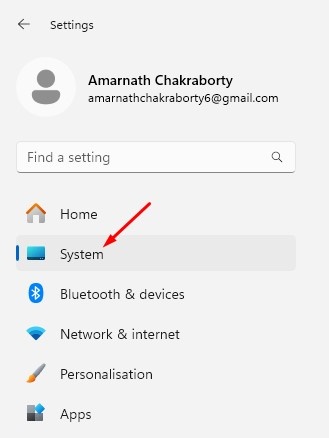
3. Click on Sound.

4. Scroll down and click on More Sound Settings.

5. Select your connected speaker and click Properties.

6. Switch to the Enhancements.

7. Check the Loudness Equalization.
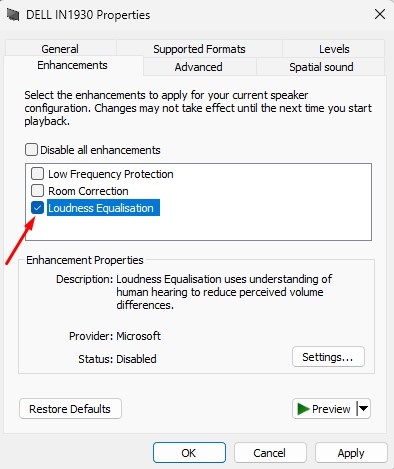
8. After making the changes, click Apply and OK.

Disable Audio Enhancements on Windows 11
While enabling audio enhancements like Loudness Equalization on Windows 11 may require going through several dialog boxes, disabling them is super easy.
1. Click on the Windows 11 Start button and select Settings.
2. Switch to System.
3. Click on Sound.
4. Select the Speaker under Output.

5. Scroll down to the Audio Enhancements section. Click the drop-down next to the Audio Enhancements and select Off.

That’s how easy it is to turn on Sound Equalization on a Windows 11 computer. If you need more help normalizing sound in Windows 11, let us know in the comments.
The post How to Enable Sound Equalization on Windows 11 appeared first on TechViral.
from TechViral


0 Comments