
One of the most frustrating issues you may encounter is the Microsoft Edge ‘Can’t connect’ issue. The web browser shows a ‘Can’t connect’ error instead of loading the webpage. If you’re dealing with the same problem, here’s what you should do.
1. Check Your Internet
An internet connection is the primary reason for the Microsoft Edge can’t connect problem. You should check whether your internet is working. Even if the internet is working, check its current speed. If the internet is slow, you need to contact your ISP and ask them to fix it.
2. Restart PC and WiFi
Minor bugs and glitches can sometimes trigger connection issues, leading to the Microsoft Edge browser showing a ‘Can’t connect’ screen. The best way to deal with such bugs and glitches is to restart the PC as well as your WiFi router.
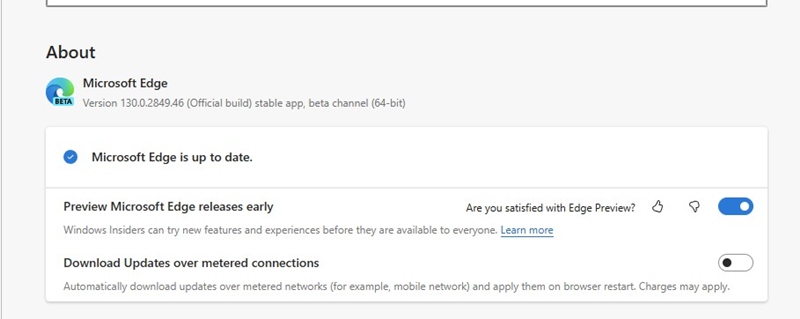
3. Update the Microsoft Edge Browser
You may be using an outdated version of Microsoft Edge on your PC. To solve this problem, you can update your Microsoft Edge browser to the latest version.
To do so, click on the three dots at the top right and select Help and Feedback > About Microsoft Edge.
On the next screen, Microsoft Edge will automatically download & install the pending updates.
4. Repair Microsoft Edge
Lots of Reddit users have claimed to fix Microsoft Edge can’t connect issues just by repairing the web browser. You can try doing it as well.
1. Launch the Settings app.
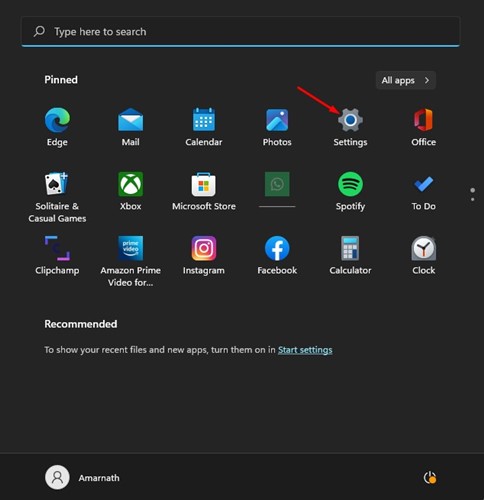
2. Navigate to Apps > Installed Apps.
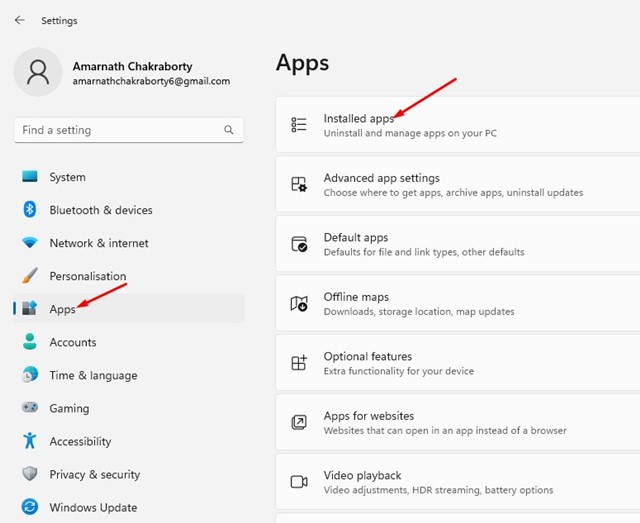
3. Find Microsoft Edge.
4. Tap on the three dots next to it and select Modify.
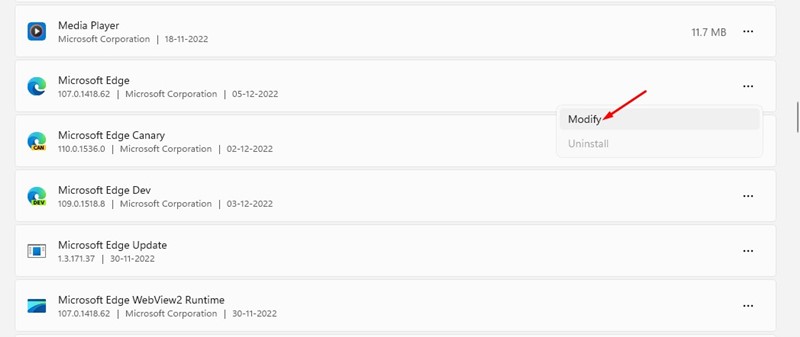
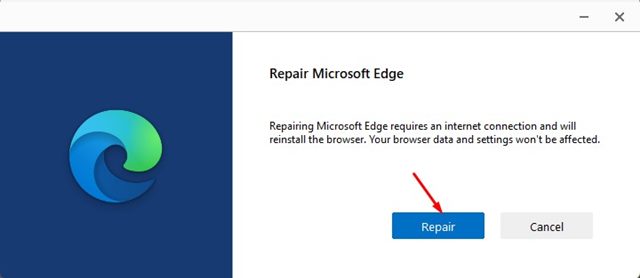
5. On the Repair Microsoft Edge prompt, click Repair.
5. Reset the Edge Browser
If nothing else worked to fix the problem, resetting the browser settings to their defaults is the only option left.
1. Launch Microsoft Edge on your PC.
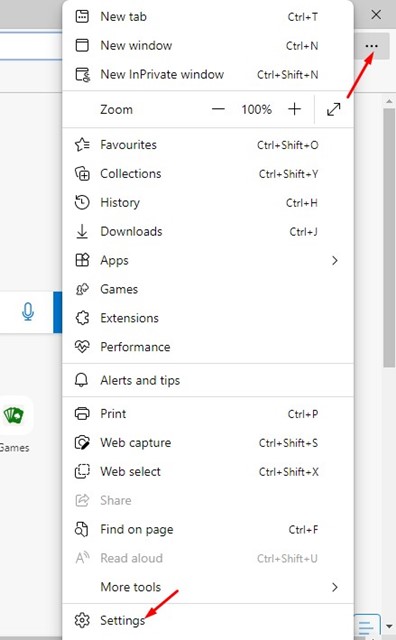
2. Click on the three dots at the top right and select Settings.
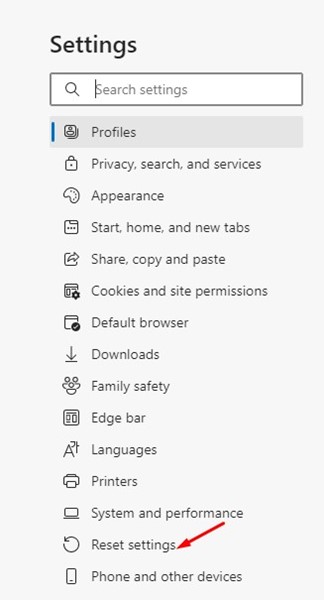
3. Click Reset Settings.
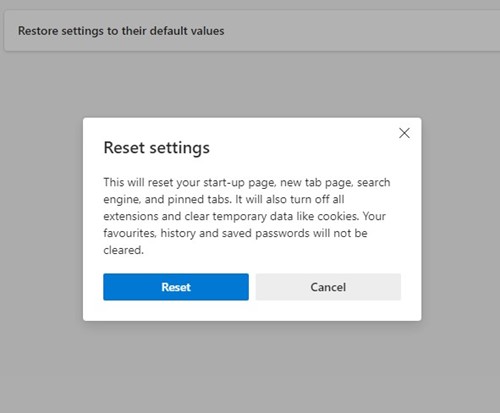
4. Click Restore browser settings to default.

5. On the Reset confirmation prompt, click Reset.
These are a few simple ways to fix Microsoft Edge can’t connect issues. If you need more help on this topic, let us know in the comments.
The post 5 Ways to Fix Microsoft Edge Can’t Connect Problems appeared first on TechViral.
from TechViral


0 Comments