

Some users have reported encountering the error when logging in to their Spotify accounts. The complete error message states:
“A firewall may be blocking Spotify. Please update your firewall to allow Spotify. Additionally, you could try changing the currently used proxy settings (Error code:auth:3)”
This problem generally appears due to Firewall, if it appears, here’s what you should do.
1. Restart your computer
Maybe Spotify is showing you the error message because of a bug or glitch, and you don’t have anything wrong.
If you don’t use any VPN/Proxy service, it’s best to restart your computer. To restart a Windows computer, click the Windows Start button > Power option and select Restart.
After the restart, open the Spotify desktop app and log in to your account.
2. Turn off the VPN
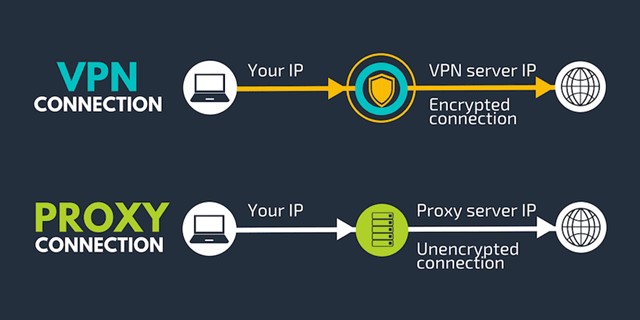
While there’s an option to modify the Proxy settings on the Spotify desktop client, if you are using a VPN, you need to keep it disabled.
When you connect to a VPN, the Spotify client attempts to connect to a server in a different region. If the server is far from your location, the desktop client will fail to connect and show you the error message.
So, if you are using a VPN program on your Windows computer, it’s best to disconnect it for a while and check.
3. Allow Spotify Through Firewall
You should manually allow Spotify through the Windows Firewall. Here’s what you should do.
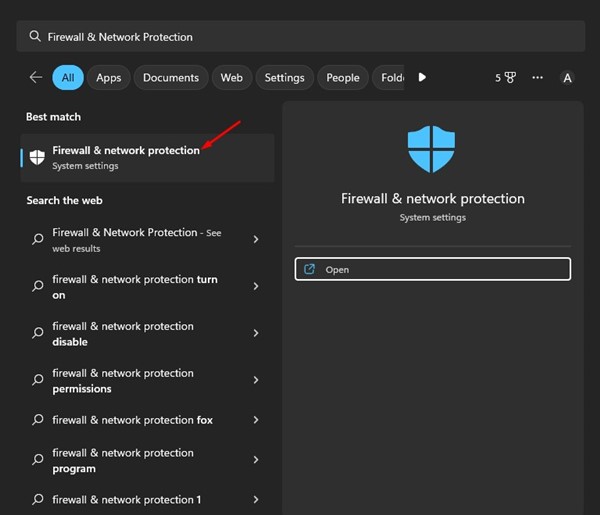
1. Open the Firewall & Network Protection from Windows Search.
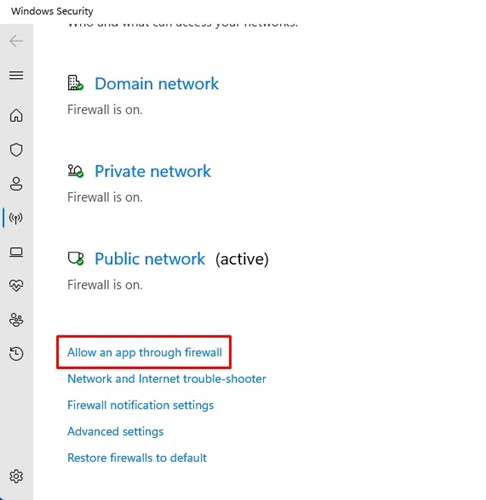
2. Scroll down and click Allow an app through firewall.
3. Click on Change Settings.
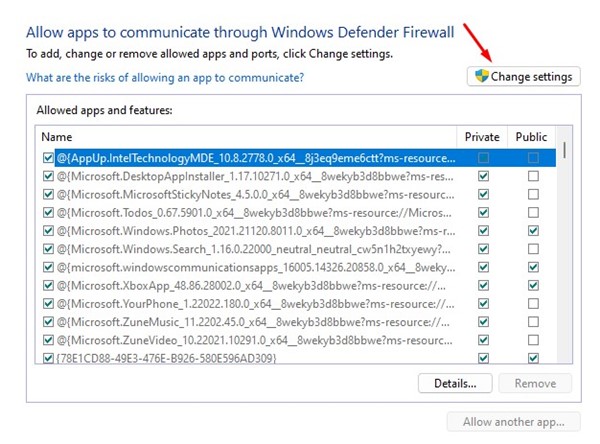
4. Find Spotify Music and check the box for both Private and Public.
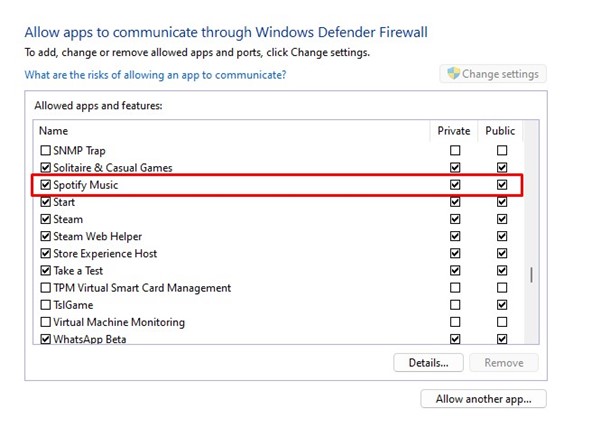
5. After making the changes, click OK.
4. Disable Proxy Settings on the Spotify App
This method will disable the Proxy Settings on the Spotify desktop client to resolve the ‘A firewall may be blocking Spotify’ error message.
1. Open the Spotify app from the Windows Search.
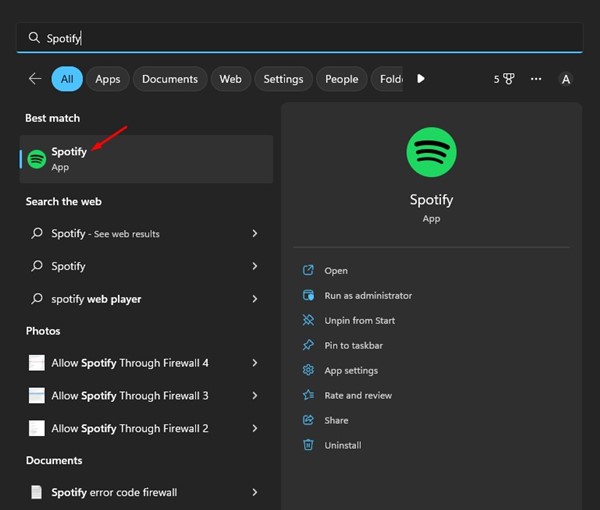
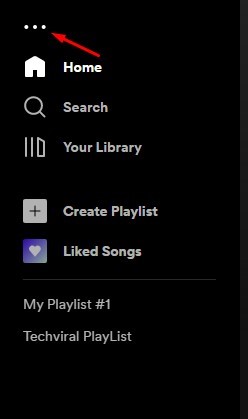
2. Click the three dots in the top-left corner.
3. Hover your cursor over Edit and select Preferences.
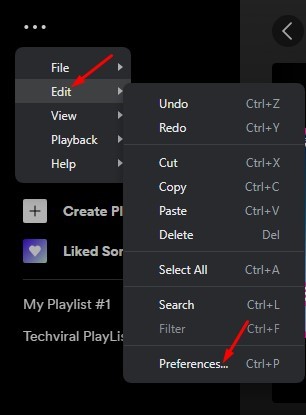
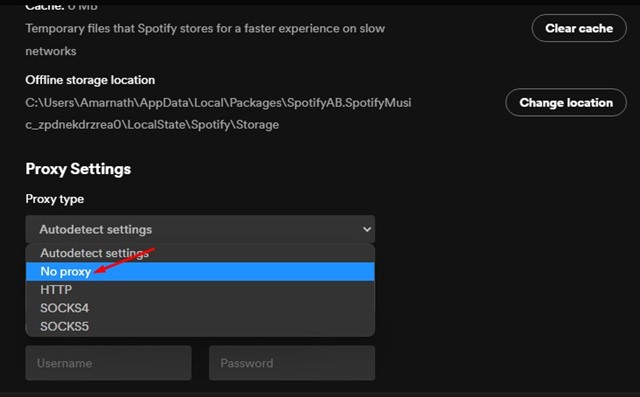
4. Scroll down to the Proxy Settings. On the Proxy Type, select No Proxy.
5. Select the Correct Region on your Spotify Account
We don’t know how it works, but many Spotify users have claimed to fix the error by selecting the right country or region on their account.
1. Open the Spotify app on your web browser and sign in to your account.
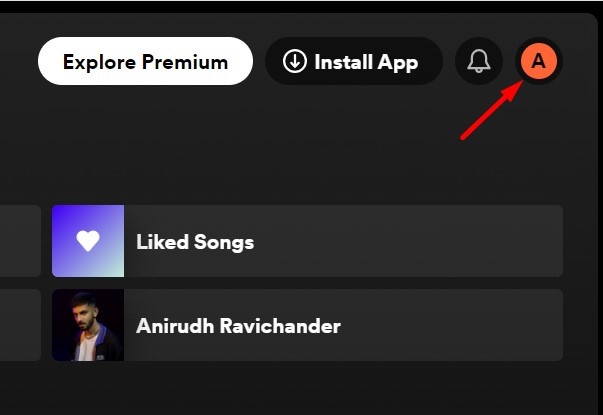
2. Click the Profile icon in the top right corner.
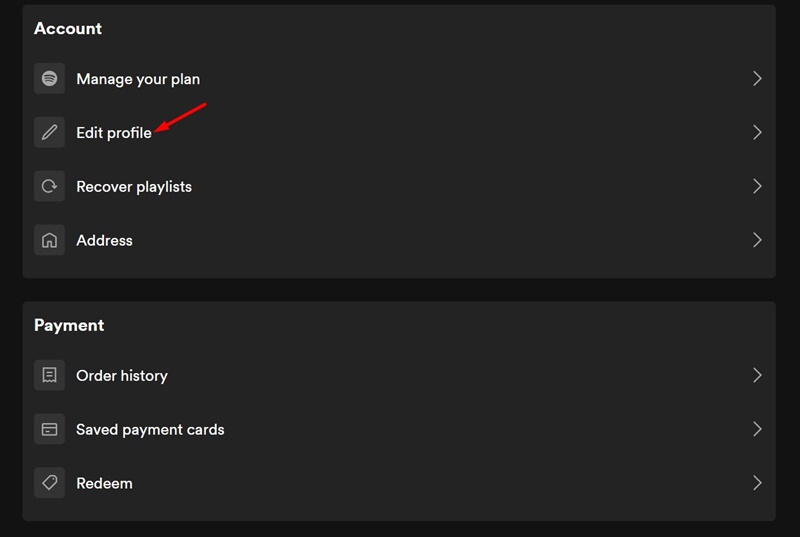
3. On the menu that appears, select Edit Profile.
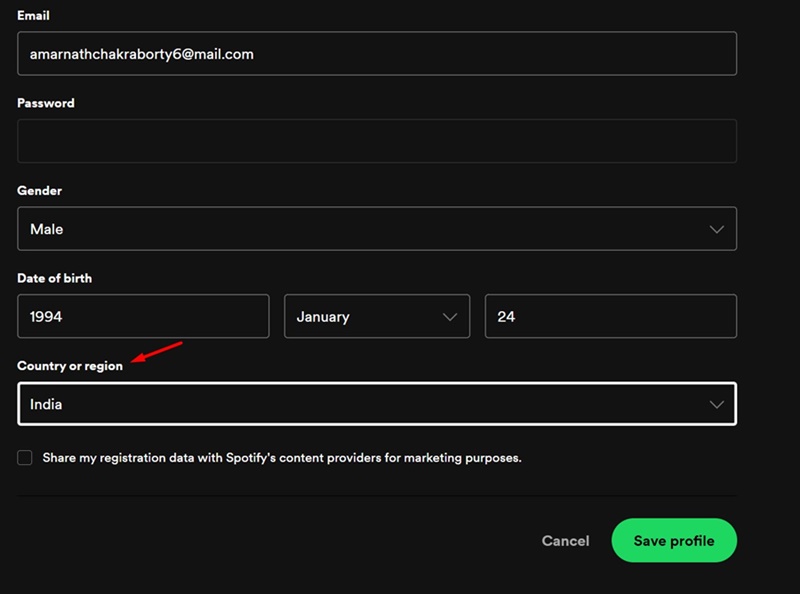
4. Click on the drop-down menu under Country or Region and select the appropriate option. Once done, click Save Profile.
After making the change, reopen the Spotify app on your PC. This should fix the issue.
6. Reinstall the Spotify Application
Reinstallation has no connection to a proxy or VPN, but it will rule out corrupt app files. It will remove all your settings and user data. To reinstall Spotify, open the control panel and uninstall the Spotify app. Once uninstalled, download & install the latest version of Spotify on your computer.
If you need more help resolving the Spotify Firewall error code, let us know in the comments. Also, if the article helped you, share it with your friends.
The post How to Fix ‘A Firewall May Be Blocking Spotify’ appeared first on TechViral.
from TechViral


0 Comments