
If you want to back up your Chrome bookmarks without opening the browser, you can manually locate the bookmarks file and save it to a safe location. This way, you can restore your bookmarks later, even if they aren’t synced with your Google Account.
Find Location of Chrome Bookmarks Windows 11
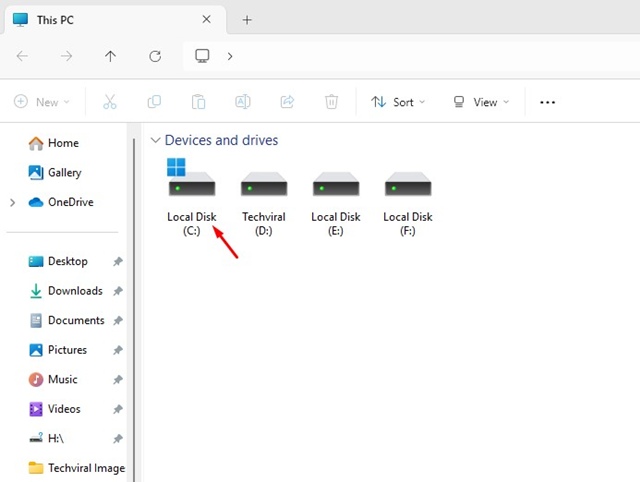
1. Launch This PC (File Explorer).
2. Navigate to the C: Drive.
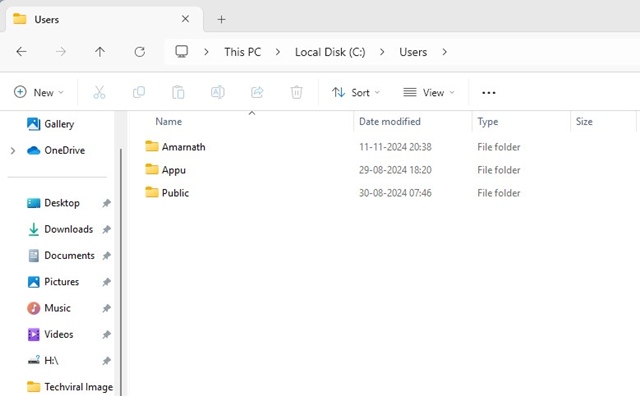
3. Navigate to Users > Username.
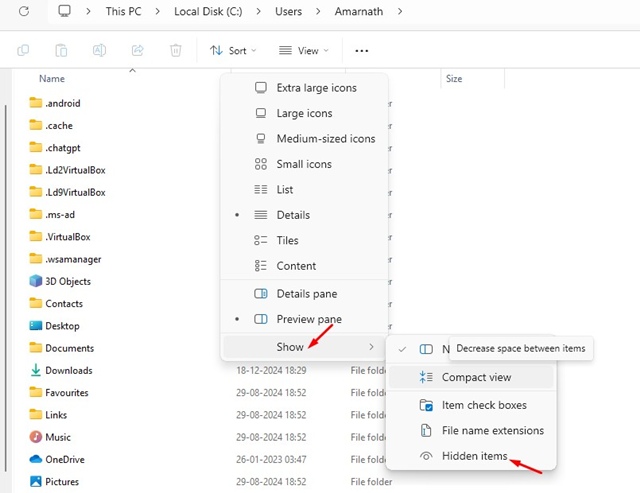
4. Click on the View drop-down and select Show > Hidden Items.
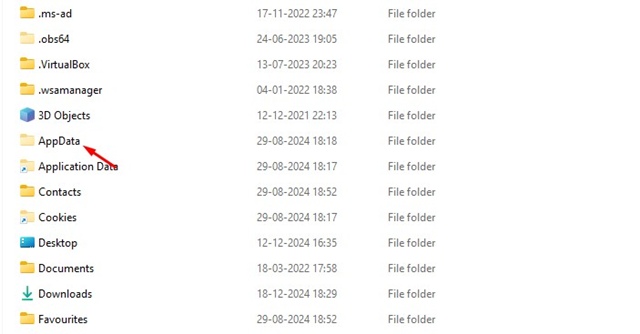
5. Find and double-click the AppData.
6. Navigate to the Local > Google > Chrome > User Data > Default.
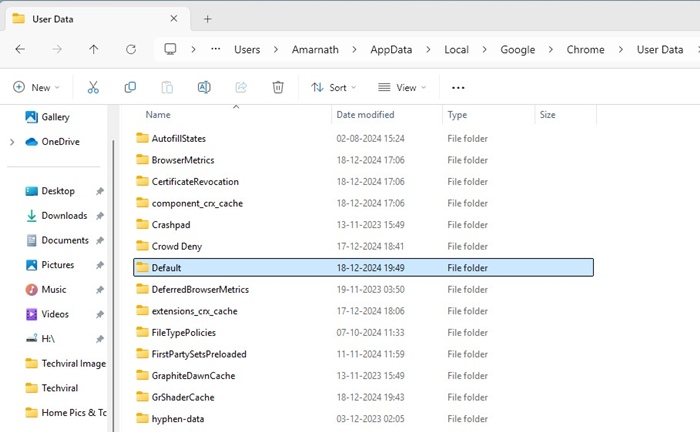
7. Find the Bookmarks and Bookmarks.bak files.
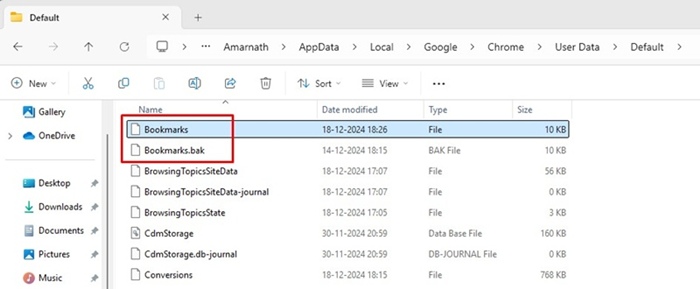
8. The Bookmarks are your current bookmarks, and the Bookmarks.bak is the bookmarks that you’ve already deleted.
How to Back Up Chrome Bookmarks?
You can back up your bookmarks manually; copy the Bookmarks and Bookmarks.bak files and paste them into a safe location.
Whenever you want to access your Chrome bookmarks, you can paste these two files into the AppData > Local > Google > Chrome > User Data > Default folder.
This is the exact location of Chrome Bookmarks on Windows 11. We have also shared the steps to back up Chrome bookmarks. Let us know if you need more help with this topic in the comments.
The post Location of Chrome Bookmarks Windows 11 – How to Find it? appeared first on TechViral.
from TechViral


0 Comments