
Depending on your needs, you may sometimes want to add or upgrade the RAM in your Windows 11 pc. While adding more RAM to a computer is pretty easy, your motherboard should have an additional memory slot. If your motherboard doesn’t have any additional memory slots left, purchasing a new RAM Stick makes no sense.
So, before purchasing a new RAM stick, ensure that your motherboard has an extra slot left for the new addition. The good thing is that you don’t need to open the chassis of your PC to check the available RAM slot; you need to use either Task Manager or CMD/PowerShell to check the available memory slot in Windows 11.
1. Check Available Memory Slots via Task Manager
You can use Windows 11’s Task Manager to check the available memory slots.
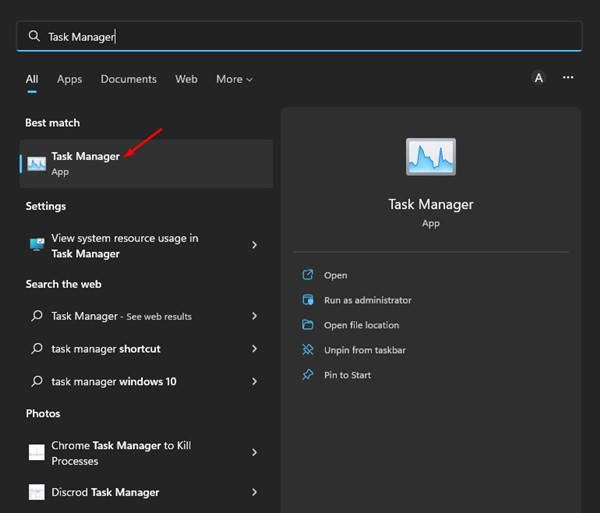
1. Open Task Manager from the Windows Search.
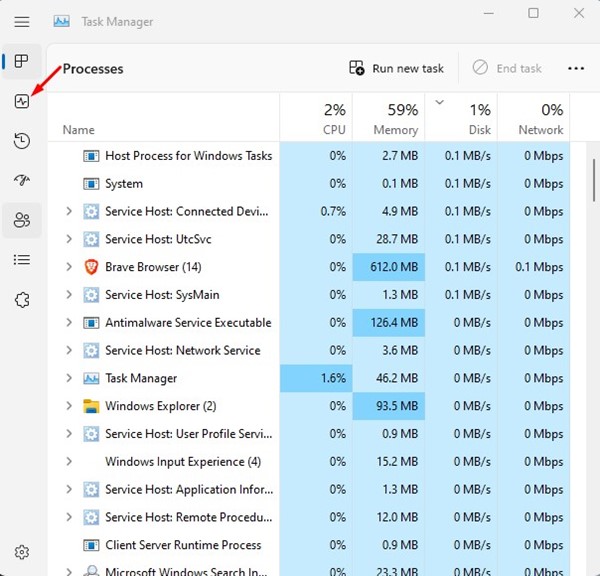
2. In Task Manager, switch to the Performance tab.
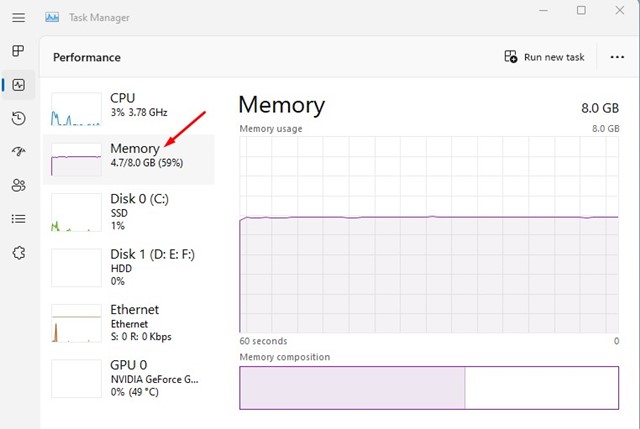
3. On the Performance screen, select Memory.
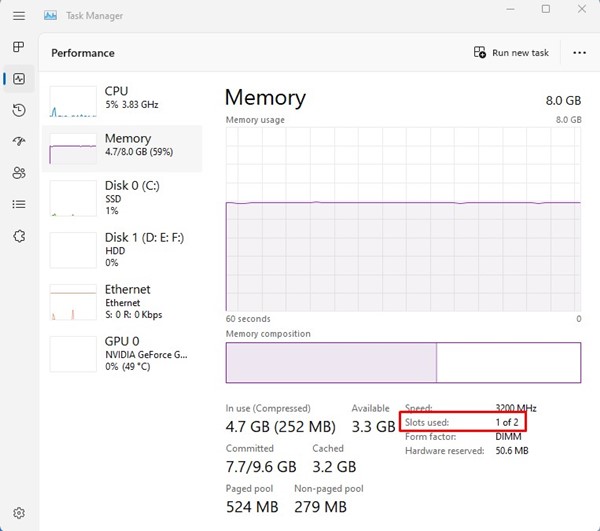
4. On the right pane, scroll down and check the Slots used.
2. Find Available Memory Slots via PowerShell
Like Task Manager, you can also use the PowerShell utility to find available memory slots on Windows 11.
1. Click on the Windows 11 search and type PowerShell. Next, open the PowerShell utility from the list of options.
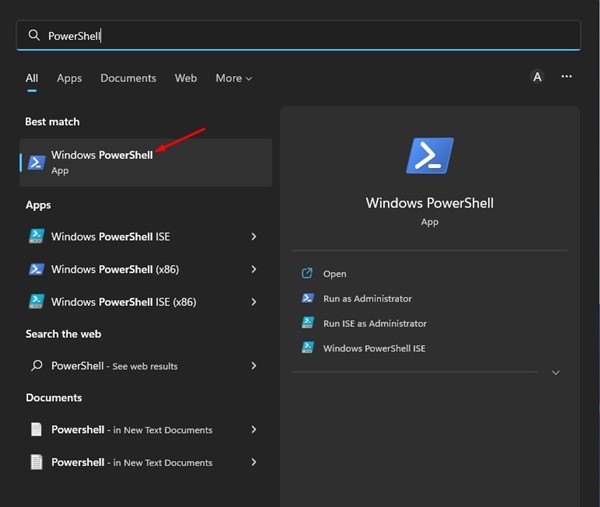
2. In PowerShell, execute the command:
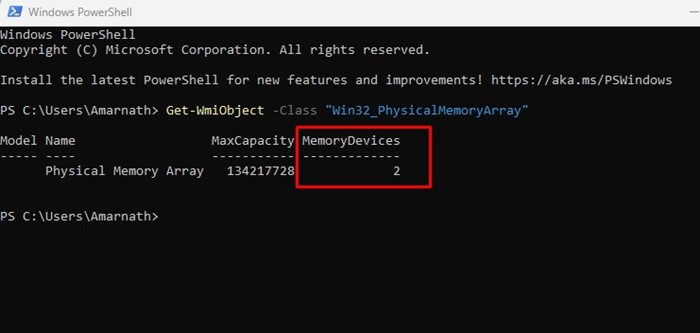
Get-WmiObject -Class "Win32_PhysicalMemoryArray"
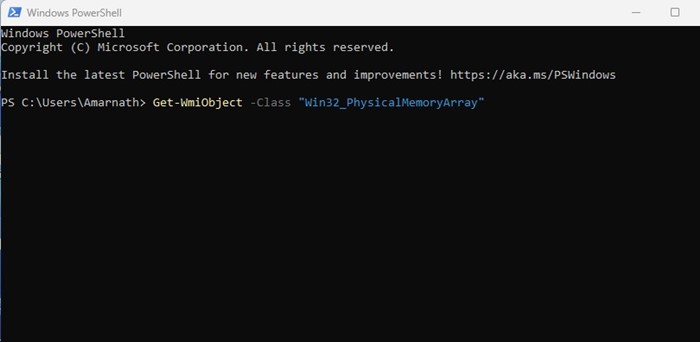
3. The digit under the Memory Devices indicates the total number of memory slots on your motherboard.
3. Find Available Memory Slots via Command Prompt
You can also use Command Prompt to find available memory slots on Windows 11 computers.
1. Click on the Windows 11 search and type in Command Prompt. Next, open the Command Prompt app from the list of matching results.
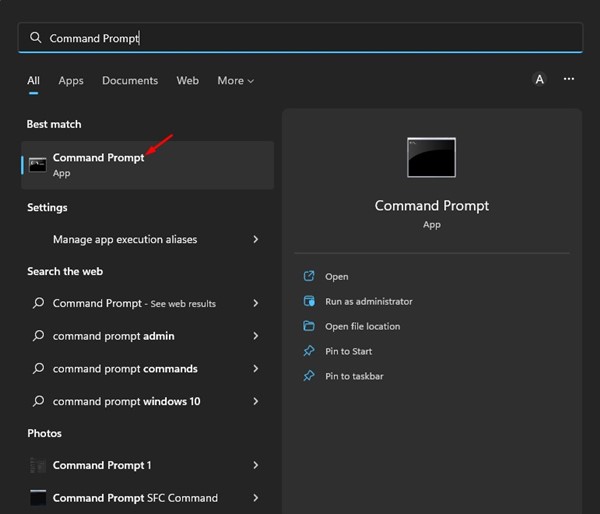
2. In the Command Prompt, paste the given command and hit the Enter button.
wmic Memphysical get MaxCapacity, MemoryDevices
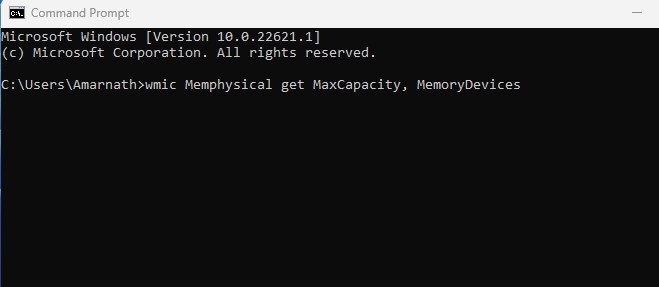
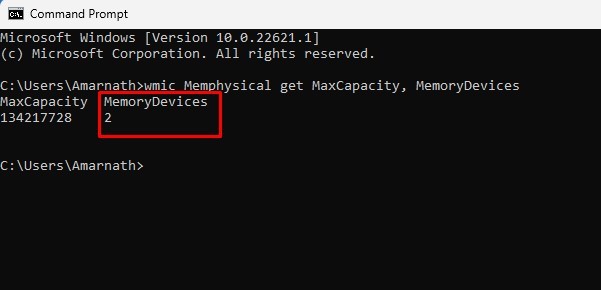
3. The digit under the Memory Devices column indicates the total number of memory slots on your motherboard.
Also Read: How to Repair & Reset WhatsApp App in Windows 11
Before upgrading your computer, it’s best to have as much information about your system as possible. It’s recommended to check your PC’s full specifications on Windows 11 before upgrading the hardware components. So, that’s all about how to find available memory slots on Windows 11. If you need any more help, let us know in the comments.
The post How to Find Available Memory Slots on Windows 11 appeared first on TechViral.
from TechViral


0 Comments