
Windows has a Virtual printer that converts images into PDF files. To convert your PNG files into PDF, you need to use the context menu Print function. Below, we have shared two of the best and easiest ways to convert PNG images to PDF files.
1. Convert PNG to PDF on Windows
In this method, we will use Microsoft’s Print function to convert the PNG files to PDF. Here’s what you should do.
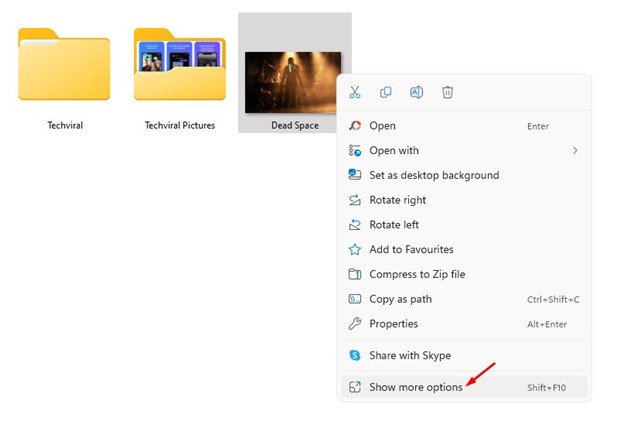
1. Open the folder where you stored the PNG files. Right-click on the PNG file and select Show more options.
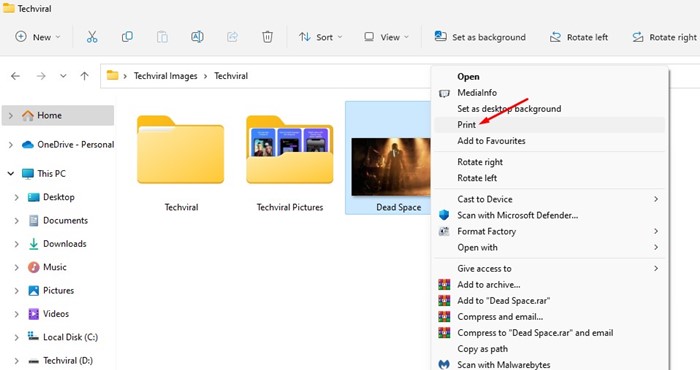
2. Select the Print option.
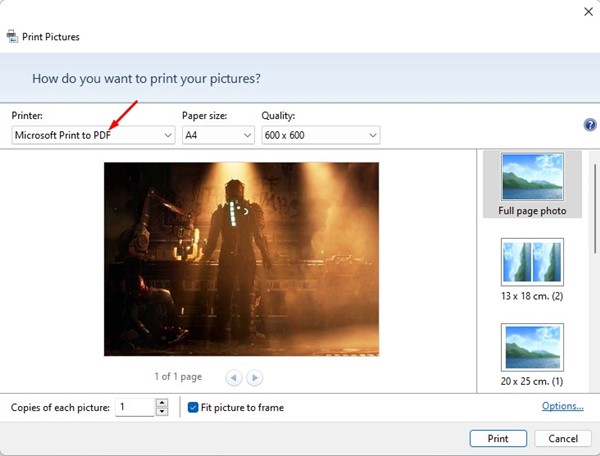
3. Click the Printer dropdown and select Microsoft Print to PDF.
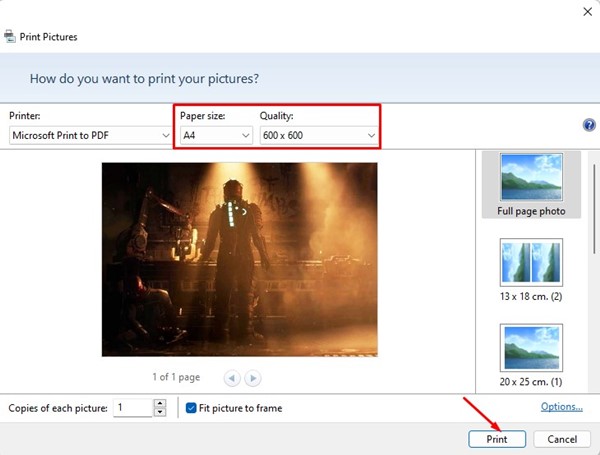
4. Make all other adjustments, such as Page Size and quality. Once you’re done, click on Print.
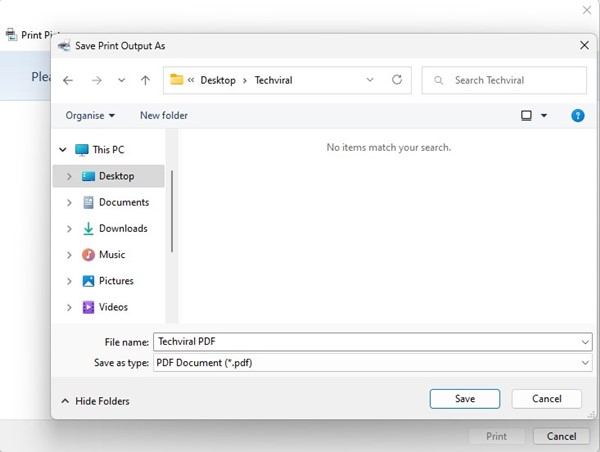
5. Select the location where you want to save the PDF file. Once you’ve done this, click Save.
2. Convert PNG to PDF on Windows Using PDF X
PDF X is the ultimate PDF editing and reader tool you can use today. It’s available on the Microsoft Store and can be downloaded for free.
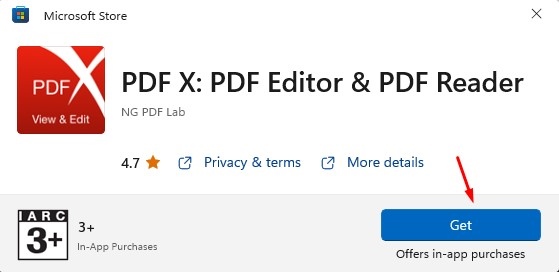
1. Download & install PDF X on your Windows 11 from the Microsoft Store.
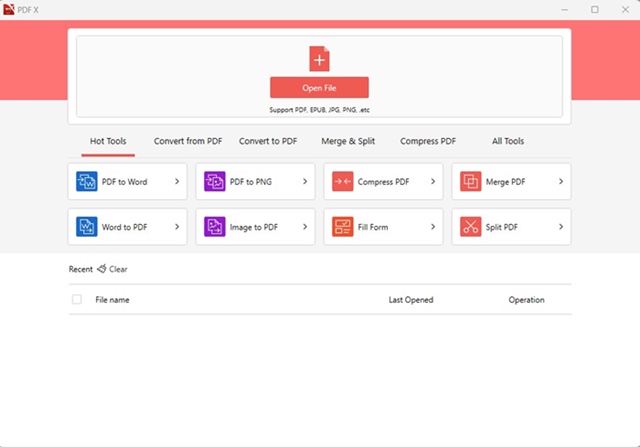
2. Open the PDF X tool on your PC.
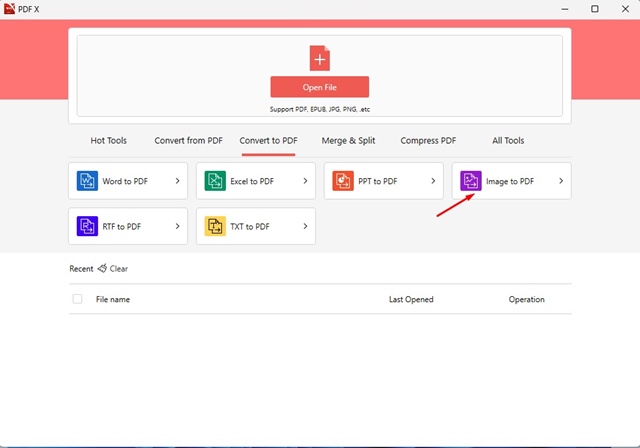
3. Switch to the Convert to PDF section.
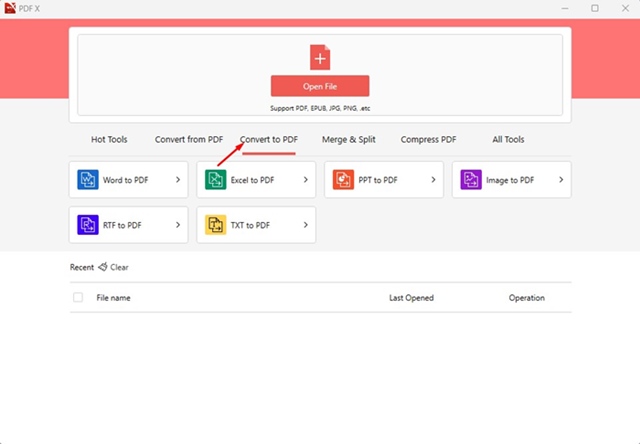
4. Select the Image to PDF option.
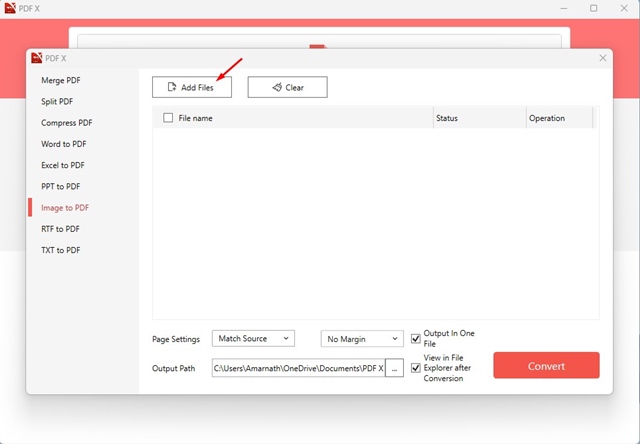
5. Click on the Add Files button at the top. Select the PNG file you want to convert to PDF.
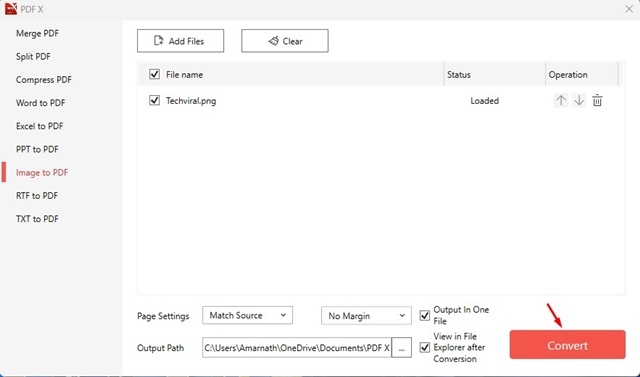
6. Click on Convert.
3. Convert PNG to PDF using Smallpdf
SmallPDF is a web tool for managing PDF files. The site offers you many different tools for PDFs, such as PDF converters, PDF Compressors, Merge, and more. You can use the site to convert your PNG images to PDF for free.
1. Open your favorite web browser and visit this website.
2. This will open Smallpdf’s JPG to PDF converter. Don’t go by its name; it’s a JPG to PDF converter that works with PNG files.
3. Click Choose Files and select the PNG file you want to convert to PDF.

4. Click the Convert button.
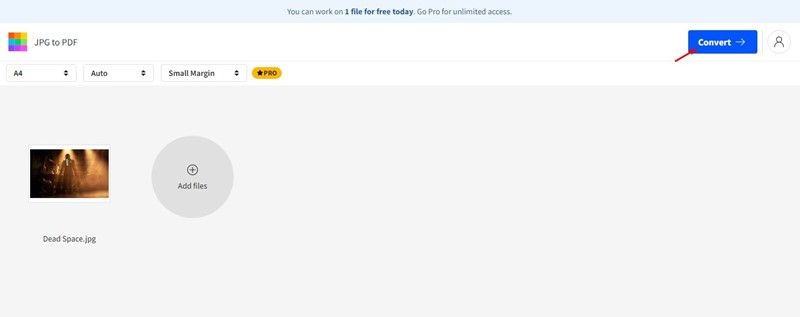
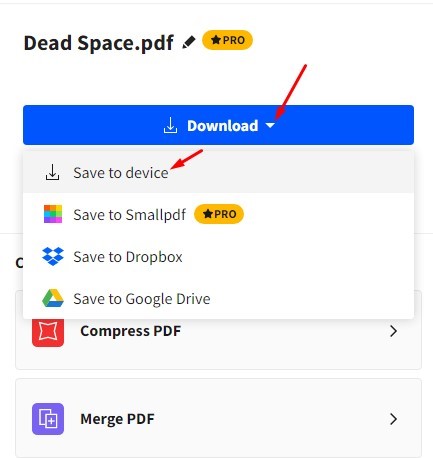
5. Wait until the web tool converts your PNG file to PDF. Once done, click the Download button and select the Save to Device option.
How to merge multiple images into a PDF in Windows 11?
The first method of the article that requires the use of the Print Pictures tool can merge multiple images into a PDF in Windows 11. Instead of selecting a single image, press & hold CTRL to select multiple image files.
Once selected, right-click on them and select Show More Options > Print. On the Print Pictures, select Microsoft Print to PDF on the Printer and click Print. The output PDF file will have multiple pages, showing all the images you’ve merged into it.
Also Read: 10 Best Free Sites to Edit PDF Files Online
These are the best methods for converting PNG files to PDF for free on Windows. If you know of other ways to convert PNG files to PDF, let us know in the comments below.
The post How to Convert a PNG To PDF on Windows 11 appeared first on TechViral.
from TechViral


0 Comments