

Chrome can often display videos with a greenish-purple hue due to GPU acceleration, which forces Chrome to use your video card to render the videos. When Chrome’s GPU process ends abruptly, it shows a green and purple hue on the video. If you are dealing with the same issue, here’s what you should do.
1. Restart the web browser
The green or purple video screen in the Chrome browser is often a result of a bug. So, restart the Chrome browser.
After the restart, play the video again. If you still face the problem, follow the next methods.
2. Disable Hardware Acceleration in Chrome
Hardware acceleration is the prominent reason for green and purpose colored-hue in the videos. Hence, you should disable the feature and check.
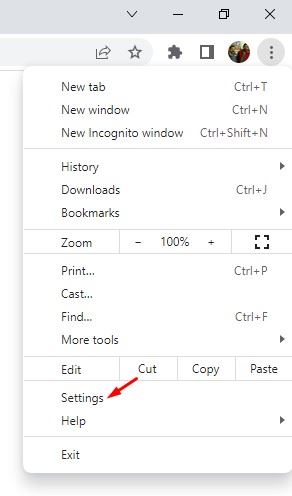
1. Open the Chrome browser and click on the three dots.
2. From the list of options, click Settings.
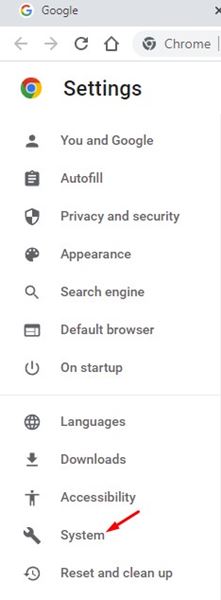
3. Click System.
4. Disable the toggle for Use hardware acceleration when available.
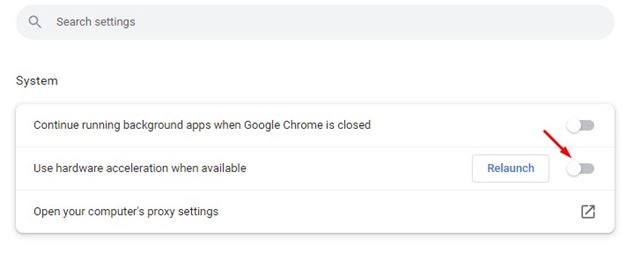
5. Click on the Relaunch button.

3. Change the Graphics Preference for Chrome
You can make some changes to the Chrome graphics preference settings to fix the problem.
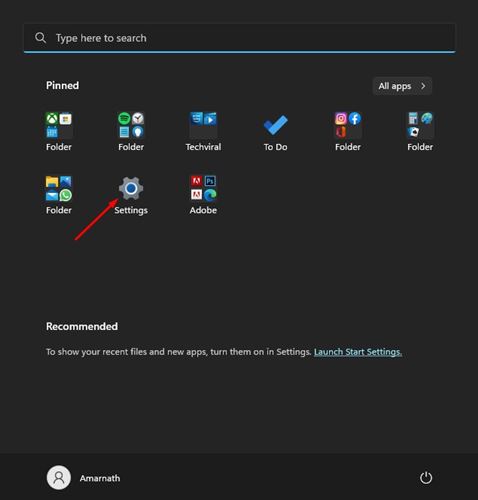
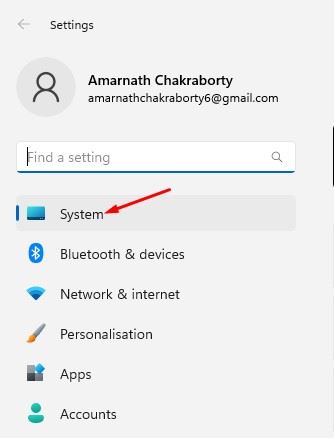
1. Click the Windows 11 Start button and select Settings.
2. Click on System.
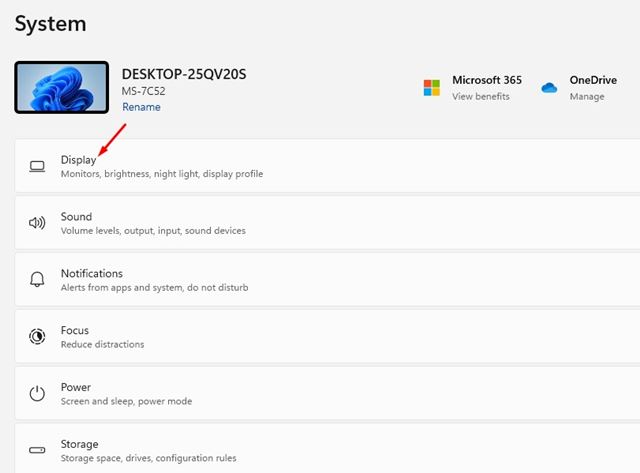
3. Scroll down and click on Display.
4. Scroll down and click on Graphics under Related Settings.

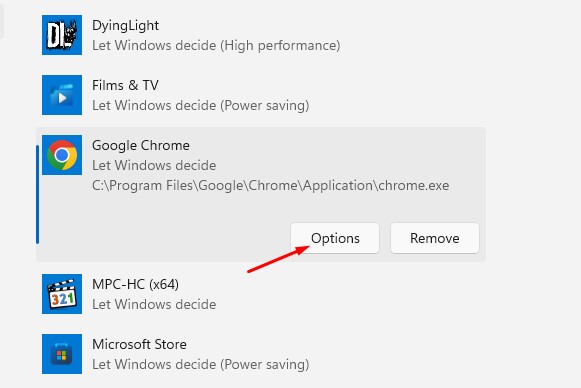
5. Select Google Chrome from the list of apps and click Options.
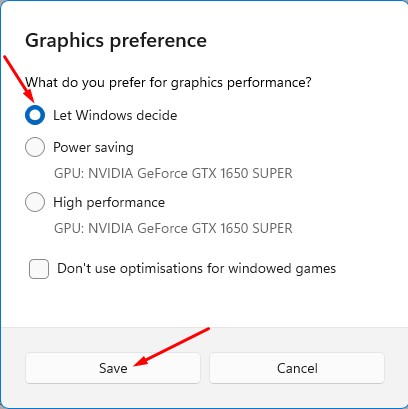
6. Select the Let Windows Decide option and click Save.
4. Update the Graphics Drivers
If the green and purple hues still appear on your videos, you must update your GPU drivers.
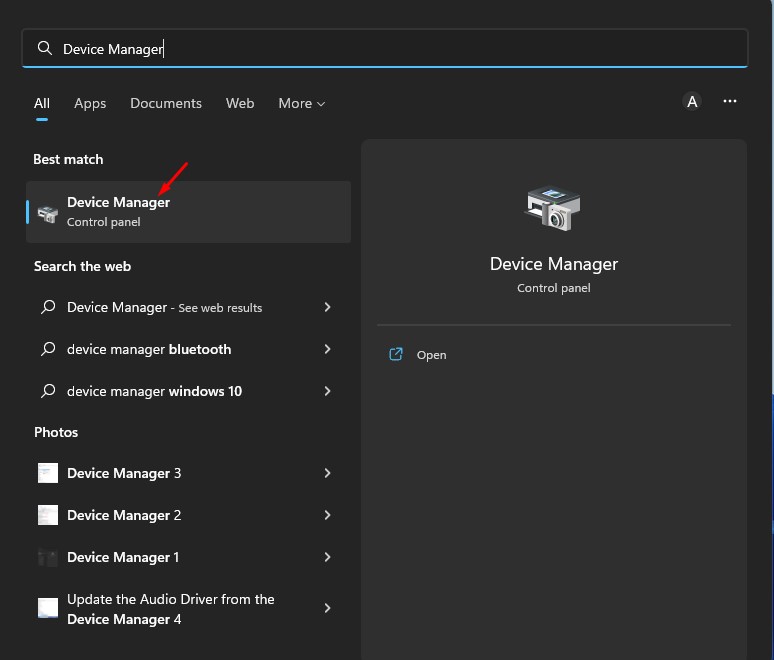
1. Click the Windows 11 search and type in Device Manager. Next, open the Device Manager app from the list.
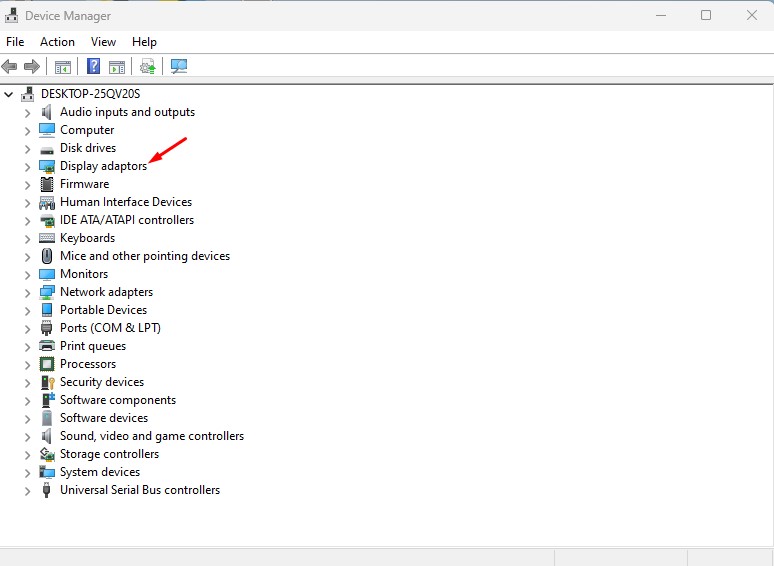
2. Expand the Display adaptors.
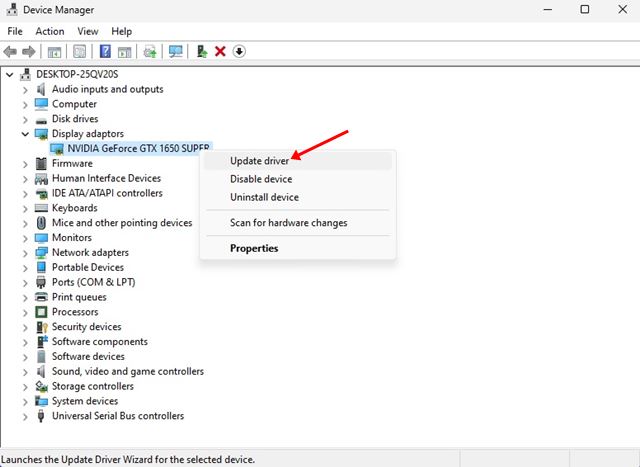
3. Right-click on your Display driver and select the Update Driver option.
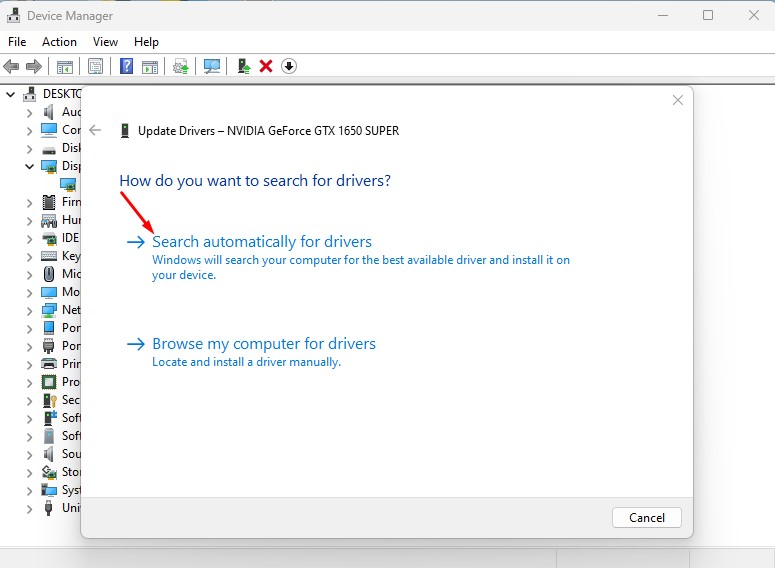
4. Click on Search automatically for drivers.
5. Update the Google Chrome Browser
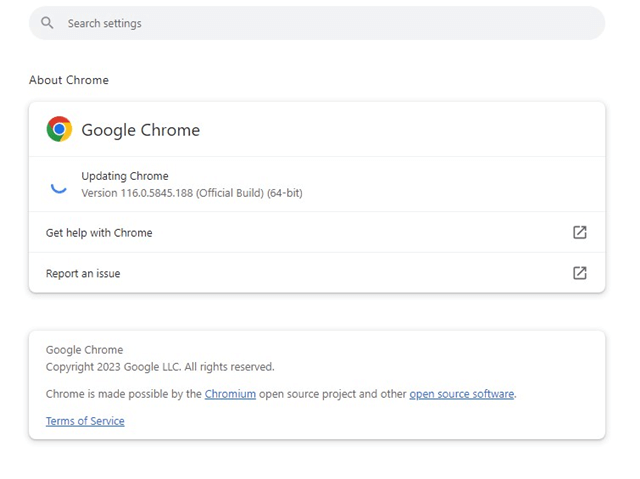
There is a higher chance that the version of Google Chrome you’re using has a bug that may be conflicting with the video playback.
Even if the problem is already fixed, it’s recommended that you update the Google Chrome browser. Updating the web browser will bring new features, fix security issues, and improve stability.
Updating Google Chrome is pretty simple; click on the three dots at the top-right corner and select Help > About Chrome. This will automatically install the pending updates.
6. Reset the Chrome Browser
If nothing has worked for you until now, the ultimate option is to reset the Chrome browser. Here’s how to reset the Chrome browser.
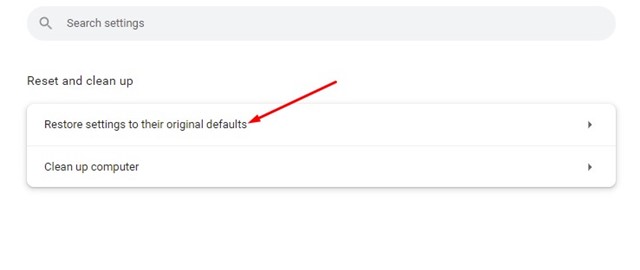
1. Open the Google Chrome browser and head to the chrome://settings/reset address.

2. On the Reset and Clean up, click on the Restore settings to their original defaults option.
3. On the Reset settings? Confirmation prompt, click Reset Settings.
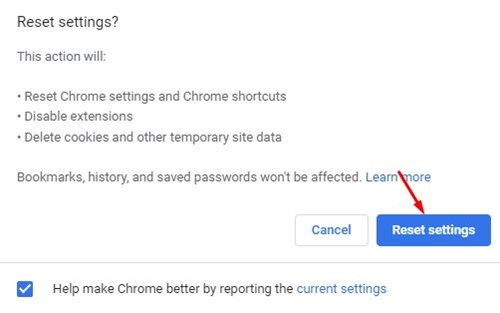
This will reset Chrome settings, shortcuts, turn off extensions, delete cookies, and temporary site data. After the reset, open Chrome and play the videos; the green and purple videos on Chrome issue will likely be fixed.
7. Reinstall the Google Chrome Browser
If the videos’ green and purple hues are still not fixed, you must reinstall the Chrome browser. To reinstall Google Chrome, you will have to uninstall it and then install it again.
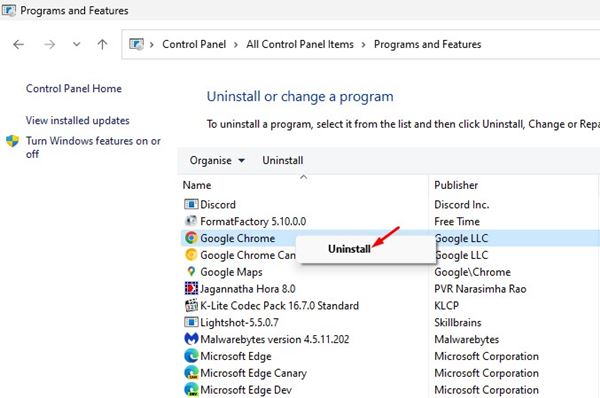
To uninstall Google Chrome, open Control Panel > Programs and Features. On Programs and Features, right-click on Google Chrome and select Uninstall. This will uninstall the Chrome browser.
Once uninstalled, you need to install the latest version of Google Chrome from this webpage. After installing Chrome, log in with your Google Account to bring back your browsing data. This would probably fix green and purple videos on your Chrome browser.
Also read: How to Reduce Google Chrome High Memory Usage
The green and Purple hue on videos is often a result of a bug, but it can destroy your video-watching experience. You can follow the methods we have shared to fix all video playback issues on the Chrome browser.
Let us know in the comments below if you know of any other ways to fix the green and purple-colored hue on the videos.
The post 7 Best Ways to Fix Green and Purple Videos on Chrome appeared first on TechViral.
from TechViral


0 Comments