
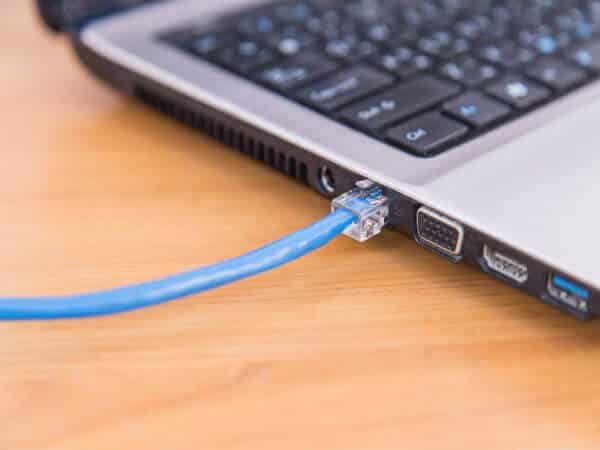
Sometimes, the DHCP fails to get a valid IP Address from the Network Interface Card (NIC), leading to the ‘Ethernet doesn’t have a valid IP configuration’ error. If you got this error, here’s what you should do.
1. Check the Ethernet Cable and Restart the Modem
One of the first things you must do is check whether the Ethernet Cable or the modem is damaged. Cables are more prone to damage, so check the Ethernet cable properly. If it’s not physically damaged, restart the modem to see if the error message persists.
2. Reinstall & Update your Network Adapter Driver
Reinstalling or updating the Network Adapter Driver is an evergreen solution to all network adapter-related problems. It effectively fixes the error.
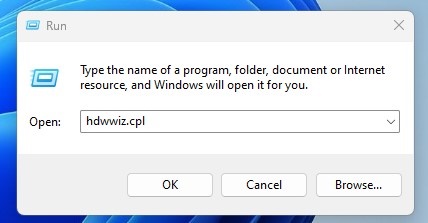
1. Press the Windows Key + R button to open the RUN dialog box. On the RUN dialog box, type hdwwiz.cpl and press Enter.
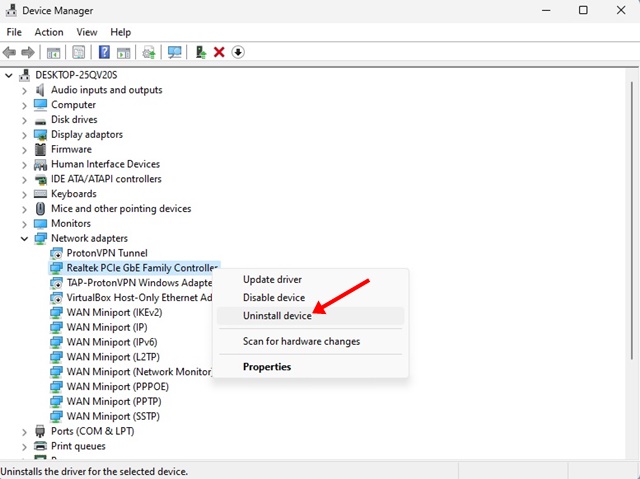
2. This will open the Device Manager.
3. Right-click on the network adapter you’re connected to and select Uninstall Device.
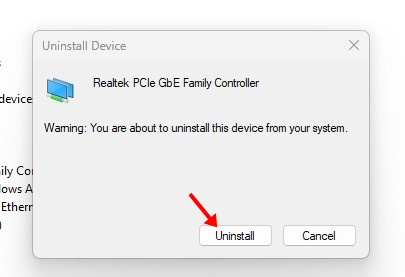
4. Click on Uninstall.
5. Right-click on the computer name and select Scan for hardware changes.
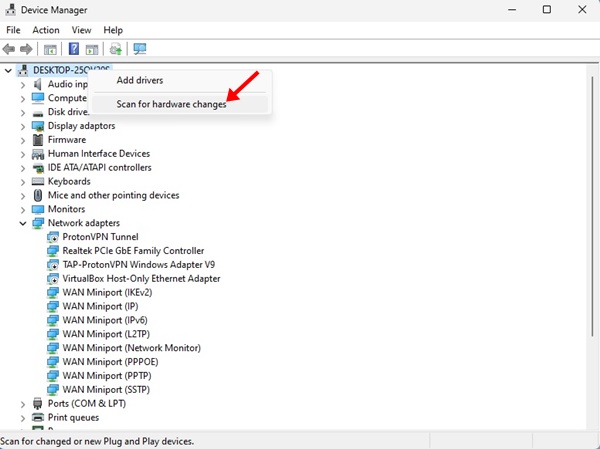
6. The uninstalled network adapter will be installed along with the latest drivers.
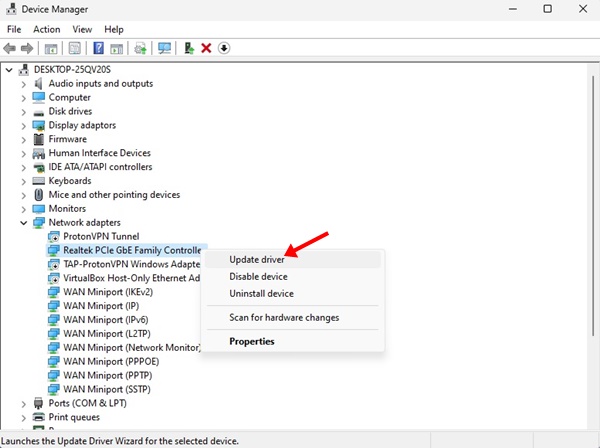
7. If you don’t want to uninstall the Network adapter, right-click on it and select Update Driver.
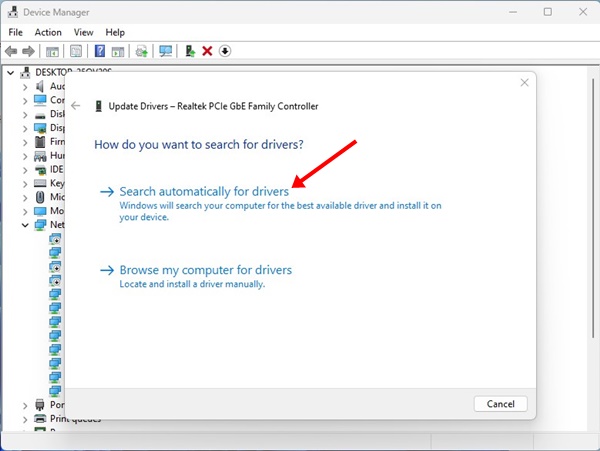
8. On the Update Drivers prompt, select Search automatically for updated driver software.
3. Run the Network Adapter Troubleshooter
If you still get the Ethernet doesn’t have a valid IP configuration error, you need to run the Network Adapter Troubleshooter.
1. Click on Windows Search and type Identify and repair network problems.
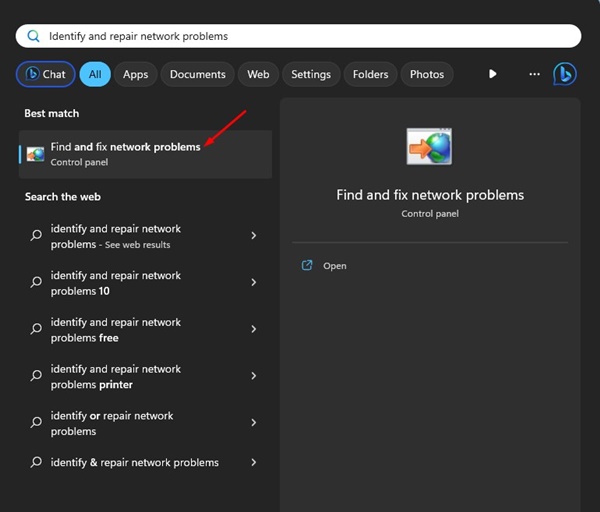
2. Open the first option from the list. This will launch the Network adapter troubleshooter.
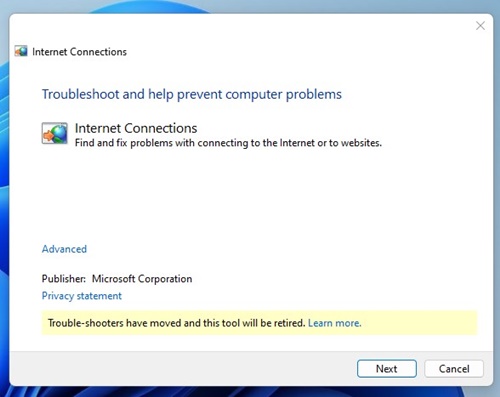
The Network Adapter Troubleshooter will run and fix the problem. If it can’t identify the problem, follow the next methods.
4. Check the Network Adapter Settings
Modern routers were designed to grab the IP Address automatically. However, sometimes, network adapters fail to catch the DNS server and IP Address automatically. So, we need to check the Network adapter settings to fix the error.
1. Press Windows Key + R on your keyboard. This will open the Run dialog box.
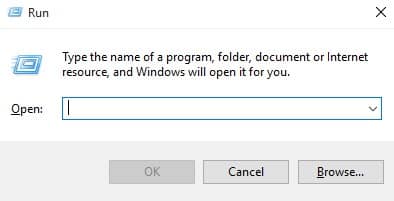
2. Type ncpa.cpl and press Enter.
3. You will see the Network Connections tab. Right-click on the current network adapter and select properties.
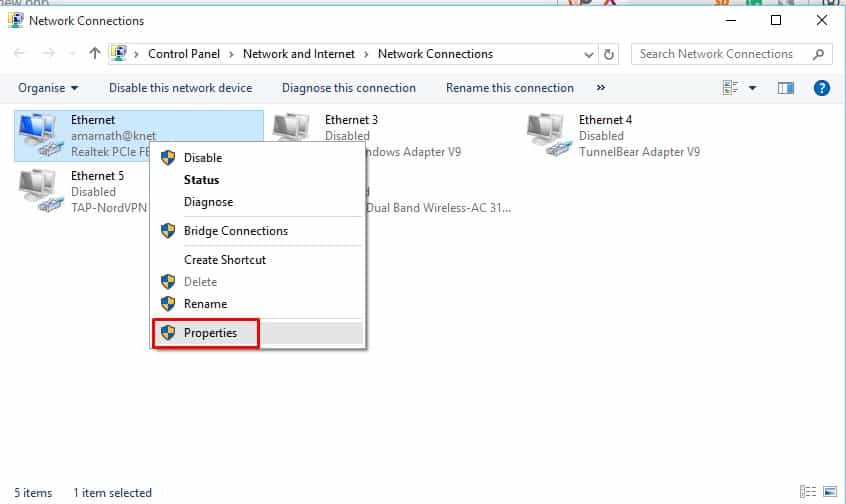
4. Under the Properties, select Internet Protocol Version 4 and click Properties
5. Select Obtain an IP Address Automatically and Obtain DNS Server Address Automatically
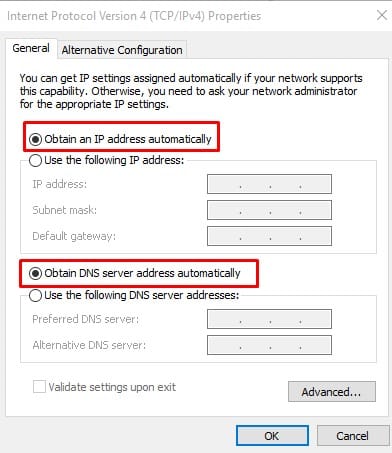
Click Apply and then OK. Restart your computer, and the ‘Ethernet doesn’t have a valid IP configuration’ error will be fixed.
5. Using Command Prompt
The command prompt on the Windows operating system can help us in multiple ways. Here’s how it can help fix the error.
1. Right-click the Windows icon and select Command Prompt (Admin).
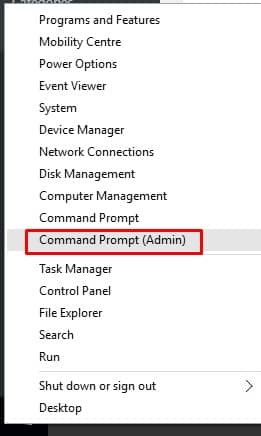
2. Execute these commands
netsh winsock resetnetsh int IP reset
6. Disable the Microsoft Kernel Debug Network Adapter
Another best option to fix the error is to disable the Microsoft Kernel Debug Network Adapter from the Device Manager. Since it doesn’t interfere with the functionality of other network adapters, you can turn it off without worry.
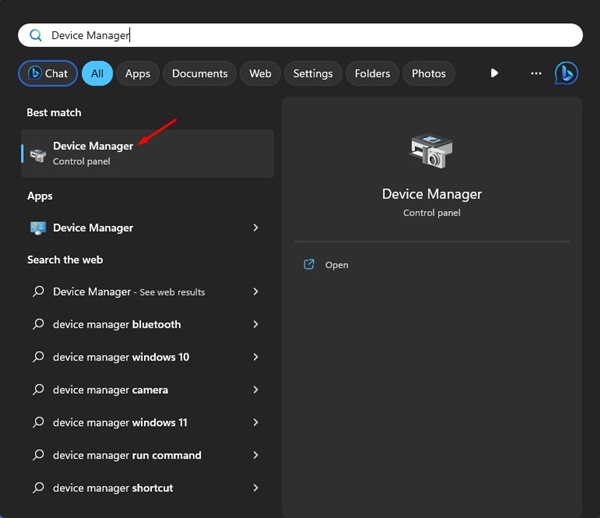
1. Open the Device Manager app from the Windows Search.
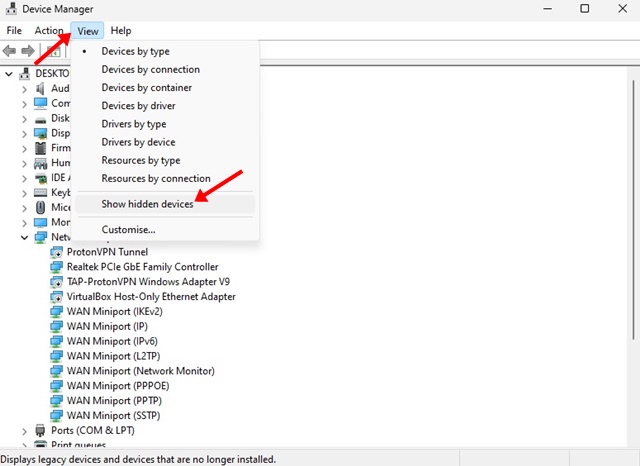
2. Click on View and click on Show hidden devices.
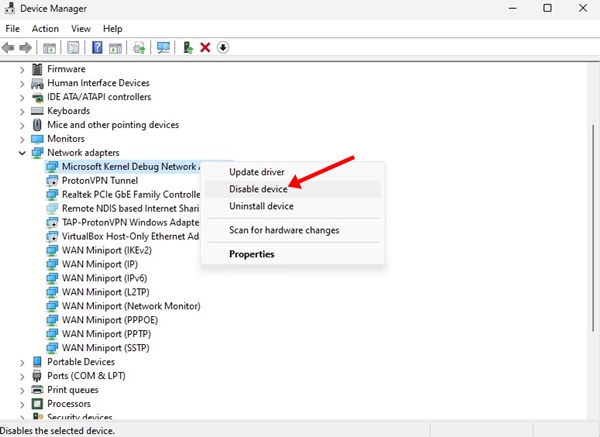
3. Expand the network adapters. Right-click on the Microsoft Kernel Debug Network adapter and select Disable Device.
7. Disable The Fast Startup
Some Windows users have reported fixing the ‘Ethernet doesn’t have a valid IP configuration’ error message by disabling the Fast Startup feature. You could try this as well.
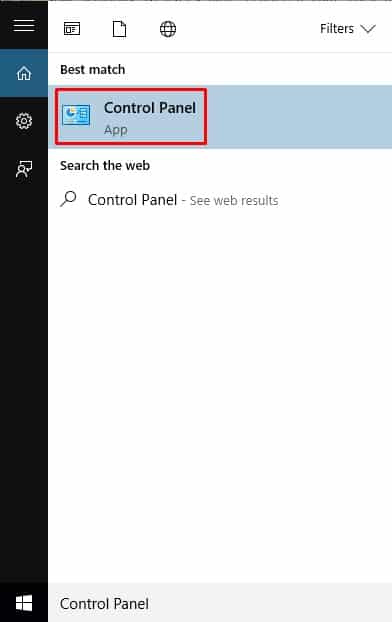
1. Open Control Panel from the Windows Search.
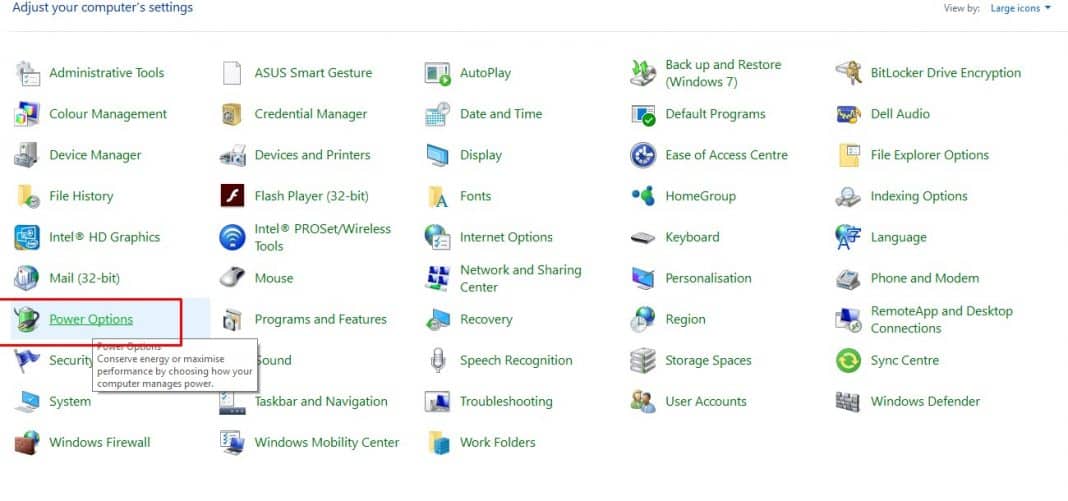
2. Click on Power Options.
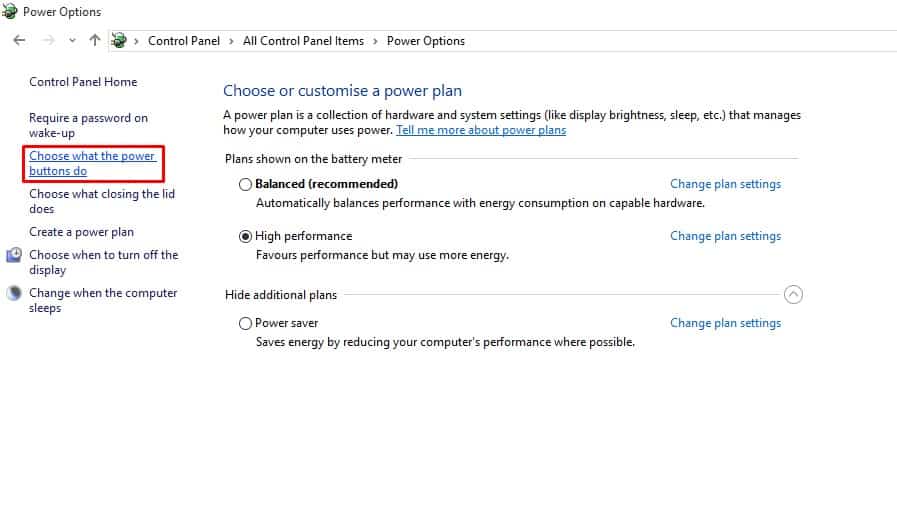
3. Click the Choose what the power button does.
4. Click the Change Settings that are currently unavailable.
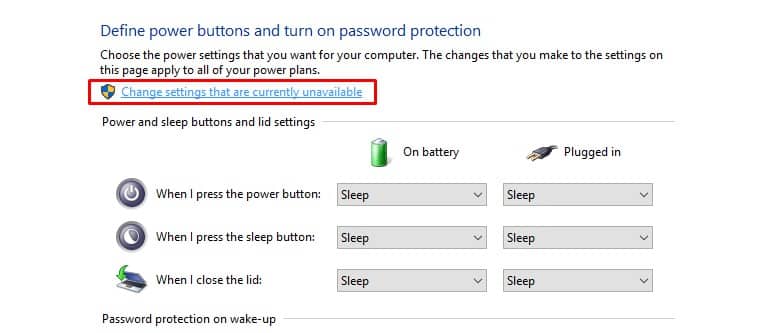
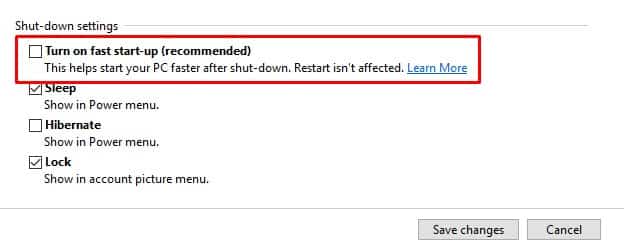
5. Uncheck the Turn on fast startup.
8. Disable IPv6
Some Windows users on Microsoft Forums have reported that they have fixed the ‘Ethernet doesn’t have a valid IP Configuration’ by disabling IPv6.
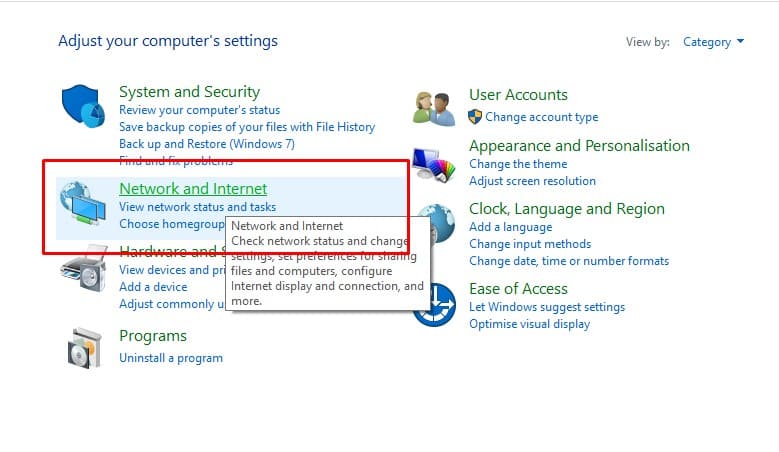
1. Open the Control Panel on Windows 10 and select Network and Internet.
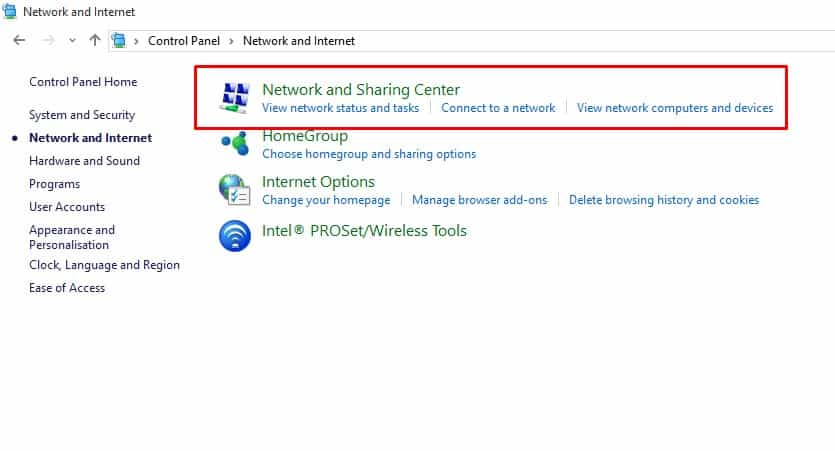
2. Select Network and Sharing Center.
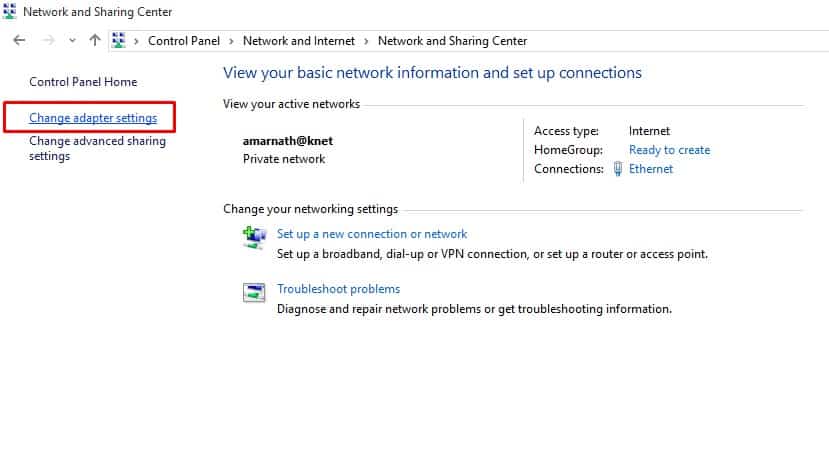
3. Select Change Adapter Settings.
4. Right-click on the connected network adapter and click on Properties.
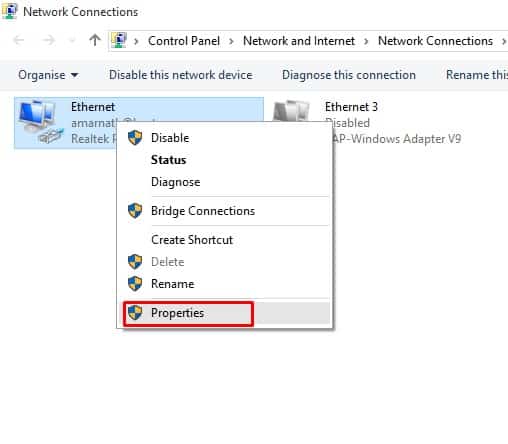
5. Find and uncheck the Internet Protocol Version 6 (TCP/IPv6) from the list.
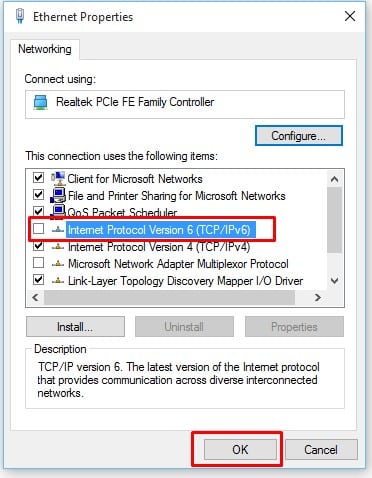
Restart your computer to fix the ‘Ethernet doesn’t have a valid IP Configuration’ error message.
These are the best methods to fix the ‘Ethernet doesn’t have a valid IP configuration’ error message. Let us know in the comment box below if you know of any other working method to fix the error.
The post How to Fix ‘Ethernet doesn’t have a valid IP configuration’ Error appeared first on TechViral.
from TechViral


0 Comments