
If you are using Windows 11, you won’t have to use a dedicated RAR extractor to extract the RAR files. Here are the various methods for opening and extracting RAR files on Windows 11.
How to Open & Extract RAR files on Windows 11
The File Explorer of Windows 11 supports RAR files out of the box. Here’s how you can open and extract RAR files with it.
1. Open the File Explorer and navigate to the folder where the RAR file is stored.
2. Double-click the RAR file to view all its contents.
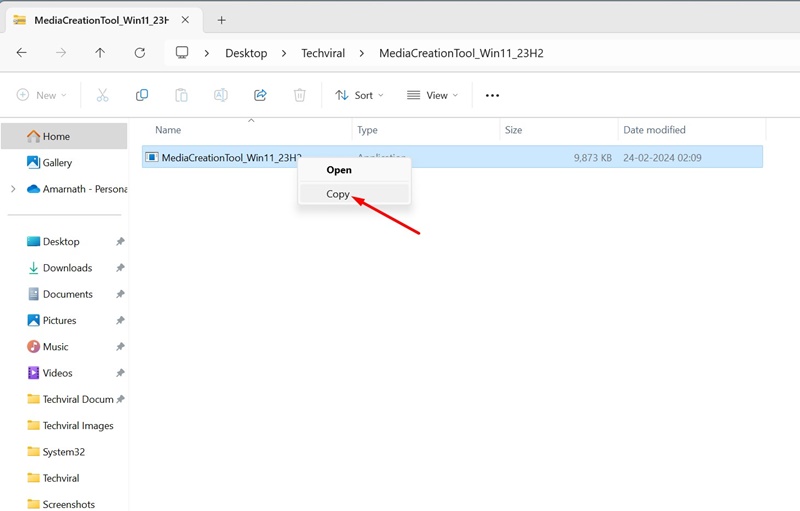
3. To extract the file, select the files, right-click, and select Copy. You can also use the Copy & Paste function to move the files.
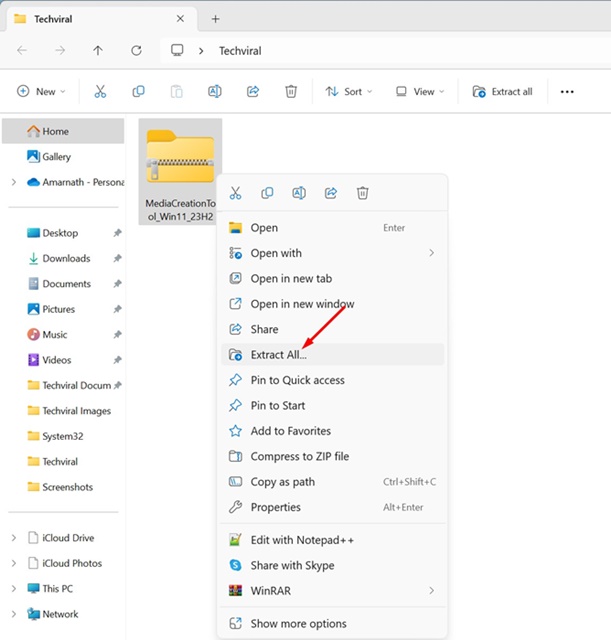
4. If you want to extract the files without opening the RAR archive, right-click on the RAR file and select Extract All.
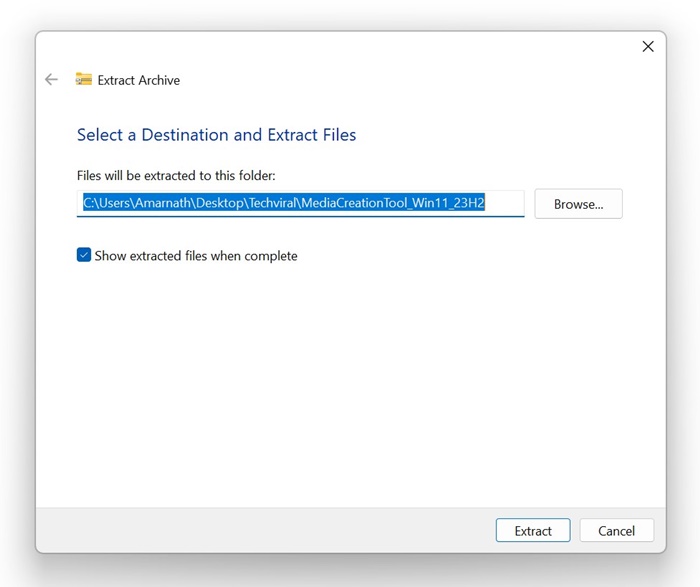
5. Select the destination where you want to save the files and click Extract.
How to Open RAR Files on Windows 11 with WinRAR
WinRAR is a third-party tool that allows you to manage the RAR file format and create new ones.
1. Download WinRAR from this webpage and install it on your computer.
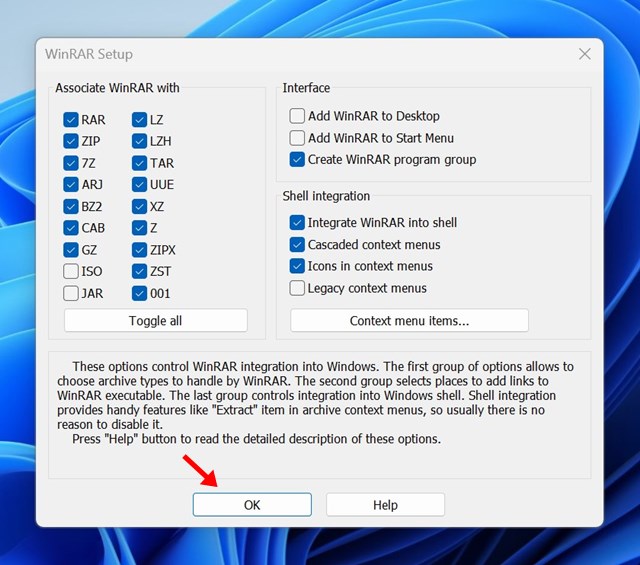
2. Navigate to the folder where the RAR file is stored.
3. Right-click on the RAR file and select Extract.
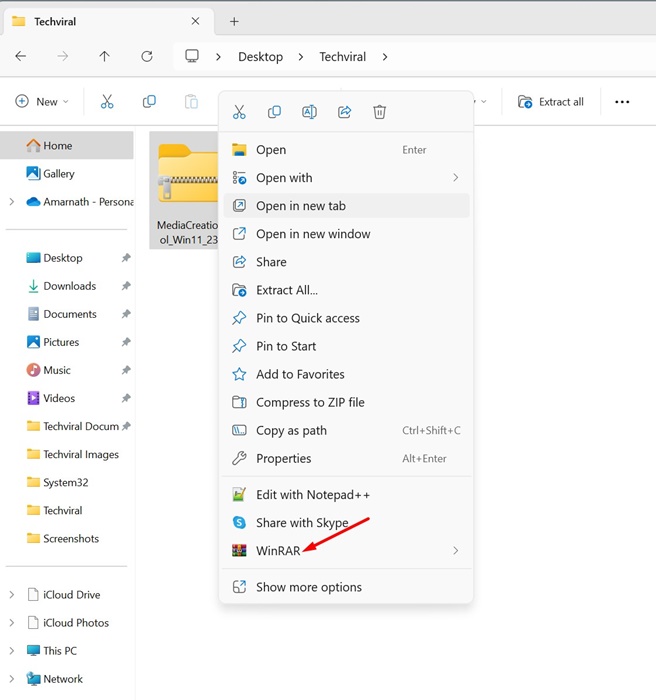
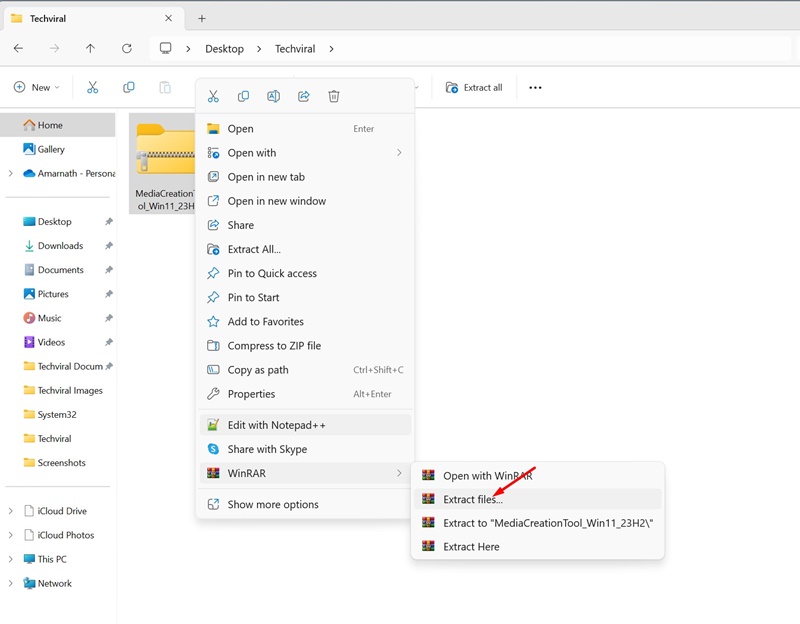
4. Select Extract Files.
5. Select the destination path and click OK.
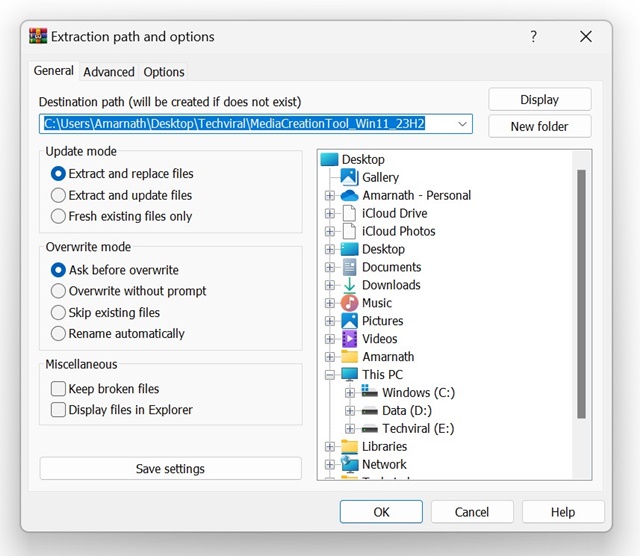
6. This will extract the RAR file to your provided destination path.
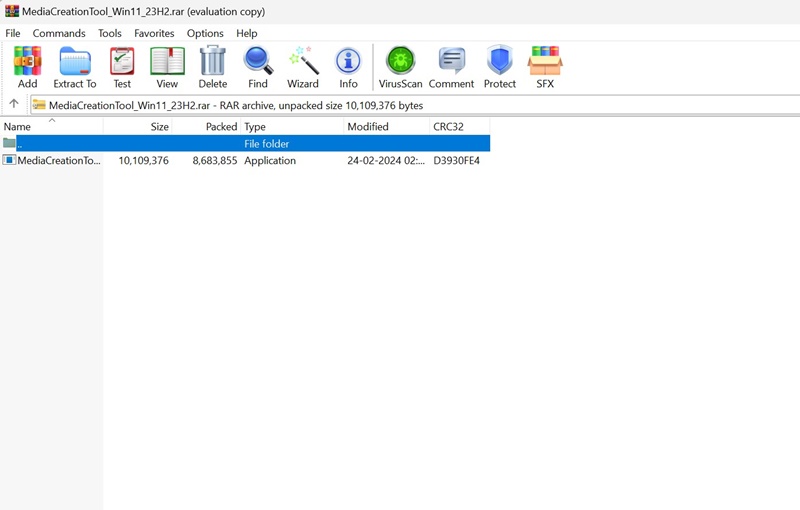
7. If you want to view the files stored on the RAR archive, double-click on the RAR file.
Other tools to compress & decompress Files on Windows 11?
WinRAR is not the only tool for compressing and decompressing files on Windows 11. Other free options are also available.
We have already shared a list of the best WinRAR alternatives; you can check out that list to know all available options.
Download the tools from a trusted or official website to avoid security or privacy issues.
This tutorial explains how to open and extract RAR files on a Windows 11 PC. Let us know if you need more help opening or extracting RAR files on your Windows 11 computer or laptop.
The post How to Open and Extract RAR files on Windows 11 appeared first on TechViral.
from TechViral


0 Comments