
When the Stolen Device Protection is enabled, knowing only the passcode of your iPhone won’t be enough to view or change the sensitive information stored on it.
The feature will ask you to go through some extra security measures, like Biometric authentication, before performing actions like accessing passwords, autofilling payment methods, viewing the Apple Virtual card number, etc.
How to Turn Off Stolen Device Protection on iPhone?
We have shared a detailed guide on how to turn on Stolen Device Protection on iPhone. If you’ve enabled the feature before, but don’t know how to turn it off, here’s how to do it.
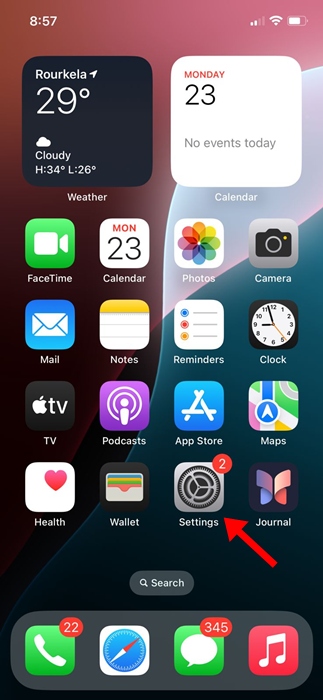
1. Launch the Settings app.
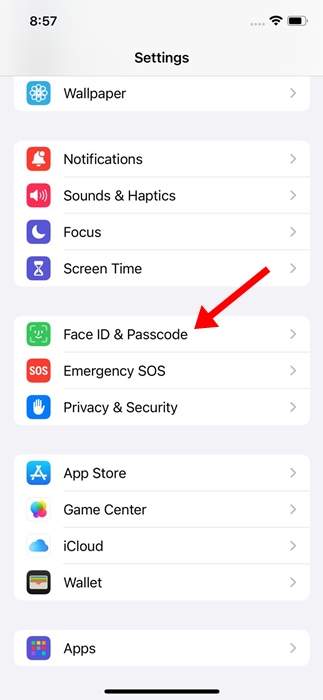
2. Tap on Face ID & Passcode.
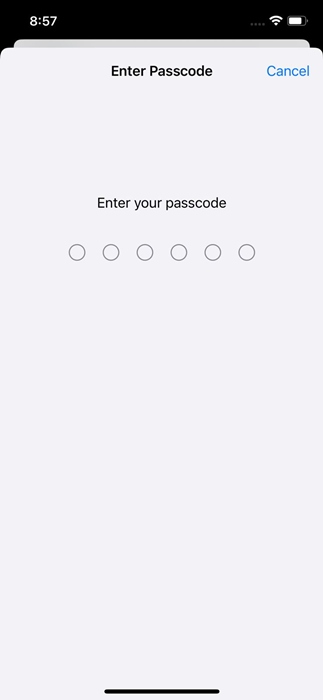
3. You will be asked to enter your device passcode. Enter it.
4. Tap Stolen Device Protection.
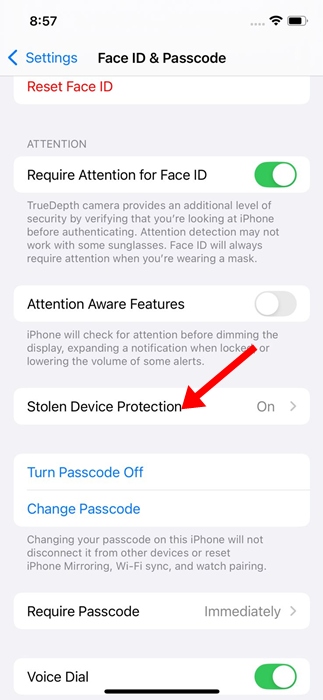
5. Turn off the Toggle for Stolen Device Protection. On iOS 18, tap Turn off Protection.
6. The security delay prompt will kick in. You need to tap the Start Security Delay button at the bottom of the screen.
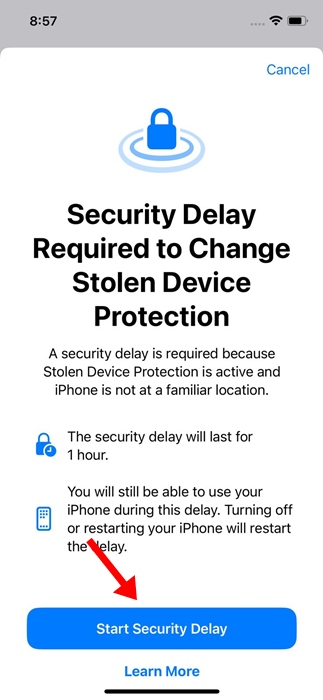
7. Once you tap the Start Security Delay, you will see a timer showing how much time is left to make the changes. Tap Done.
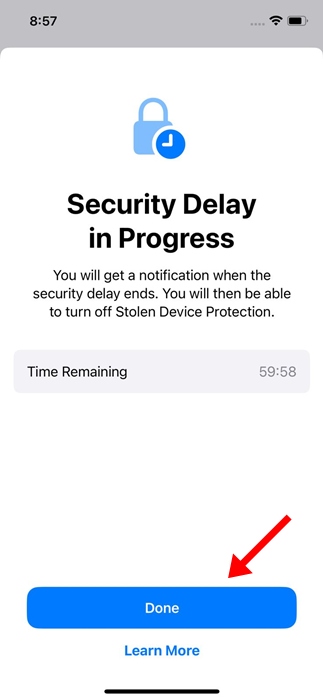
This will turn off Stolen Device Protection on your iPhone.
Key Things to Note Before You Turn Off Stolen Device Protection
If you try to turn off the Stolen Device Protection feature on your iPhone while you’re away from a familiar location, you will get stuck in a Security Delay Loop.
Make sure to move to a familiar location (where you’ve set up the Stolen Device Protection) and then try to turn off the feature or start the Security delay.
Things won’t work unless Apple recognizes your phone is in a familiar location, which you’ve set up before.
This guide explains how to turn Stolen Device Protection off. If you need more help on this topic, let us know in the comments.
The post How to Turn Stolen Device Protection Off appeared first on TechViral.
from TechViral


0 Comments