
With Activity History, you get to see the things you did in the past, like which apps, documents, and websites you opened and at what time and day. If you value privacy, you should keep this feature disabled.
Disable the Activity History on Windows 11?
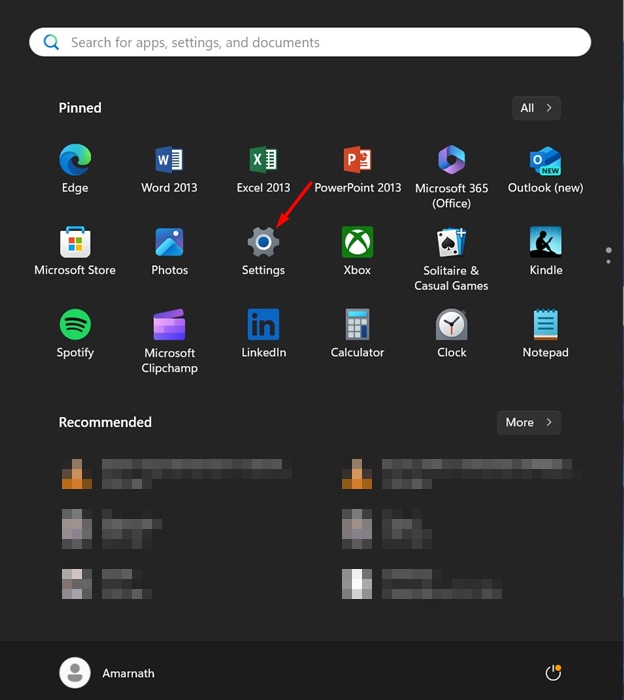
1. Click on the Windows Start button and select Settings.
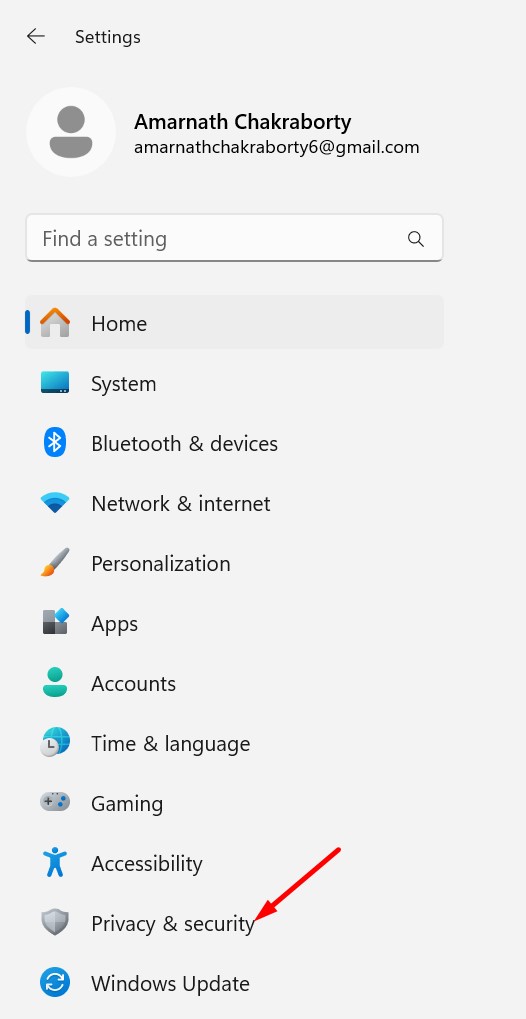
2. Switch to the Privacy & Security.
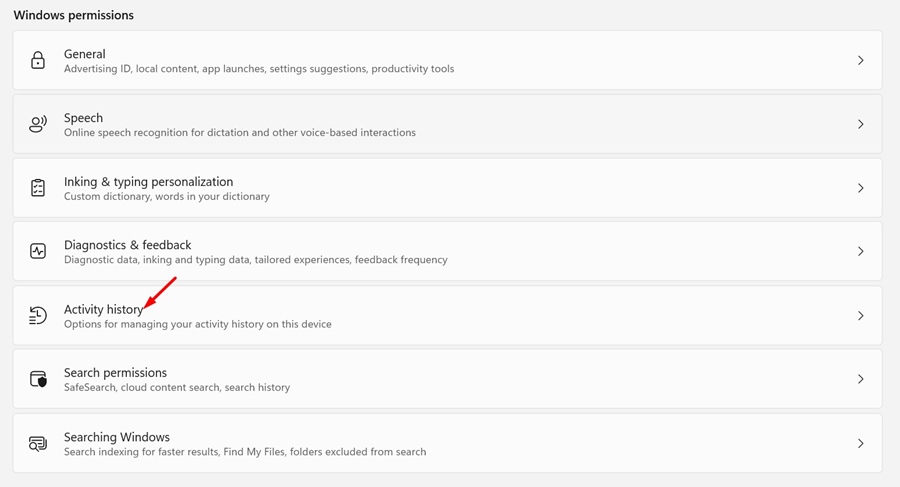
3. Scroll to the Windows Permissions and click Activity History.
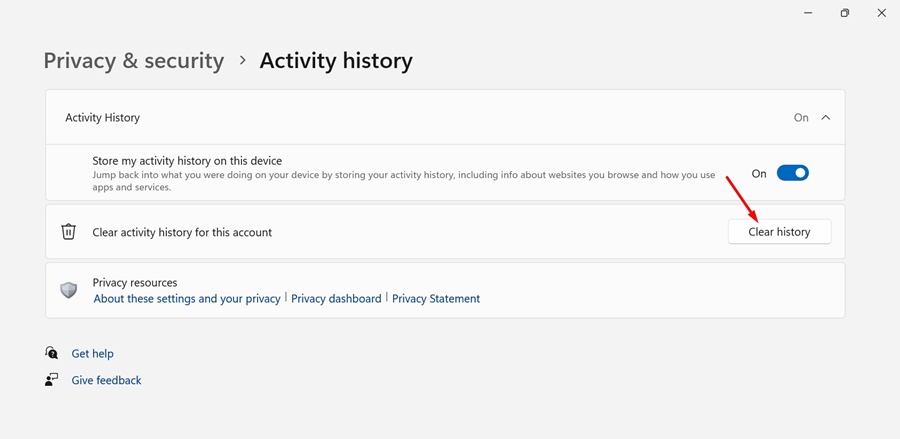
4. Turn off the toggle beside Store My Activity History on this device.
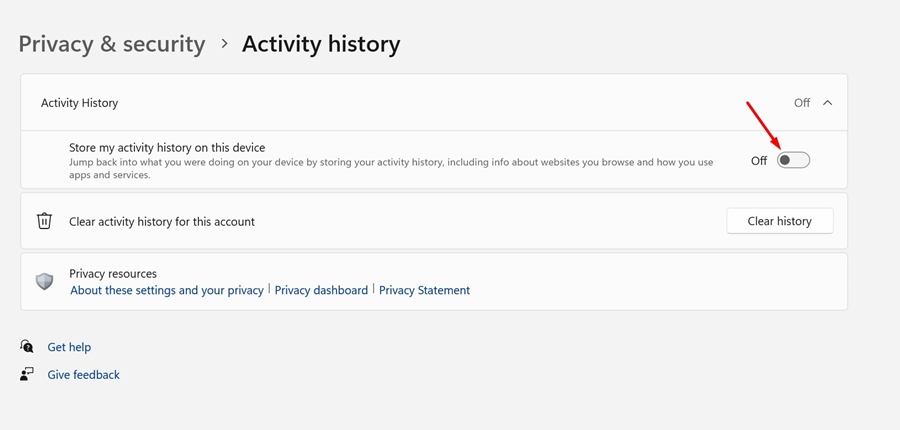 From now on, the feature won’t store any activity history on your device.
How to Clear Activity History on Windows 11?
After disabling the Activity History, you will want to remove the old activities. To do so, you need to clear the saved Activity History as well.
- Open the Settings app on your Windows 11.
- Switch to Privacy & Security.
- Click on Activity History.
- Click the Clear History option.
- On the Clear activity history prompt, click Clear.
- This will clear all the activity history previously stored on your Windows PC.
This guide explains the Activity History and how to turn it off. In the comments, let us know if you need more help with this topic.
The post How to Clear & Disable Activity History on Windows 11 appeared first on TechViral.
from TechViral


0 Comments