
A few days ago, Google launched Gemma 4, the most intelligent open models to date. It’s released in four versatile sizes: Effective 2B (E2B), Effective 4B (E4B), 26B Mixture of Experts (MoE), and 31B Dense.
It’s an advanced AI model designed to generate text, assist with coding, answer complex questions, and automate workflows.
AI Edge Gallery App
Well, along with Gemma 4, Google also introduced a new app known as AI Edge Gallery. With the help of this app, you can use the Gemma 4 language model locally on your phone – Android and iOS.
The Google AI Edge Gallery app enables on-device processing, which means you can access the AI features without connecting to the internet.
How to Use Gemma 4 on your Smartphone?
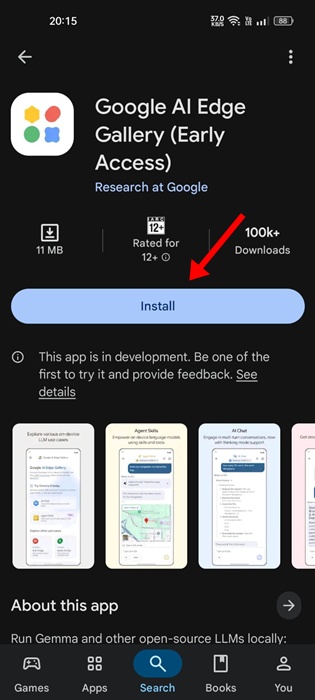
To use Gemma 4 locally on your phone, you will first have to download & install the Google AI Edge Gallery app. Then, follow these simple steps.
1. Download & install the Google AI Edge Gallery app. It’s still in early access, so expect some bugs & glitches as you use it.
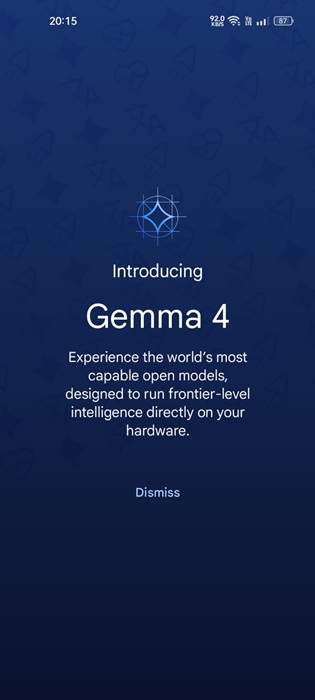
2. Launch the app and go through the introduction.
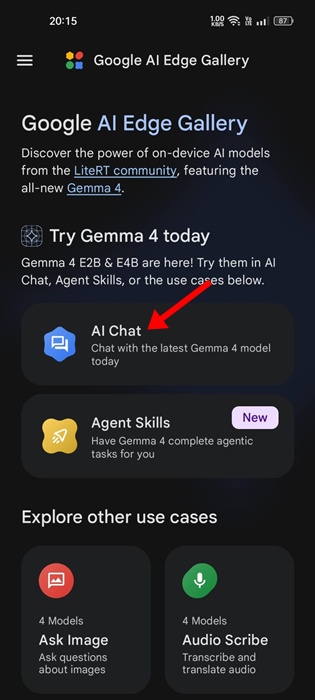
3. On the main screen, tap on AI Chat.
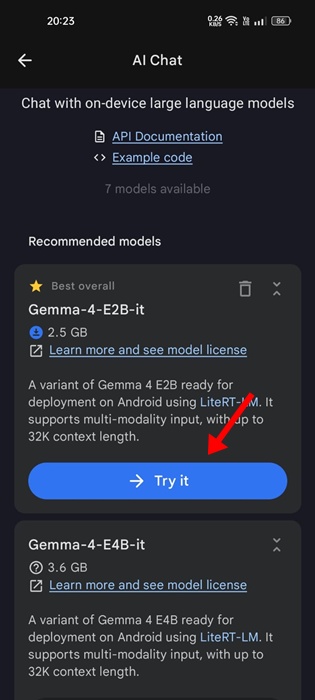
4. Then, select the model you want to run. Here, you will have to download the recommended Gemma 4 model.
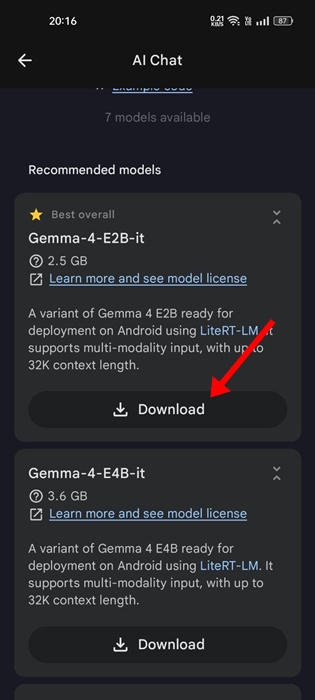
5. Once downloaded, tap Try it.
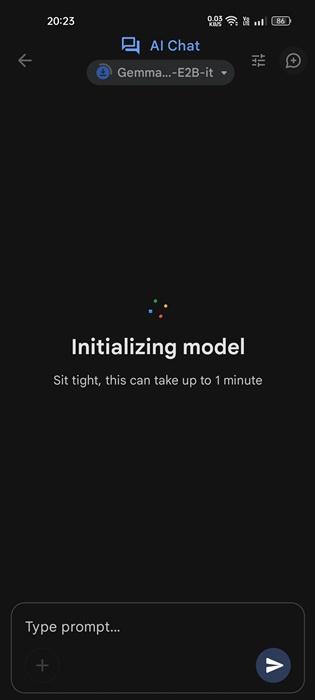
6. Now wait for a minute for the app to initialize the model.
7. Then, you can start a chat. The AI chatbot will work even when your phone isn’t connected to the internet.
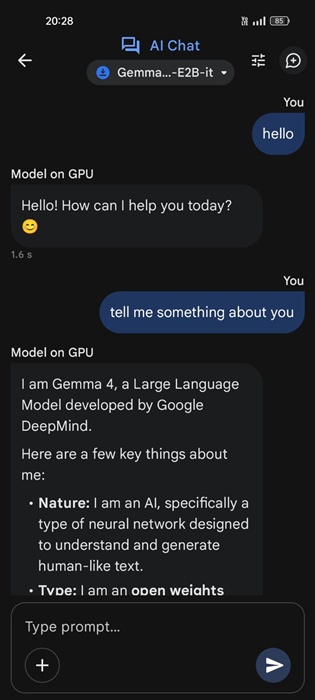
This guide explains how to use Gemma 4 on an Android phone. The app is available for iPhone, too. If you need more help in running Gemma 4 locally, let us know in the comments. Also, if you find this guide helpful, don’t forget to share it with your friends.
The post How to Run Gemma 4 Locally on Android phone appeared first on TechViral.
from TechViral


0 Comments