
If you want, you can disable the RUN dialog box on your Windows 11. Once you disable it, no apps & users can access it without your consent. Here’s how you can disable it.
Disable the Run Dialog Box from the Registry Editor
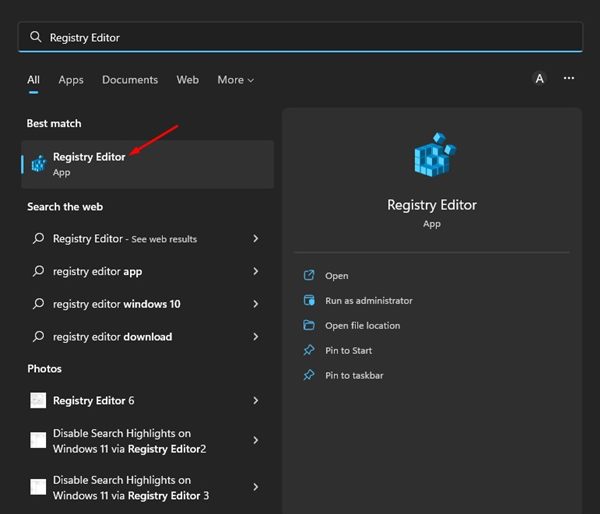
1. Type Registry Editor in Windows search and open it.
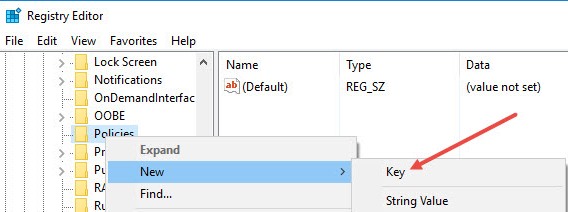
2. Navigate the following path and select New > Key.
HKEY_CURRENT_USER\SOFTWARE\Microsoft\Windows\CurrentVersion\Policies.
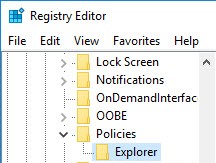
3. You need to right-click on the newly created key and then rename it to Explorer.
4. Right-click the empty screen and select New > DWORD (32-bit) Value to create a new DWORD value.
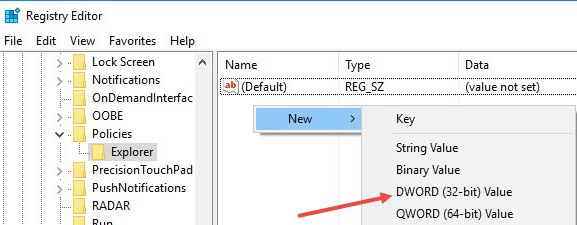
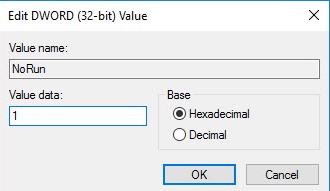
5. Name the new DWORD Value as NoRun.
6. Double-click on it, change the value data from 0 to 1. Then, click Ok.
You should restart your computer to reflect the made changes.
How to Disable Run Command In Windows 10 Using Group Policy
You can even use the Group Policy editor to disable the Run Command box in Windows.
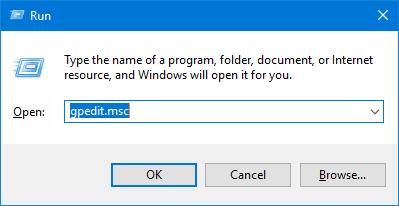
1. Press the WIN+R keys together. Then, in the RUN command box, type in gpedit.msc and press Enter.
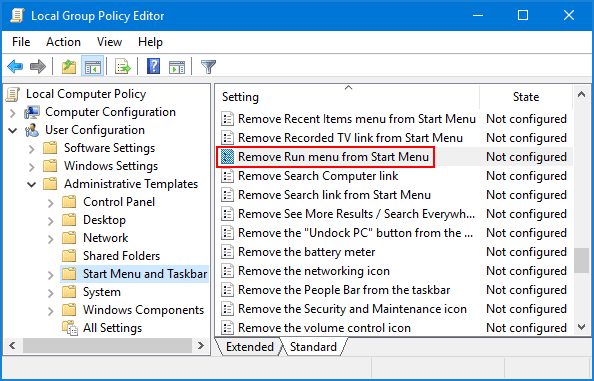
2. The above command will open the Group Policy Editor on Windows. There, you need to navigate User Configuration > Administrative Templates > Start Menu and Taskbar. Double-click on the Remove Run Menu From Start Menu policy.
3. You will now see a window like this. You need to set the policy to Enable and click OK.
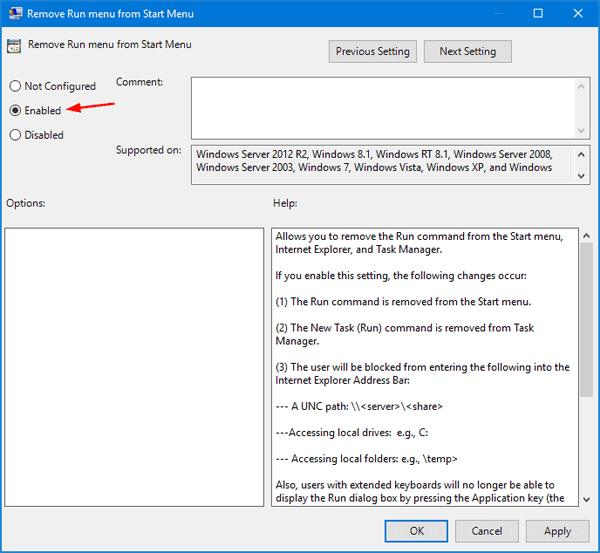
The policy will take effect without restarting your computer. However, you will see an error message when accessing the Run Command.
This article is all about how to disable the RUN dialog box in Windows 11. You can easily disable the run command box on your Windows PC.
The post How to Disable Run Dialog Box in Windows appeared first on TechViral.
from TechViral


0 Comments