
The Vehicle Motion cues counter motion sickness by adding animated dots on the edges of the screen. The animated dots represent changes in vehicle motion to help prevent your body from sending conflicting messages to your brain.
According to Apple, Vehicle Motion Cues uses ‘sensors built into iPhone and iPad, Vehicle Motion Cues recognises when a user is in a moving vehicle and responds accordingly’.
How to turn on the iPhone Vehicle Motion Cues feature?
If you can’t use your iPhone when inside a vehicle, you should turn on the Vehicle Motion cues.
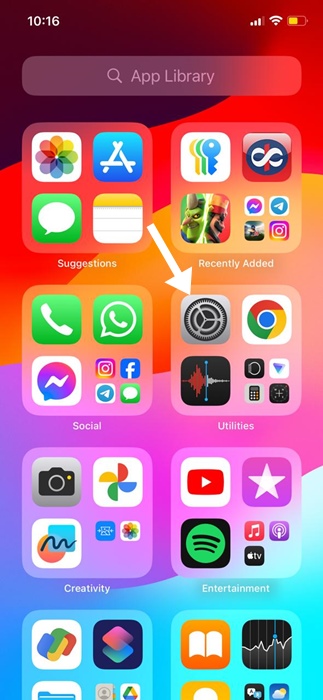
1. Launch the Settings app.
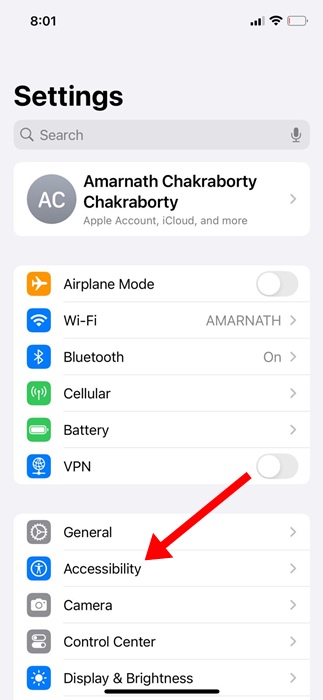
2. Tap on Accessibility.
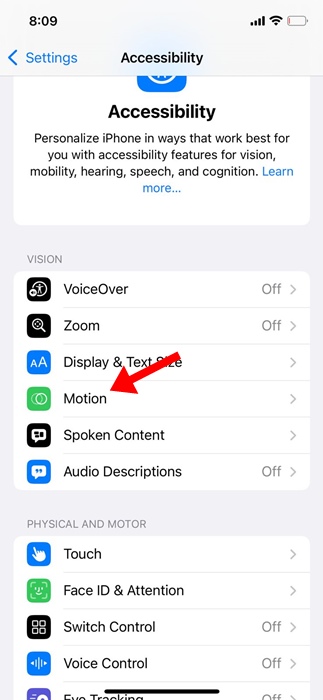
3. Tap on Motion.
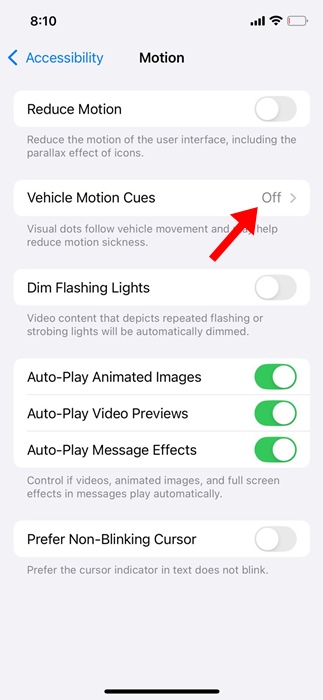
4. Find and tap the Vehicle Motion Cues.
5. Enable the toggle for Vehicle Motion Cues and Automatically in Vehicle.

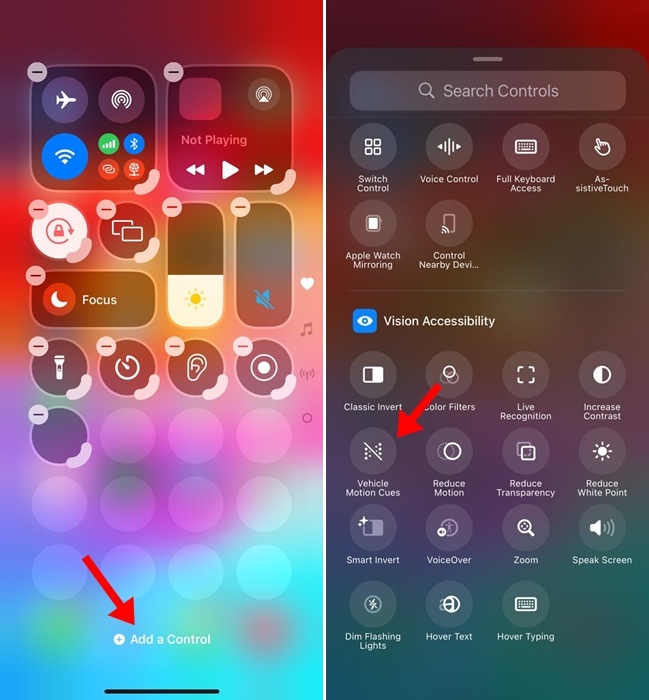
6. You can also enable or disable Vehicle Motion Cues from the Control Center. Pull down the Control Center and tap the Vehicle Motion Cues option.
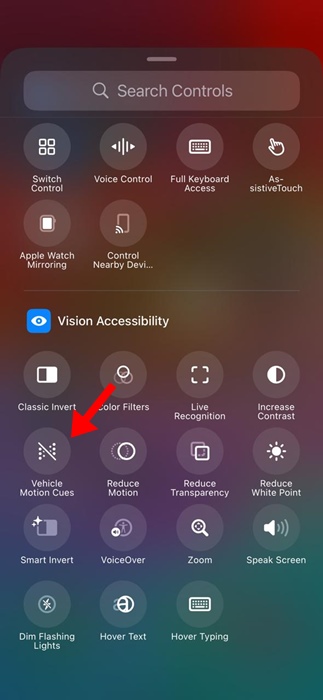
7. If the option is not available in the Control Center, select Add a Control and add the Vehicle Motion Cues to the Control Center.
Vehicle Motion Cues are a great accessibility feature for mitigating motion sickness. This guide explains how to enable Vehicle Motion Cues on the iPhone. If you need more help with this topic, let us know in the comments below.
The post How to Enable Vehicle Motion Cues on iPhone appeared first on TechViral.
from TechViral


0 Comments