
Windows time keeps changing? This can be a very frustrating issue to deal with. If you’ve been facing the same problem, here’s what you should do.
1. Check Your Time Zone
If Windows shows a different time, you may have selected the wrong time zone. To fix that issue, you need to set the time zone manually.
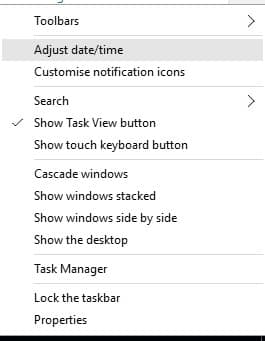
1. Right-click on the clock from the taskbar and select Adjust date/time
2. Head to Settings > Time Zone.
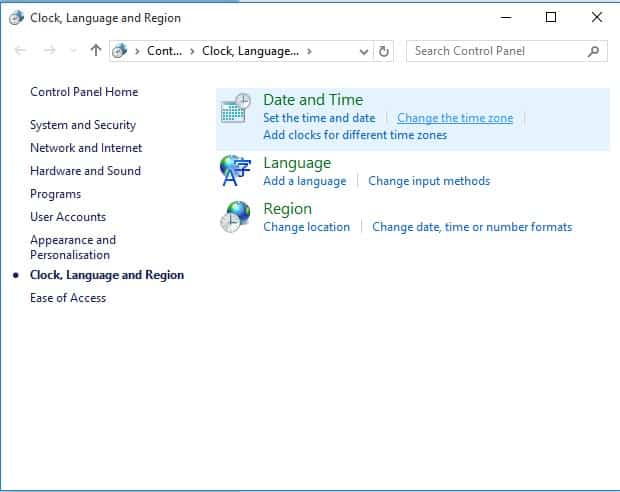
3. Under Time Zone, select the correct region.
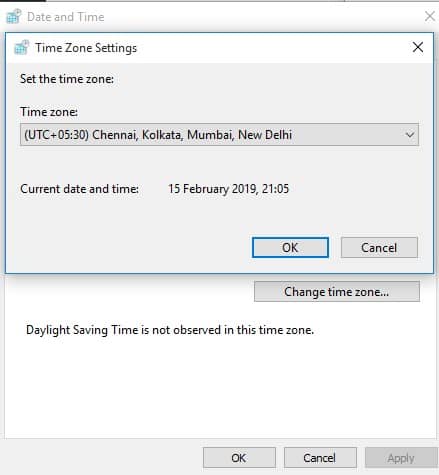
Exit the date and time page to see your computer’s current time zone.
2. Synchronize Time with the online server
You need to synchronize the time with the online server and see if it helps.
- Open the Control Panel on your PC.
- Click Date and Time.
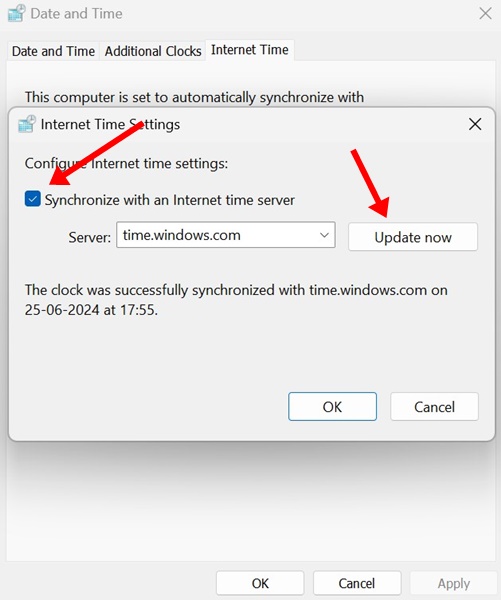
- Switch to Internet Time and click Change settings.
- Check the ‘Synchronize with an internet time server’.
- Click Update now.
3. Using Services.msc
You can fix various Windows time & date related problems by going through Windows services. This method will force Windows Time to start automatically each time the PC restarts.
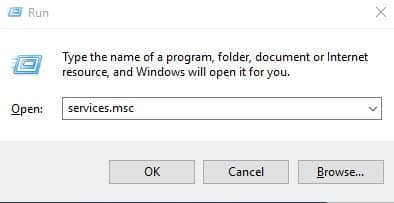
1. Press the Windows Key + R on your keyboard. It will open up the Run dialog box. Enter services.msc and press Enter.
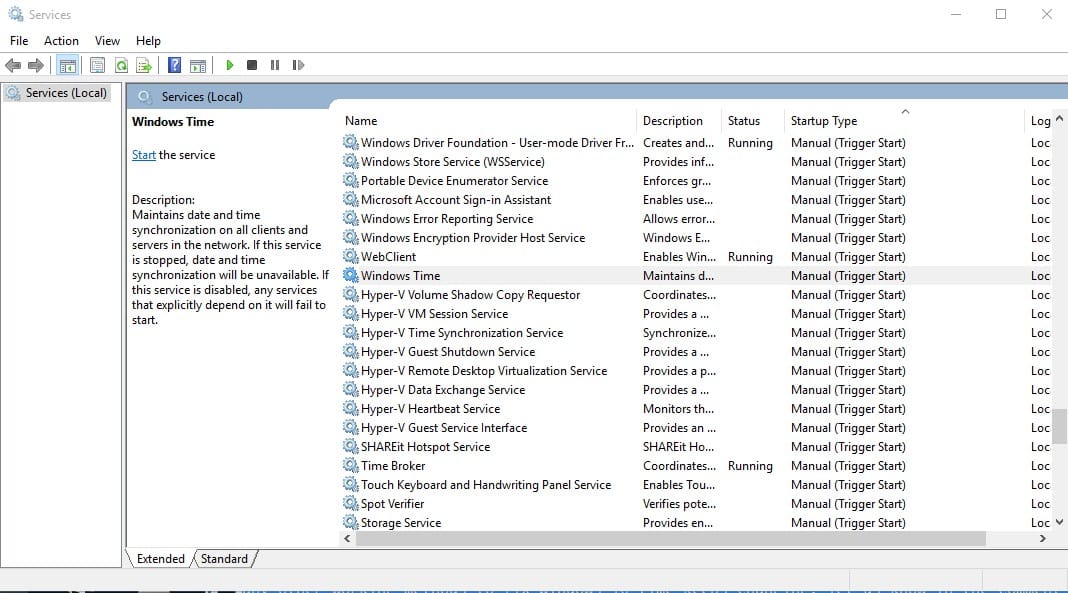
2. Find and right-click on Windows Time and select Properties.
3. Select Automatic on the Startup Type.
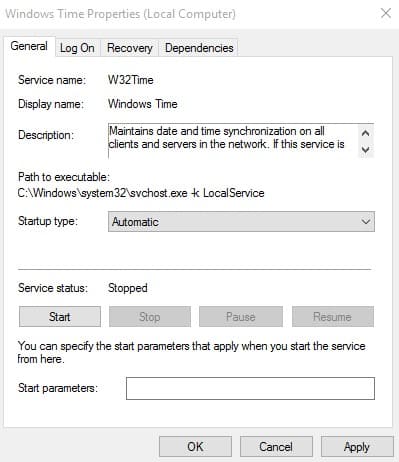
After making the changes, restart your PC.
4. The CMOS Battery is Dead
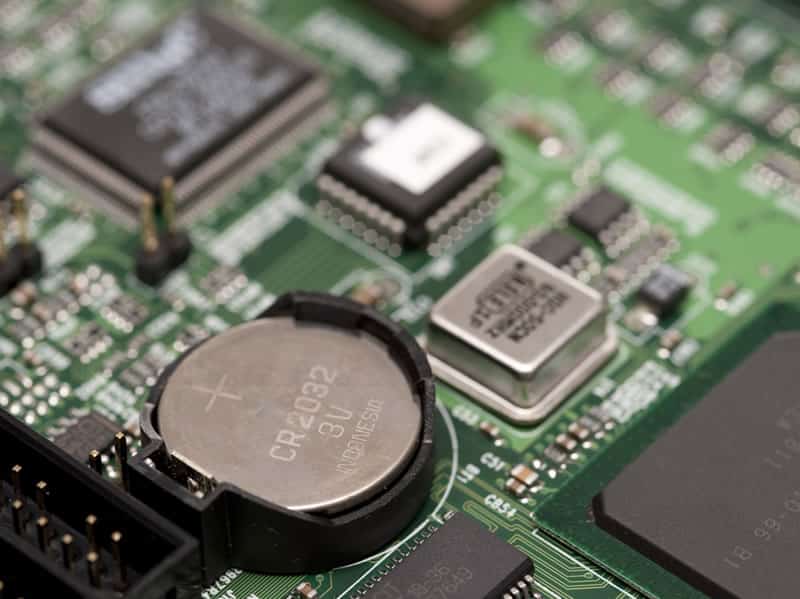
CMOS stands for Complementary Metal Oxide Semiconductor. It’s a kind of battery placed on the motherboard. The component looks like a coin and contains information concerning the system configuration, including time & date information.
If the CMOS Battery is dead or deteriorating, it will show the wrong time. The best way to deal with problems with the CMOS battery is to replace it. Take your system to the local hardware expert and ask them to check the CMOS Battery condition.
5. Malware Attack

Nowadays, malware has become so advanced that it can remain undetected for a long time before visible changes become evident. Malwarebytes is the best security tool for dealing with hidden malware and removing PUPs and adware.
Even if you are unwilling to use Malwarebytes, turn on the Windows Defender that comes with your Windows OS.
6. Check Third-Party Software
If you are experiencing a time-related problem on Windows after installing any new program, that particular program or game might be the culprit. Third-party programs or even screen savers sometimes cause the time to stop.
If the problem persists, disable the screen saver as well. If the computer date and time change automatically on reboot, check the ‘Startup’ tab on the Task Manager and turn off all unnecessary apps.
7. Adjust the Clock in Your BIOS/UEFI
When the clock on your motherboard’s UEFI or BIOS is wrong, no matter what you do, you will face the Windows time keeps changing after restart issue.
However, the option to access the clock in BIOS/UEFI may vary depending on your machine. So, the best you can do is access the BIOS/UEFI on your device and look for the Time or Clock entry.
In Time or Clock Settings, you must correct the wrong time to fix the issue. After fixing the system-level clock, you can follow the first method to update the time.
8. Reset System Settings
If all methods fail to fix the problem, the only option remaining is to perform a System Reset.
However, it will remove files and folders saved on the Windows installation drive. So, create a proper backup before you choose to reset your PC. To reset the computer, head to Settings > Update and Security. Select the Recovery tab and click Get Started under Reset This PC.
Once you have done this, you will see two options: ‘Reset this PC’ and ‘Keep My Files’. Pick the Reset This PC option.
These are the best methods to fix Windows time-keeping issues. Let us know in the comment box below if you know of any other methods to fix the problem.
The post How To Fix Windows Time Keeps Changing Problem appeared first on TechViral.
from TechViral


0 Comments