
Windows 11’s Quick Access section in File Explorer lets you quickly access your recently used files and frequently opened folders. If you’re highly dependent on it, finding it missing could be frustrating.
Quick Access Menu can go missing for several reasons, but it can be easily fixed. Here’s what you should do if Quick Access disappeared from the file explorer.
1. Restart your Computer
Restarting is one of the simplest and most effective fixes for many Windows problems, including the Quick Access Menu missing. Basically, restarting will remove the conflicting bugs & glitches preventing the Quick Access Menu from appearing.
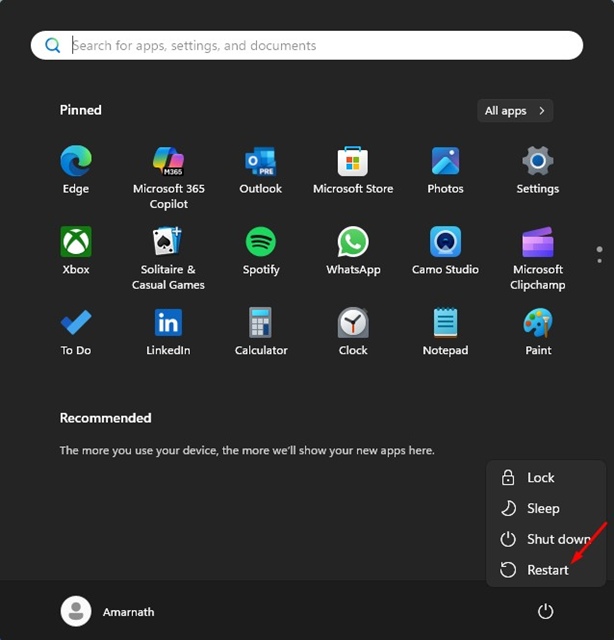
To restart Windows 11, click on the Windows 11 Start button. Then, click on the Power Button and select Restart. This will restart Windows 11.
2. Check the File Explorer Options
Certain programs may have changed the File Explorer options; hence, the Quick Access Menu isn’t appearing. So, you need to manually check the File Explorer options.
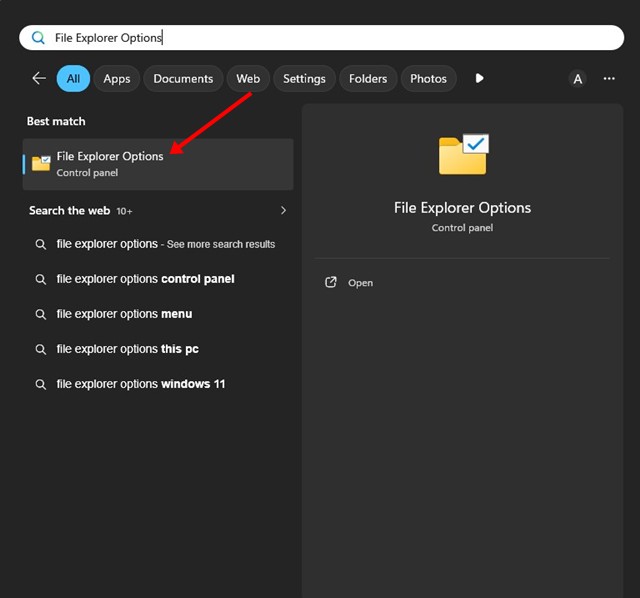
1. Open File Explorer Options from the Windows Search.
2. Switch to the General tab. Check the Show recently used files and Show frequently used folders.
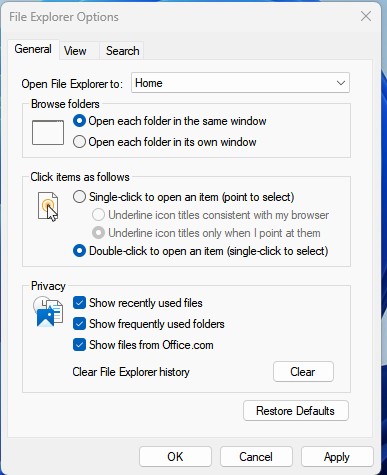
3. Once done, click Ok and Apply.
3. Enable Show recently opened items in File Explorer
In this method, you need to make some changes to the Windows 11 Personalization settings.
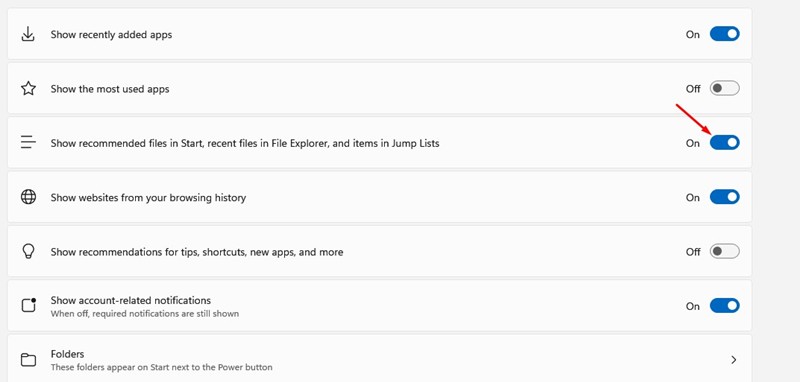
1. Launch the Settings app on Windows 11.
2. Switch to Personalization > Start.
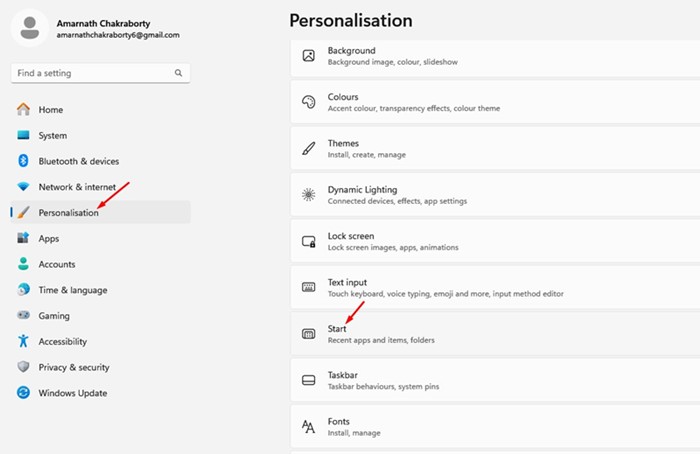
3. Enable the Show recently opened items in Start, Jump Lists, and File Explorer option.
4. Reset the folder options
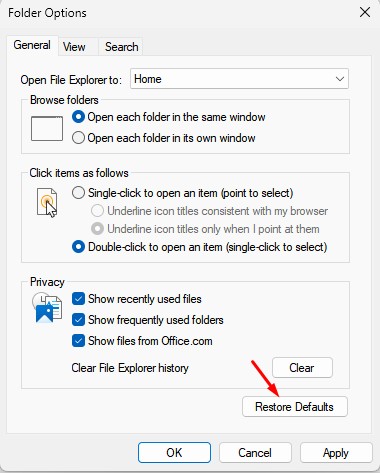
If the Quick Access Menu is still not appearing, you need to restore the Folder Options to their default values.
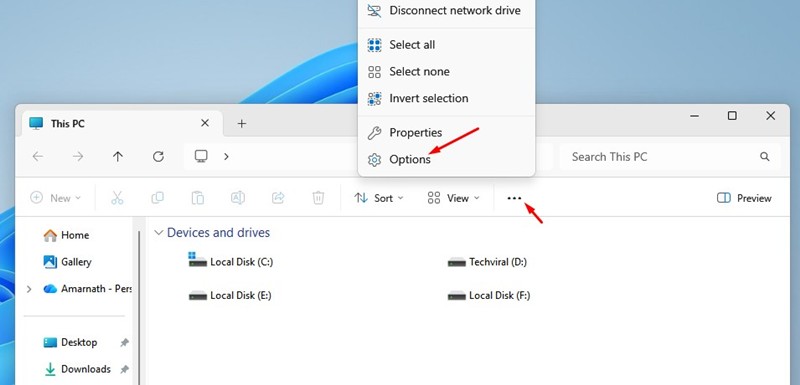
1. Launch File Explorer, click on the three dots, and select Options.
2. On the Folder Options, click Restore Defaults.
5. Reset Windows Quick Access Menu using the Registry Editor
You should follow this only if other methods failed to fix your problem.
1. Open the Registry Editor from the Windows Search.
2. When the Registry Editor opens, navigate to this path:
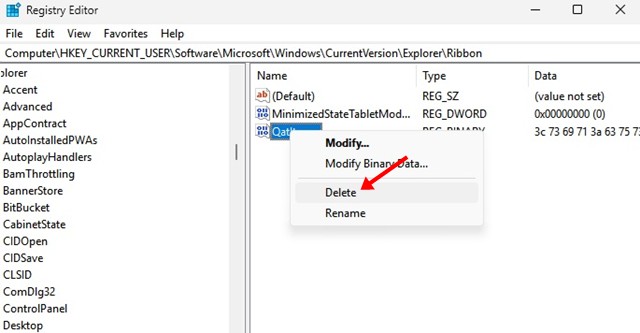
HKEY_CURRENT_USER\Software\Microsoft\Windows\CurrentVersion\Explorer\Ribbon
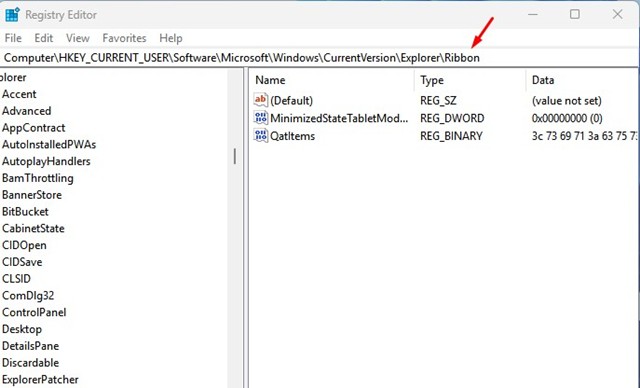
3. Right click on the QatItems and select Delete.
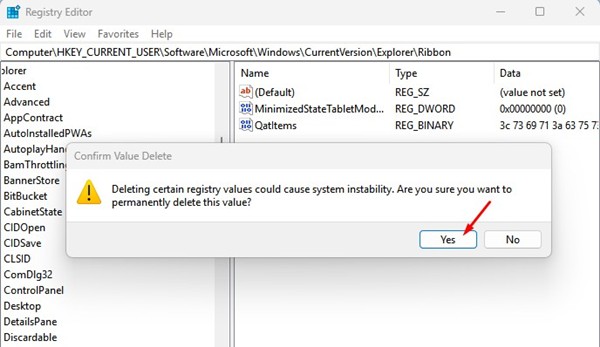
4. On the confirmation prompt, click Yes
6. Update Windows 11
If Quick Access is still missing, the version of Windows you’re using may have a bug or compatibility issue. Installing the latest Windows 11 updates can help resolve known bugs and other system-related issues
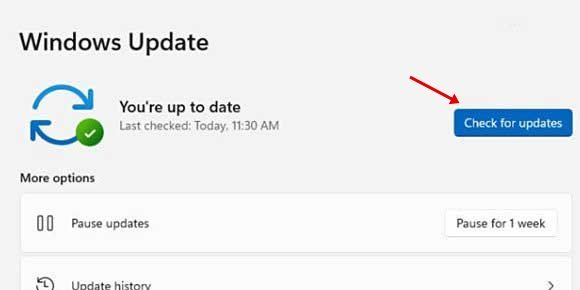
To update Windows 11, open Settings and switch to Windows Update. On the right side, click on the Check for Updates button. Next, download & install all pending Windows 11 updates.
This guide explains how to fix the Quick Access Menu missing on Windows 11. If you need more help on this topic, let us know in the comments.
The post Quick Access Missing in File Explorer? 6 Ways to Fix it appeared first on TechViral.
from TechViral


0 Comments