

There are various ways to merge PDF documents on iPhone; you can use either the native options or a dedicated PDF management app. Here are different ways to merge PDFs on iPhone.
1. Merge PDF files on iPhone with the Files App
1. Open the Files app.
2. Locate the folder where you’ve saved your PDF files.
3. Tap on the three dots.

4. On the menu that appears, tap on Select.
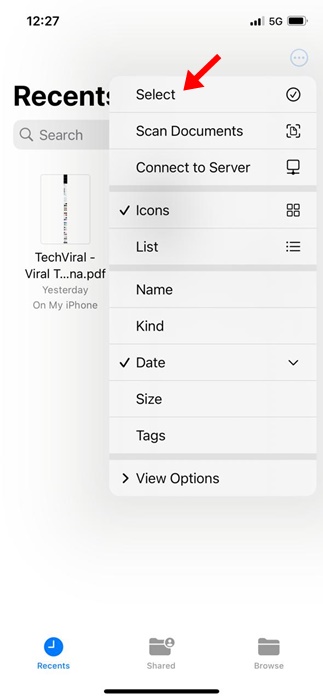
5. Select the PDF file that you want to merge.
6. Tap on the three dots in the bottom right corner.

7. On the menu that appears, select Create PDF.
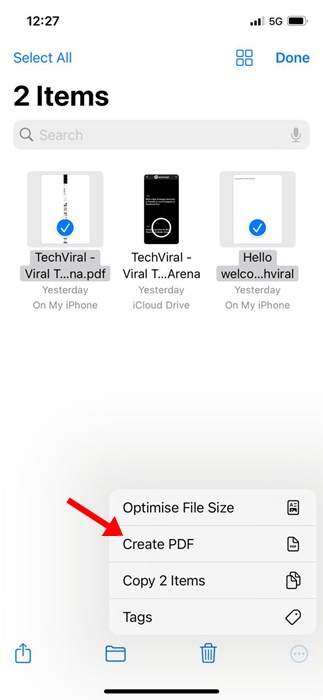
This will instantly merge your selected PDF files. You will find the merged PDF in the same location.
2. Merge PDFs on iPhone using Shortcuts
You can also use the Shortcuts app to merge PDFs on your iPhone.
1. Download the Merge PDF shortcut to your Shortcut library.
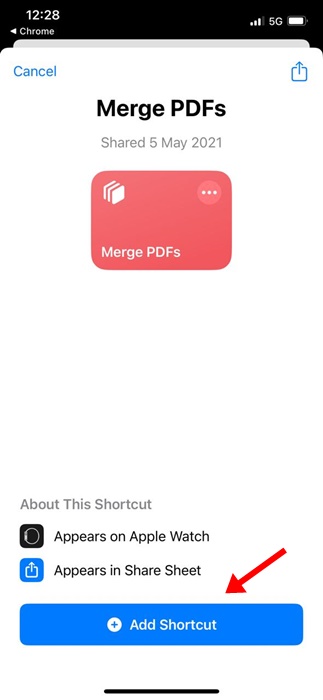
2. Now open the native Files app on your iPhone. Next, navigate to the location where the PDF files have been saved.
3. Tap on the three dots.
4. On the menu that appears, tap Select.
5. Select the PDF files you want to merge.
6. Tap the Share icon.

7. On the menu that appears, select Merge PDFs.
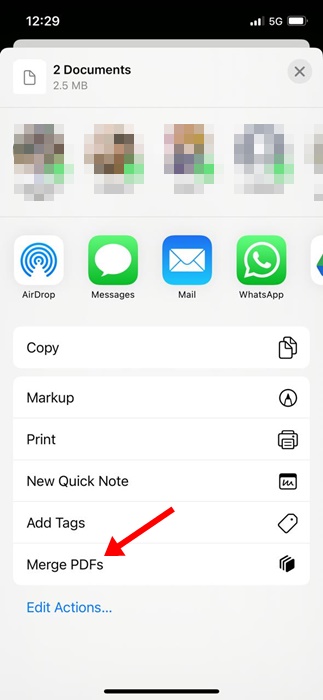
Now, follow the on-screen instructions to complete saving the PDF file on your iPhone.
3. Merge PDF files on iPhone with iLovePDF
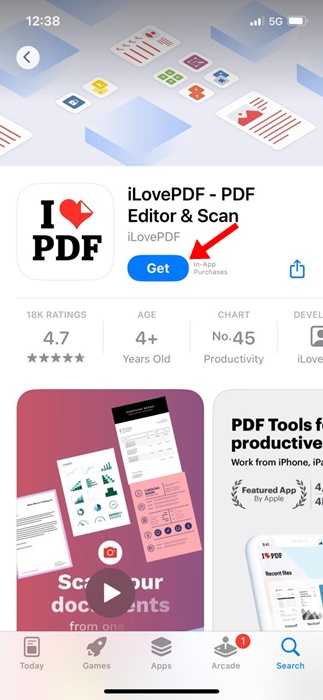
iLovePDF is a third-party PDF management app available for iPhone. You can get the app for free from the Apple App Store.
1. Download & install iLovePDF on your iPhone.
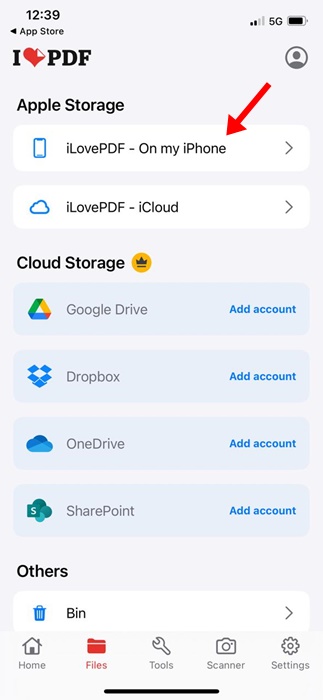
2. In the Storage categories, select iLovePDF – In my iPhone.
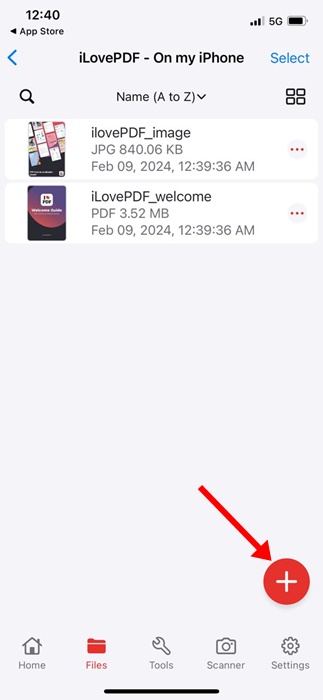
3. Tap the Plus icon at the bottom right corner and select Files.
4. Select the PDF files that you want to merge. Once selected, tap on Open.
5. Switch to the Tools tab at the bottom.
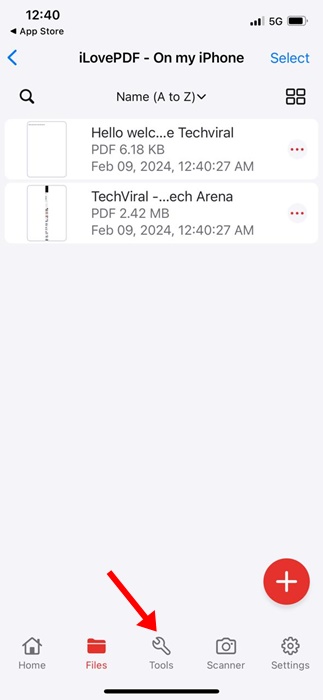
6. On the Tools menu, select Merge PDF.
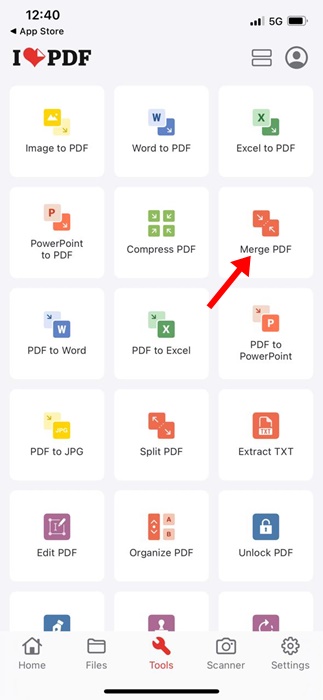
7. Wait for the app to merge your selected PDF files. Once merged, open the Files app and navigate to the iLovePDF > Output to view the files.

These are the three best ways to merge PDF files on an iPhone. If you need more help merging PDFs on iPhone, let us know in the comments below.
The post How to Merge PDFs on iPhone appeared first on TechViral.
from TechViral


0 Comments