
Before disabling the Google Password Manager, it’s important to export your already saved passwords first. Exporting your saved passwords will allow you to reuse all your Chrome passwords in a new password manager app later.
How to Disable Google Password Manager on Desktop
It’s recommended to export your already saved passwords before you turn off the Google Password Manager. To export your saved passwords, follow this article.
1. Launch the Google Chrome browser on your desktop.
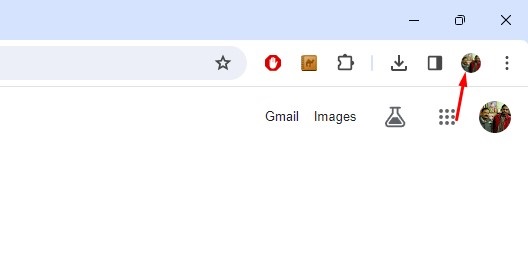
2. Click on the profile icon at the top-right corner.
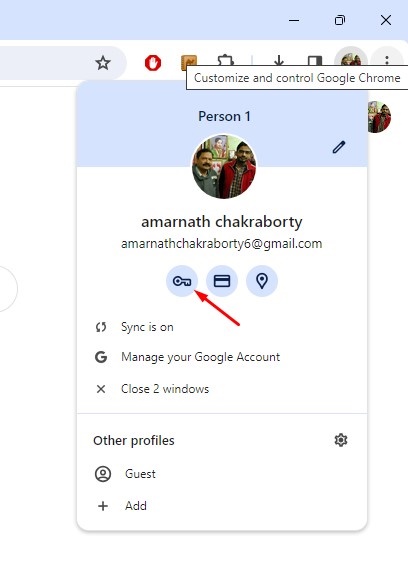
3. Click the Google Password Manager icon.
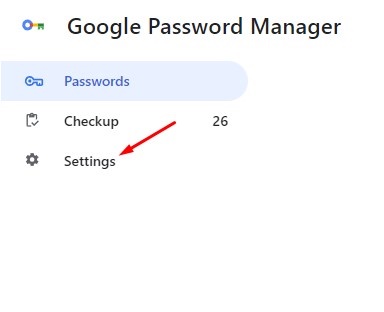
4. Switch to the Settings tab.
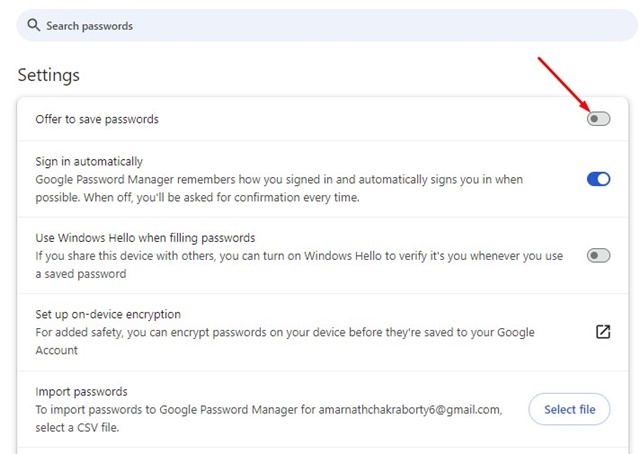
5. Turn off the toggle for ‘Offer to save passwords’.
How to Disable Google Password Manager in Chrome for Android
If you use the Google Chrome browser on your Android phone, follow these steps to disable the password manager.
1. Launch the Google Chrome app on your Android phone.
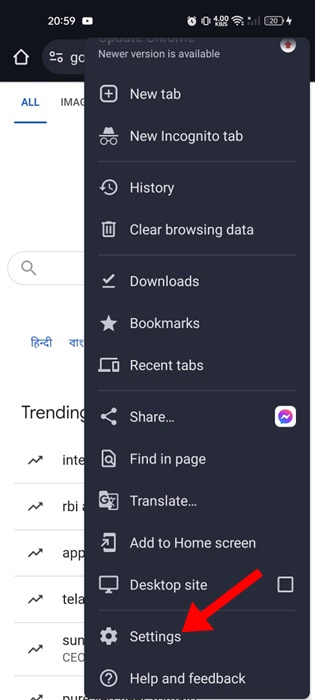
2. Tap the three dots.

3. Select Settings.
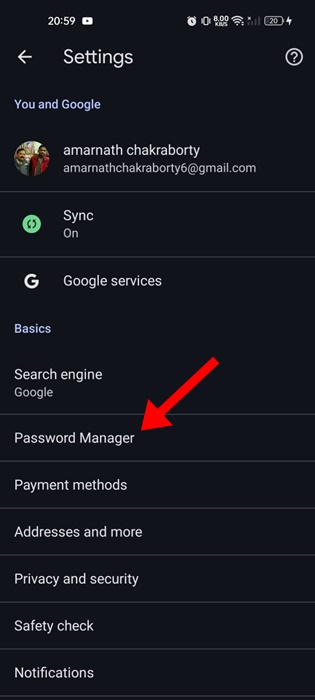
4. Click on Password Manager.
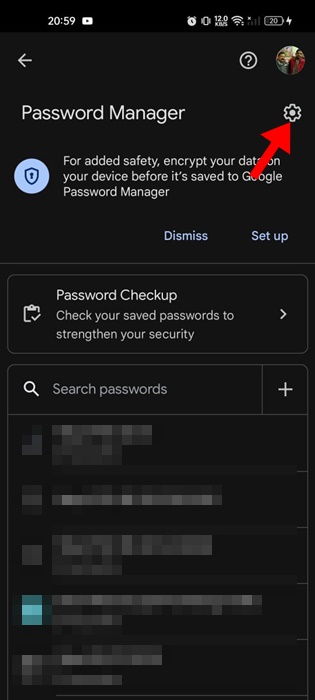
5. Tap the Gear icon at the top right.
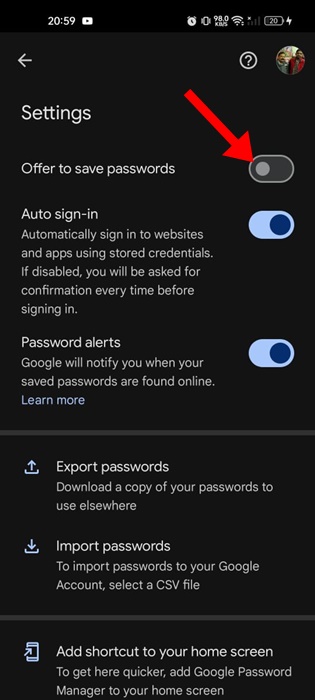
6. Turn off the toggle for Offer to save passwords.
How to Disable Google Password Manager in Chrome for iPhone
The steps to disable the Google Password Manager are a bit different in Chrome for iPhone.
1. Launch the Google Chrome app on your iPhone.
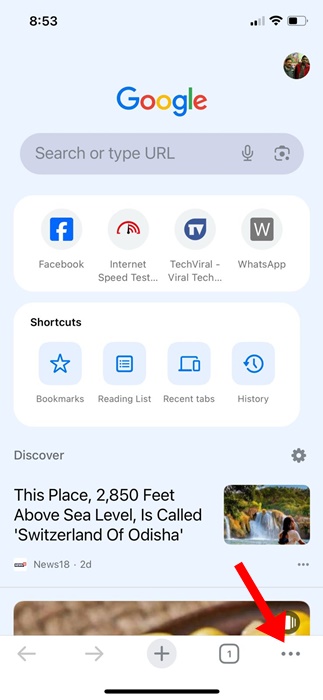
2. Tap the three horizontal dots at the bottom right corner.
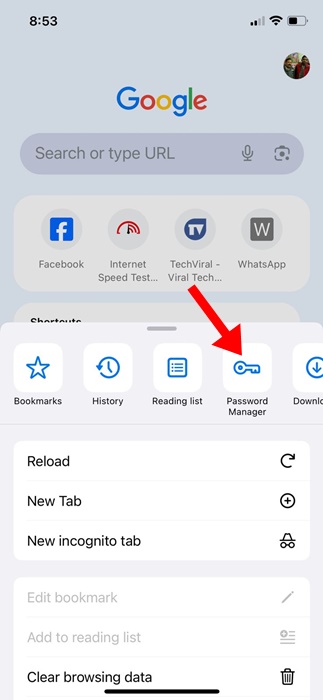
3. Tap Password Manager.
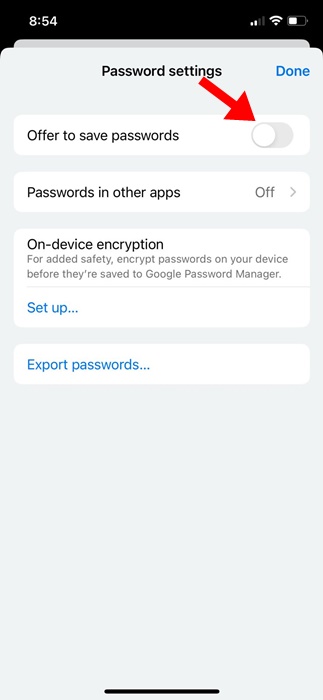
4. Turn off the toggle for ‘Offer to save passwords’.
This guide explains how to disable Google Password Manager on Desktop, Android, and iPhone. If you need more help with this topic, let us know in the comments.
The post How to Disable Google Password Manager in Chrome appeared first on TechViral.
from TechViral


0 Comments