
The ‘Google Play authentication is required’ error can pop up out of nowhere and prevent you from accessing the Google Play Store. So, if you have just encountered the error message and are looking for ways to resolve it, here’s what you should do.
1. Remove & Add Your Google Account
Many Android users claimed that fixing Google Play Authentication required error messages by removing and re-adding their Google Account. Here’s what you should do.
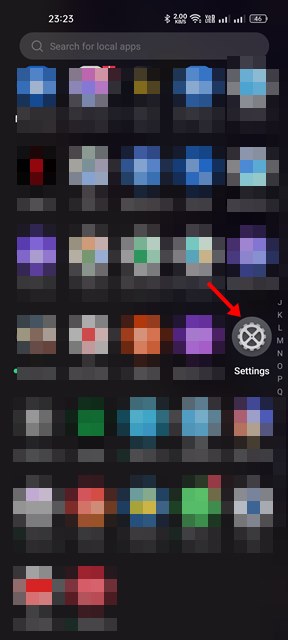
1. Open the Settings app on your Android and tap Settings.
2. Tap on your Google Account.
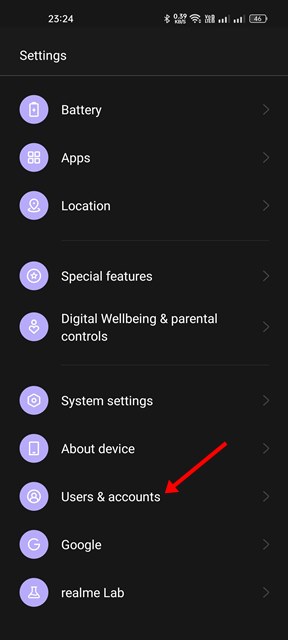
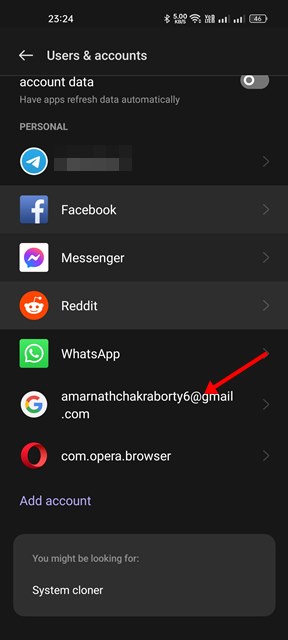
3. Tap on the Remove Account.

4. Once removed, you need to tap on the Add account option and re-add the account you have removed.
2. Manually Sync your Google Account
Interrupted sync is another reason behind the ‘Google Play Authentication is required’ error message. Hence, you need to manually sync your Google account on Android to fix the error.
1. Open the Settings app on your Android.
2. Tap on the accounts and select Google Account.
3. Tap on the Account sync option.
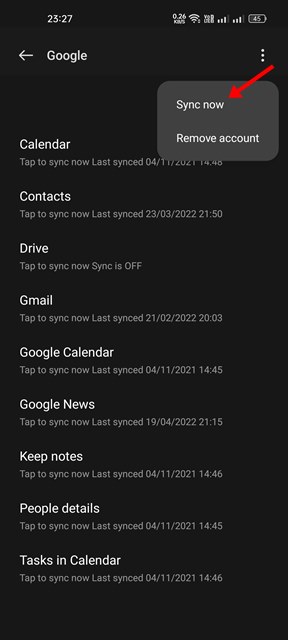
4. Tap on the three dots.

5. From the menu that appears, tap on Sync now.
3. Force Stop Google Play Store
If you are still getting the ‘Google Play Authentication is required’ error message while accessing the Google Play Store, you need to force stop the app itself.
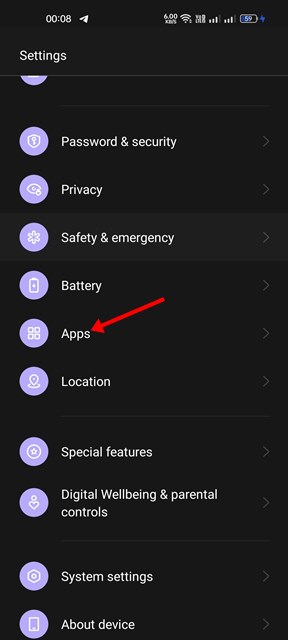
1. Open the Settings app on your Android and tap Apps.
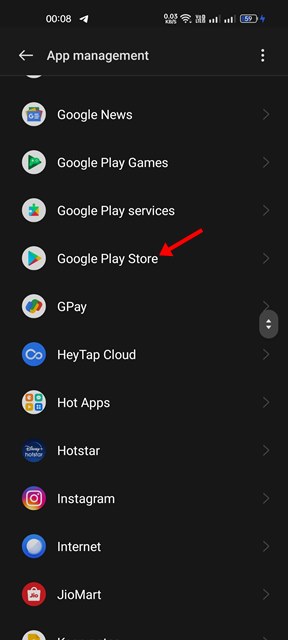
2. Now open the App list and find Google Play Store.
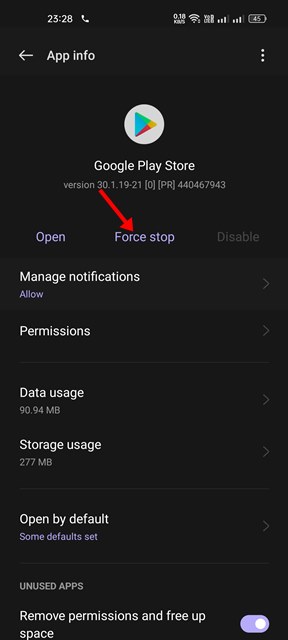
3. Tap on the Force Stop button.
4. Uninstall the Google Play Store Updates
Google Play Store installs the updates in the background. Sometimes, the ‘Google Play Authentication is required’ also appears due to faulty updates. Hence, you need to find and uninstall recent Google Play Store updates to fix the error.
1. Open the Settings app on your Android and tap on the Apps.
2. Open the App list and find Google Play Store.
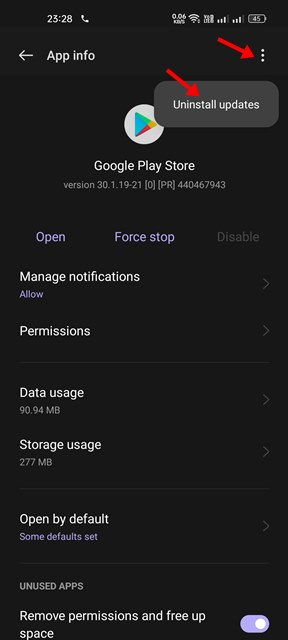
3. On the Google Play Store app info page, tap on the three dots below. From the menu that appears, tap Uninstall updates.
5. Clear Play Store’s Cache and Storage Data
The ‘Google Play Authentication is required’ error usually appears due to an outdated or corrupted cache file. So, to resolve the issue, you need to clear the cache and storage data.
1. Open the Settings app on your Android and tap on the Apps.
2. Now open the App list and find Google Play Store.
3. On the Google Play Store app info page, tap on the Storage option as shown below.
4. Tap on the Clear Cache and then the Clear Data option.
These are the best ways to fix the ‘Google Play Authentication is required’ error message on Android. If you have any doubts about this, let us know in the comment box below.
The post How to Fix ‘Google Play Authentication is Required’ Error appeared first on TechViral.
from TechViral


0 Comments