
Nearby Sharing is already part of Windows 11, but many users are unaware of it. If you are a Windows 11 user looking for ways to share files faster, you should make use of this feature. Here’s how you can use it.
Enable Nearby Sharing in Windows 11
1. Make sure to connect your primary device to a WiFi network.
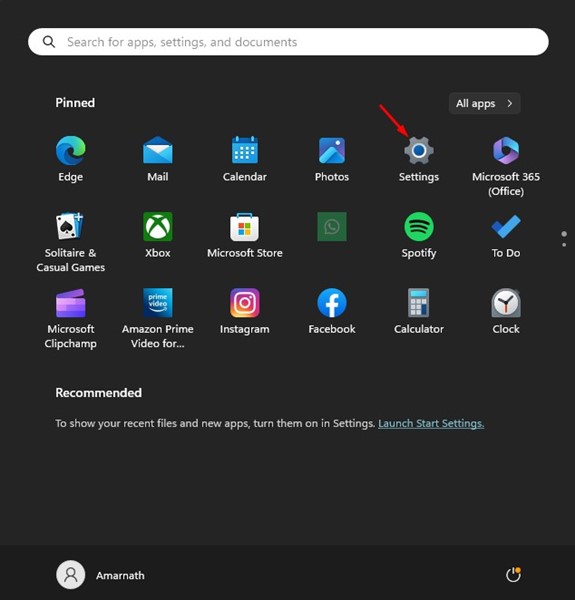
2. On your Primary PC, open the Settings app.
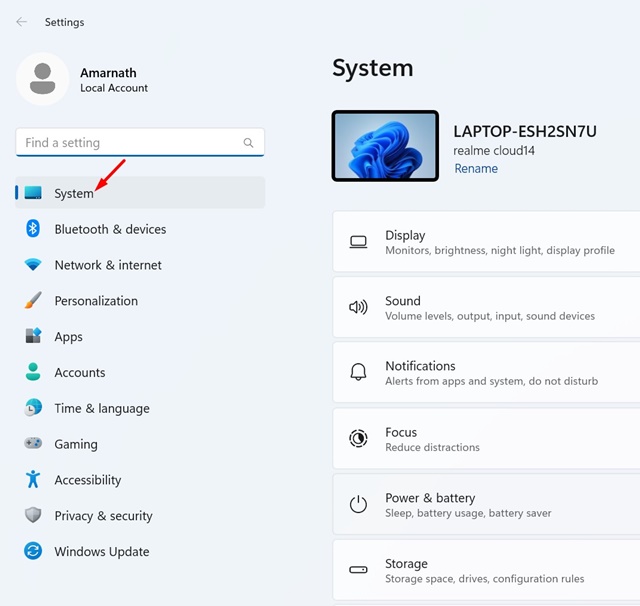
3. Switch to the System.
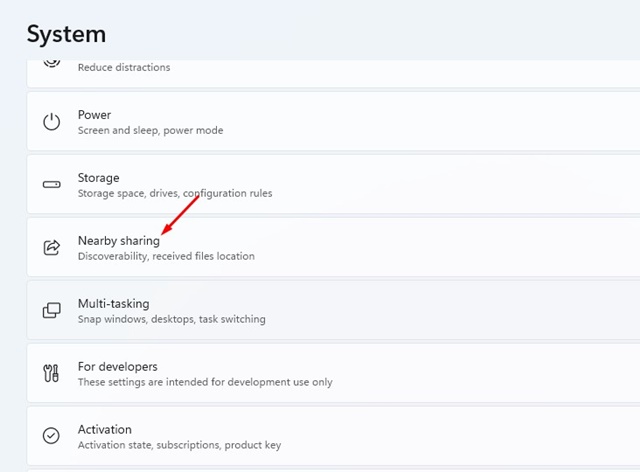
4. Click Nearby Sharing.
5. You will find three options: Off, My Devices Only, and Everyone Nearby.
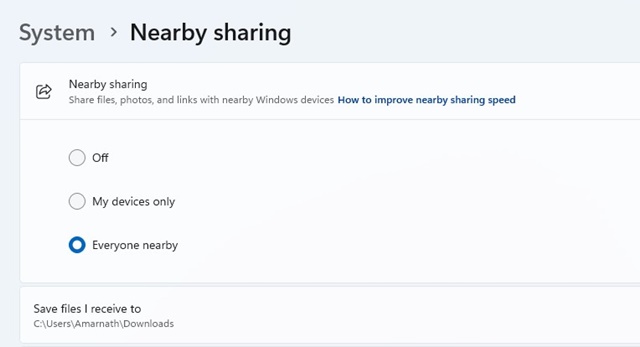
My Devices Only: Select this option to share files with devices linked to your Microsoft Account.
Everyone Nearby: Select this if you want to share files with devices regardless of the account used.
Once selected, you can share files with the Nearby Sharing feature on Windows 11. Depending on the option you choose, you can also share files over Wi-Fi or Bluetooth.
Important: On your secondary PC (the one that will receive the files), enable the Nearby Sharing feature by following the same steps.
How to Share Files or a Webpage with Nearby Sharing?
Now that you have enabled the feature, the Nearby Sharing feature on Windows 11 is ready to use. You can go ahead and share a file or webpage directly.
How to Share a File
The steps to share a file via Nearby Sharing on Windows 11 slightly differ from those to share a webpage.
1. Open your file explorer on Windows 11 and navigate to the file you want to share.
2. Select the file, right-click on it, and click Share.

3. If you have followed all steps carefully, you will see your secondary PC on the Nearby Sharing option in the Windows 11 Share menu.
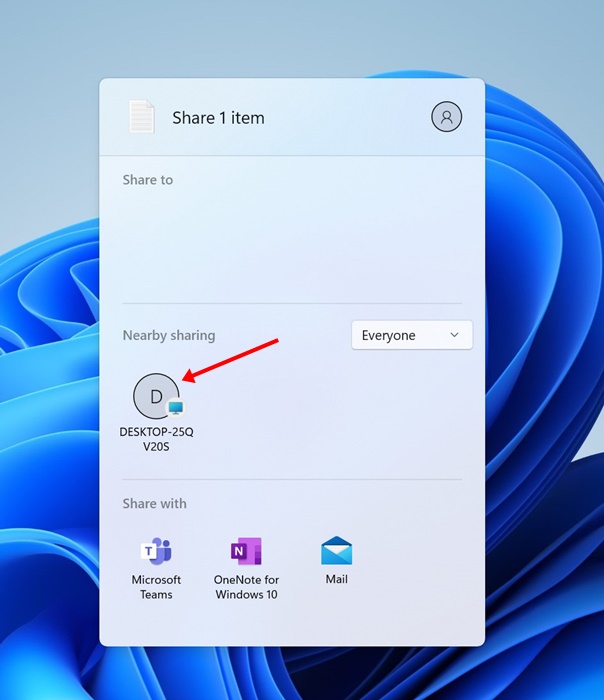
4. Click on your computer name to share the file. On the computer that’s receiving the file, select Save.
How to Share a Link (Webpage)
Sharing a webpage is also possible with the help of Nearby Sharing on Windows 11. To do so, you need to use the Microsoft Edge browser.
1. Open the Microsoft Edge browser and visit the page you want to share.
2. Right-click anywhere on a space on the page and choose Share.
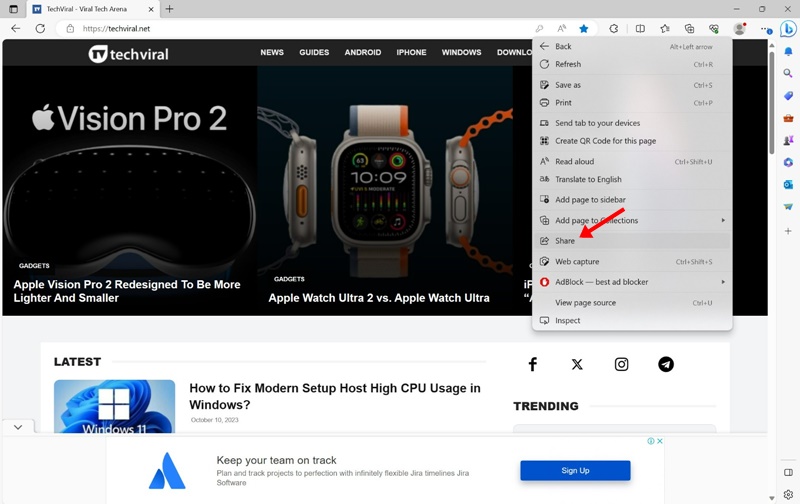
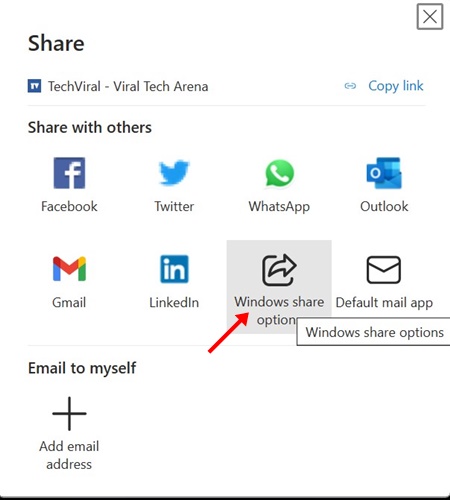
3. On the Share menu, select Windows Share options.
4. This will open Windows 11’s Share Menu. In the Nearby Share menu, select your device.
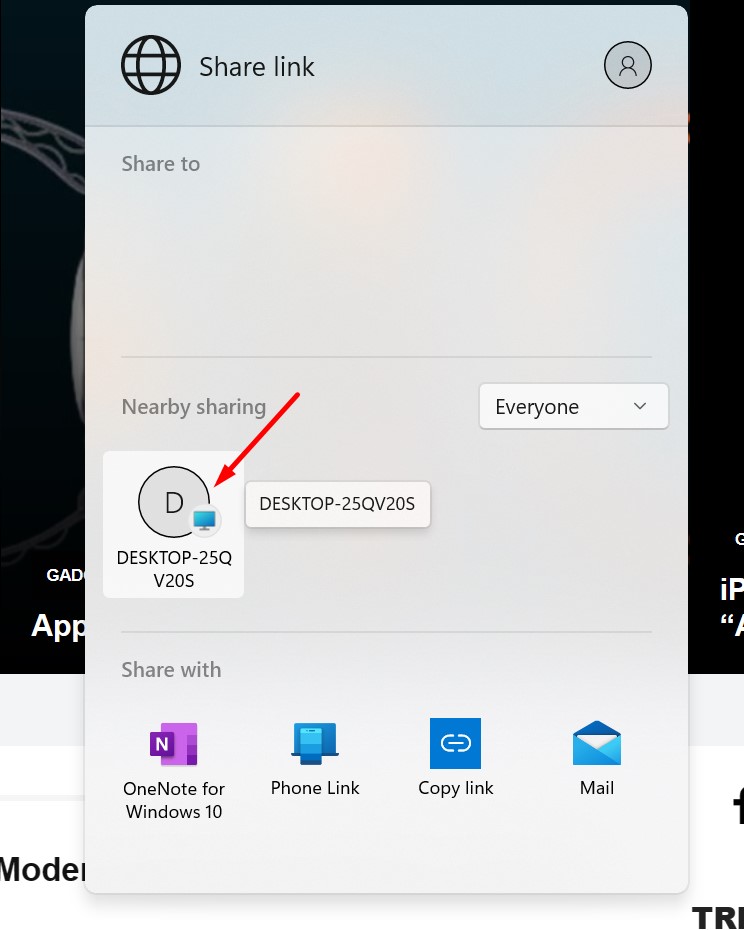
5. On the PC receiving the link, click Open.
The webpage sharing will be successful. You can follow the same steps to share as many web pages as you want between Windows PCs.
This guide explains how to use the Nearby Sharing feature on Windows 11 computers. Let us know if you need more help enabling or using it.
The post How to Use Nearby Sharing in Windows 11 appeared first on TechViral.
from TechViral


0 Comments