
Linking another device to a WhatsApp account is super easy, but sometimes, you may experience problems while scanning the QR code or during the linking process. Recently, many users got an unusual error message while linking their devices to WhatsApp Web. The error message reads ‘WhatsApp web couldn’t link device’, preventing users from accessing their WhatsApp chats on PC.
Why can’t you link a device?
There could be various reasons for WhatsApp failing to link to a device. Below, we have mentioned a few obvious ones.
- Your PC/Mobile has no internet or an unstable internet.
- You are using a VPN or Proxy app on your phone.
- The WhatsApp app is outdated.
- Bugs & Glitches in WhatsApp
- Corrupted web browser cache.
Below, we have shared some simple steps to fix the error message.
1. Make Sure Your Internet is Working
Like every other web-based service, WhatsApp web also needs an uninterrupted internet connection to link your device. The linking process is done entirely over the internet; hence, unstable internet connectivity can only lead to problems.
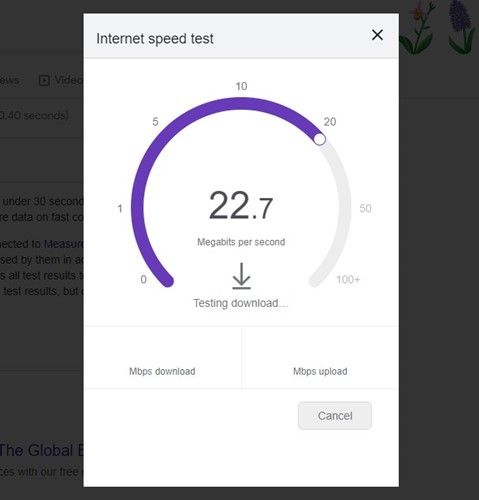
Before you try the next methods, check if your internet is working and is stable. You can visit the fast.com website to check your internet speed. Even if your internet is working, it’s recommended to reconnect to the WiFi network or Ethernet you’re currently connected to.
2. Restart the devices
If you are constantly failing to link to WhatsApp web on a desktop from the mobile app, you need to restart both devices.
You need to restart your computer and your Android smartphone. Restarting will possibly rule out the bugs and glitches that may be preventing the WhatsApp services from functioning correctly.
Restart both devices and then try to link again. If the problem persists, follow the next methods.
3. Disable the VPN or Proxy Apps
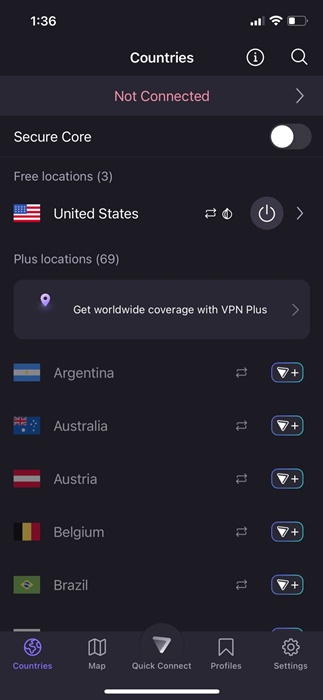
Security and privacy apps like VPNs, Antivirus software, Firewalls, etc., often conflict with incoming connections, leading to errors.
Using a VPN connection on mobile while linking to WhatsApp web (desktop) can delay the connection to the server, leading to the login failed error.
If you are using any VPN/ Proxy or Firewall app on your mobile or desktop, it’s recommended to turn them off to properly establish a connection. Once turned off, try the Linked Devices feature of the WhatsApp mobile app to link the WhatsApp web account.
4. Check the WhatsApp App Permissions
If you have denied the permissions that WhatsApp asks for during the installation, you won’t be able to link devices. It’s important to check whether the required permissions are granted.
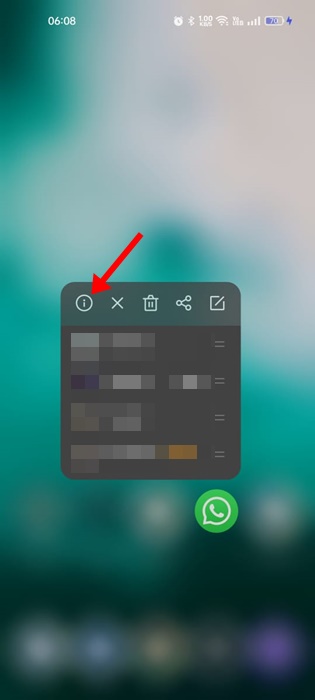
1. Tap & hold the WhatsApp app icon on your home screen and select App Info.
2. Tap on Permissions.
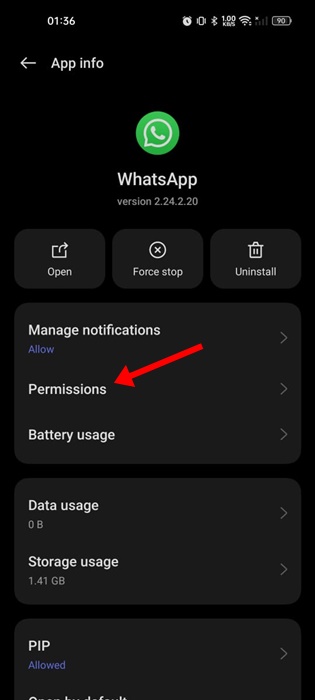
3. Ensure the Camera, Microphone, Notifications, Phone, Photos, and Videos permissions are allowed.
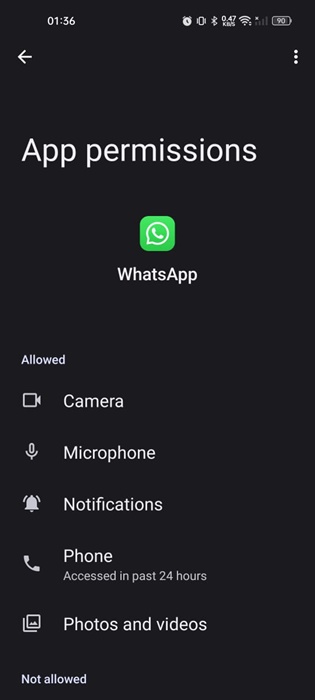
After confirming the permissions, relaunch the WhatsApp app and scan the QR code displayed on the WhatsApp web.
5. Check the WhatsApp Server Status
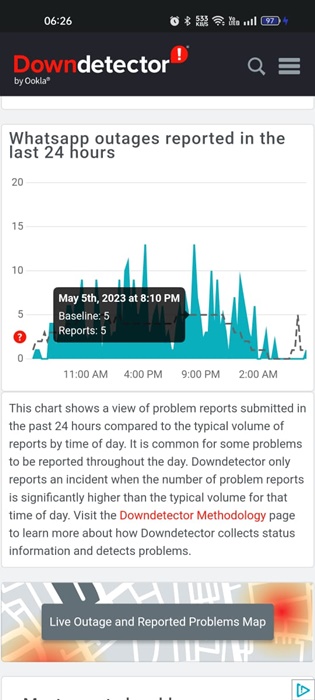
Like every other web-based service, the servers of WhatsApp can occasionally face downtime. The servers are often down due to increasing server loads and are taken down for maintenance.
If you are still getting the ‘WhatsApp couldn’t link devices’ error messages, chances are you’re trying to link the device when the servers are down.
You can check the server status of WhatsApp from this webpage. If the servers are down, you must wait a few hours until the servers are restored.
6. Clear the WhatsApp App Cache
An outdated or corrupted app cache is often the prominent reason for errors like WhatsApp not being able to link to the device. Try again later. You can rule out the outdated or corrupted app cache by clearing the app’s existing cache file.
1. Long-press the WhatsApp app icon on the home screen and select App Info.
2. Tap Storage usage.
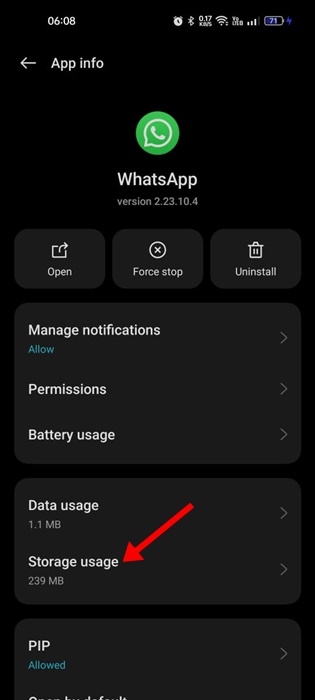
3. Tap on the Clear cache.
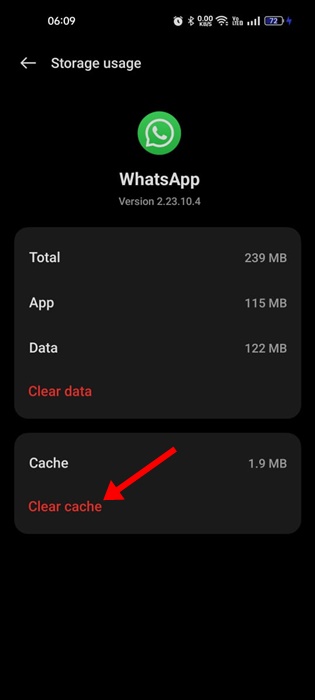
This will immediately clear the WhatsApp cache file on your smartphone.
7. Clear the Web Browser Cache
Like the mobile app cache, you must also clear the cache file of the browser you’re using to use WhatsApp Web.
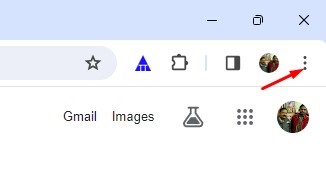
1. Click on the three dots at the top right corner.
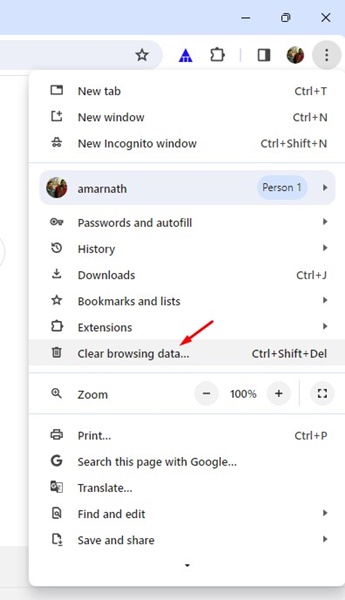
2. On the Chrome menu, select Clear browsing data.
3. Select All Time on the Time Range and check the Cached images and files. Once you’ve done this, click the Clear Data button.
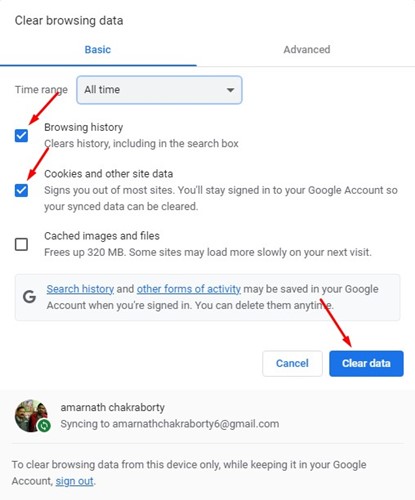
This will clear the outdated cache file of the Chrome web browser.
8. Reinstall the WhatsApp App
If nothing has worked until now, reinstalling the WhatsApp app may help. Reinstallation has already benefited many users; hence, you can also try doing it.
To reinstall WhatsApp on Android, simply long-press the WhatsApp app icon and select Uninstall. Once uninstalled, install the WhatsApp app again from the Google Play Store.
9. Reach out for WhatsApp Support
If you have come so far, you have had hard luck. Anyways, the only remaining option left to fix the error is to contact the WhatsApp support team.
You can contact WhatsApp Support and tell them about your problem. You should also tell them all the troubleshooting techniques you’ve tried. WhatsApp’s support team will look into the issue and reply within a few days.
Frequently Asked Questions:
Why is WhatsApp Saying ‘Couldn’t link device’?
Internet issues are the prominent reason WhatsApp can’t link to your device. You should check whether your internet is active. Otherwise, restart both the router and your devices.
Why is my phone not linking to WhatsApp?
If you’ve followed all the methods shared in the article and still can’t link your phone to WhatsApp, it’s best to turn your device off. Once turned off, wait for 30 seconds and turn it on again.
Unable to link WhatsApp Web to Phone?
If you can’t link your WhatsApp account to the WhatsApp web, restart the PC web browser and the internet. If restarting doesn’t work, try clearing the web browser cache.
How do I relink my WhatsApp on a device?
To relink your WhatsApp account on a device, open WhatsApp on your primary phone and select Menu > Linked Devices > Link a device. You will be able to relink your WhatsApp account on a new device.
This guide explains how to fix the ‘WhatsApp couldn’t link device. Try again later’ error message. Let us know in the comments below if you need more help on this topic.
The post How To Fix ‘WhatsApp Couldn’t Link Device’ Error appeared first on TechViral.
from TechViral


0 Comments