
A few Windows users had been redirected to the Hotcleaner.com website, which says that the Privacy Test extension has been updated to the latest version. If you have no clue about this and are wondering whether hotcleaner.com is safe, continue reading the article.
Is Hotcleaner.com safe?
The ‘Privacy Test Updated successfully’ tab that pops up when you launch Chrome is a result of a virus named Hotcleaner. The webpage you see is considered a browser hijacker and gets installed through an extension.
Since it’s a browser hijacker, this affects the performance and functionality of Google Chrome. Running a full antimalware scan will not remove the hotcleaner.com virus from your Chrome browser; you will have to manually find the extension and uninstall it.
How to Remove Hotcleaner.com virus from Google Chrome?
Removing the hotcleaner.com virus from a Google Chrome browser is fairly easy; you just have to follow these steps.
1. Remove the Privacy Test Extension
Privacy Test extension is the actual culprit behind the Hotcleaner.com virus on your Google Chrome browser. If you manage to remove the Privacy Test extension, the start page will revert to the default.
- Launch the Google Chrome browser.
- Type chrome://extensions in the address bar and press Enter.
- In the top right corner of the screen, enable the toggle for Developer Mode.
- Search for the Extension named Privacy test (ID: pdabfienifkbhoihedcgeogidfmibmhp).
- Click on Remove.
- Click Remove again.
After making the changes, close the Google Chrome browser. This will remove the Privacy Test extension from your Google Chrome browser. From now on, you won’t see the hotcleaner.com pop-up again.
2. Run a full PC scan with Malwarebytes
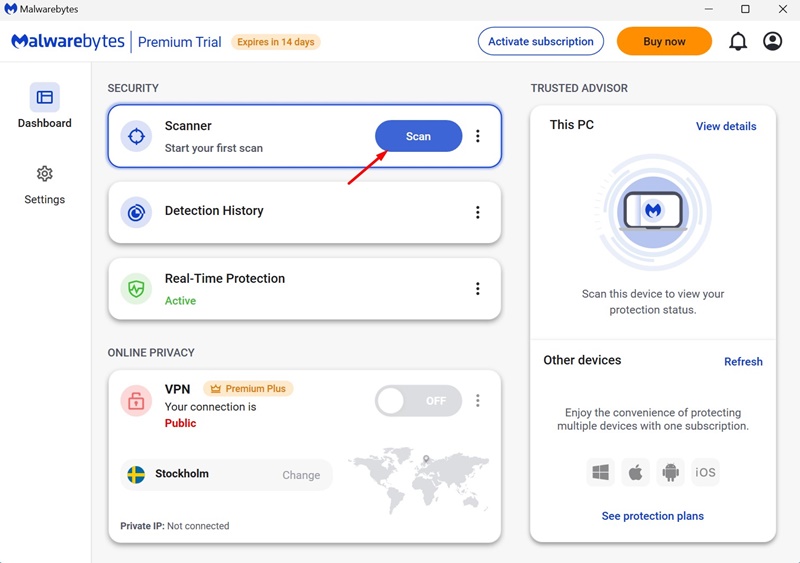
The latest version of Malwarebytes has the potential to deal with browser hijackers as well. Hence, you can try running a full PC scan with Malwarebytes to get rid of the hotcleaner.com virus from your PC.
Download & install Malwarebytes on your computer and then open it. On the main interface of Malwarebytes, click on the Scan button on the Scanner.
3. Remove suspicious programs from your PC
The hotcleaner.com Chrome virus can enter from the programs that you already have installed on your PC. So, you will have to review all programs you’ve recently installed, and if you find anything suspicious, simply uninstall it.
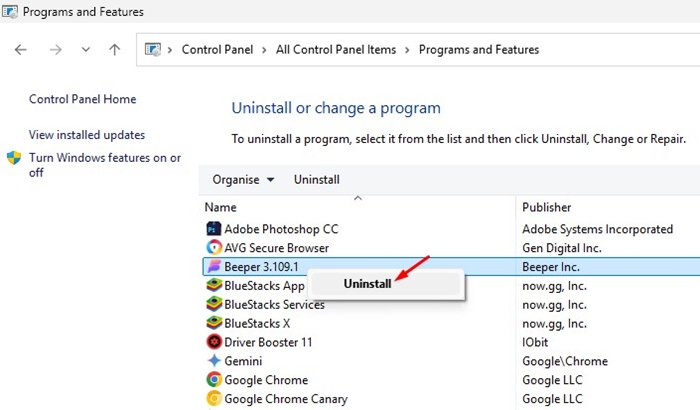
- Open the Control Panel on your PC.
- Click Programs and Features.
- Find the programs you’ve recently installed.
- Once you find the suspicious program, right-click on it and select Uninstall.
4. Reset Chrome to Default Settings
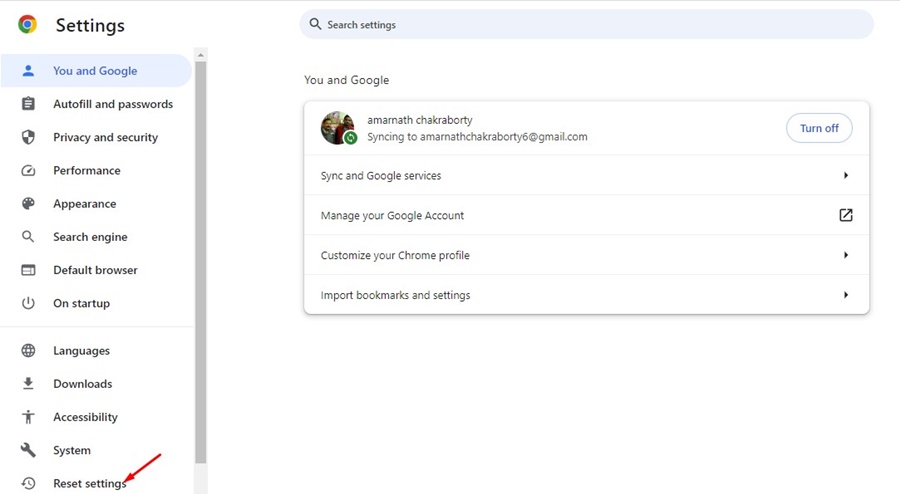
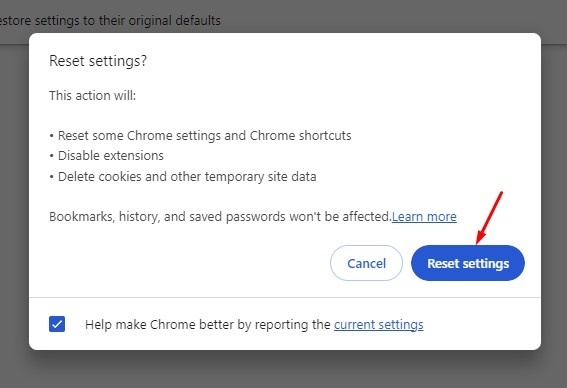
If nothing worked to remove the hotcleaner.com virus from your PC, it’s time to reset the Chrome browser to its default settings. To reset Chrome, follow these steps.
1. Open Chrome Settings and select Reset Settings.
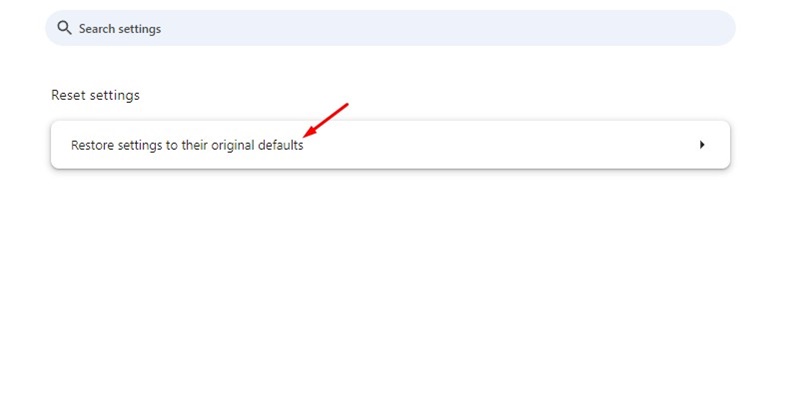
2. Click Restore Settings to their original defaults.
3. On the Reset Settings confirmation prompt, click Reset settings.
This article explains whether hotcleaner.com is safe and how to get rid of it. If you need more help on this topic, let us know in the comments.
The post Hotcleaner.com is it Safe? How to Get Rid of It appeared first on TechViral.
from TechViral


0 Comments