
The best way to fix gaming-related issues on Windows 11 is to reset the graphics card. Resetting the graphics card will rule out incorrect settings and bugs. Below, we have shared some simple ways to reset graphics cards on Windows 11.
1. Restart the GPU Only
Restarting the Graphics card on Windows 11 is pretty easy, as a keyboard shortcut is available. To restart the Graphics card in Windows, press the Windows Key + CTRL + SHIFT + B button together. Your screen will turn black as you press the key combination.
Don’t worry, as this is a part of the process. Your Windows experience will be recovered after the restart process is complete.
2. Disable & Enable the Graphic Card in Device Manager
Another best method to restart the graphics card on Windows 11 is the Device Manager. Here’s what you need to do.
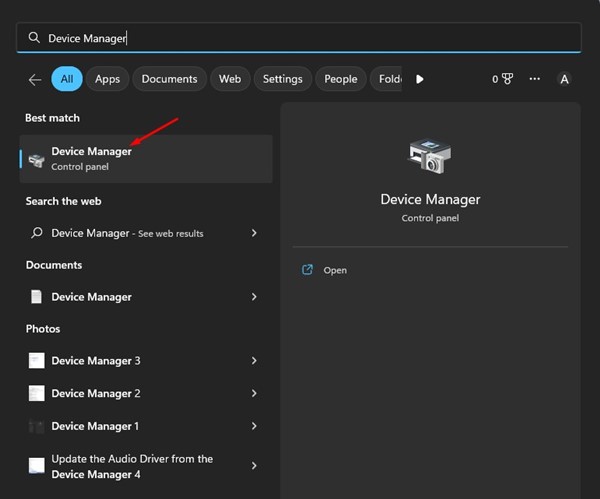
1. Open the Device Manager app from the Windows Search.
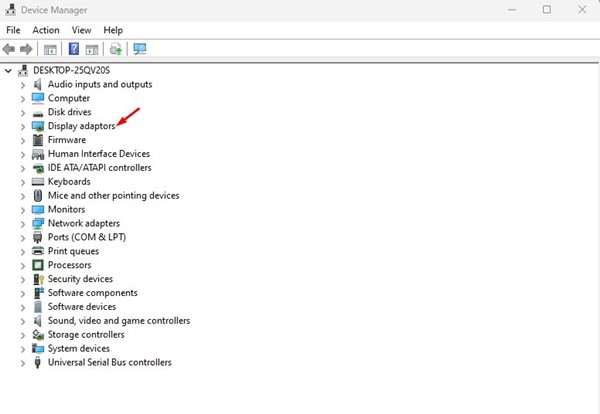
2. Expand the Display Adapters.
3. Right-click on your Graphics card and select Uninstall Device.
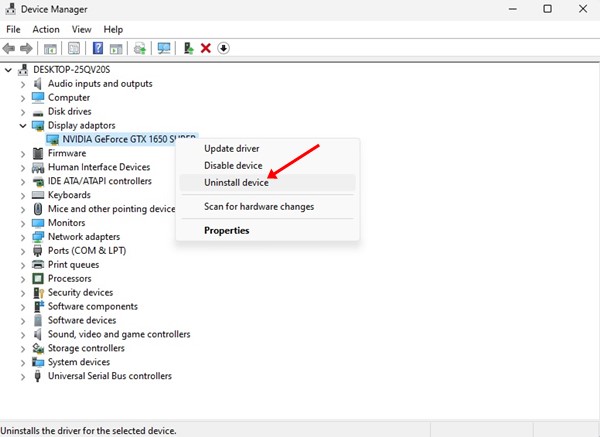
4. This will uninstall the graphics card driver. Once done, restart your computer.
During the restart, Windows 11 will automatically install the graphics card again.
3. Reset the Graphics Card from the BIOS
Resetting the graphics card from the BIOS is possible, but the steps are a bit complicated. Here are some simple steps to reset the graphics card from the BIOS.
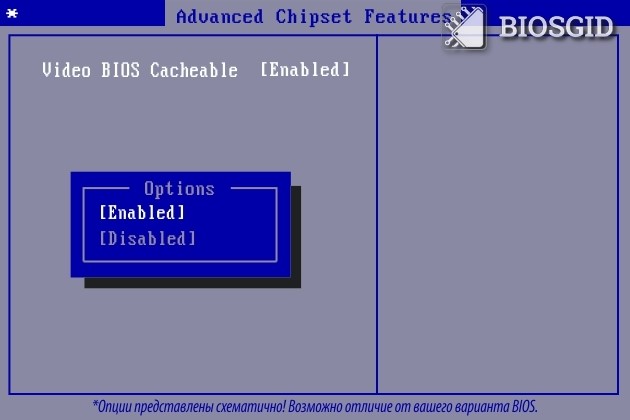
1. Restart your computer and enter the BIOS. You need to press the F10 key to enter the BIOS setup. You may have to press F8, ESC, or DEL on some motherboards.
2. Find and select the Advanced Chipset Features.
3. Select Video BIOS Cacheable.
4. Use the + and – keys to change the BIOS Settings.
5. Press the F10 key on your keyboard. You will see a confirmation prompt; click on the Yes button.
This will possibly reset the Graphics card settings. The steps may vary depending on the motherboard you are using.
4. Update Your Graphics Card
You may be facing problems due to outdated graphics card drivers. Updating the graphics driver won’t reset the graphics settings, but it will fix many issues.
1. Click the Windows 11 search and type Device Manager.
2. Expand the Display Adapters.
3. Right-click on your Graphics card and select Update driver.

4. Select Search automatically for the drivers.
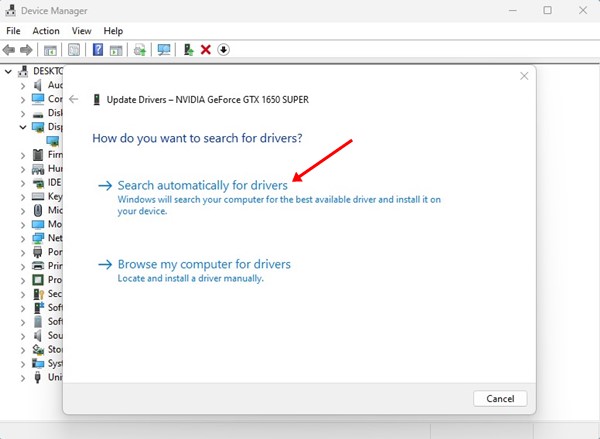
This is how you can update the graphics card drivers on a Windows 11 computer.
Also read: How to Check the Graphics Card (GPU) in Windows 11
These are some of the best methods to reset graphics cards in Windows 11. Let us know in the comments below if you know other ways to reset the graphics card.
The post 4 Ways to Reset Graphics Card on Windows 11 appeared first on TechViral.
from TechViral


0 Comments