
The app icons that greyed out on iPhone don’t always mean a problem. However, if the app icons are greyed out or showing Waiting, it could simply mean the app is installing an update. It’s also possible that the app is not compatible with the iOS version you’ve just installed on your iPhone.
The grayed-out apps issue on iPhone generally appears after installing the latest iOS release and prevents app launch. Here’s how you can fix this problem.
1. Restart your iPhone
After installing an iOS Update, certain system processes may take time to run, and some processes may fail to run, leading to apps not responding or opening problems.
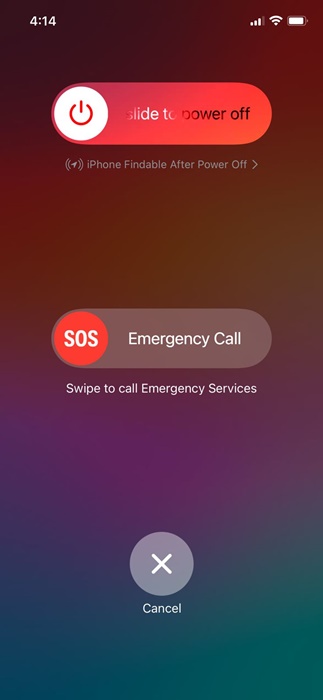
You can eliminate such system-related issues by restarting your iPhone. To restart your iPhone, press the Volume button and the side button of your iPhone. On the Power Menu, select the Slide to Restart option.
2. Make sure your iPhone is connected to the internet
When an app tries to download and install an update from the App Store, its icon is grayed out on your iPhone home screen. Your app icon may be greyed out, and you’re unable to use it because it’s trying to download an update.
If it’s taking long, you need to check your internet because iPhone apps rely on a good network connection when updating or installing.
3. Check if your iPhone has sufficient storage space
If your iPhone doesn’t have sufficient storage space, you won’t be able to perform actions like installing or updating an app. The app icon greyed out simply means the app is updating from the App Store, so make sure there’s enough storage available on your iPhone.
1. Launch the Settings app.
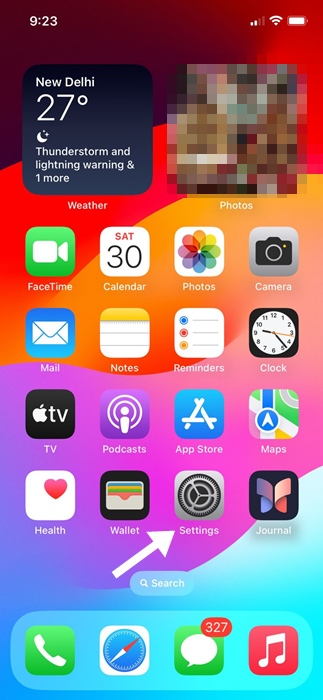
2. Tap on General.
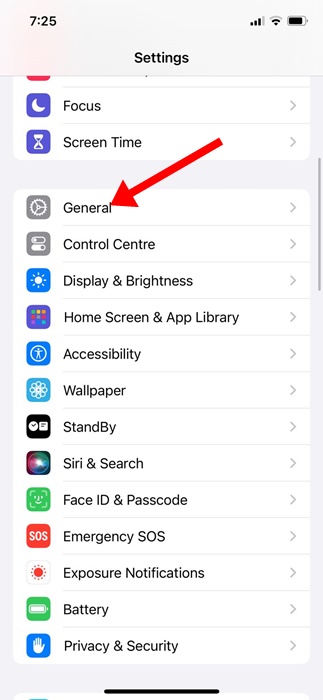
3. Tap iPhone Storage.
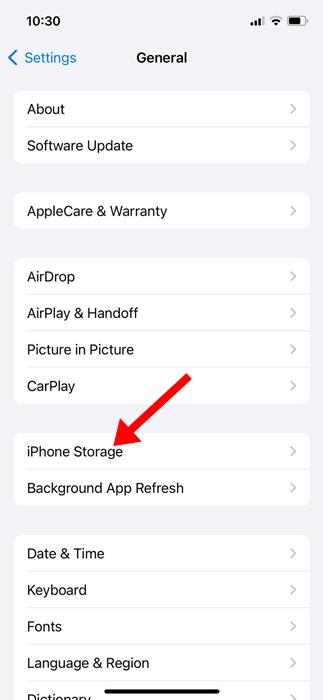
4. Check whether your iPhone has sufficient storage space available. If you need to free up storage space, delete unused apps or remove files, photos, videos, etc.
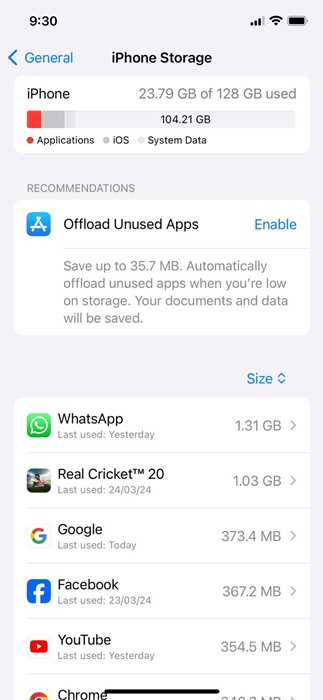
After cleaning up the storage space, wait a few minutes and check whether the app icons are still greyed out.
4. Rule out the Network Issues
App icons can also be greyed out or stuck at Waiting due to network problems, especially if you use mobile data to update the apps. The network may be poor or unavailable during the installation or update of an app.
Even if you don’t have any network issues, incorrect carrier or network settings can also trigger the problem. Here’s how you can rule out such problems.
1. Launch the Settings app.
2. Tap on General.
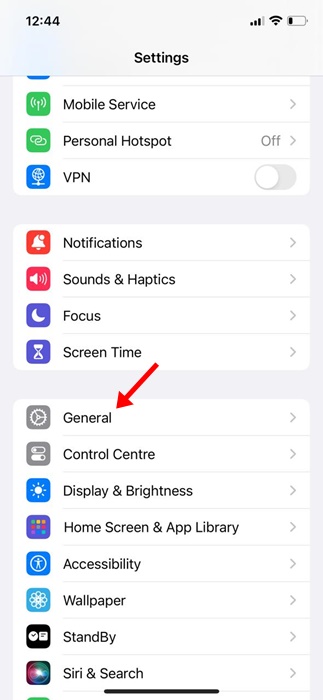
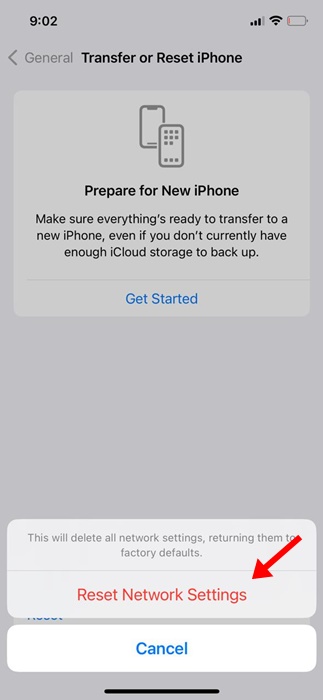
3. Tap Transfer or Reset iPhone.
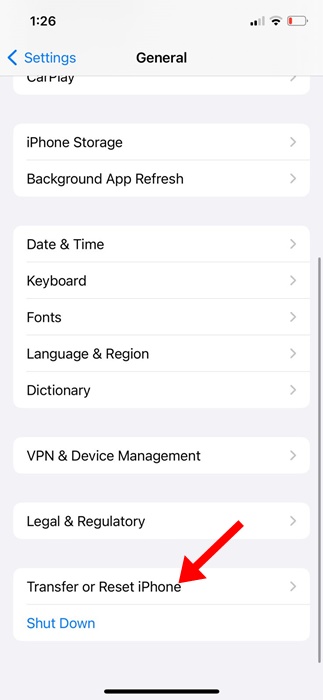
4. Select Reset Network Settings.
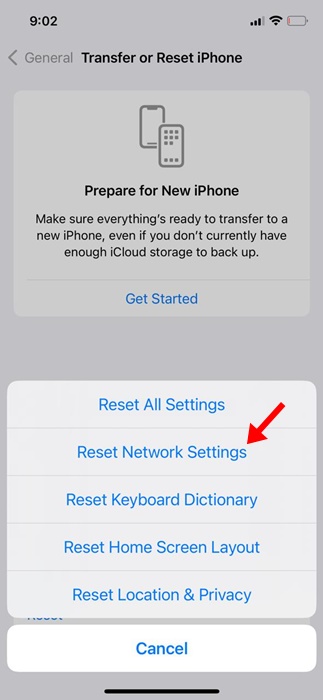
5. Tap on Reset Network Settings again.
5. Cancel the App Updates
If you’re using iOS 15 or older and the apps are greyed out with a label ‘waiting’, you can try canceling the download. You need to cancel the app download/update that’s stuck. Here’s what you need to do.
- Restart your iPhone
- Long-press the affected apps.
- Select Cancel Download.
6. Uninstall and Reinstall the App
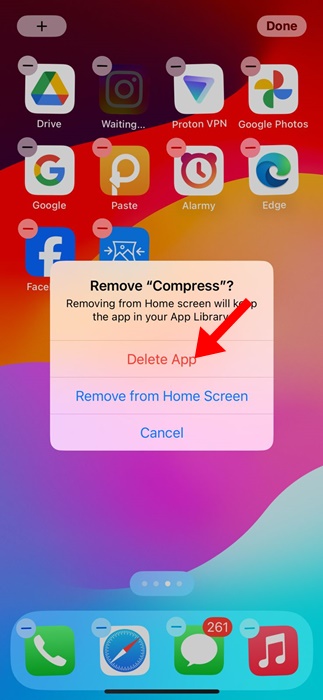
If nothing worked for you to fix an app that’s grayed out on your iPhone, it’s time to delete it and reinstall it from the Apple App Store.
Maybe the app that’s grayed out isn’t perfectly compatible with the iOS version you’ve just installed. In that case, the best solution is to uninstall the app and reinstall it.
To uninstall the app, press and hold the app icon and select Remove App. On the Remove prompt, select Delete app. Once deleted, reinstall it from the Apple App Store.
These are some working methods to fix apps grayed out on iPhone. If you need more help on this topic, let us know in the comments.
The post How to Fix iPhone Apps Greyed Out After iOS Update appeared first on TechViral.
from TechViral


0 Comments