
With a list of device drivers, you can quickly determine whether a device uses a generic or OEM driver. Here are the best ways to view a list of all installed drivers in Windows.
View all Installed Drivers from the Device Manager
You can access the Device Manager to view all installed drivers in Windows.
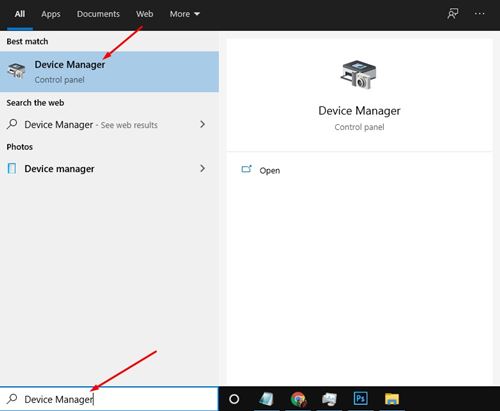
1. Type Device Manager in Windows Search and open it.
2. Click the View menu and select the Devices by Driver.
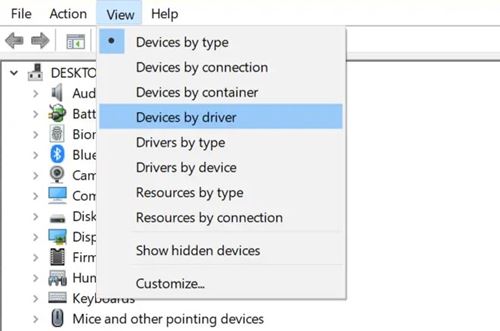
3. You can see all installed drivers on your PC.
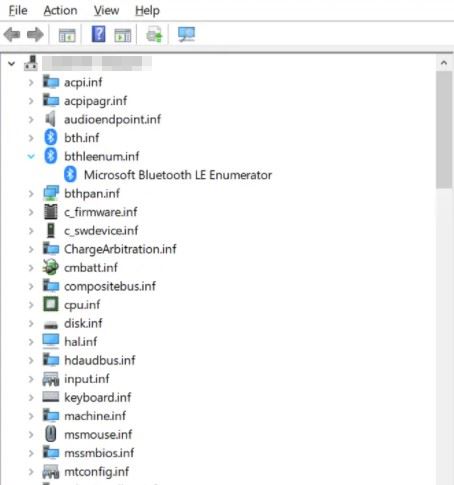
4. To revert to the default view, click the View menu and select the Devices by type option.
View all Installed Drivers from the Command Prompt
You can use Command Prompt to view a list of all installed drivers as well. Here’s what you should do.
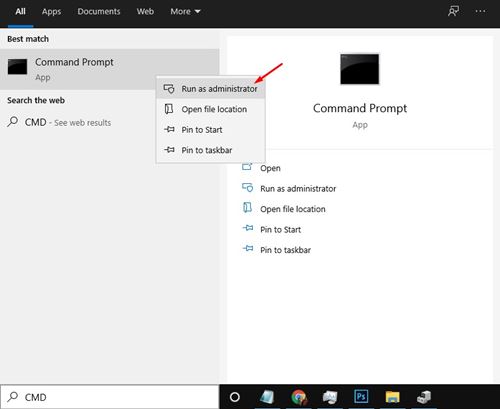
1. Open the Start menu and type in CMD. Right-click on the Command Prompt and select Run as Administrator.
2. Copy and paste the command and press Enter
Driverquery
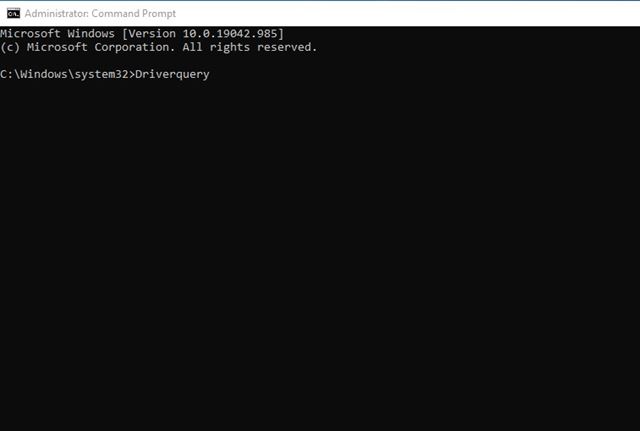
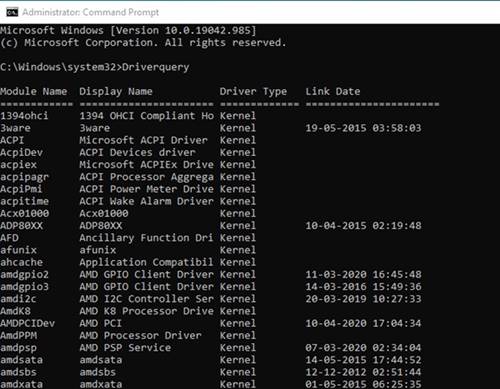
3. The above command will list all available drivers on your PC.
How to Update Drivers on Windows?
Now that you have the list of all installed drivers, you may want to update some of them. On Windows 10/11, it’s pretty easy to update the device drivers. You can follow our guide – How to Easily Update Drivers on Windows to update all outdated drivers.
Also, remember that keeping drivers up to date is a good security practice. So, make sure to update outdated device drivers as soon as you find them.
This guide explains how to view all installed drivers on Windows computers. If you have any doubts, let us know in the comment box below.
The post How to View a List of all Installed Drivers in Windows appeared first on TechViral.
from TechViral


0 Comments