
When you set a network profile to Public, your device won’t be visible to other devices on the same Network. Other devices on the network won’t be able to access your files, printers, etc. Both network profiles use different firewall settings. You can also customize these two profiles using third-party firewall apps on Windows.
Also Read: How to Turn the Windows 11 Taskbar into a macOS-like Dock
1. Change the Network Profile type using Settings
Now that you know both public and private profiles, here’s how you can change your network profile on Windows 11.
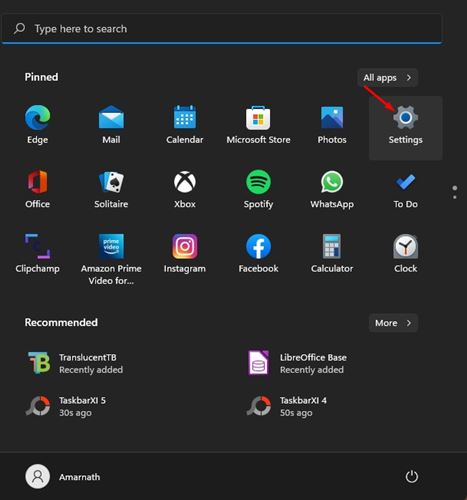
1. Click on the Windows 11 start menu and select Settings.
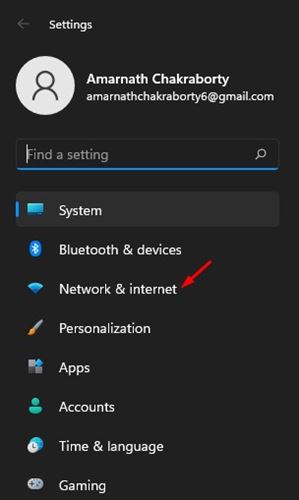
2. Click Network & Internet.
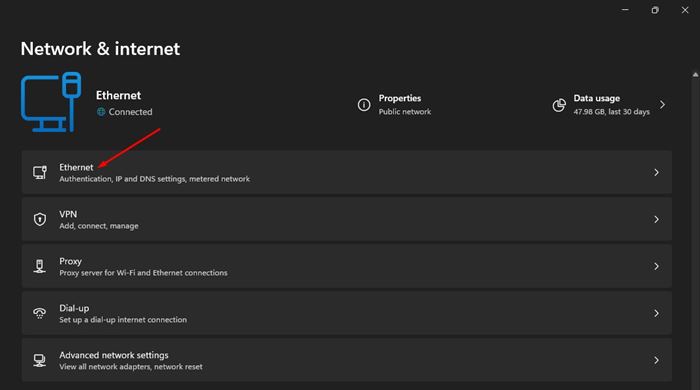
3. Click Network. For example, I am connected to a cable network; therefore, I have to click on Ethernet.
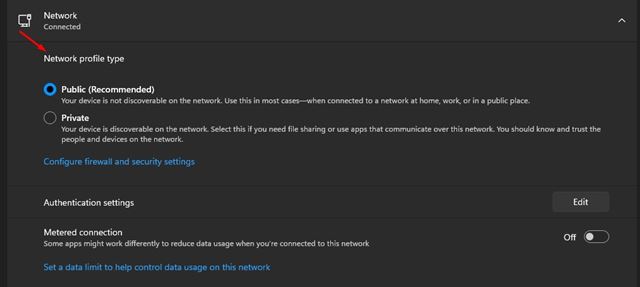
4. Select between ‘Public’ or ‘Private’.
5. If you wish to change the network profile for a wireless connection, head to Settings > Network & Internet > Wifi.
6. Under WiFi, click on Manage known networks and select the active wireless connection.
7. Select a Public or Private Network.
2. Change Network Type using Registry Editor
The Windows Registry app can also be used to change the network profile type.
1. Press the Windows Key + R button to open the RUN dialog box. When the RUN dialog box opens, type regedit and press Enter.
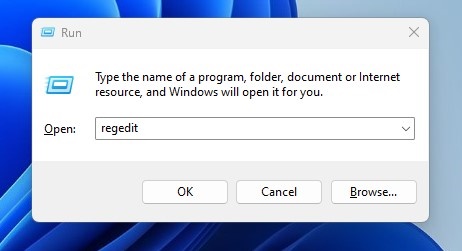
2. Navigate to this path:
Computer\HKEY_LOCAL_MACHINE\SOFTWARE\Microsoft\Windows NT\CurrentVersion\NetworkList\Profiles
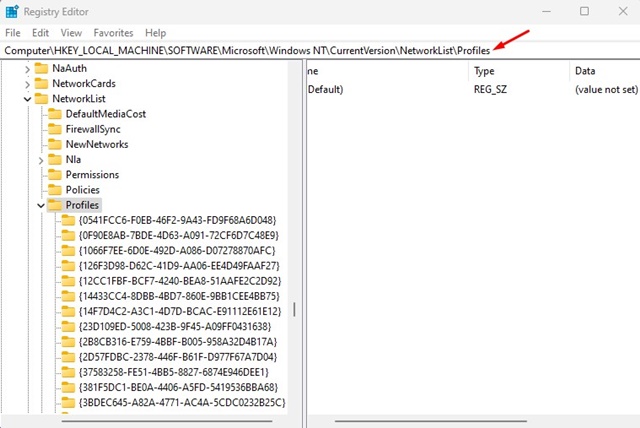
3. Under the Profiles folder, you will find various Network Profiles folders. You need to click on each and find the network profile you want to modify.
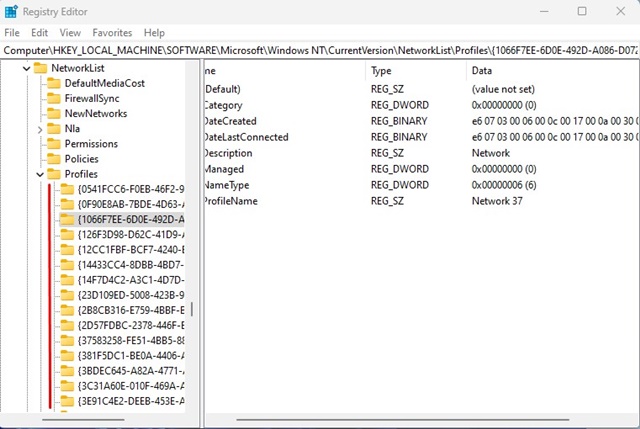
4. You can select each profile and look at the ProfileName value on the right side. This will show you the network name of the selected profile.
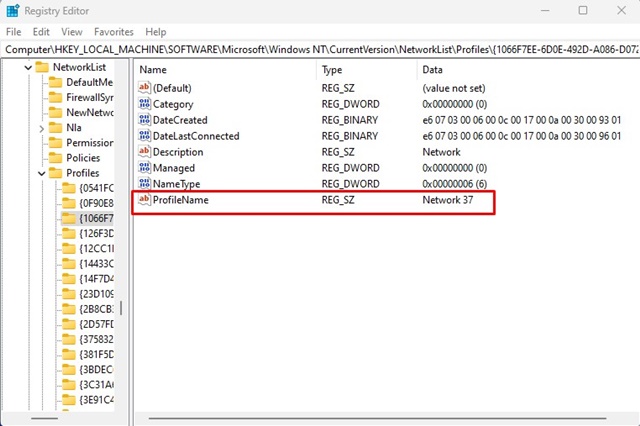
5. Once you find the Network profile, double-click on the Category DWORD value. In the value data field, enter one of the following choices:
- Public Networks: 0
- Private Networks: 1
- Domain Networks: 2
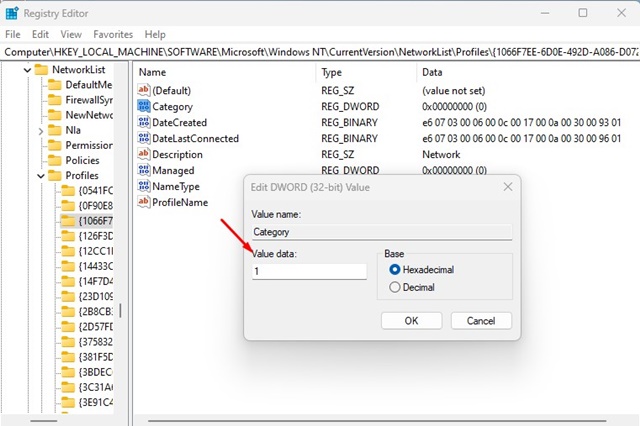
Let’s say you want to change the network profile to private; enter 1 in the value data field and click the Ok button. After making the changes, restart your Windows computer.
3. Change the Network Profile type using the Local Security Policy
You can also use the Local Security Policy editor to change the Network Profile type.
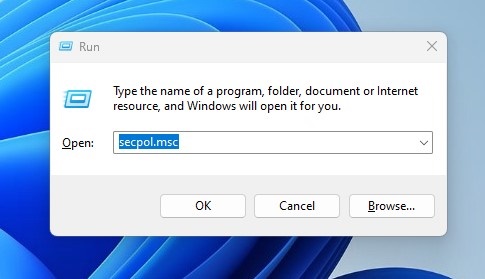
1. Press the Windows Key + R button to open the RUN dialog box. Type in secpol.msc and press Enter.
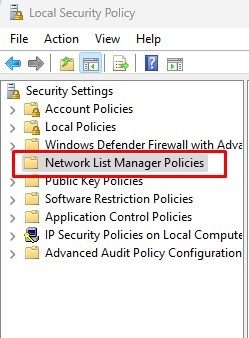
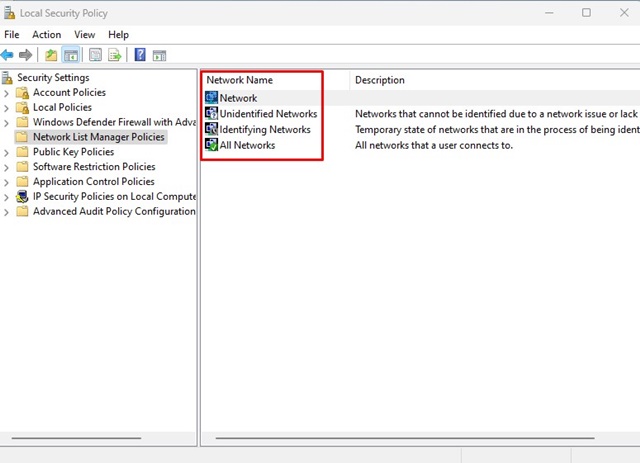
2. Select the Network List Manager Policies. On the left side, you will see all available networks.
3. Double-click on the Network you want to change the type of.
4. Switch to the Network Location tab and change the location type to Private or Public.
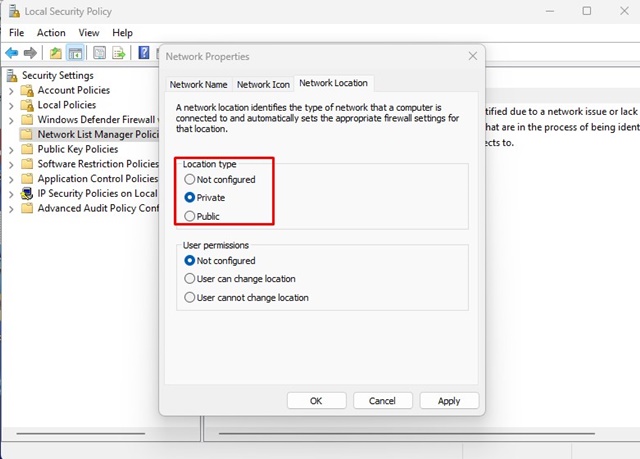
After making the changes, click the Apply button and close the Local Security Policy Editor. Then, restart your computer to reflect the change.
This article explains how to change the network profile on Windows 11. If you have any doubts, let us know in the comment box below.
The post How to Change Network Profile Type on Windows 11 appeared first on TechViral.
from TechViral


0 Comments