
The Windows Update Install error 0x80070643 typically occurs due to issues with the Windows Recovery Environment partition or corrupted system files. Here’s how you can fix that error.
1. Extend the WinRE Partition
You will get this error if the Windows Recovery Environment partition lacks sufficient free space. It’s essential to boot into the Windows Recovery Environment to resolve this error.
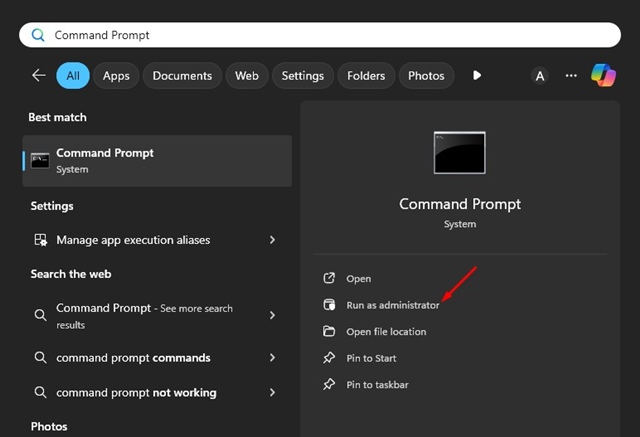
1. Launch Command Prompt with Administrator rights.
2. When the command prompt opens, execute this command:
reagentc /info
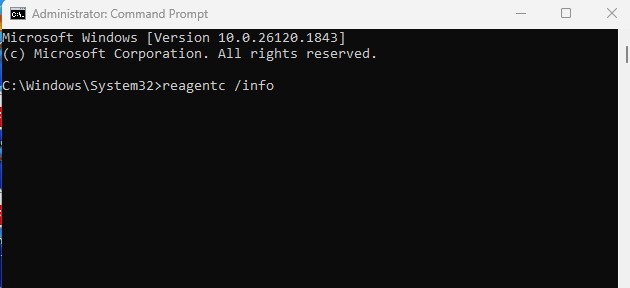
3. You will now see the current status and location of your WinRE partition. Note down the disk and partition number.
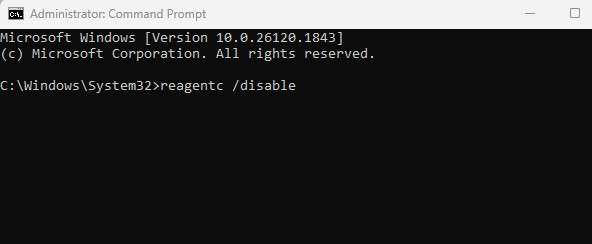
4. Disable the WinRE Partition by running this command:
reagentc /disable
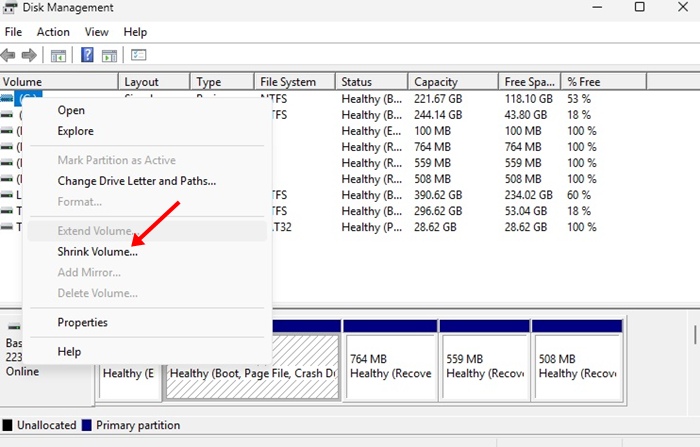
5. Open the Disk Management utility and right-click on your OS Partition. Select Shrink Volume. To create free space, you need to shrink this partition by at least 250MB.
6. Right-click the WinRE Partition and select Delete Volume.
7. Create a new WinRE Partition. Right-click the unallocated space and select ‘New Simple Volume’. Format the new partition as NTFS and label it as WinRE tools.
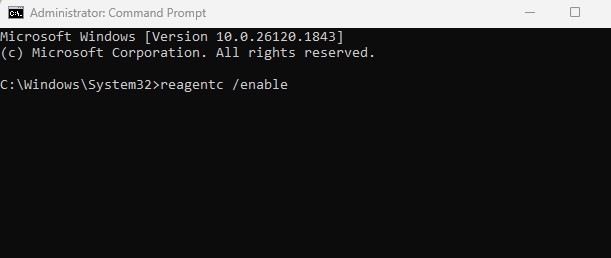
8. Open Command Prompt with admin rights. Enable the WinRE by executing this command:
reagentc /enable
9. To confirm the WinRE changes, execute this command:
reagentc /info
2. Restart the Windows Installer Service
If you still get the error, you will have to restart the Windows Installer Service.
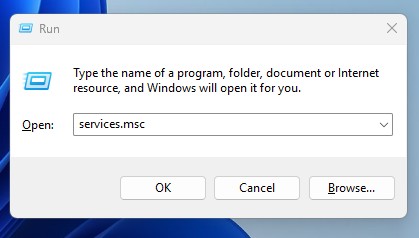
1. Press Windows Key + R on your keyboard. On the RUN dialog box, type services.msc and press Enter.
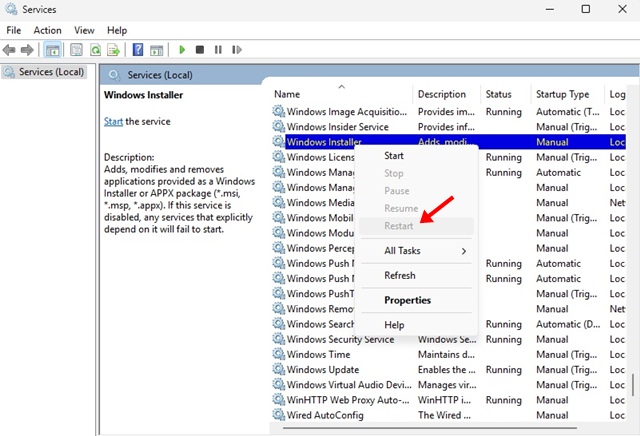
2. Find Windows Installer. Right-click the Windows Installer service and select Restart.
3. Disable the Antivirus Program
Sometimes, antivirus tools, especially third-party ones, can conflict with Windows Update services, leading to 0x80070643 errors.
To get rid of this problem, you should turn off the Antivirus program while installing the Windows Update.
4. Run the Windows Update Troubleshooter
Windows 11 has a built-in Update troubleshooter that finds and fixes problems with Windows updates. You should run it to fix this error.
1. Open Windows Settings and switch to System.
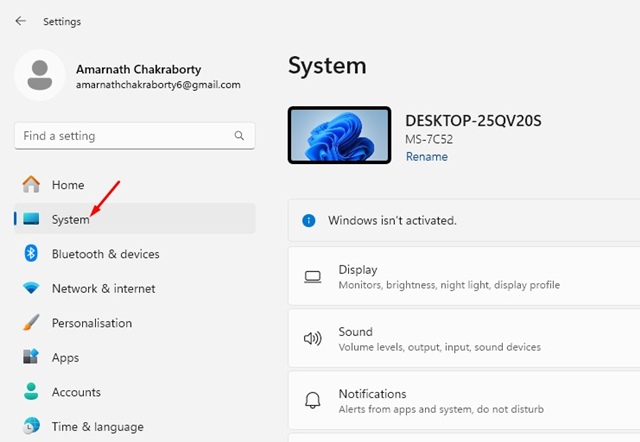
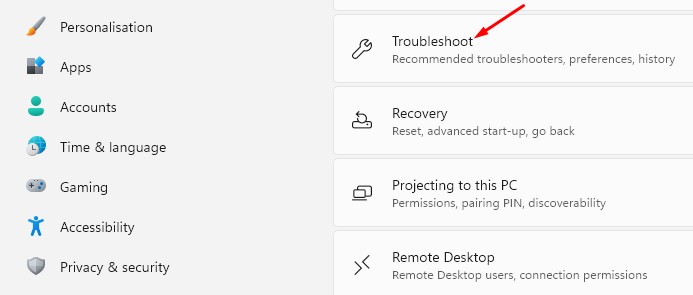
2. Select Troubleshoot.
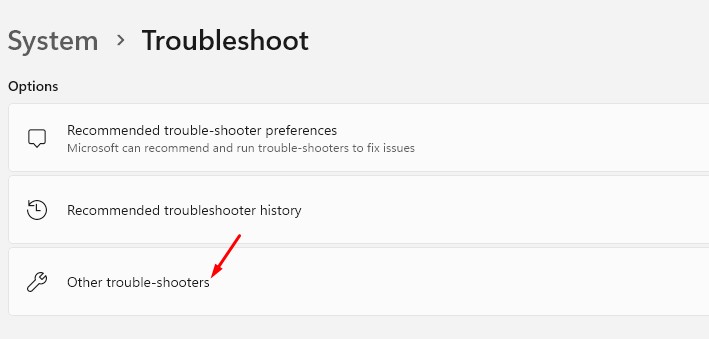
3. Click Other troubleshooters.
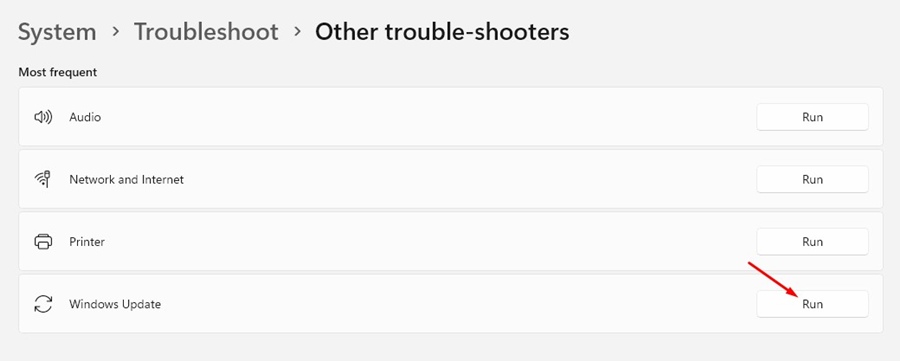
4. Click the Run button beside Windows Update.
5. Perform a fresh Windows Installation
If nothing worked for you to fix the Windows Update Install error 0x80070643, it’s time to perform a fresh Windows Installation.
Make sure to back up all data before you perform a fresh installation. Follow this method to use the Windows Media Creation tool to perform a fresh Windows 11 installation.
These are the best ways to fix Windows Update Install error 0x80070643. If you need more help with this topic, let us know in the comments.
The post Windows Update Install Error 0x80070643: How to Fix it appeared first on TechViral.
from TechViral


0 Comments