
Imagine a situation: you turn on your computer, boot into Windows 11, and then notice that the system tray icons are missing. Everything that you control from it – Volume, Network, checking the battery, everything is gone. This can happen every time, or the icons may disappear randomly.
If you’ve experienced a similar problem, you’re not alone. This Windows 11 problem has affected many users, and there are workarounds to fix it. Here’s how you can fix the System Tray icons not showing problem.
1. Restart the Windows Explorer
Windows Explorer manages the visual part of the operating system, including the SystemTrayy and the taskbar. So, if icons are missing from the System Tray, you should restart the Windows Explorer first. This should fix the problem most of the time.
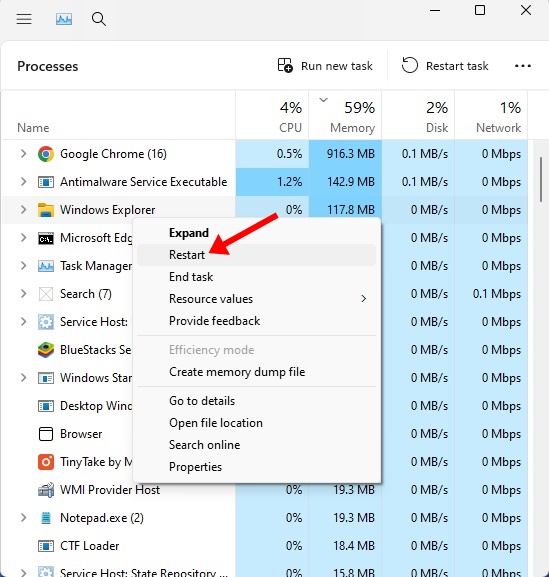
- Open the Task Manager from the Windows Search.
- When the Task Manager opens, find the Windows Explorer process.
- Right-click on it and select Restart.
Your desktop will go black for a second. This confirms the restart. This should fix the problem you’re facing.
2. Restart your Windows 11
If restarting the Windows Explorer process didn’t help, you should restart your Windows 11 computer. This will possibly eliminate the bugs and glitches preventing the system tray from functioning properly.
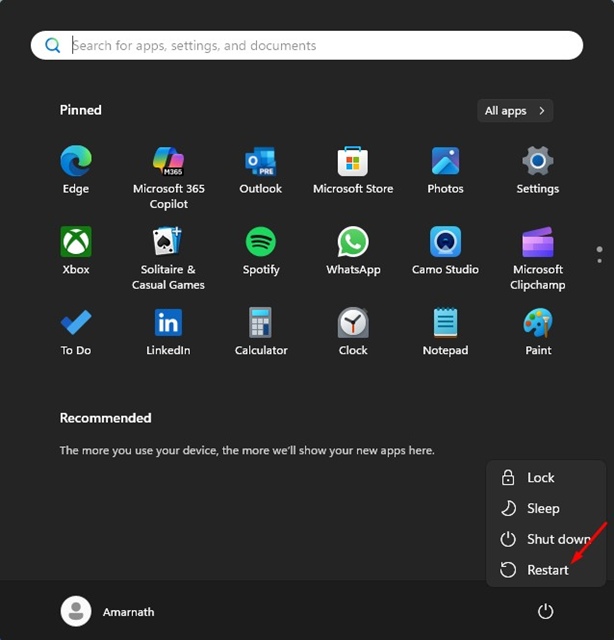
Restarting Windows 11 is easy; open the Windows Start, click the Power Menu, and select Restart. After the Restart, you should be able to see the System Tray icons.
3. Check the Taskbar Settings
You may have hidden the icons from the Windows Settings; hence, they aren’t showing up. To fix this, you should check the Taskbar Settings.
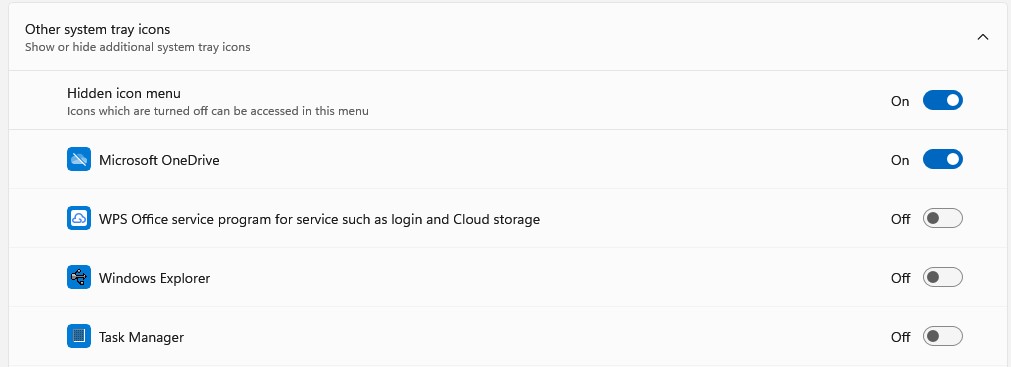
- Right click the Taskbar, select Taskbar Settings.
- Scroll down to the Other System Tray icons.
- Turn on any icons that you wish to see.
- Click System tray icons and enable the Volume, Network, and Battery.
Restart your computer after making the changes.
4. Make Changes using the Command Prompt
Basically, you need to execute two commands via Command Prompt to bring back the system tray icons. Here’s what you need to do.
1. Open Command Prompt with admin rights.
2. Enable the AppX service and set it to manual:
sc config AppXSvc start=manual
net start AppXSvc
3. Next, you should WSAIFabric service and set it to manual:
sc config WSAIFabricSvc start=manual
After executing these two commands, restart your Windows 11 PC.
5. Run the System File Checker Utility
If you still can’t find the system tray icons, you should run the System File Checker from the Command Prompt. This will fix the corrupted system files.
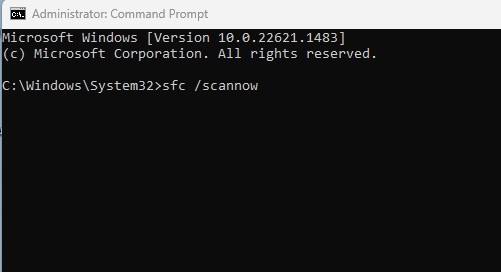
- Run Command Prompt on your PC with administrator rights.
- Next, execute this command and press Enter.
sfc /scannow
The process may take a few minutes or hours to complete. Make sure to restart your computer after that.
6. Update your Windows 11
Recent Windows updates can sometimes break the taskbar components, leading to the System Tray icons missing problem. You should resolve these problems by updating your Windows 11.
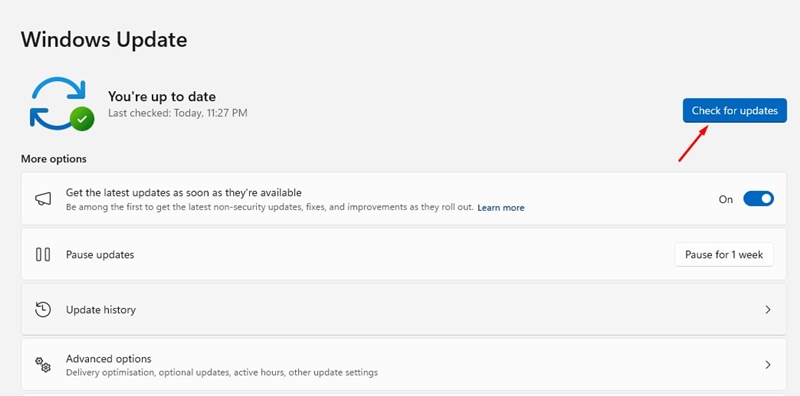
To update Windows 11, navigate to Settings > Windows Updates. On the right side, click on the Check for Updates button. Next, install all available Windows 11 Updates.
These are the best ways to fix the issue of system tray icons now showing on Windows 11. If you need more help with this topic, let us know in the comments.
The post System Tray Icons Missing? Try these 6 Fixes appeared first on TechViral.
from TechViral


0 Comments