

The sudden power outage, hard drive failures, and corrupted game/update files are the prominent reasons for the ‘Corrupt Update Files’ error. If you get this error message on Steam, here’s what you should do.
1. Uninstall the Game
The very first step to resolve the error on Steam is to Uninstall the game that throws you the error message.
1. Launch the Steam desktop client and switch to the Library tab.
2. In the Steam Library, find the game you want to uninstall.
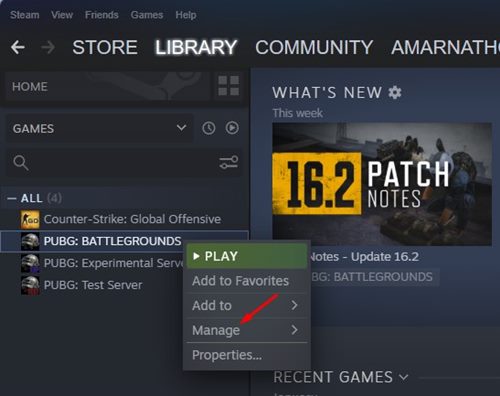
3. Right-click on the game and select Manage.
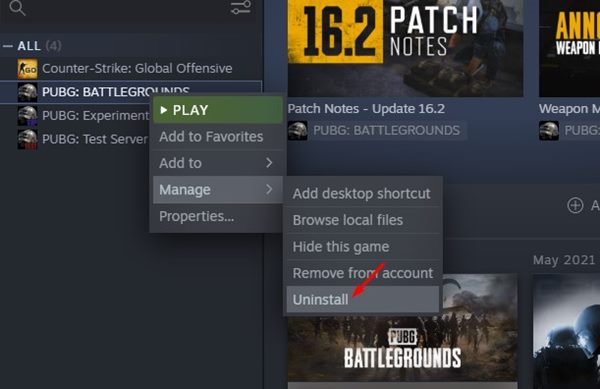
4. On the expanded menu, select Uninstall.
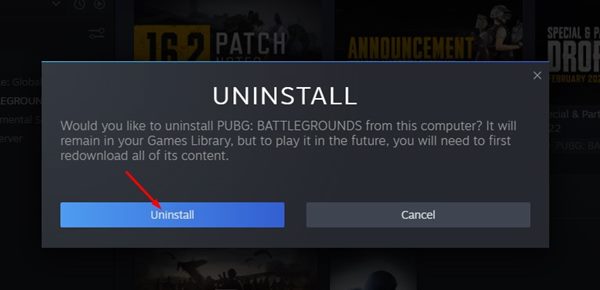
5. On the Uninstall confirmation prompt, click Uninstall.
2. Clear the Steam Download Cache
After uninstalling the Steam Game that was showing you the error, it’s time to clear the download cache.
1. Open the Steam desktop client.
2. Click View at the top left corner.
3. On the menu that appears, select Settings > Downloads.

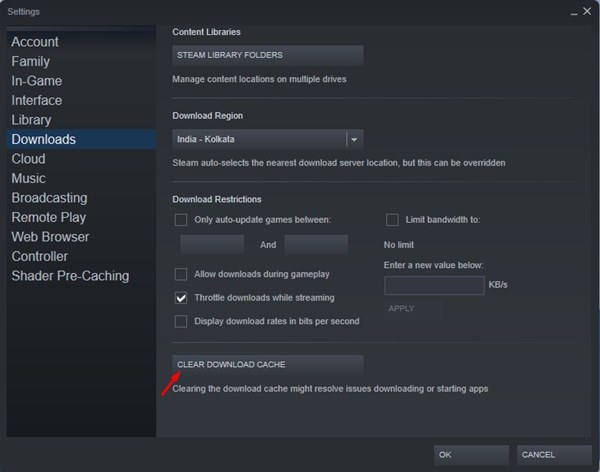
4. Move to the bottom of the screen and tap Clear Download Cache.
3. Change the Download Region
To fix the ‘Corrupt Update Files’ error on Steam, you should change the Download Region. Here’s how to do it.
1. Launch the Steam Desktop client on your PC and navigate to Steam > Settings.

2. In Steam Settings, switch to the Downloads tab.
3. Tap on the Download Region drop-down and select a location closer to your region. Once you’ve done this, click OK to apply the changes.
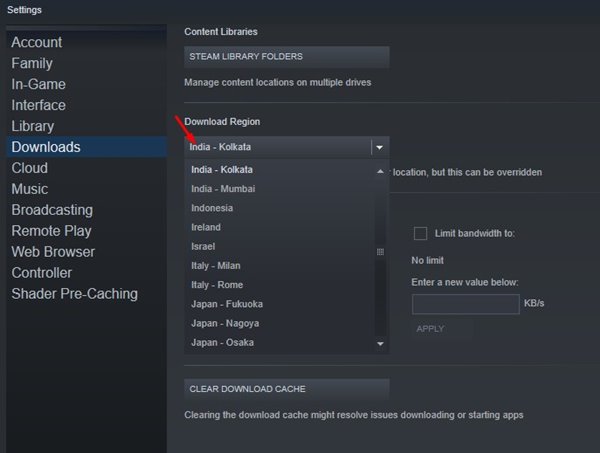
4. The Steam client will ask for a restart. Restart the Steam Client.
After changing the Download Region, you need to redownload the game again. Go to the location where you’ve installed the game, where the error is showing, and delete the folder.
4. Verify Integrity of Game Files
Next, verify the integrity of the game files. Here’s how to fix the Steam Corrupt Update Files error by verifying the integrity of the game files.
1. Launch the Steam desktop client and switch to the Library tab.

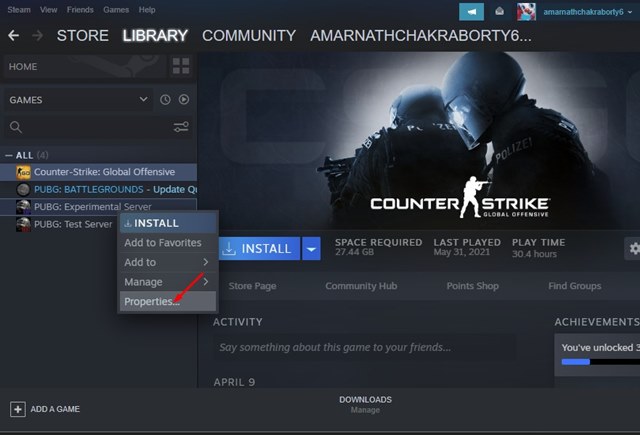
2. Right-click on the game you’ve just installed and click Properties.
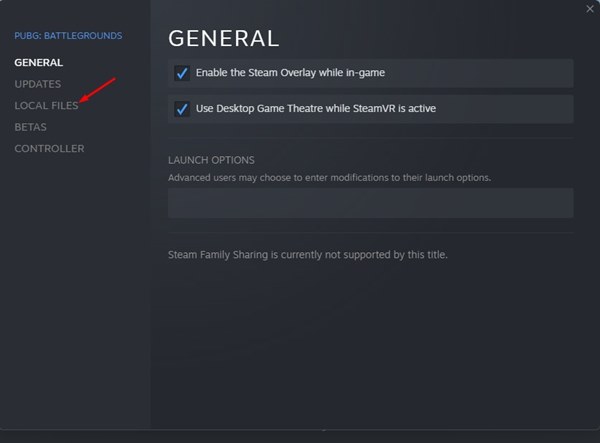
3. In Properties, switch to the Local Files tab.
4. On the Local Files screen, click Verify integrity of game files.
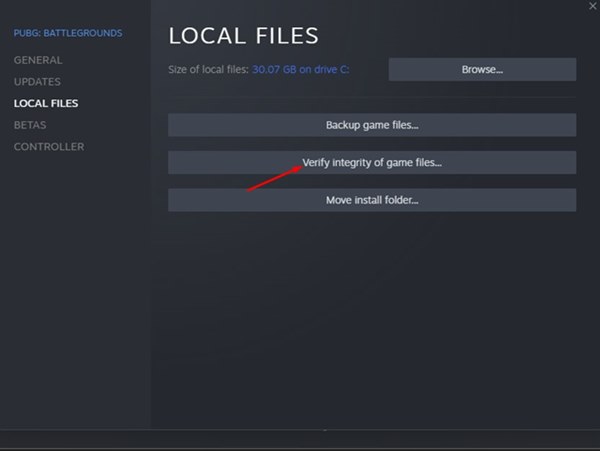
This will verify the integrity of the game files installed on Steam. Try launching the game again; you won’t get the ‘Corrupt Update Files’ error this time.
What if you still get the Steam ‘Corrupt Update Files’ error?
Although we are sure that the steps shared above will fix the ‘Corrupt Update Files’ error on Steam, if you still get it, there are possibilities of hardware problems or a corrupted Steam client. Here are a few things you can do to resolve the issue.
1. Repair the Steam Game Library
You can try repairing the Steam Library folder and see if it helps. Here’s how you can repair the Steam Game Library.
1. Launch the Steam desktop client on your PC and navigate to Steam > Settings.
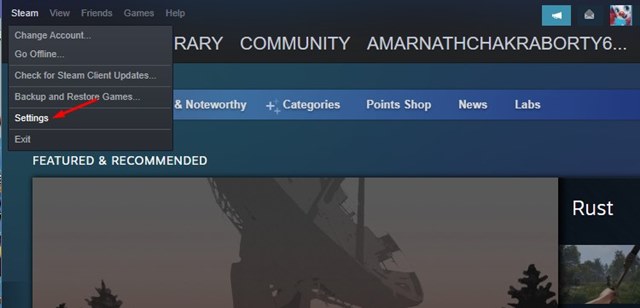
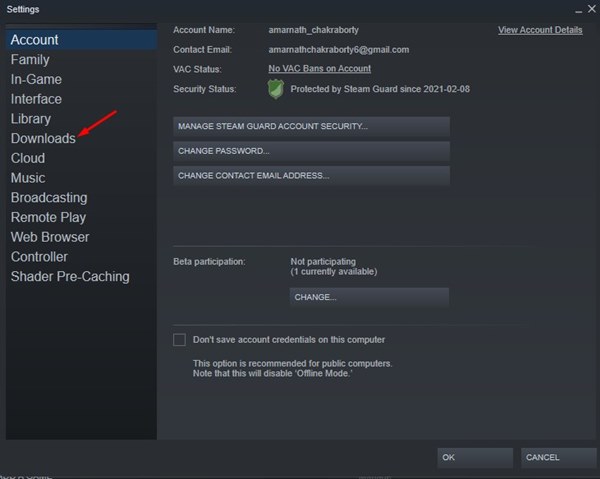
2. In Steam Settings, switch to Downloads.
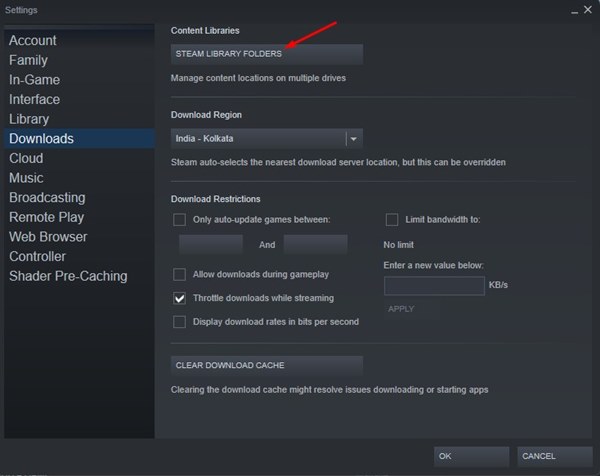
3. Select the Steam Library Folders in the Content Libraries section.
4. In the Storage Manager, click the three dots at the top right and select Repair Folder.
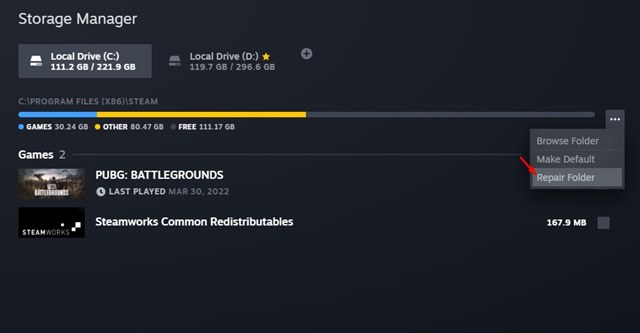
Once done, try installing or updating the game and check if you are still getting the error.
2. Move the Game to a different drive
A failing HDD/SSD is another reason for the ‘Corrupt Update Files’ error message. You can fix this problem by connecting a different drive to your PC and moving the existing Steam Game.
The steps to move a Steam game to another drive are complicated, but we have shared a detailed guide. So, make sure to follow our guide – How to Move Steam Game to Another Drive and move the game that’s showing you the error message.
3. Reinstall the Steam Desktop Client
If nothing worked for you to resolve the Steam ‘Corrupt Update File’, the only remaining option is to reinstall the Steam Client.
To reinstall the Steam Client, browse to the Control Panel and uninstall it. Once uninstalled, download and install Steam again from this webpage.
This guide explains how to fix the Steam ‘Corrupt Update Files’ error message. If you need more help resolving this error, let us know in the comments below.
The post How to Fix ‘Corrupt Update Files’ Steam Error appeared first on TechViral.
from TechViral


0 Comments