
While the Start Menu on Windows 11 could be of great use, sometimes it can misbehave and crash out of nowhere. However, the good thing is that a simple restart or reset can fix most Start Menu-related problems on Windows 11. If you are dealing with problems related to the Start Menu on Windows 11, here’s how you can restart and reset it.
1. Restart the Start Menu via Task Manager
We will use the Task Manager utility to restart the Windows 11 Start Menu in this method.
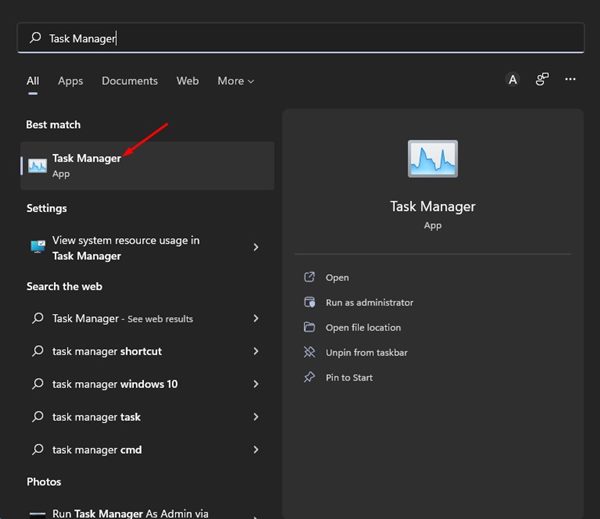
1. Click on the Windows 11 Search and type in Task Manager. Next, open the Task Manager app from the list.
2. In Task Manager, switch to the Processes tab and locate the Start Process.
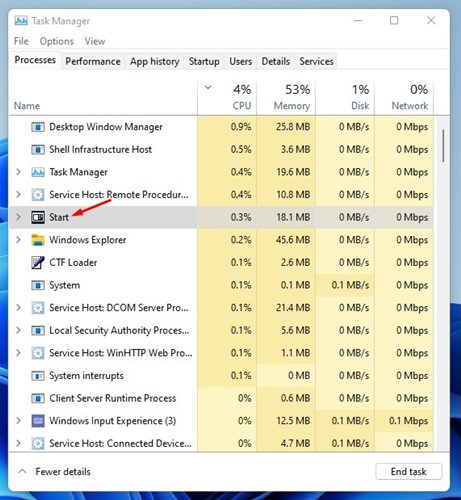
3. Right-click on Start Process and select End task.
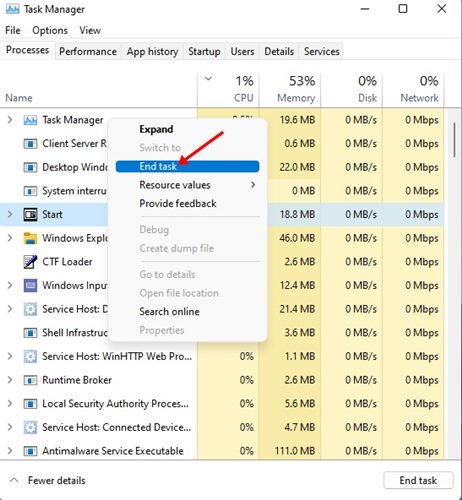
4. This will close the Start Menu. Now click on the Start button again to start the process.
2. Restart the Start Menu via Windows Terminal
You can even use Windows Terminal in Windows 11 to restart your Start Menu.
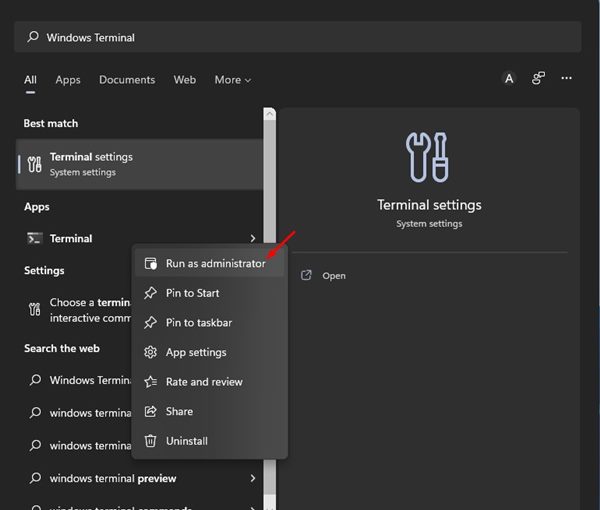
1. Click on the Windows 11 search and type in Windows Terminal. Next, Right-click on Windows Terminal and select Run as administrator.
2. In Windows Terminal, execute this command:
taskkill /f /im StartMenuExperienceHost.exe
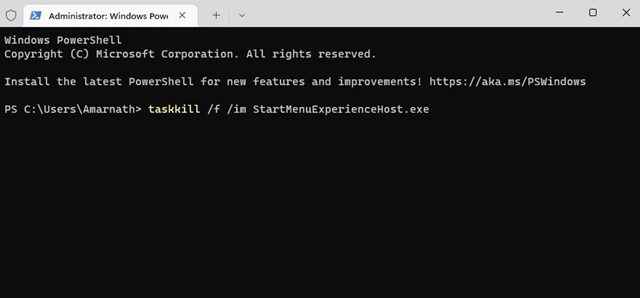
3. This will kill the StartMenuExperienceHost process in the background.
3. How to Reset Start Menu in Windows 11
If a simple restart of the Start Menu didn’t help, you could choose to reset it. The reset will restore the default settings of the Start Menu.
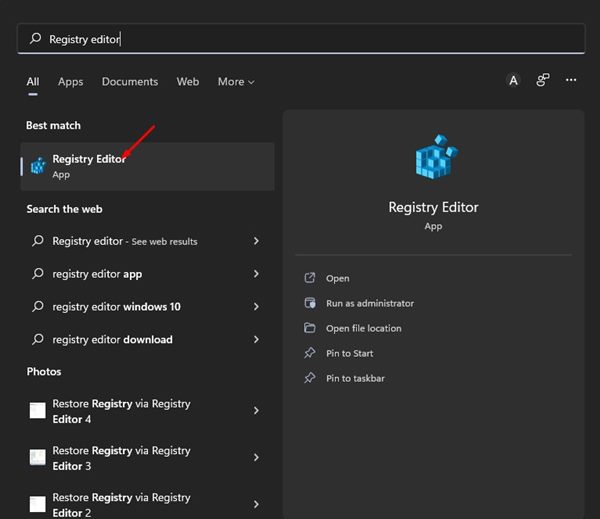
1. Click on the Windows 11 Search and type in Registry. Next, open the Registry Editor from the list.
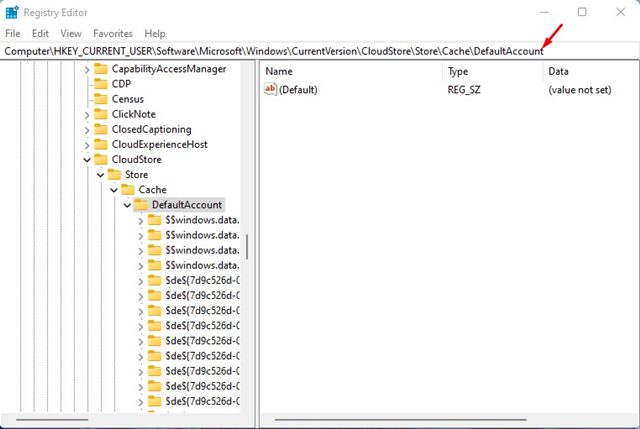
2. In the Registry Editor, navigate to the path:
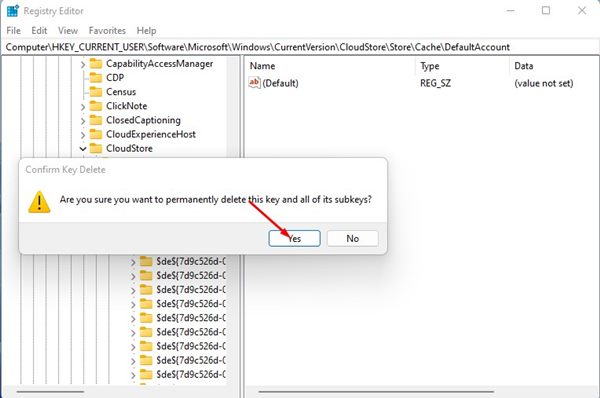
Computer\HKEY_CURRENT_USER\SOFTWARE\Microsoft\Windows\CurrentVersion\CloudStore\Store\Cache\DefaultAccount
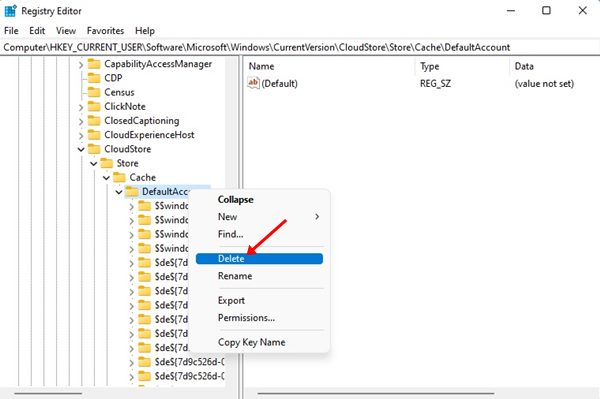
3. Right-click on the DefaultAccount key and select Delete.
4. On the confirmation prompt, click Yes.
5. Once deleted, open Task Manager and locate the Windows Explorer process. Right-click on Windows Explorer and select Restart.
These are some simple ways to restart and reset the Start menu on Windows 11. If you face file explorer-related problems on your PC, you must restart the Windows Explorer process.
The post How to Restart & Reset the Start Menu in Windows 11 appeared first on TechViral.
from TechViral


0 Comments