
You can compress images to save storage space on Android or for easy sharing. Here are a few best workarounds for compressing images on Android without losing quality.
1. Compress Images with Puma Photo Resizer
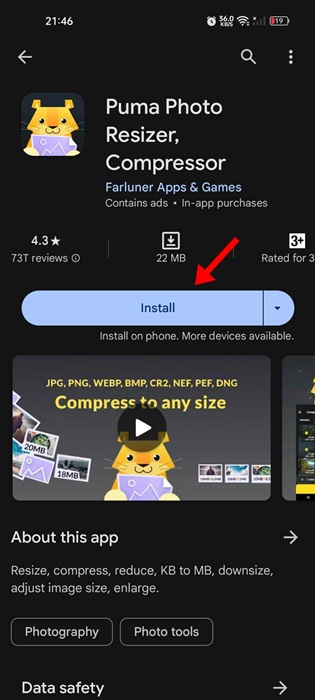
Puma Photo Resizer is a free Android app on the Google Play Store that lets you resize or compress your selected images. Here’s how to use the app.
1. Download & install the Puma Photo Resizer app.
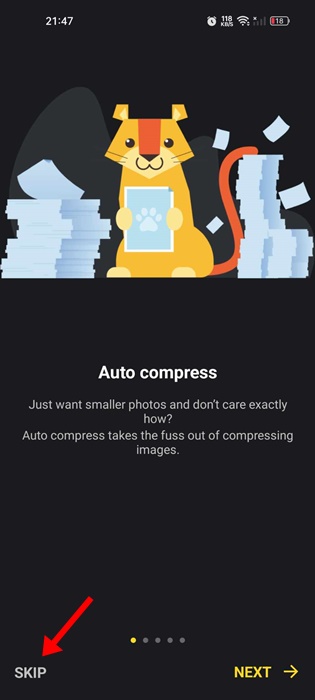
2. Open it and click the Skip button.
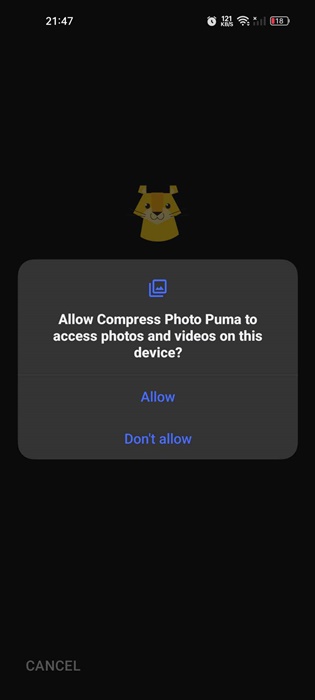
3. The app will ask you to grant access to the Photos & Videos of your device. Grant the permission.
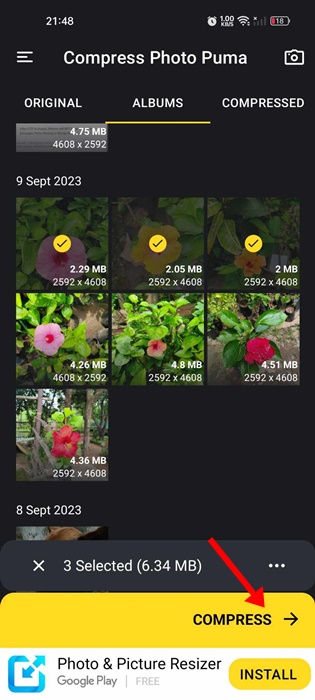
4. Select the photos you want to compress and tap Compress.
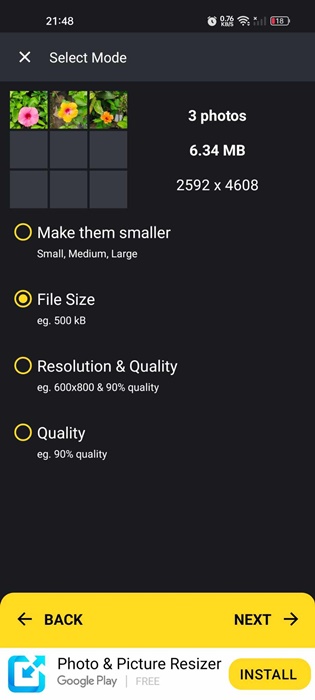
5. In compression mode, select File Size to reduce the size of your photos and tap Next.
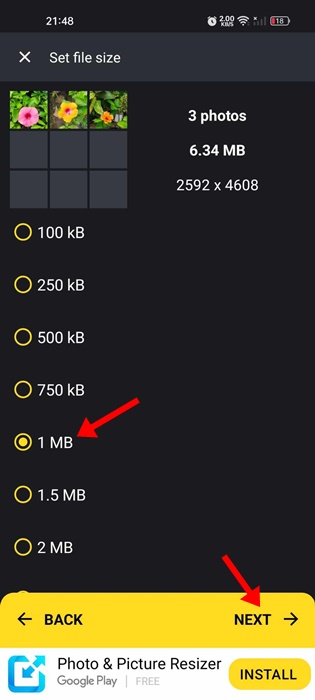
6. Select the output file size and tap Next.
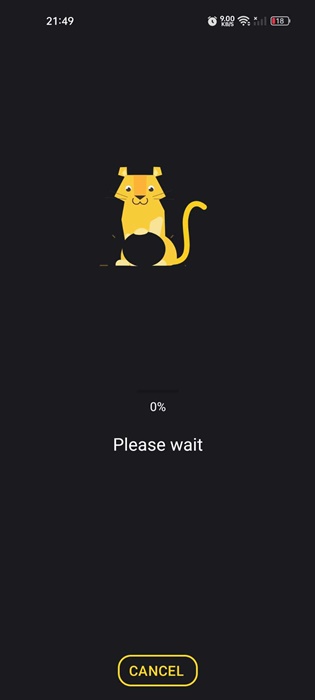
7. Wait a few seconds until the app compresses your photos.
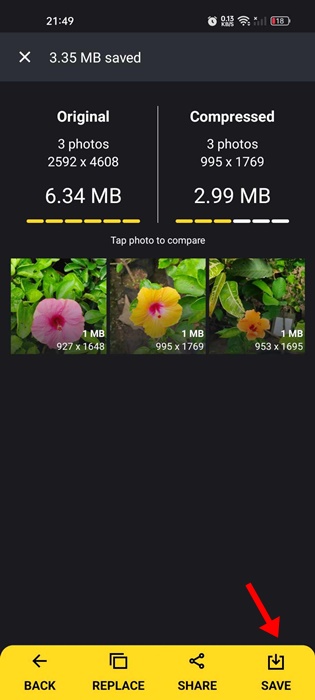
8. Once compressed, tap on Save.
2. Compress Images Using Compress Image
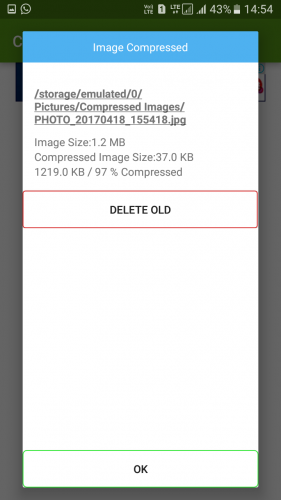
Low on storage? But you don’t want to delete your precious images; compress them! It is a simple app that compresses images with just one tap. It is one of the new Image compressor tools that can compress your photos up to 97% without compromising the quality.
1. Download & install the Compress Image app.
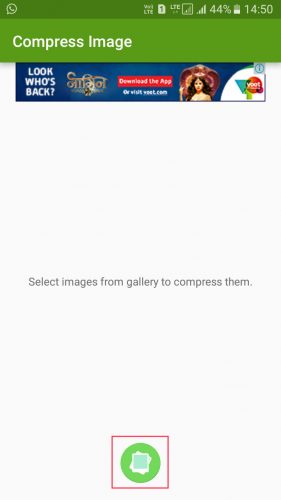
3. Select the images you want to compress.
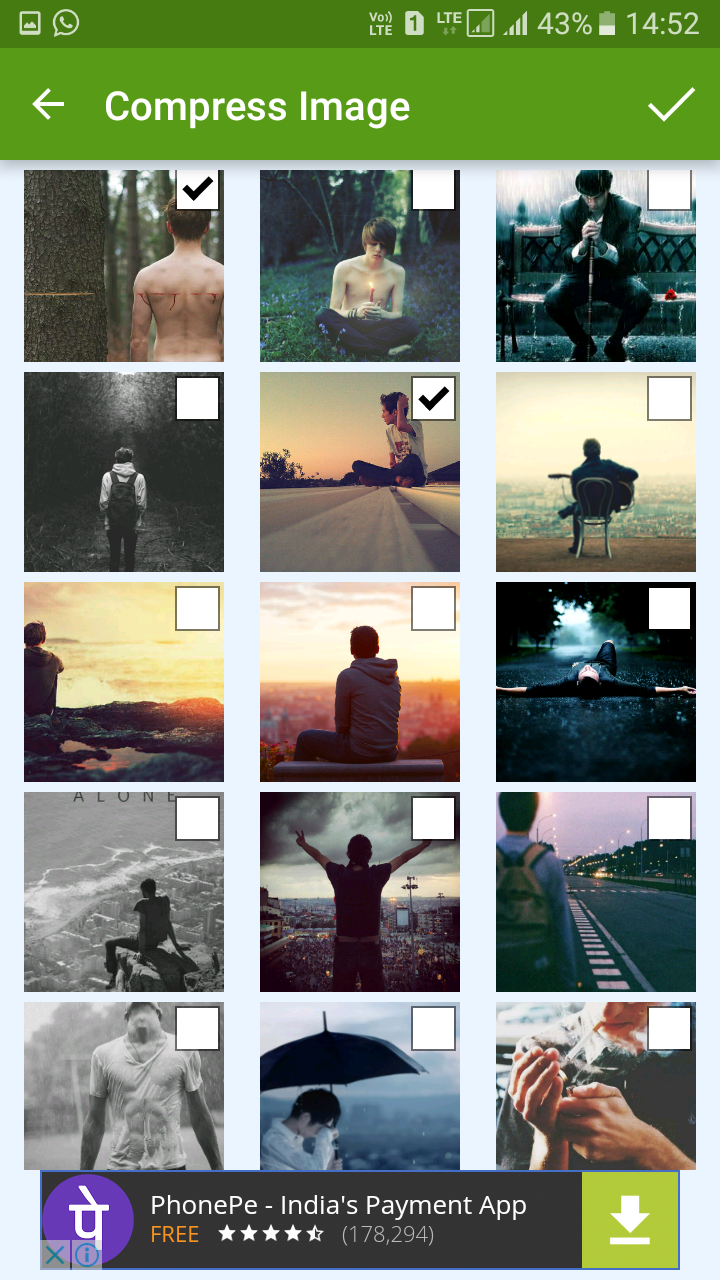
4. Tap the tick button and wait for the app to compress the selected images.
Best Apps to Compress Images on Android
Like the apps we have used, many similar apps are available on the Google Play Store. You can use those apps to compress Android images without losing quality. Here are some of them
1. Photoczip – compress resize
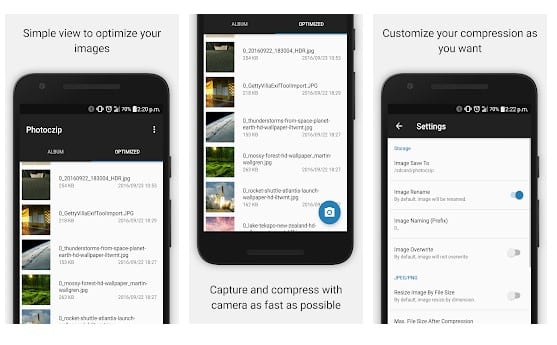
Photoczip – Compress, resize, and zip all photos in one step. This app is a simple and handy tool to compress large photos on your smartphone/tablet. It can compress pictures to less than 100KB in one step. It can even convert PNG to JPG.
2. Photo & Picture Resizer
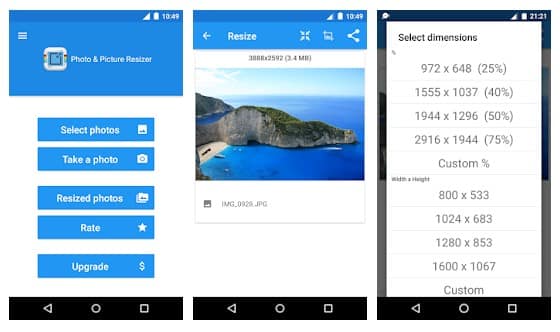
The easy-to-use Image Resizer helps you quickly reduce your picture size or resolution. Resizer allows you to promptly reduce photo size without losing quality.
You don’t have to manually save resized pictures because they are automatically saved in a separate folder titled’ Pictures/PhotoResizer’ and are accessible via the built-in Gallery app.
3. Reduce Photo Size
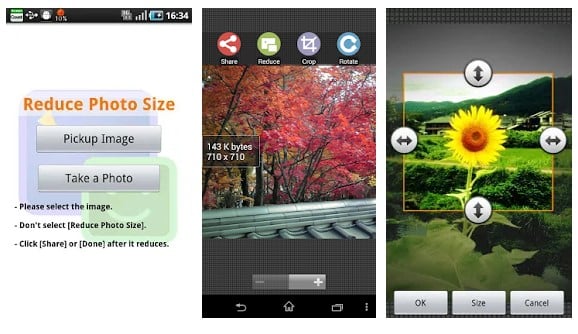
This is another excellent Android app that helps you reduce photo file size so you can use it for Email, Twitter, and Facebook sharing.
The best thing about this app is that you will hardly notice any influence on the original photo, even if the image is reduced with this.
4. Photo & Picture Resizer
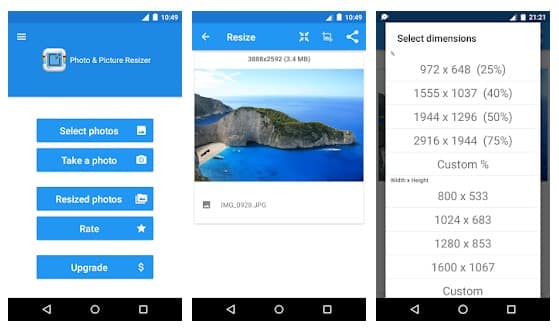
The easy-to-use Image Resizer helps you quickly reduce your picture size or resolution. Smart Image Resizer is a perfect choice for this. Photo Resizer allows you to promptly reduce photo size without losing quality.
Best Sites to Compress Images on Android
If you don’t want to install any app, you can use web tools from your Android web browser to compress images. Here are some best sites that let you compress images on Android.
1. TinyPng
It is a leading website and is known for its lossless conversion. You can compress both PNG and JPG files through TinyPNG.
The great thing about TinyPNG is that it can shorten and cut down almost 50% of your image size. So, TinyPNG is one of the best sites you can visit from Android to compress images.
2. Compress.io
It is a popular image compression website that you can visit from your Android smartphone. The site can be operated via mobile devices, and your images can be compressed while maintaining quality.
3. Compress JPEG
Compress JPEG is another fully responsive site you can now visit to compress images. The great thing about Compress JPEG is that it allows users to compress multiple images simultaneously. Not only that, but the compression level is also good, and you can expect lossless compression.
4. iLoveimg
iLoveimg is a web tool for compressing JPG, PNG, SVG, or GIF file formats. The site’s user interface is clean, lightweight, and easy to use.
To get started with iLoveimg, tap the Select Images button and upload the images you want to compress. Once selected, set the compression criteria, and you’re good to go.
5. Compress2Go
Compress2Go lets you reduce the file size of your images. This is an online image compression tool for compressing image files quickly. The site’s highly responsive interface allows you to compress images from a mobile web browser. Currently, Compress2Go only supports JPG and PNG compression.
It also provides different compression modes: Best Quality, Smallest File, and manual selection. If you want to compress images without visual differences, choose the best quality mode.
This guide shows you how to compress images on Android without losing quality. If you need more help in compressing images on Android, let us know in the comments.
The post How To Compress Images on Android Without Losing Quality appeared first on TechViral.
from TechViral


0 Comments