
The error loading media message generally appears when your phone is not connected to the internet. Due to connection drops, the Messenger app fails to display the media, triggering this error message. Other reasons for the error include corrupted Instagram app cache, server-side problems, and incompatibility with the file format. Here’s what you can do to fix the problem.
1. Restart the Messenger app
If you just viewed the ‘Error Loading Media’ on Messenger, restart the Messenger app first. Restarting the Messenger app will remove the bugs or glitches, possibly preventing the Media file from loading.
To restart Messenger, open your Recent Apps list and close the Messenger app. Now wait for a few seconds and then open Messenger again.
2. Restart your Phone
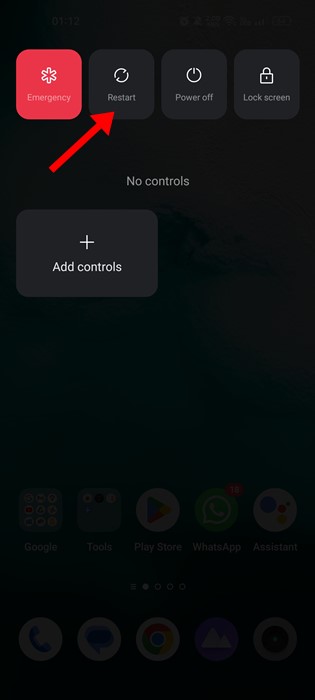
Whether it’s Android or iPhone, a simple restart can fix many issues and terminate all background processes.
Restart your smartphone and open the Messenger app. The media files will likely play now on your Messenger app.
3. Make Sure Your Internet is Working
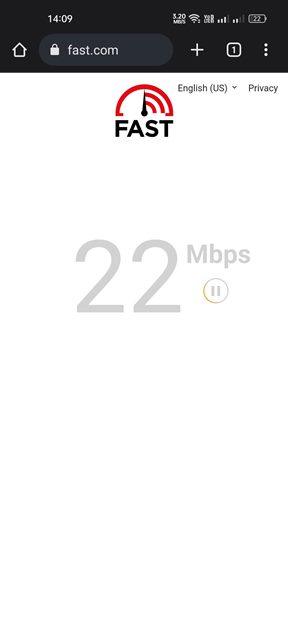
You may have received the media file when you’re connected to the internet. After receiving it, your internet connection is disconnected, leading to the ‘Error loading media’ message.
No internet or unstable internet is the main cause of the ‘Error Loading Media’ error on the Messenger app. So, you should rule out the internet issues.
4. Check if Messenger is Experiencing a Technical Problem
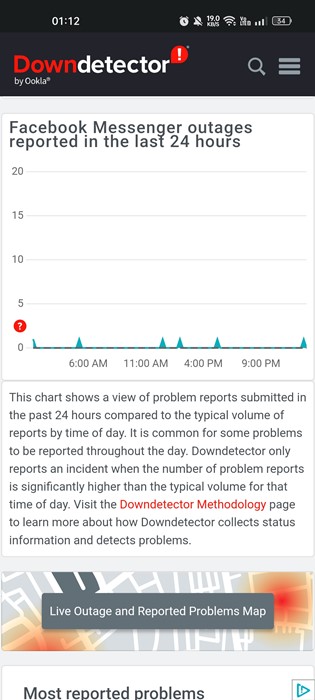
It’s possible for tech companies to face occasional downtime as they need to maintain their server. If the servers of Messenger are down, no media file will load.
The best way to confirm whether Messenger is facing any outage is by checking this Downdetector page. Downdetector or other similar websites track all websites and tell you if your favorite sites or services are down or having problems.
5. Turn off Data Saver Mode on Messenger
Messenger has a Data Saver Mode that tries to save data as you use the app. This feature can sometimes interfere with the media files and prevent them from playing automatically.
Data Saver prevents media files from playing automatically to preserve data. Here’s how to disable the Data Saver Mode on Messenger.
1. Open the Messenger app on your Android. Next, tap on the hamburger menu in the top-left corner.
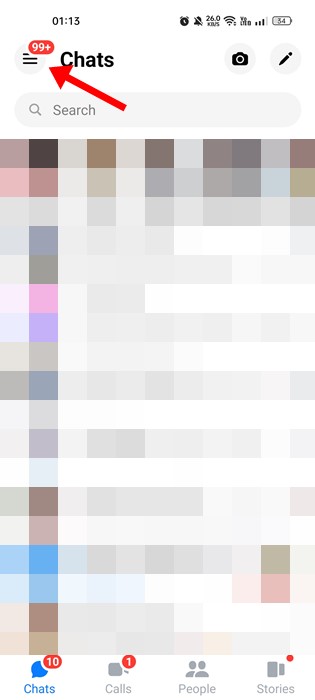
2. A menu will slide from the left; tap the Settings gear icon.
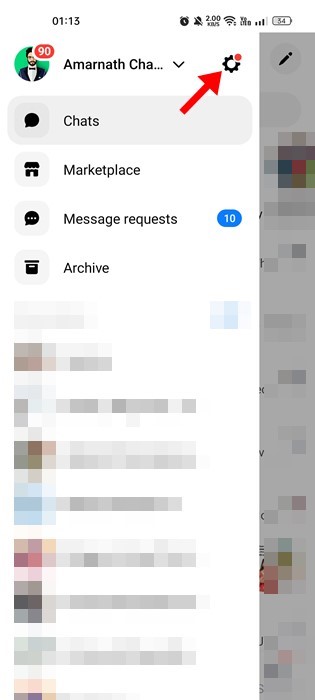
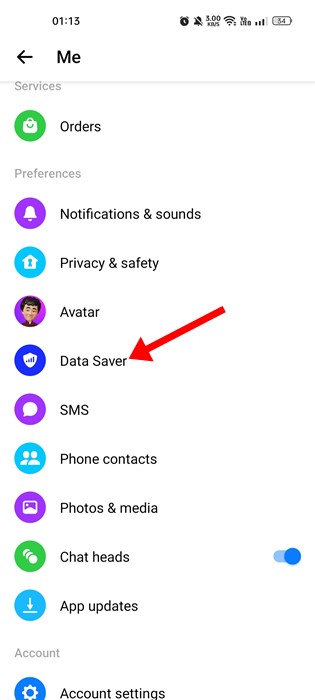
3. This will open the Profile settings page, scroll down, and tap the Data Saver.
4. On the Data Saver screen, toggle off the feature.
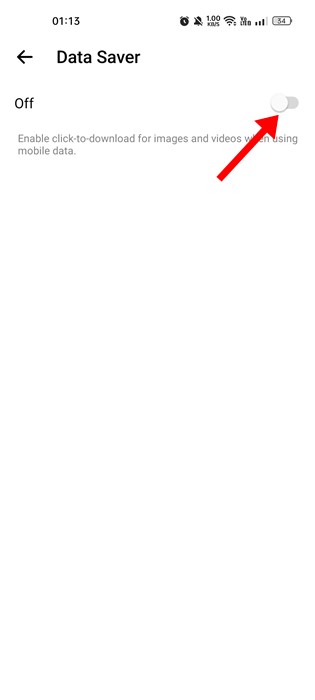
Important: The Data Saver mode is not available in the very latest version of the Messenger app.
6. Clear Messenger App Cache
Like every other app, Messenger keeps temporary files called cache on your phone. This file helps apps load faster, but if it gets corrupted, it can trigger many errors. So, it’s best to clear the cache file.
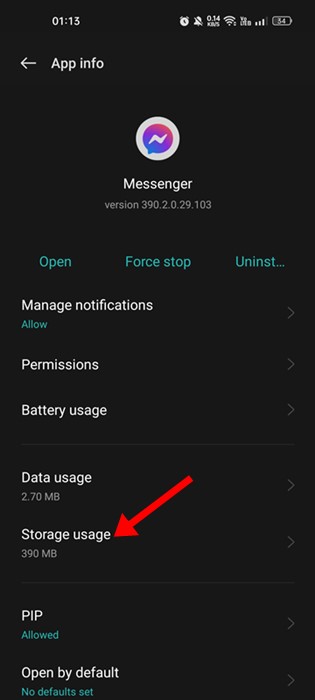
1. Long-press on the Messenger app icon and select App info.
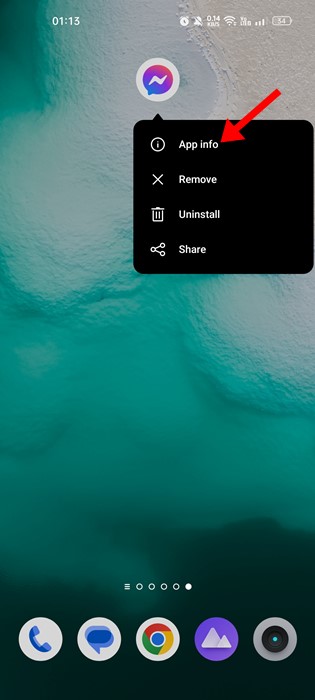
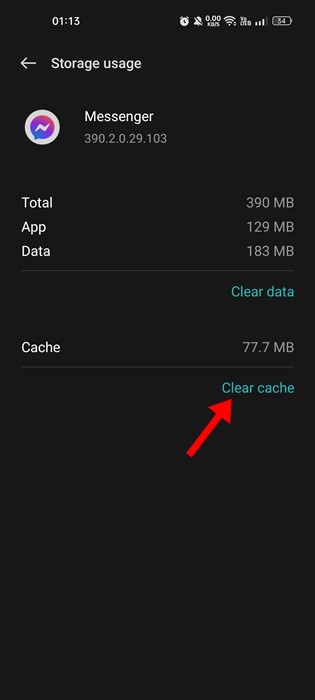
2. Tap on Storage Usage.
3. Tap on Clear Cache.
7. Update the Messenger App
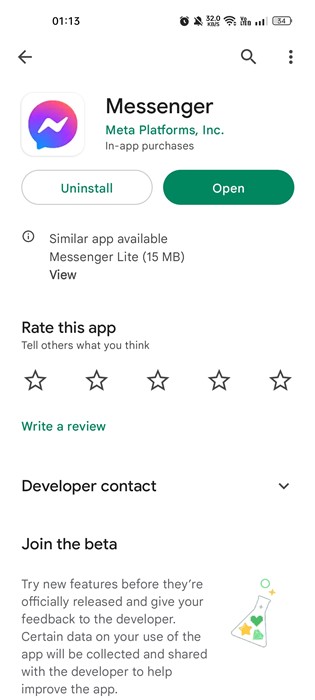
Many users have claimed to resolve the ‘Error Loading Media’ error message just by updating the Messenger app from the App Store.
You should always keep your apps updated. Doing so will ensure better app performance and stability. Head to Google Play or Apple App Store to update the Messenger application.
Also Read: How to Hide Messages on Messenger
These are some of the best ways to resolve the Error Loading Media error message on the Messenger app. If you need more help fixing ‘Error Loading Media’ on the Messenger app, let us know in the comments.
The post How to Fix ‘Error Loading Media’ on Messenger appeared first on TechViral.
from TechViral


0 Comments