

Controlled folder access is a feature introduced with Windows 10 and is available in Windows 11. It protects your PC from ransomware attacks. With the Controlled Folder access, you can lock folders you don’t want softwares to modify.
The feature protects the Documents, Pictures, Videos, Music, and Favorites folders by default. Other than these folders, you also have the option to add other folders to the protected list.
How to Enable Controlled Folder Access on Windows 11?
To enable Controlled folder access on Windows 11, you must make a few changes to the Windows Security app.
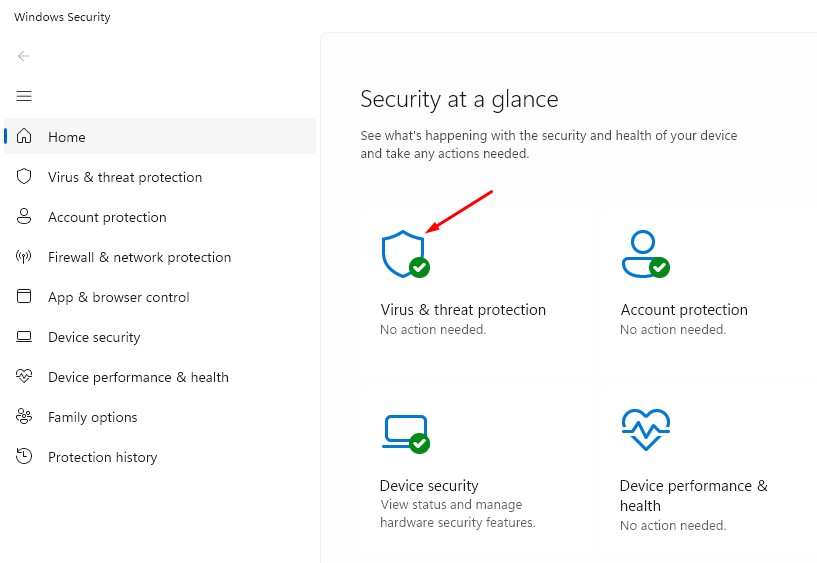
1. Launch the Windows Security app.
2. Switch to Virus & Threat Protection.
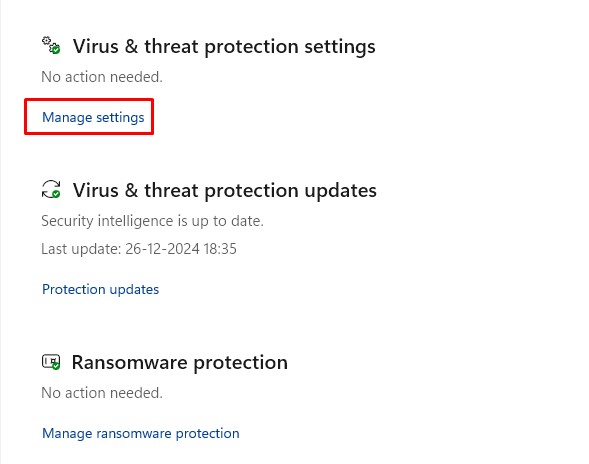
3. Click on Manage Settings.
4. Scroll down to Controlled Folder Access and enable the toggle for it.
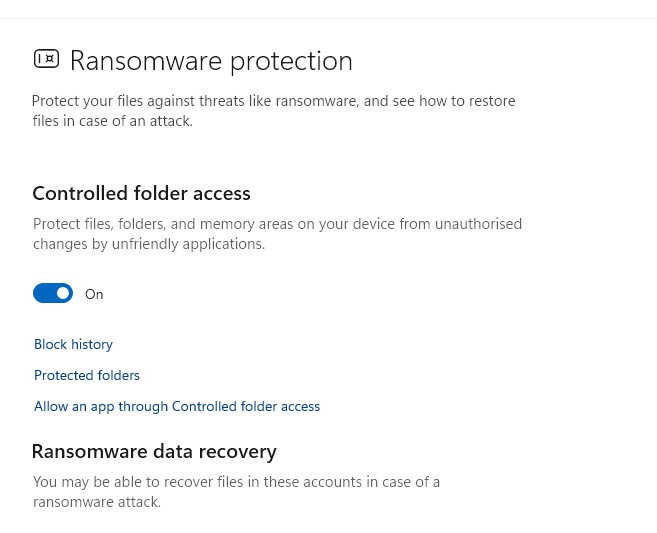
This will enable Controlled Folder Access on your Windows 11 PC.
How to Manage the Blocked Files?
You can also check which files are blocked using the Controlled Folder Access feature. If you want, you can manually remove the block as well.
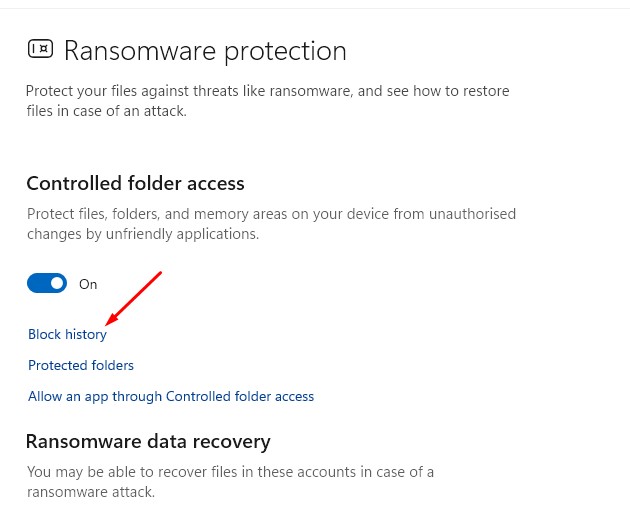
1. Navigate to the Controlled Folder Access screen.
2. Click on Block History.
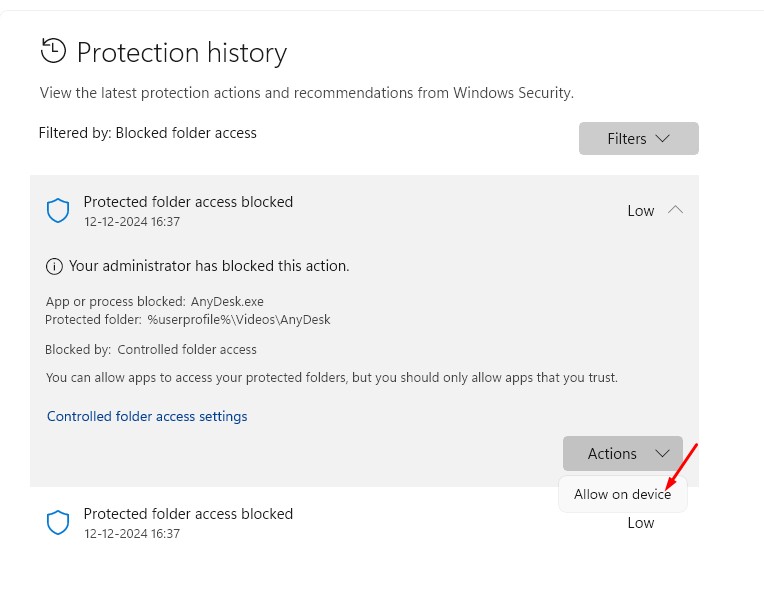
3. You will find all the files that were blocked. To allow the files, click the Actions drop-down and select Allow on Device.
How to Add or Remove a Folder on Controlled Folder Access
The Windows Security app protects the system folders by default. However, you can also add additional protected folders.
1. Navigate to the Controlled Folder Access Screen.
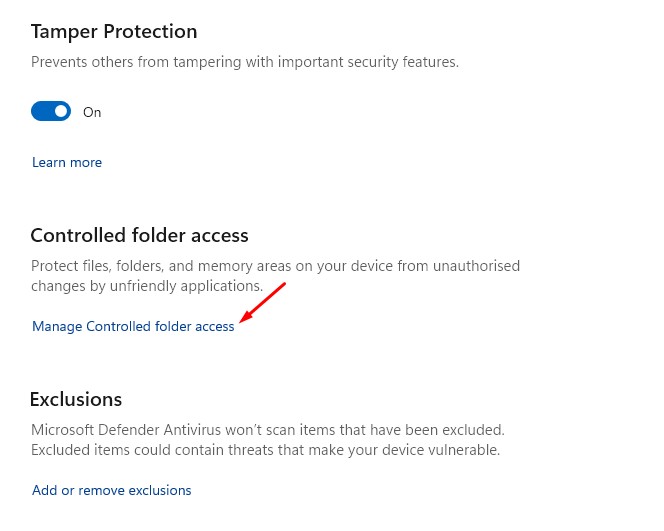
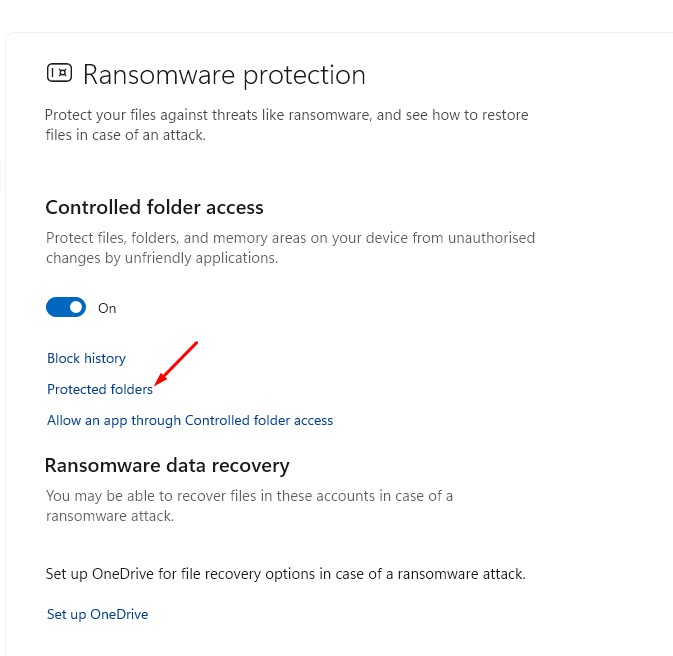
2. Click on Manage Controlled Folder Access.
3. Click Protected Folders.
4. Click the Add a protected folder option and select the folder.
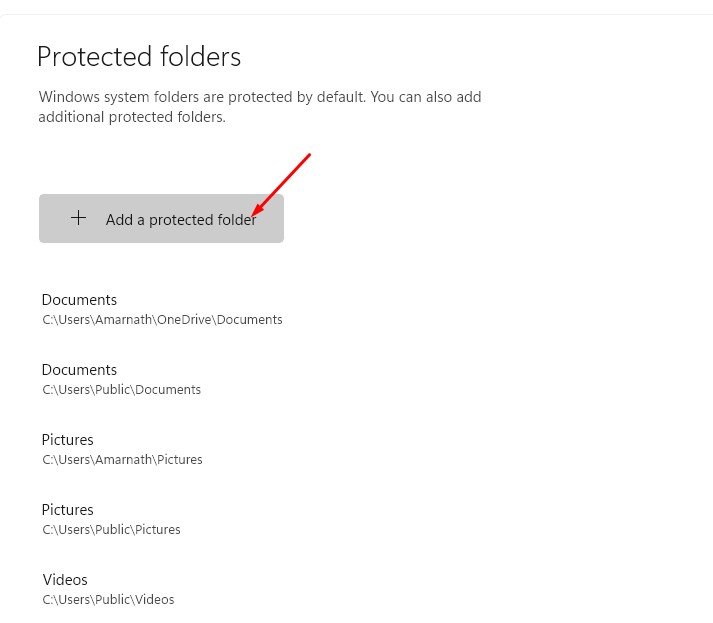
5. Select the folder and click Remove.

How to Allow Apps to Access the Protected Folders
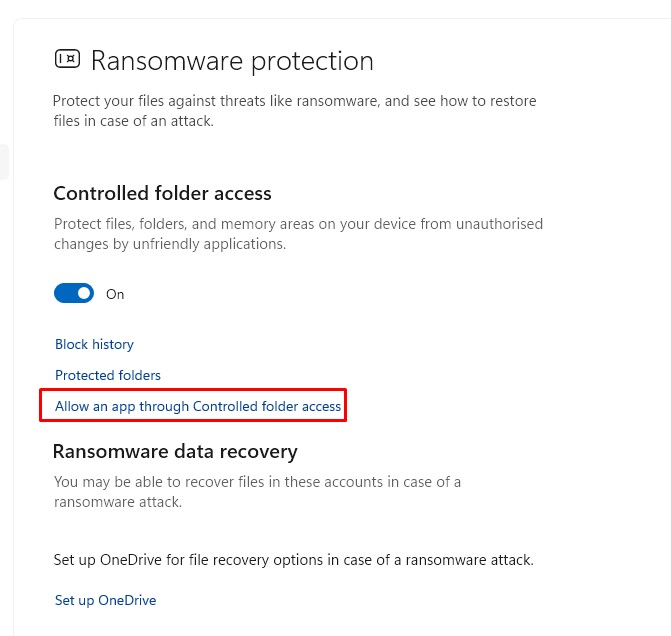
Like the Protected Folders, the Windows Security app has an option to block or allow apps to access them.
1. Navigate to the Controlled Folder Access screen and click Manage Controlled Folder Access.
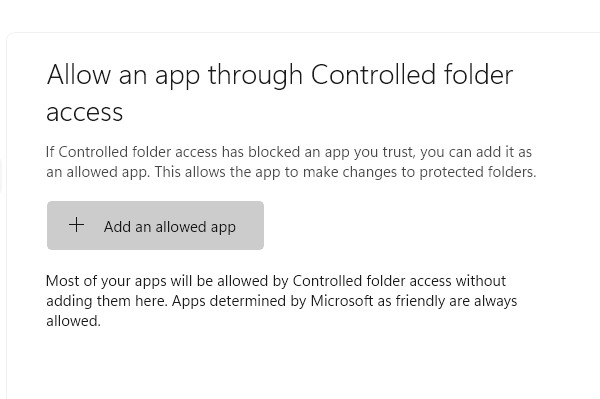
2. Select Allow an app through controlled folder access.
3. Click Add an allowed app and select the one you want to allow.
This guide explains Controlled Folder Access in Windows 11 and how to use it. Let us know if you need more help with this topic in the comments.
The post How to Enable and Use Controlled Folder Access in Windows 11 appeared first on TechViral.
from TechViral


0 Comments