
The green screen often appears due to outdated graphics card drivers, unsupported Flash players, malicious apps, video corruption, interrupted downloads, or a damaged GPU. If you’re experiencing a green screen problem while watching videos, here’s what you can do to fix it.
1. Restart Your Device
It doesn’t matter whether you are watching a video on a smartphone or computer; a simple restart can fix most of the problems, including the green screen problem.
Before trying the next methods, restart your device. If the problem persists after restarting, follow the next methods.
2. Disable Hardware Acceleration in Chrome
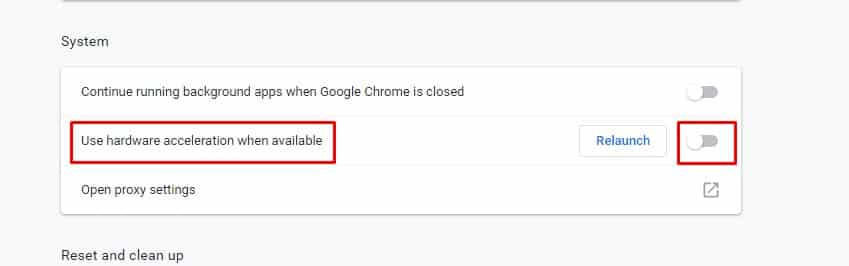
Hardware Acceleration uses your device’s GPU to speed up the process while freeing up the CPU load. The feature is meant to utilize the computer’s GPU to speed up some functions of the software running on the CPU alone.
Hardware acceleration often creates problems, such as Green Screens. If you experience this in online videos, you need to turn it off. To turn off the hardware acceleration on the Chrome browser, check out this article.
3. Update Your Graphics Card driver
The green screen problem might appear due to corrupted or outdated graphics card drivers. So, you need to update your graphics card driver.
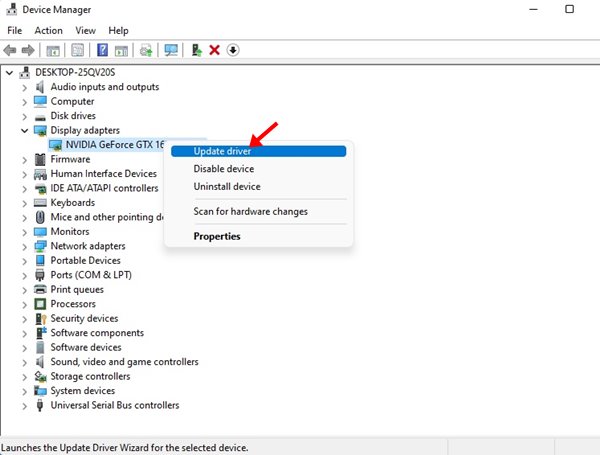
- Right-click on My Computer and select Properties.
- On the System page, click on Device Manager.
- Click on the Display drivers.
- Right-click on the graphic driver and select Update driver software.
- Select Search automatically for updated driver software.
- Once updated, restart your PC.
After restarting, play the video again. The green screen should disappear. If it still appears, follow the next method.
4. Run the Troubleshooter
If you still get the green screen, you must run the troubleshooter. Here’s what you should do.
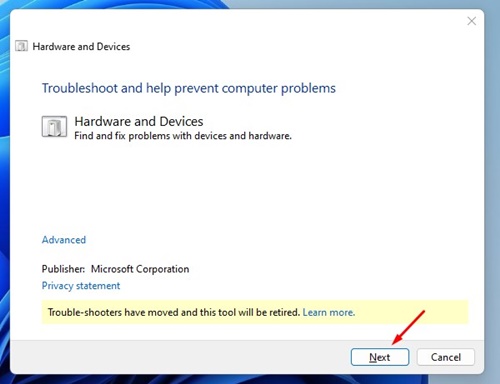
- Open the Settings app on your PC
- Click on Update & Security.
- Click on Troubleshoot > Hardware and Devices.
- Click on the Run the troubleshooter.
- Wait until the process is complete.
- Restart your PC.
5. Disable the Graphics Performance for Chrome
Windows has a feature that allows you to select which CPU an app can use. If you have added Google Chrome to use your GPU, it may show you the green screen problem. The feature is not optimized properly and can present you with some problems. So, it’s best to turn off graphics performance on Windows to resolve the green screen issue.
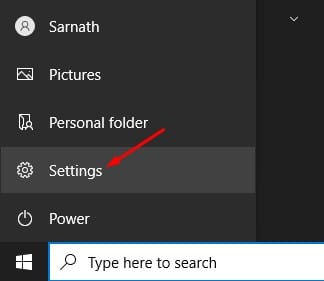
1. Click on the Windows Start button and select Settings.
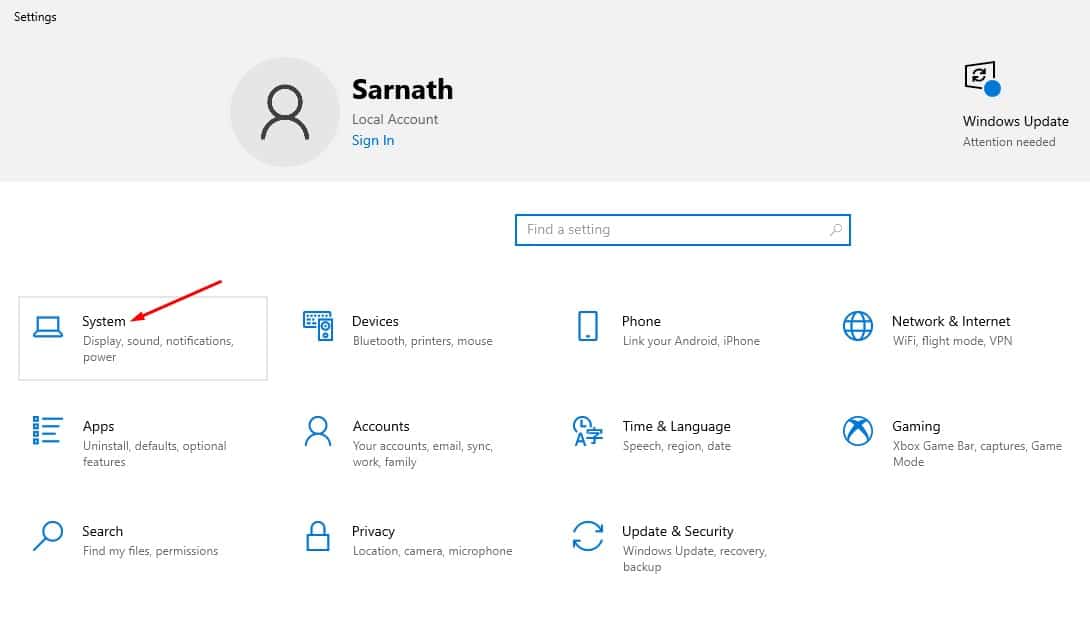
2. Select System.
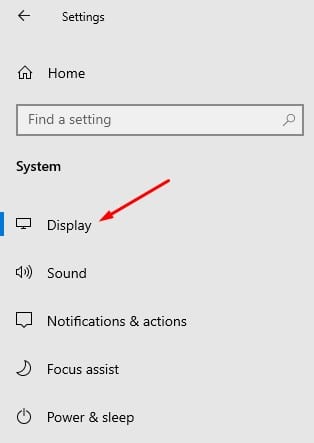
3. Switch to the Display tab on the left side.
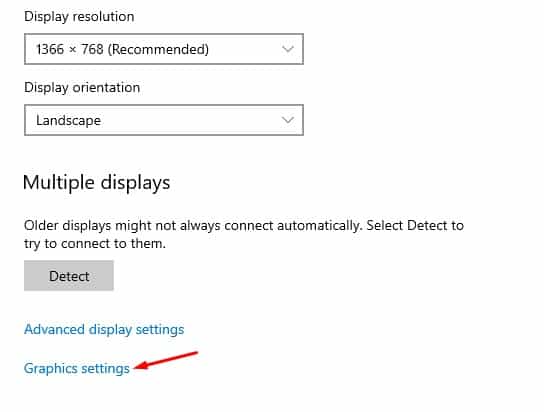
4. Scroll down to the Multiple Displays section and click on the Graphics settings.
5. Find Google Chrome and click Remove.
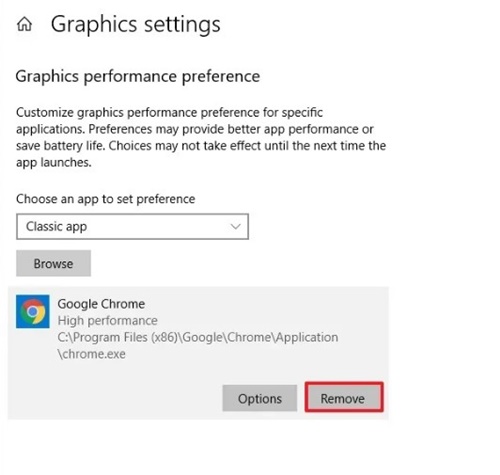
After making the changes, restart your computer. After the restart, play the video again. This time, you won’t face the green screen problem.
6. Download the Video and Watch
If you still get the green screen issue while watching videos on different websites, it’s best to download and watch the video.
Popular PC media players like VLC can play the videos regardless of the file format. You can use the online video downloaders websites to download videos on your computer.
After downloading the videos, play them with media player apps like VLC Media Player or Media Player Classic.
7. Other factors that can trigger Green Screen Issue
If you often get green screen problems, you must check out a few basic things. These little things can often trigger green screen issues on the computer.
- Damaged GPU Unit.
- Problem with the Display/Monitor.
- Third-party graphics management software.
These are the best methods for fixing the Green Screen Problem when viewing videos. If you need more help on this topic, let us know in the comments.
The post How to Fix Green Screen Problem While Watching Videos appeared first on TechViral.
from TechViral


0 Comments