
api.cactus-search.com or Cactus Search is simply a browser hijacker that changes your search engine to cactus-search.com.
This gets installed on a device through a browser extension or a program. When the Cactus Search browser hijacker is installed on a computer, you will notice these signs:
- The browser’s default search engine will change to Cactus Search.
- The search queries will be redirected through cactus-search.com.
- You will find the Cactus Search browser extension or program on your PC.
How to Remove api.cactus-search.com
To get rid of Cactus-Search.com from your computer, you will have to find and remove the malicious program.
1. Uninstall the Malicious program from the Control Panel
If the browser hijacker is installed on your PC, you will likely find it in the Control Panel. Here’s how you can remove it from the Control Panel.
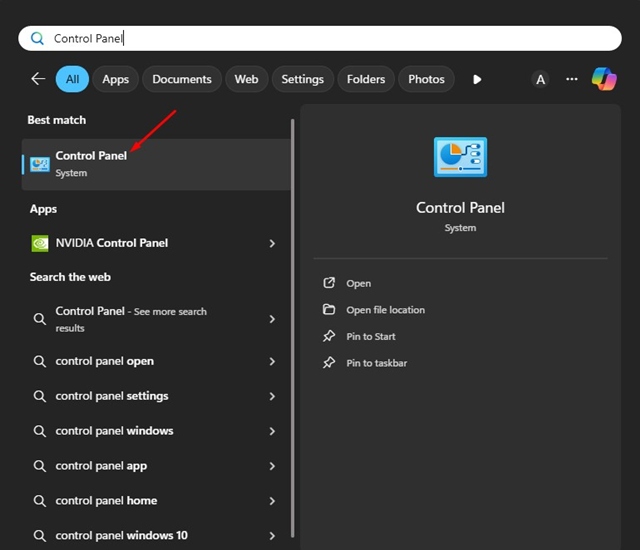
1. Open the Control Panel app from the Windows search.
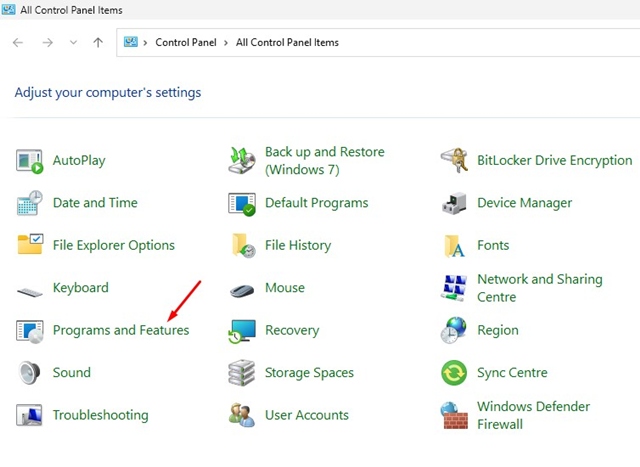
2. Click Programs and Features.
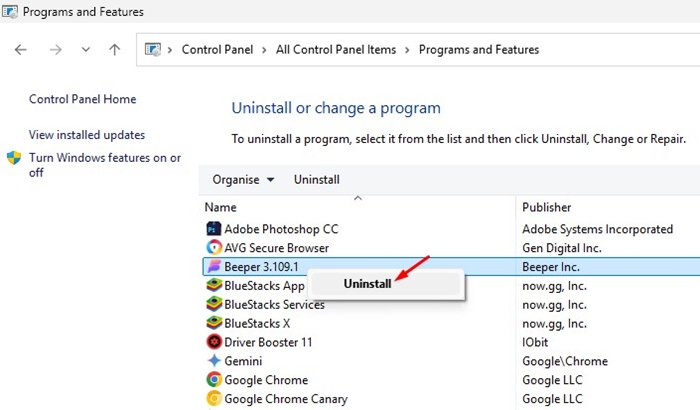
3. Find the malicious programs. You need to look for programs that you didn’t install and that look malicious.
3. Right-click on it and select Uninstall.
2. Reset Browsers Back to Default Settings
We have shared the steps to reset Chrome, Firefox, and Microsoft Edge browser settings to default.
Chrome Browser:
Resetting the Chrome browser settings to their original default will reset your startup page, new tab page, search engine, and pinned tabs.
- Click on the three dots at the top right and select Settings.
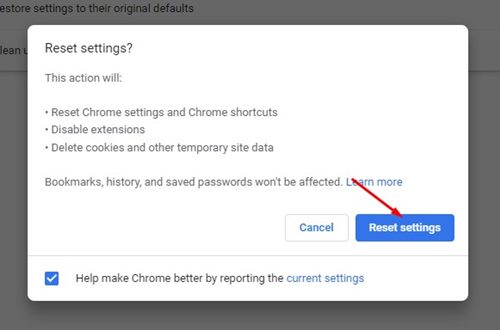
- Click on Reset Settings.
- Click Restore settings to their original defaults.
- Click the Reset Settings button again.
Firefox Browser:
The steps to reset Firefox to its default settings are a bit different than those for Chrome.
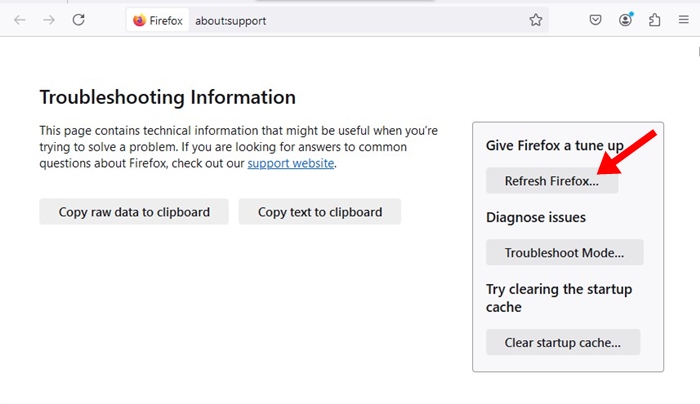
- Launch the Firefox browser.
- Click on the hamburger menu at the top right and select Help > More Troubleshooting Information.
- Click Refresh Firefox.
- On the confirmation prompt, click Refresh Firefox.
Microsoft Edge:
The steps to reset Microsoft Edge are very similar to Chrome because it’s based on the same engine.
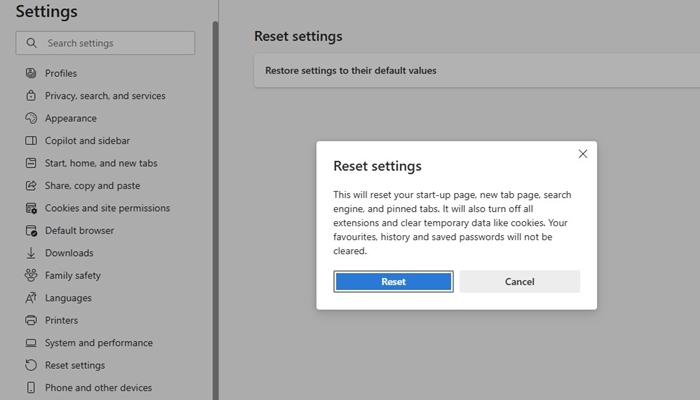
- Open Microsoft Edge.
- Click on the three dots at the top right and select Settings.
- Select Reset Settings.
- Click Restore Settings to their default values.
- Select Reset.
3. Use Malwarebytes to Remove the Browser Hijacker
Malwarebytes is a great security tool that can help you get rid of api.cactus-search.com from your browser. Here’s how to use the security tool.
1. Download & Install Malwarebytes on your infected device.

2. Launch Malwarebytes.
3. Click on the Scan button on the Scanner.
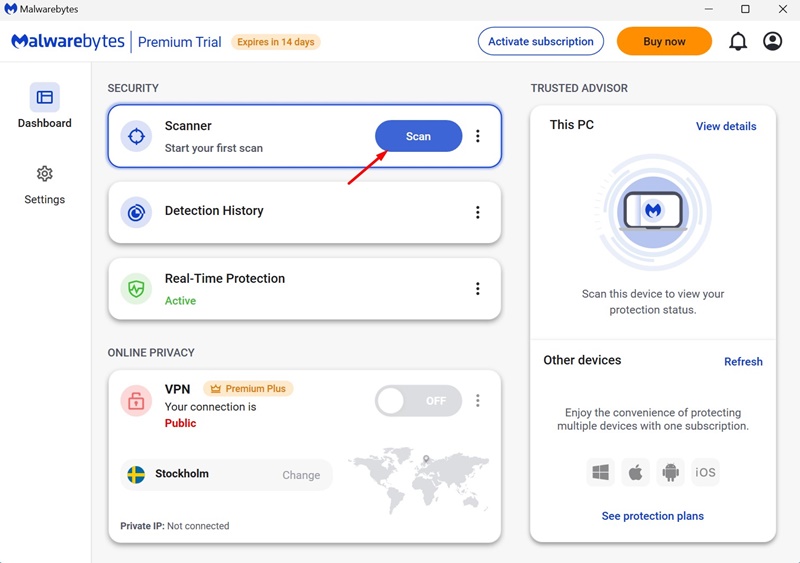
You need to wait until Malwarebytes performs a full scan. It will scan every file on your device and remove the threat.
4. Run a rootkit scan using Malwarebytes
Malwarebytes also has a rootkit scan feature that must be enabled manually. The feature finds and removes various rootkits from your device.
1. Launch Malwarebytes on your computer.
2. Click Settings on the left side.

3. Click Scan and Detections.
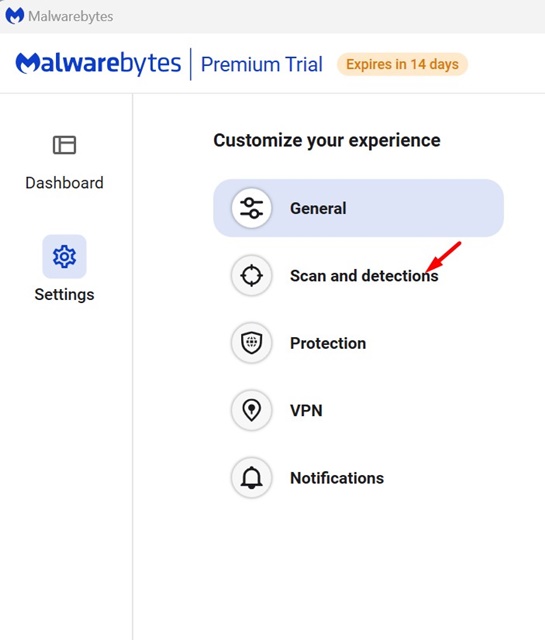
4. Enable the toggle for Scan for rootkits.
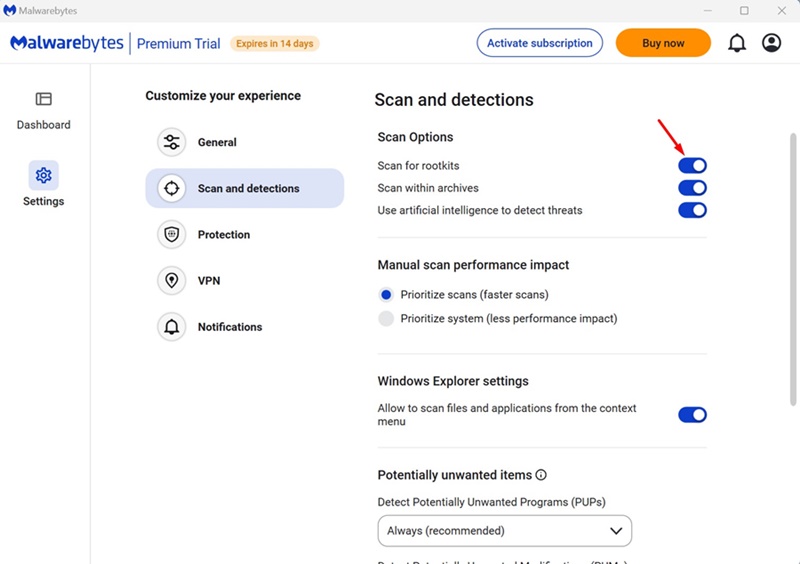
5. Move back to the home screen and click the Scan button.
These are a few simple ways to remove api.cactus-search.com. Let us know if you need more help on this topic in the comments.
The post How to Remove api.cactus-search.com (All Methods) appeared first on TechViral.
from TechViral


0 Comments