
Animation effects on Windows 11 can slow down your computer and impact your battery life. And if you want to speed up Windows 11, you should turn off all animation effects. Turning off the animation effects on Windows 11 will improve the performance & extend the battery life. Here’s how to turn them off.
1. Disable Animation Effects on Windows 11
The best way to disable animation effects on Windows 11 is to make changes to the Accessibility Settings.
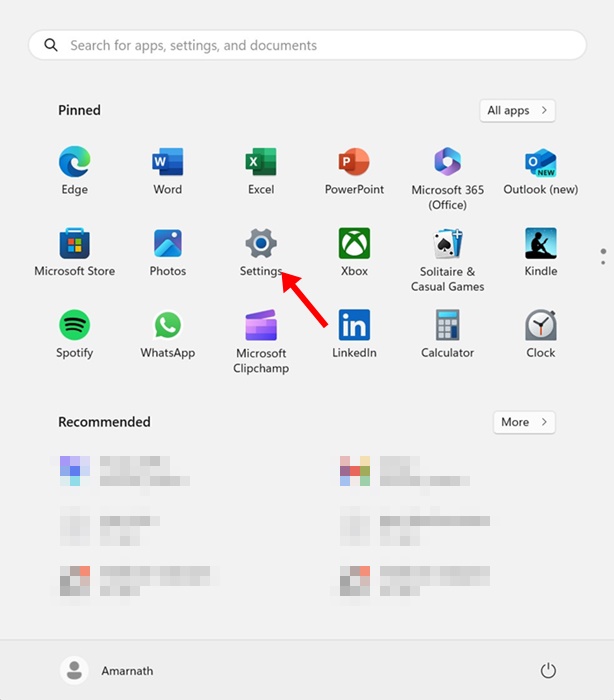
1. Click on the Windows 11 Start button and select Settings.
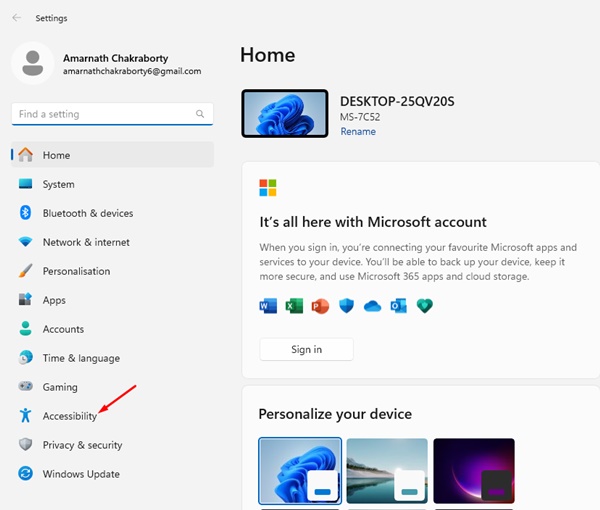
2. Switch to Accessibility.
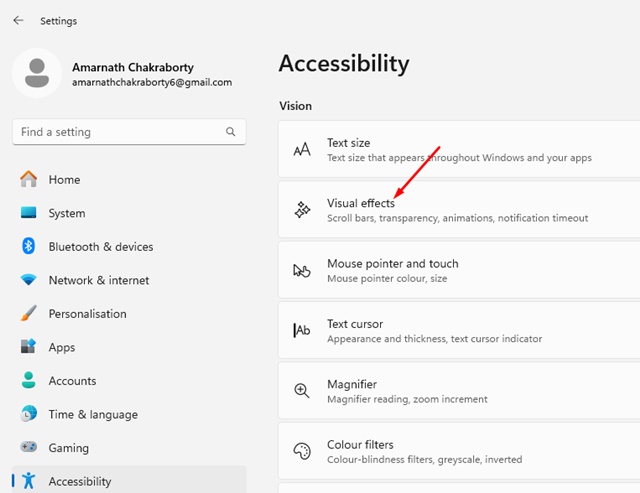
3. Click Visual Effects.
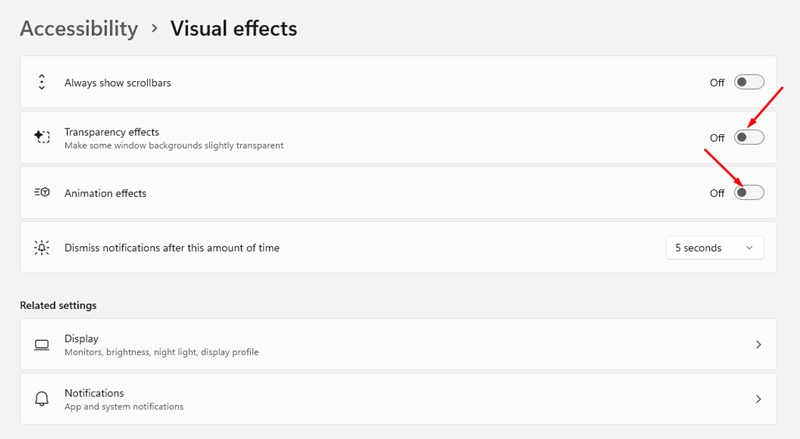
4. Turn off the toggle for Animation effects.
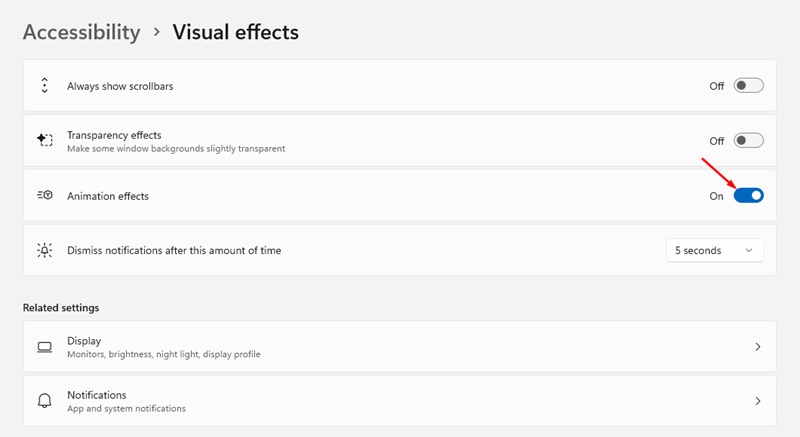
5. You can also turn off the Transparency effects. This is the feature that makes some Windows backgrounds slightly transparent.
2. How to Enable the Animation Effects on Windows 11?
If you ever change your mind and wish to enable the animation effects on Windows 11 again, follow these steps.
1. Click on the Windows 11 Start button and select Settings.
2. Switch to the Accessibility tab.
3. Tap on Visual Effects.
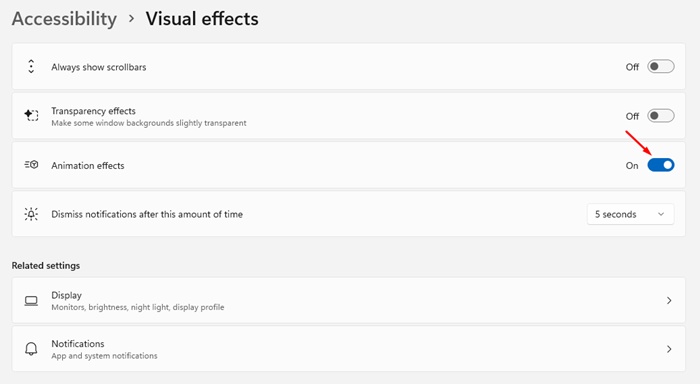
4. Turn on the toggle for Animation effects.
This article is about enabling or disabling Animation effects on Windows 11 computers. If you have followed all the steps carefully, you could have successfully disabled the animation effects.
The post How to Disable Animation Effects on Windows 11 appeared first on TechViral.
from TechViral


0 Comments