

When purchasing a new Android phone, we consider the processor, its speed, and many other hardware details. However, once we purchase it, that information starts to fade from our minds. As a result, we often forget what processor our phone has and its speed. If you can’t recall which processor powers your phone and its speed, here’s how to check it.
1. Find the Android Phone Processor and Speed via Google Search
One of the easiest ways to find the processor in your Android phone is to use Google Search. You can enter keywords like Samsung Galaxy S24 Specs to find all the hardware details of it. Alternatively, you can enter terms like <Your Phone Name> Processor and speed.
This is the easiest way to get information about a phone, but double-check the information on different websites because the snippets can sometimes be wrong.
Also, several websites are made to provide phone specifications only, like GSMarena; you can utilize such sites as well.
2. Find the Processor & Speed from the Manufacturer’s website
Let’s say you have a Samsung Galaxy S24, but you forget the processor and other hardware information.
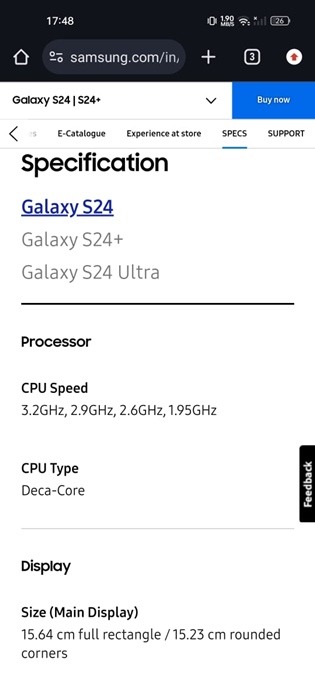
Visit the official Samsung website and open the Galaxy S24 phone listing page. You will be able to view all key details of the phone, including RAM, Processor, Storage, etc.
3. Find the Android Phone Processor & Speed using DevCheck
DevCheck is an Android app that monitors your hardware in real time and provides complete information about your device.
With DevCheck, you can gather important information about your phone’s model, CPU, GPU, memory, battery, camera, storage, sensors, etc.
1. Download & install the DevCheck Device & System Info app.
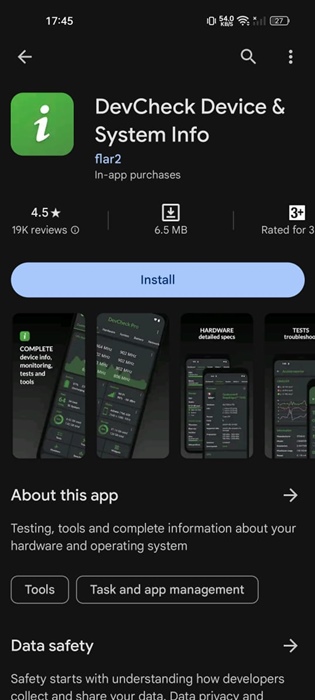
2. Launch the app and grant the permissions it asks for.
3. Switch to the Hardware tab.

4. Navigate to the Processor section. You will be able to see the processor used on your phone.
5. To check the processor speed, return to the Dashboard tab. The CPU Status section will display it.
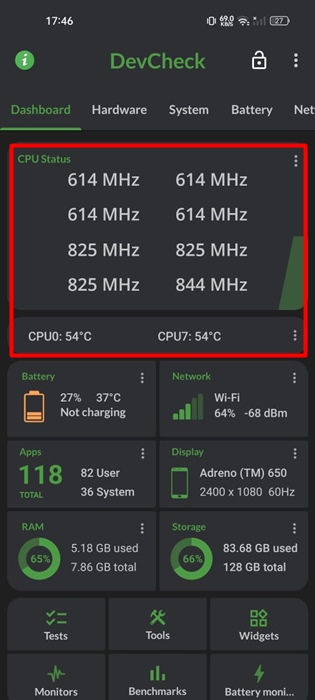
4. Find Your Android Phone Processor and Speed with CPU X
CPU X is another free Android app that shows complete information about your devices, like processor, cores, speed, model, RAM, camera, sensors, and many other details.
1. Download and install the CPU X—Device & System Info app.
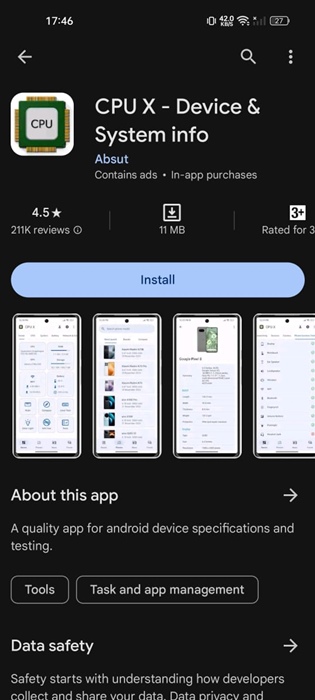
2. Launch the app and grant the permissions it asks for.
3. You will be able to see the main interface of the app.

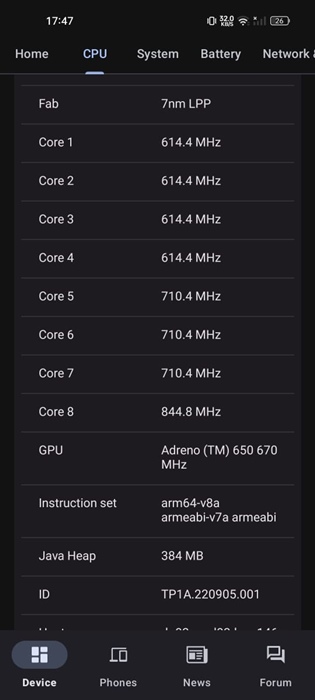
4. Switch to the CPU tab. If you want the processor name, check it on the CPU card on the Home tab.

5. The CPU screen shows more information about your phone’s processor, such as the cores, speed, etc.
There are several similar apps available for viewing the processor type & speed, but the two we have used are lightweight and simple to use.
These are a few simple methods to find your Android phone’s processor and speed. The CPU X app we used in the last method can also tell you the processor used on other smartphones. If you need more help with this topic, let us know in the comments.
The post How to See Your Android Phone’s Processor & Speed appeared first on TechViral.
from TechViral


0 Comments