
While there could be several reasons for the Cannot Connect to App Store error on iPhone, the most prominent reason is network connectivity issues. Here are the best things you can try to resolve the problem and gain access to the App Store.
1. Restart your iPhone
Since you don’t know the actual reason for the ‘Cannot Connect to App Store’ message, it’s best to restart the iPhone.
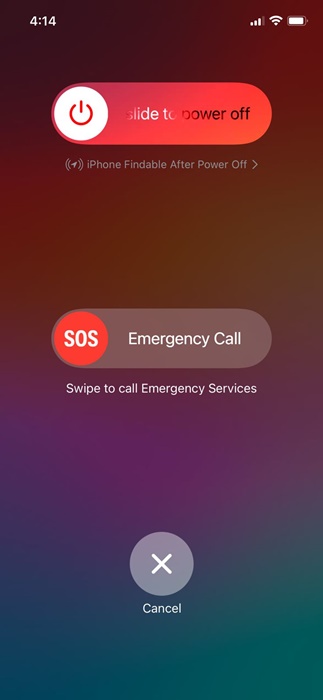
To restart your iPhone, press the Volume Up and Side buttons. This will open the Power Menu, where you can select the Slide to Power Off option.
2. Check Your Internet Connection
Your iPhone should be connected to a stable internet to access the App Store. If your internet is the problem, the connection to Apple Store servers may fail, leading to errors.
You can also do a few things to eliminate internet issues, like toggling the Airplane mode for a few seconds to refresh the connectivity.
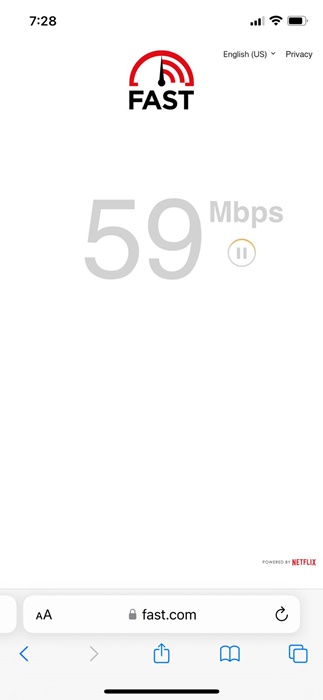
Even if your phone is connected to Wi-Fi, you need to check if the internet is working. You can visit the fast.com website to check whether your iPhone has an active internet connection.
3. Turn off VPN apps on your device
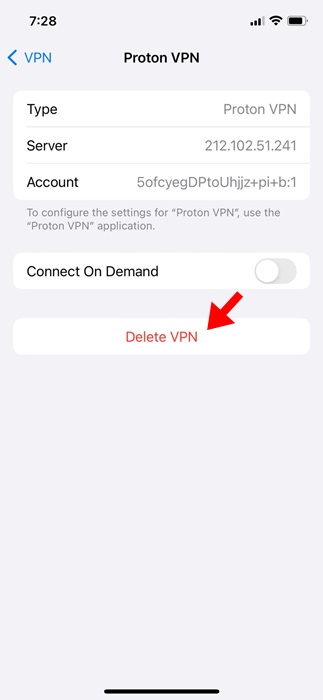
VPN profiles on iPhones often create problems accessing the Apple App Store. Recall whether you’re getting the Cannot Connect to App Store error after installing a VPN profile.
If yes, turn off the VPN app and delete the VPN profile from your iPhone. If you don’t want to disable your VPN, you can switch to a different server in a different location and try again.
4. Check the Apple Server Status
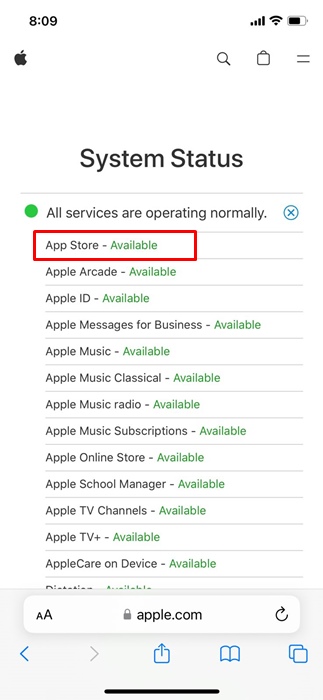
The problem doesn’t always have to be on your end; when Apple’s servers are down worldwide, you may experience problems accessing the App Store or other Apple services.
If Apple’s servers are down, there’s nothing you can personally do to resolve it. The only thing you can do is wait until the servers are restored and back to normal.
Apple also has a dedicated System Status page showing the server status of all Apple services; you need to look at the App Store status.
5. Check the Time and Date Settings of your iPhone
Incorrect Time & Date settings can trigger problems accessing the App Store and can interfere with the connection to the Apple Servers. It’s recommended that you check the time and date settings of your iPhone as well.
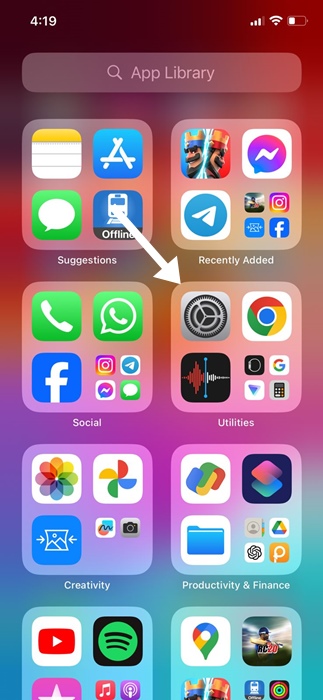
1. Launch the Settings app.
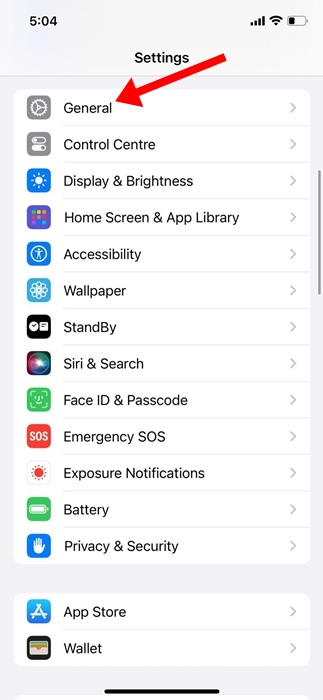
2. Tap on General.
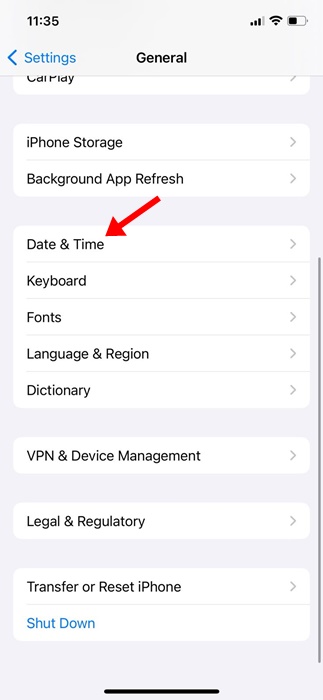
3. Tap on Date & Time.
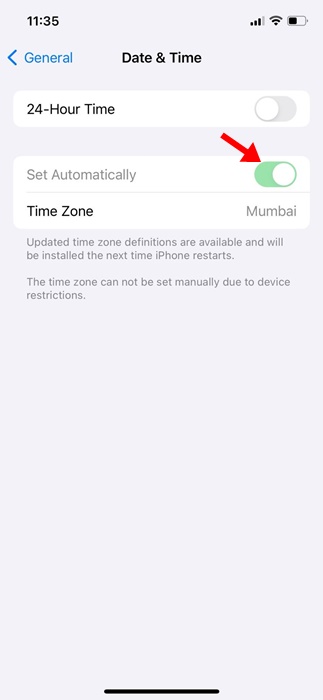
4. Turn on the toggle for Set Automatically.
6. Change the DNS Server on iPhone
Switching to Google DNS can also help in resolving the cannot connect to App Store error on iPhone.
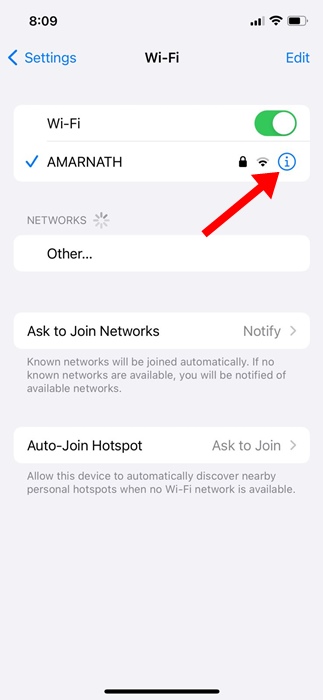
1. Launch the Settings app and select WiFi.
2. Tap the (i) icon beside the WiFi name you’re currently connected to.
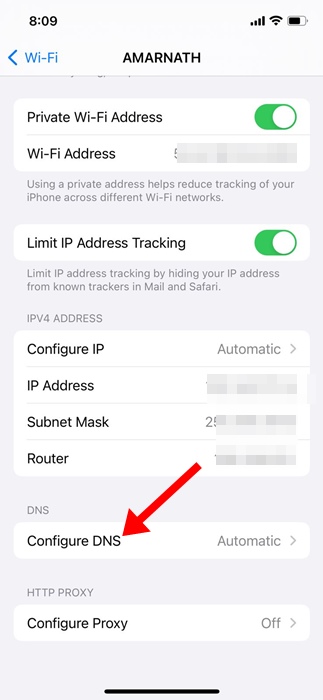
3. Scroll to the bottom and select Configure DNS.
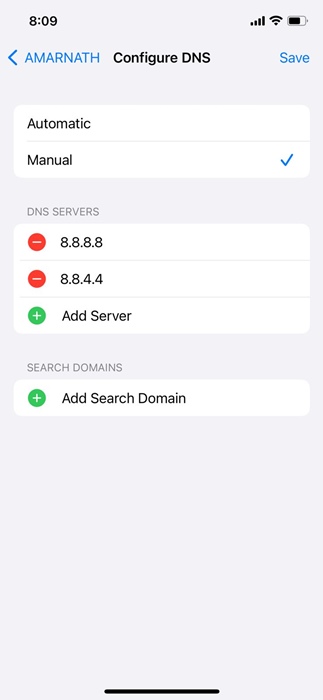
4. On the Configure DNS screen, select Manual. Tap on Add Server and enter the Google DNS servers:
- 8.8.8.8
- 8.8.4.4
5. Tap the Save button at the top right corner.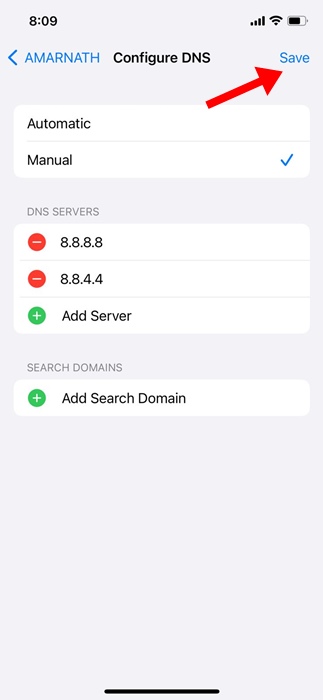
7. Reset the Network Settings on your iPhone
Network issues are usually the leading cause of the ‘Cannot Connect to App Store’ problem on an iPhone. So, if nothing worked in your favor until now, it’s high time to reset the Network Settings.
1. Launch the Settings app.
2. Tap on General.
3. Tap on Transfer or Reset iPhone.
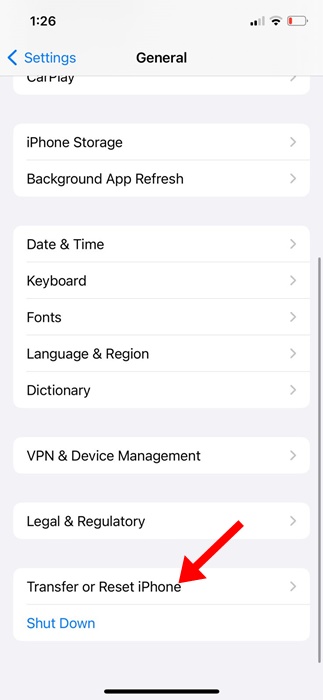
4. On the Transfer or Reset iPhone screen, tap on Reset.
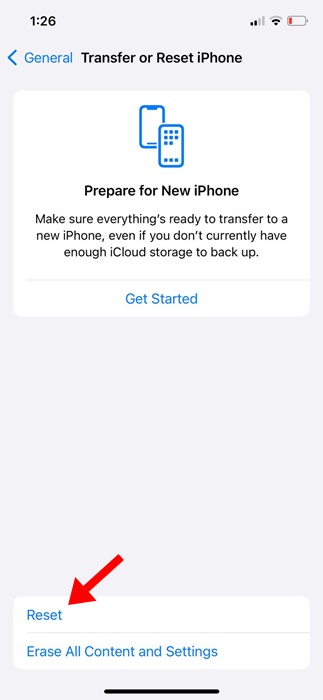
5. Select Reset Network Settings.
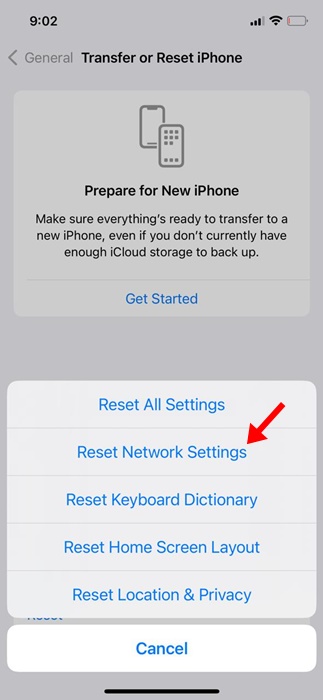
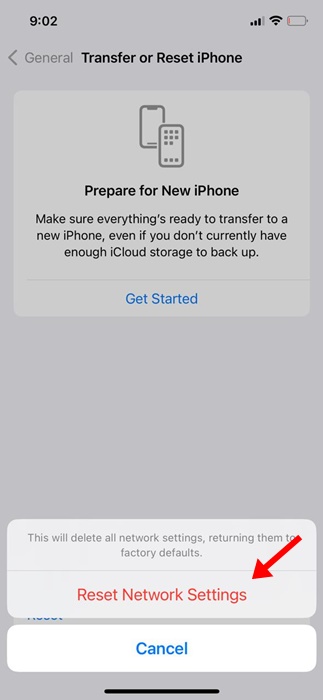
6. Tap Reset Network Settings again.
8. Update your iPhone
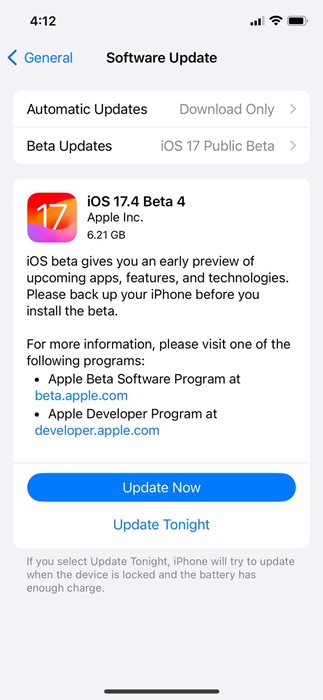
The version of iOS installed on your iPhone may be affected by a minor bug or glitch, preventing you from accessing the App Store. Restarting the iPhone will not get rid of such bugs or glitches; however, updating the iOS version will.
1. Launch the Settings app.
2. Tap General.
3. Tap Software Update.
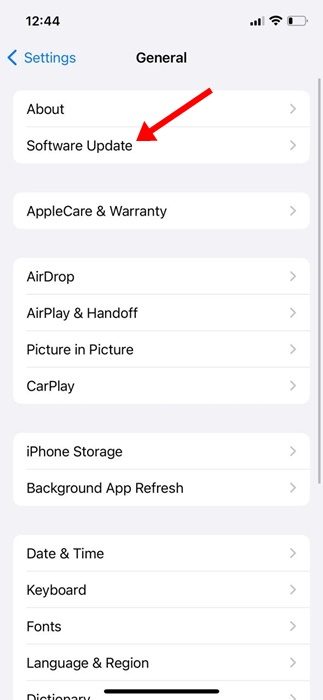
4. Check whether you have any pending iOS updates. If an update is available, download and install it.
These are some simple solutions to fix the Cannot Connect to App Store error on iPhone. If you need more help on this topic, let us know in the comments.
The post How to Fix ‘Cannot Connect to App Store’ on iPhone appeared first on TechViral.
from TechViral


0 Comments