

File Explorer is stuck at the ‘Working on it’ error and can’t get past it? Don’t worry, this problem can be easily fixed. Here’s what you should do if the File Explorer is stuck at the ‘Working on it’ problem.
1. Restart your PC
Restarting will possibly remove all bugs & glitches that may be preventing the file explorer from functioning properly.
It’s a good idea to restart the computer at regular intervals. To restart your Windows 11 PC, click the Power menu and select Restart.
2. Restart the Windows Explorer
Windows Explorer is a program manager that provides the graphical interface you use to interact with most Windows programs. If File Explorer does not work on Windows 11, the best you can do is restart the Windows Explorer process.
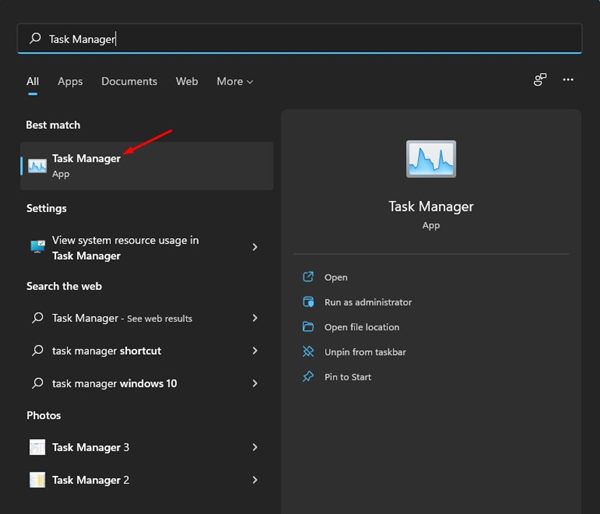
1. Open the Task Manager app from the Windows Search.
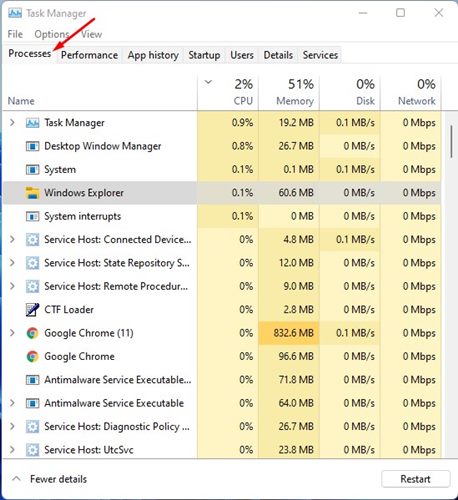
2. Switch to the Processes.
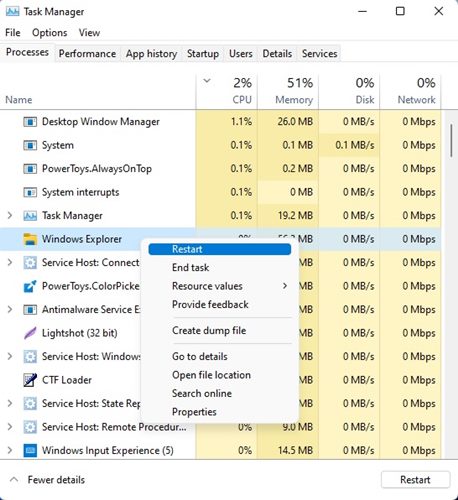
3. Right-click on the Windows Explorer and select Restart.
3. Reconnect the External Devices
If not properly plugged in, external Devices can trigger File Explorer problems. The File Explorer may get stuck at ‘Working on It’ if the external device you’re trying to access isn’t properly plugged in.
It’s important to reconnect the external device before you try the next methods.
4. Clear the File Explorer History
Like every other app on your PC, the File Explorer on Windows 11 also stores the cache file on your system installation drive. If this cache file is corrupted, the File Explorer will return with a ‘Working on it’ error message. You can try clearing the File Explorer cache.
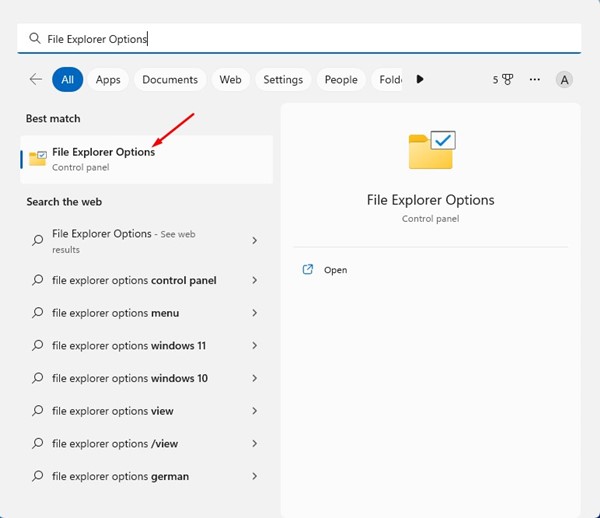
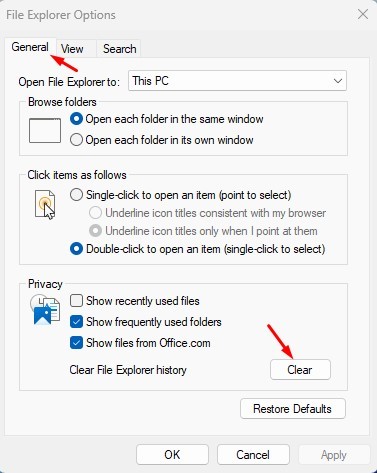
1. Open the File Explorer Options from the Windows Search.
2. Switch to the General tab.
3. On the Privacy section, click on Clear.
4. In the Open File Explorer to: drop-down, select This PC and click Apply.
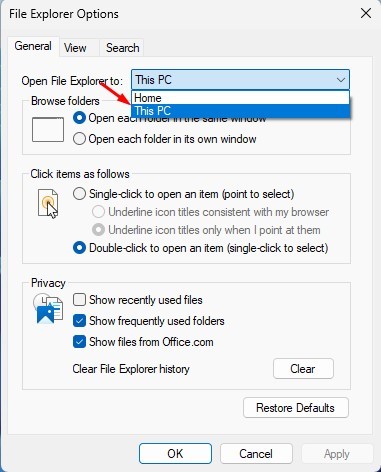
After making the changes, restart your Windows 11 PC. This should fix the File Explorer slow problem on your PC.
5. Optimize the Folders for General Items
If you have a folder where you store files in different formats, it’s recommended that you optimize that folder for general items. This may fix the File Explorer Stuck at ‘Working on it’ error message.
1. Launch the File Explorer utility on your PC.
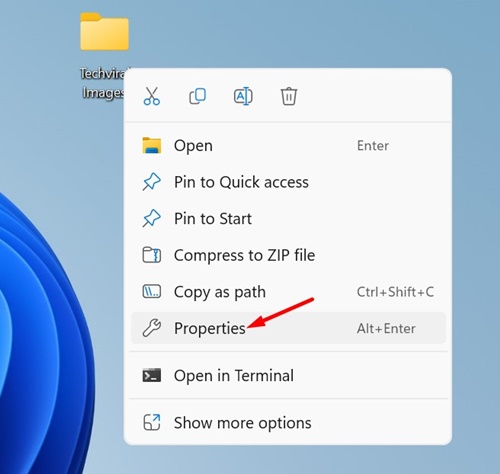
2. Right-click on the Folder, which takes time to open, and select Properties.
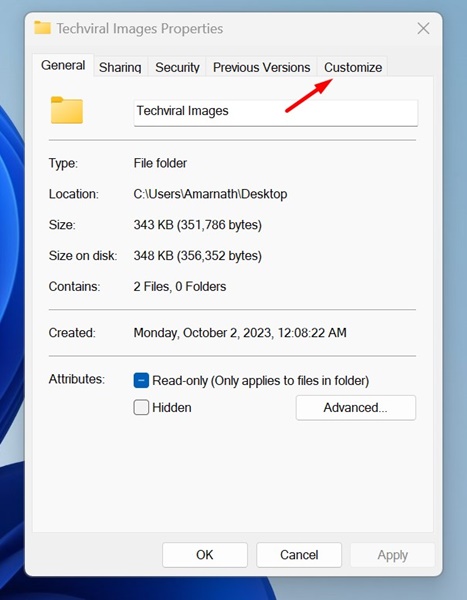
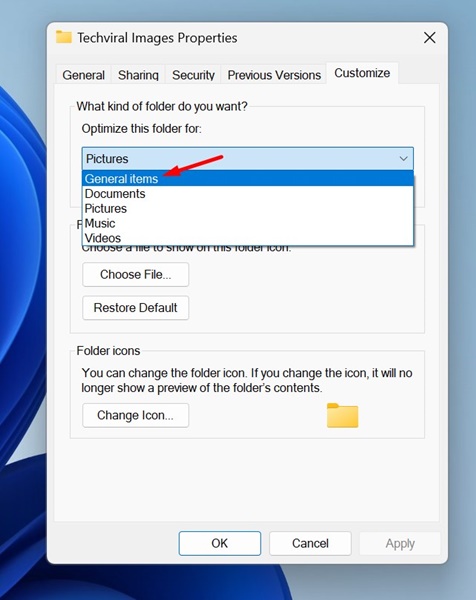
3. Switch to the Customize tab.
4. On the Optimize this folder for drop-down, select General items.
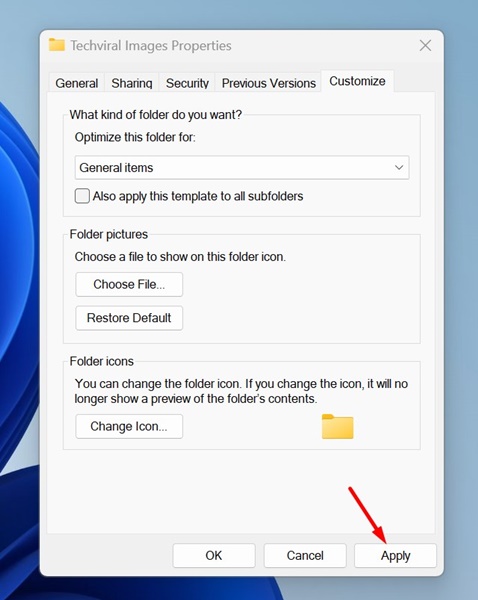
5. After making the changes, click Apply.
6. Rebuild the Search Index
If you get the ‘Working on it’ File Explorer error while searching for specific files, it’s best to rebuild the entire search index. This will also resolve issues like being unable to type in the File Explorer search.
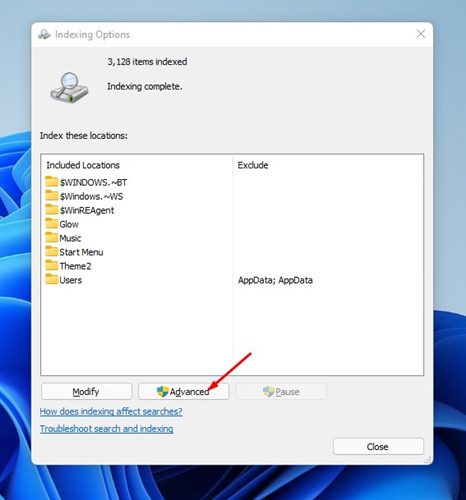
1. Open the Indexing Options from the Windows Search.

2. Click on Advanced.
3. Switch to Index Settings.
4. Click on the Rebuild button in the Troubleshooting section.
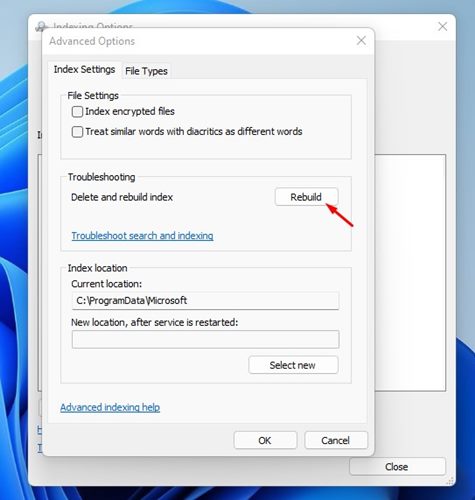
After making the changes, click OK.
7. Run a full Antivirus Scan
If your PC is infected with harmful viruses or malware, you can face problems accessing the files & folders through the file explorer.
Running a full Antivirus scan with the Windows Security program is very important. This may fix the File Explorer stuck working problem.
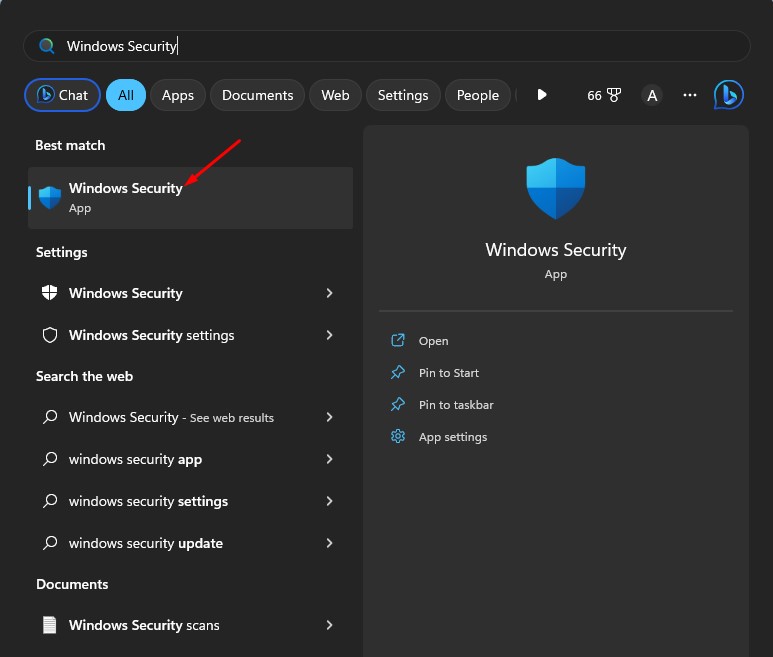
1. Open Windows Security from the Windows Search.
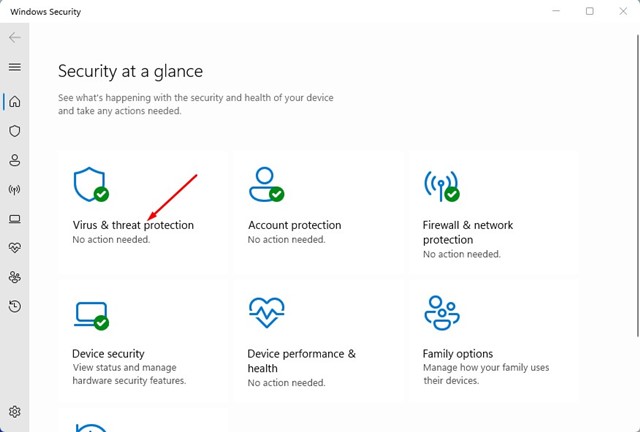
2. Switch to Virus & Threat Protection.
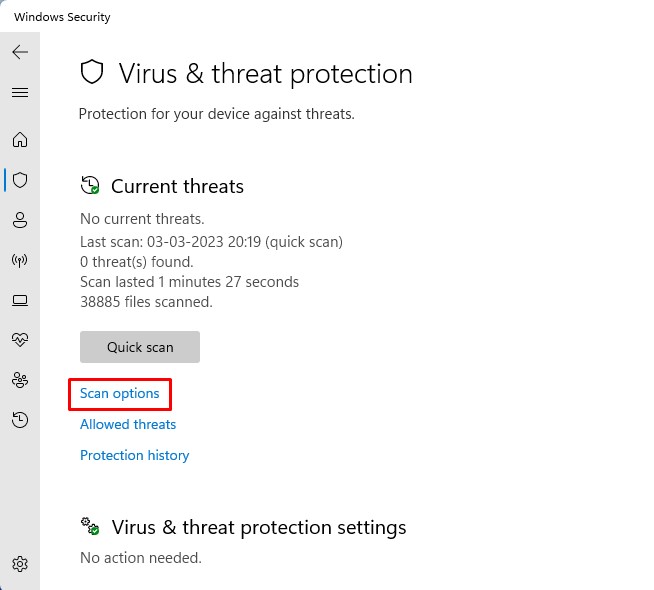
3. Click on Scan Options.
4. Select Full Scan and click Scan Now.
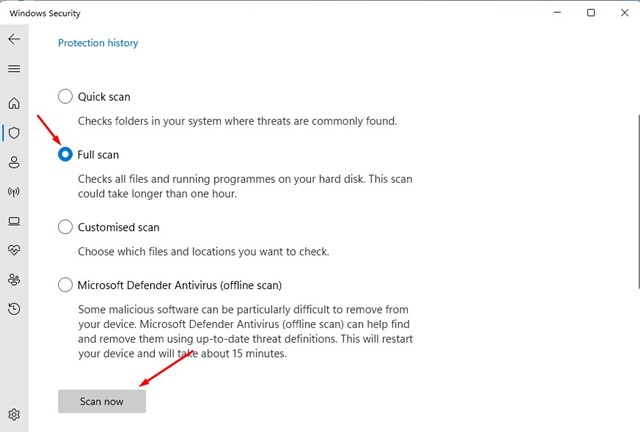
Wait until the Windows Security app completes the scan. Once it has, access the File Explorer again.
8. Run the SFC/DISM Command
System file corruption is another reason for File Explorer showing a ‘Working on it’ screen. If the screen is stuck in ‘Working on it’, you must run both the SFC & DISM commands via the Command Prompt
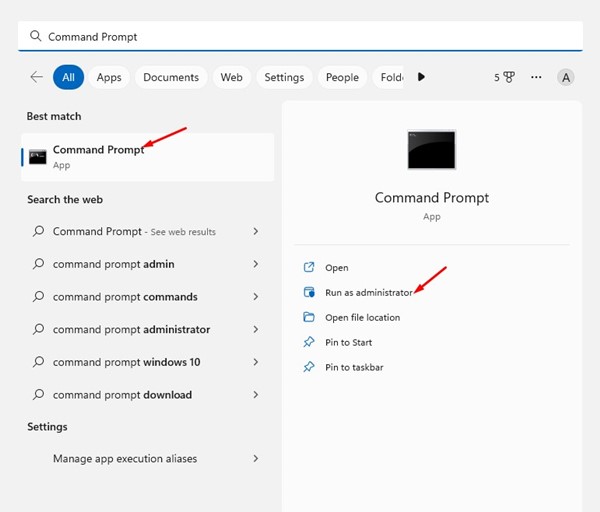
1. Type in Command Prompt in the Windows 11 search. Right-click on the Command Prompt & select Run as administrator.
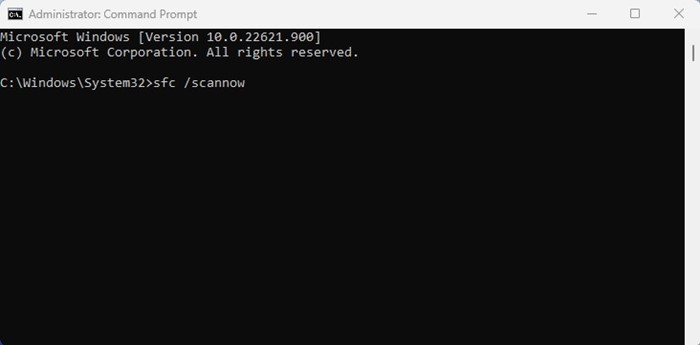
2. Paste the command and press Enter.
sfc /scannow
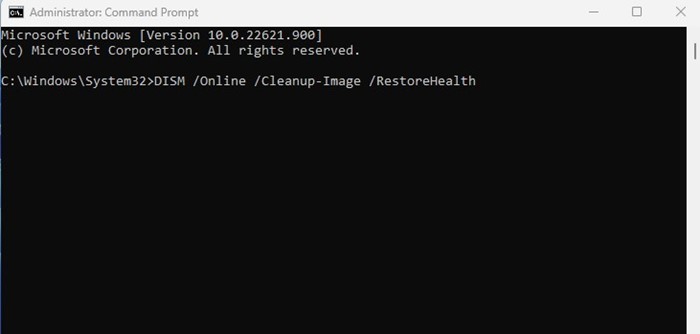
3. If the Command returns with an error, paste this command and press Enter.
DISM /Online /Cleanup-Image /RestoreHealth
9. Run the Disk Cleanup Utility
If you still get the ‘Working on It’ screen on File Explorer, your hard drive is likely failing or has less storage space. To free up storage space on a PC, it’s best to run the Disk Cleanup utility.
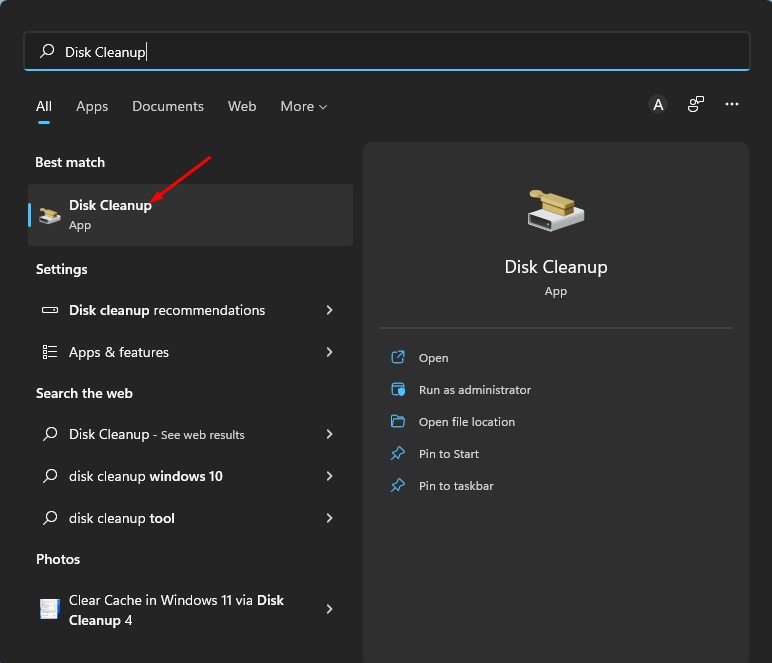
1. Open the Disk Cleanup tool from the Windows Search.
2. Select the drive that you want to clean.
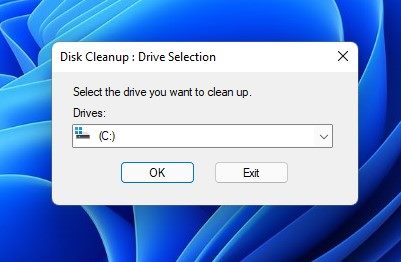
3. The disk cleanup utility will automatically pick the files that can be deleted. Click on the OK button.
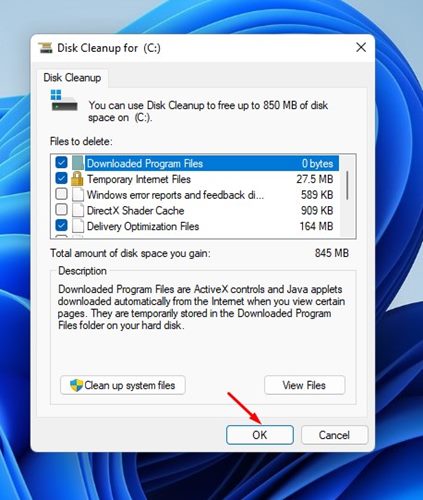
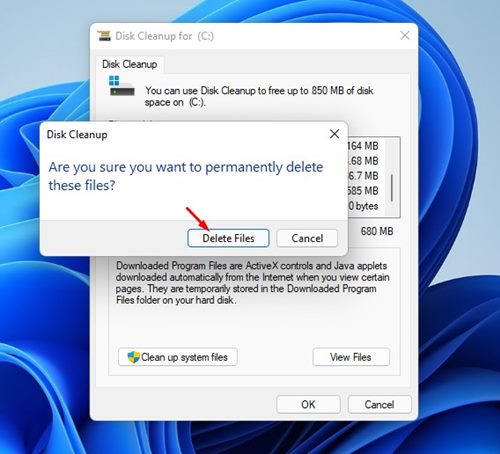
4. On the Disk Cleanup confirmation prompt, click the Delete Files button again.
10. Update your Windows 11
Bugs in specific Windows 11 versions have already troubled many users. It appears that File Explorer is stuck at the ‘Working on it’ screen because of an existing bug in the operating system.
You can quickly eliminate such bugs by updating your Windows 11 to the latest version. It’s a good security practice to keep the operating system up-to-date, as you will not only be able to enjoy the new features but also rule out privacy and security issues.
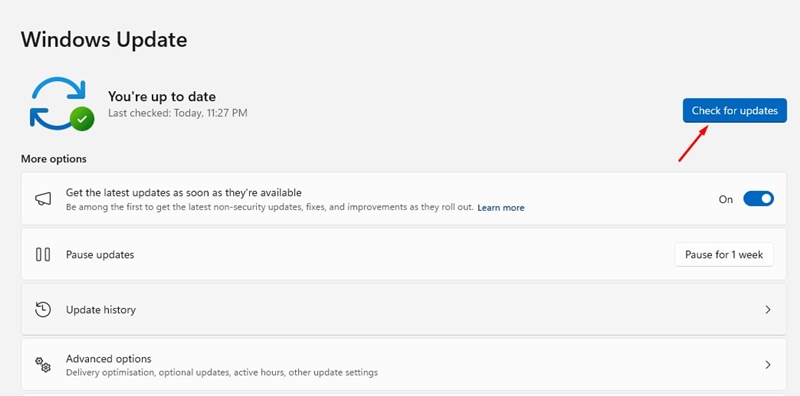
To update your Windows 11 PC, go to Settings > Windows Updates > Check for Updates. Windows 11 will find all available updates and download and install them.
These are some of the best ways to fix File Explorer, which is stuck on the ‘Working on it’ screen. If you have followed all methods correctly, the issue is likely already fixed.
The post How to Fix File Explorer Stuck At ‘Working on It’ in Windows 11 appeared first on TechViral.
from TechViral


0 Comments