
If you see the ‘Not All of the Updates Were Successfully Uninstalled’ error, the update uninstallation has failed, and you need to find the issue preventing the uninstall.
Why does ‘Not All of the Updates Were Successfully Uninstalled’ Appear?
The error message usually appears when a certain process prevents the update or uninstallation process. It could be malware, problems with the installation files, incorrect update installation, etc.
If you cannot uninstall Windows updates, you must find other ways to do so. To resolve this error message, you can use PowerShell, Command Prompt, or reset the Windows Update Components.
1. Use PowerShell to Uninstall Windows Update
If you cannot uninstall specific Windows 11 updates, use the PowerShell utility.
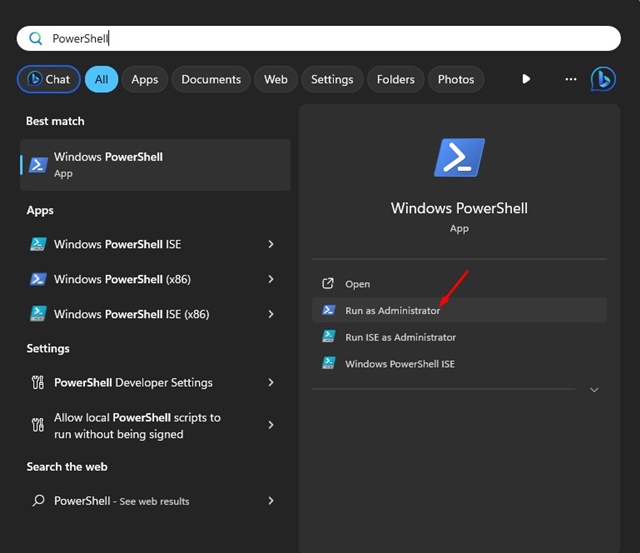
1. Type PowerShell in Windows Search. Right-click on the PowerShell & select Run as administrator.
2. Execute this command:
wmic qfe list brief /format:table
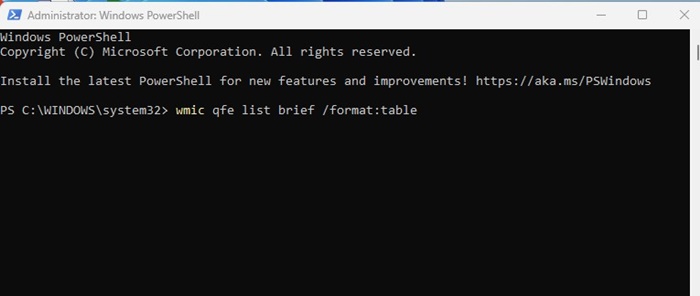
3. Note down the HotFixID (KB number) of the Windows update you want to uninstall.
4. Execute this command. Replace ‘number‘ with the KB number you noted in the previous step.
wusa /uninstall /kb:number
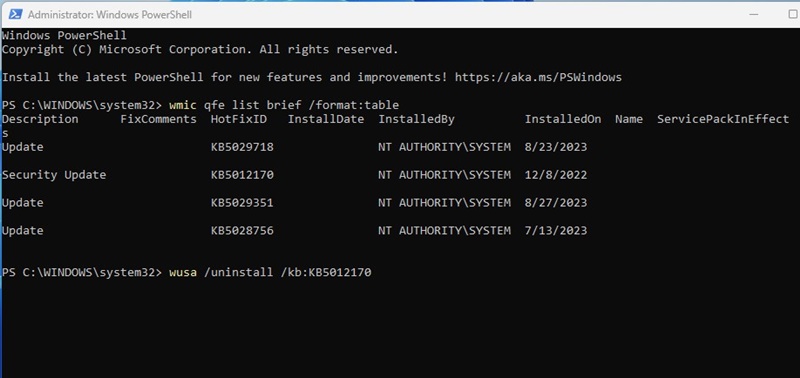
5. A Windows Update Standalone Installer prompt will pop up. Click on the Yes button to continue.
Wait a few minutes for the update to uninstall on your device. After uninstalling, restart your Windows PC.
2. Use the DISM tool to remove the Windows Update
While the DISM tool is mainly used to fix corrupted system files, it can uninstall updates that don’t get uninstalled, even after multiple attempts.
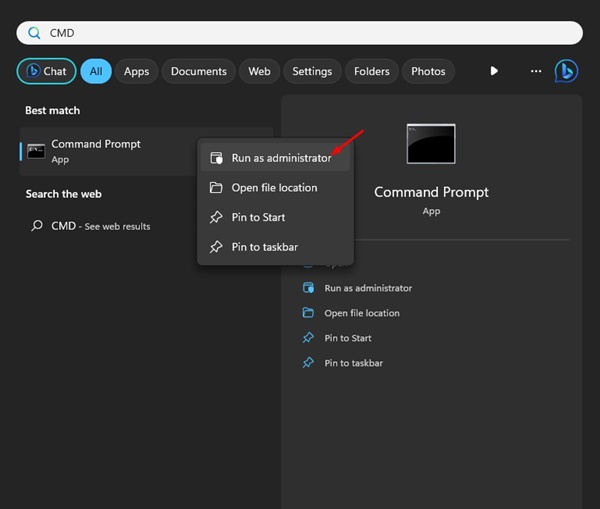
1. Type in Command Prompt on Windows Search. Right-click on it and select Run as administrator.
2. Execute this command:
DISM /Online /Get-Packages | clip
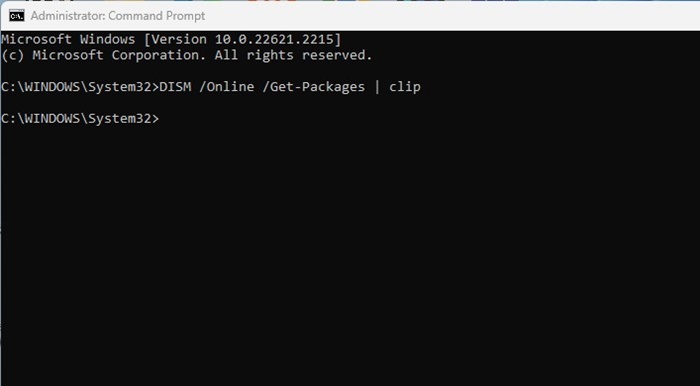
3. Open Notepad and press the CTRL + V button. This will paste the output of the DISM command.
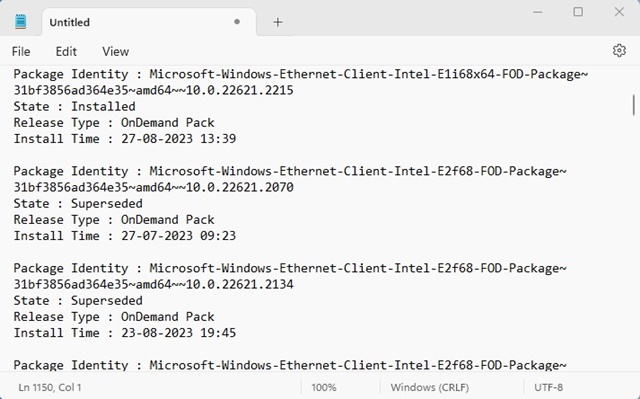
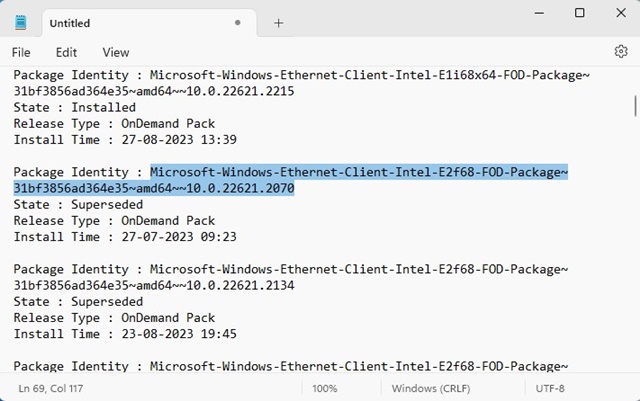
4. Identify the update package you want to uninstall. Copy the value text next to the Package Identity.
5. Return to the Command Prompt and execute this command:
dism /Online /Remove-Package /PackageName:Package_ID
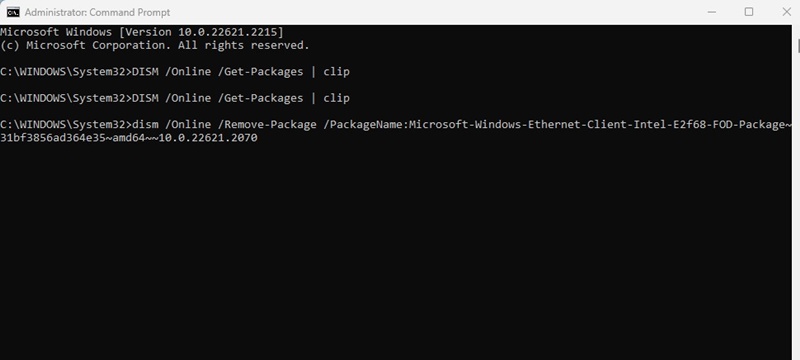
Important: Replace the ‘Package_ID’ with the value you’ve copied in the previous step.
Make sure to restart your computer after the process completes.
3. Reset the Windows Update Components
As mentioned above, problems with the Windows Update Components are often the prominent reason Windows fails to uninstall updates. To resolve this issue, it’s best to reset the Windows Update Components.
1. Type PowerShell in Windows Search. Right-click on Windows PowerShell and select Run as administrator.
2. Execute each of the given commands one by one.
net stop wuauserv
net stop cryptSvc
net stop bits
net stop msiserver
ren C:\Windows\SoftwareDistribution SoftwareDistribution.old
ren C:\Windows\System32\catroot2 catroot2.old
net start wuauserv
net start cryptSvc
net start bits
net start msiserver
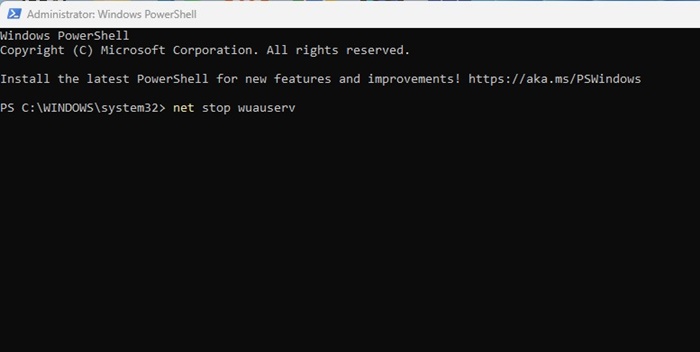
After executing all these commands, restart your Windows computer. This will reset the Windows Update Components.
4. Restart the Windows Update Service
Many Windows 11 users have claimed to fix the error by restarting the Windows Update service.
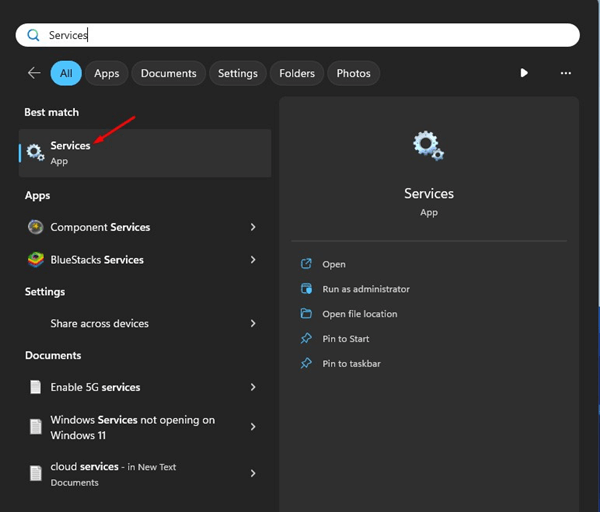
1. Open the Services app from the Windows Search.
2. Find the Windows Update service.
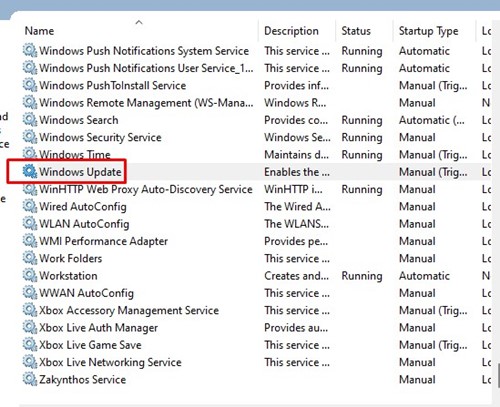
3. Right-click on the Windows Update and select Restart.
After making the change, restart your Windows 11 PC. Then, go to Settings > Windows Update to check for available updates.
5. Clean Boot Windows
Clean Boot is a Windows feature that forces the operating system to start with only essential programs & processes. Performing a clean boot will possibly disable all third-party apps & processes, disrupting the Windows Update Process from functioning.
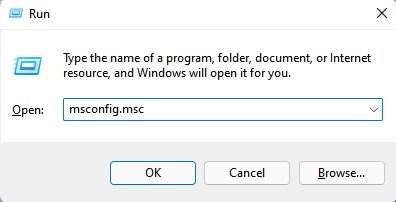
1. Press the Windows Key + R button on your keyboard. In the run dialog box, type msconfig.msc and press Enter.
2. Switch to the Services.
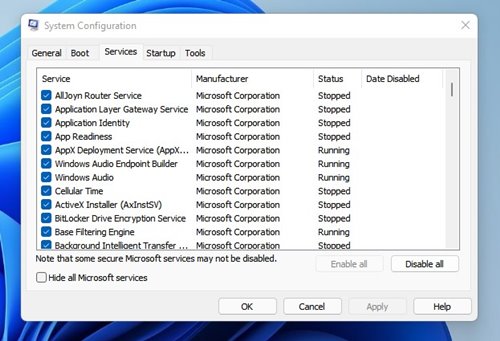
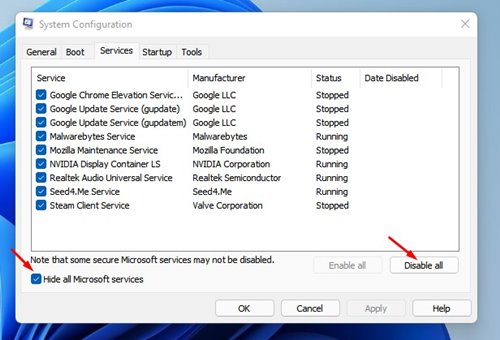
3. Check the Hide all Microsoft Services checkbox and click Disable All.
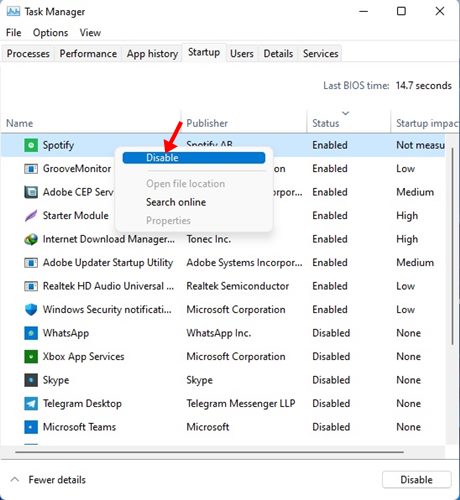
4. Open Task Manager and switch to the Startup Tab. On the Startup tab, right-click all third-party apps and select Disable.
After making the changes, restart your computer. It will boot into a clean state without any third-party apps. You can also try uninstalling the Windows updates.
6. Make Changes to Windows Registry
If nothing has worked, you can modify the Registry Files. Here’s how you can change the Windows Registry to resolve the error message.
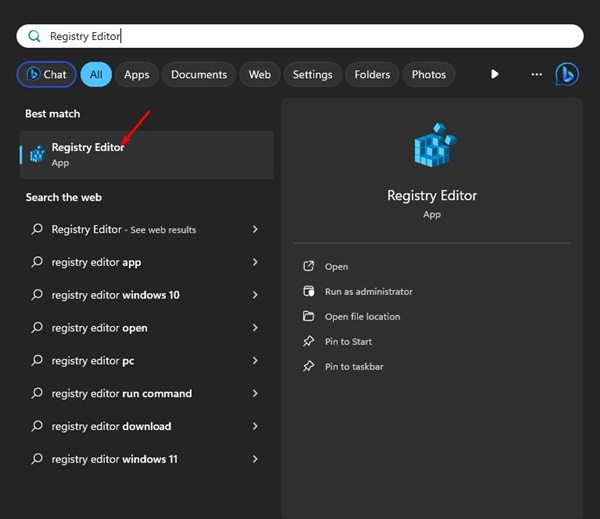
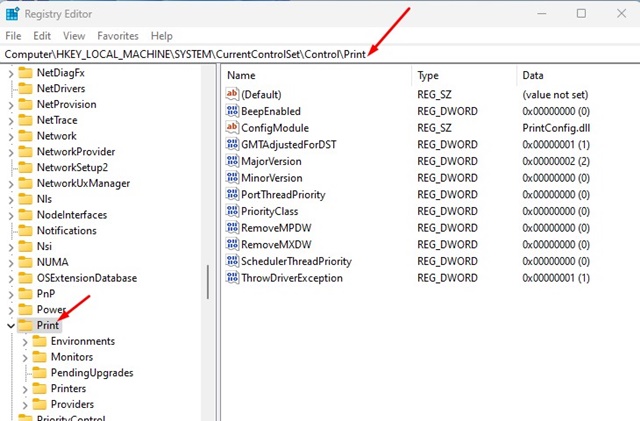
1. Open the Registry Editor app from the Windows Search.
2. Navigate to the following path:
HKEY_LOCAL_MACHINE\System\CurrentControlSet\Control\Print
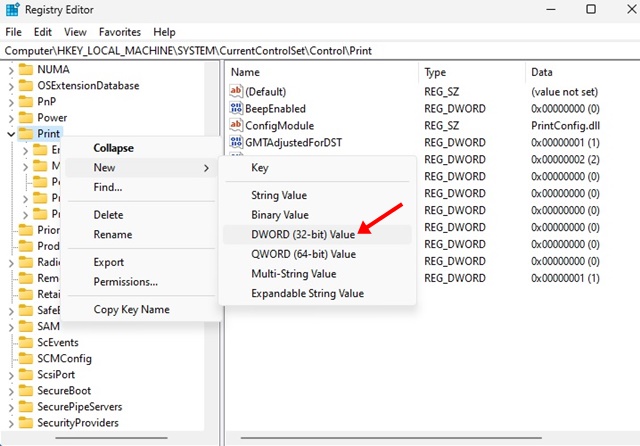
3. Right-click on the Print folder and select New > DWORD (32-bit) Value. Name the new key as RPCAuthnLevelPrivacyEnabled.
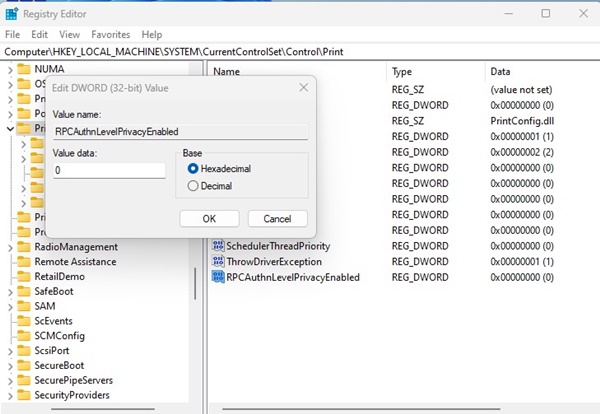
4. Double-click on the RPCAuthnLevelPrivacyEnabled and enter 0 in the Value data field. Once done, click on OK.
7. Run an Antimalware Scan
Windows continuously failing to uninstall updates may also be a sign of malware or virus infection. Running a full antivirus scan with the Windows Security application is best to see if it resolves the problem.
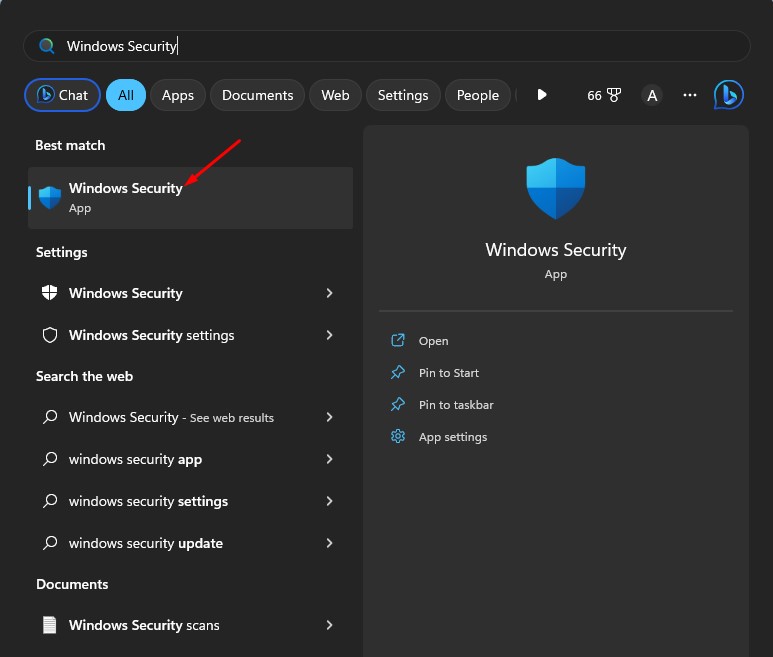
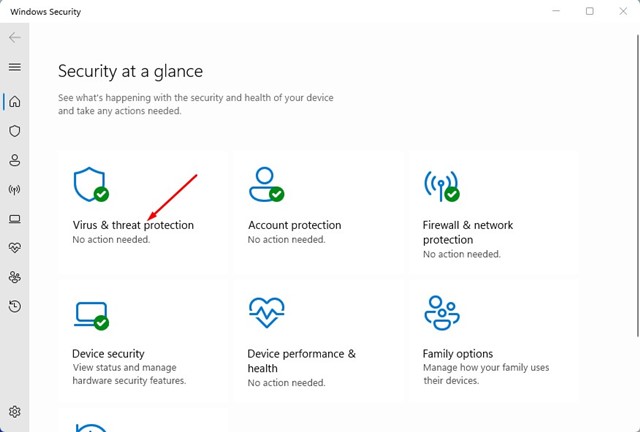
1. Open the Windows Security app from the Windows Search.
2. Select Virus & Threat Protection.
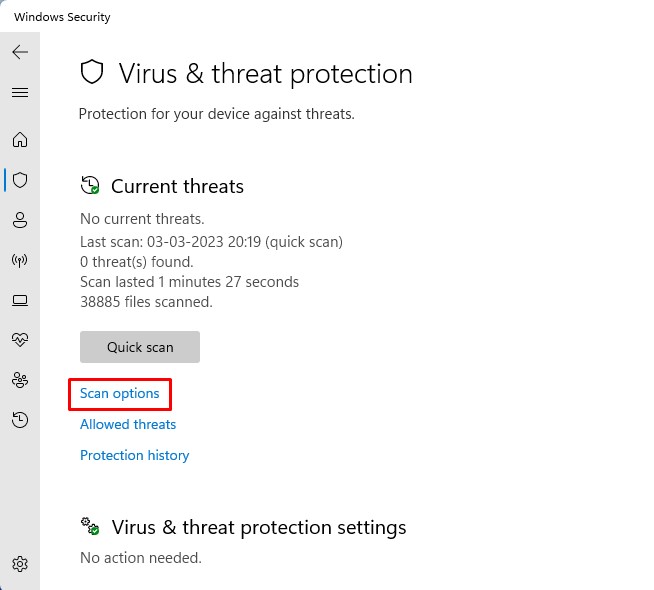
3. Click on the Scan options link.
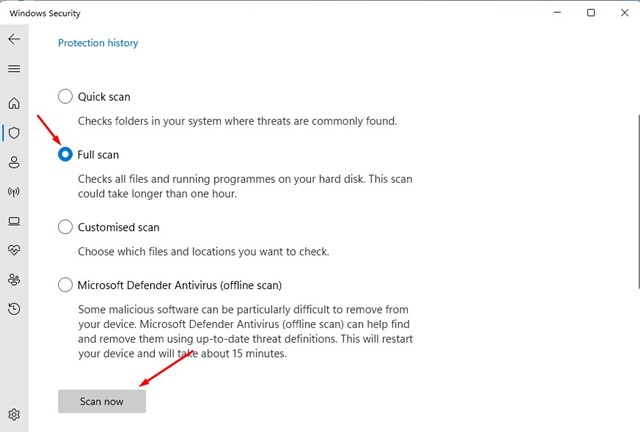
4. Select Full Scan and click on Scan Now.
These are the best & working methods to fix the error on Windows. If you have followed all methods carefully, you can uninstall the updates now.
The post How to Fix ‘Not All of the Updates Were Successfully Uninstalled’ Error appeared first on TechViral.
from TechViral


0 Comments