

Almost all Windows problems can be fixed by resetting your PC to its default settings. You can even reset your Windows 11 PC without losing your data.
1. Reset Windows 11 Without Losing Data from Settings
You can directly reset Windows 11 from the Settings. This won’t erase any of your saved data.
1. Click on the Windows 11 Start button and select Settings.
2. Switch to Windows Update.
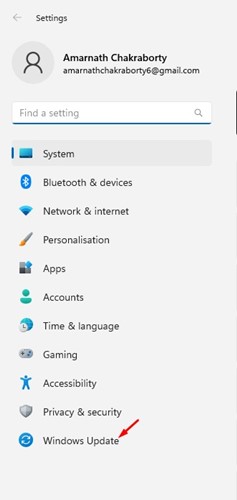
3. Scroll down and click Advanced Options.
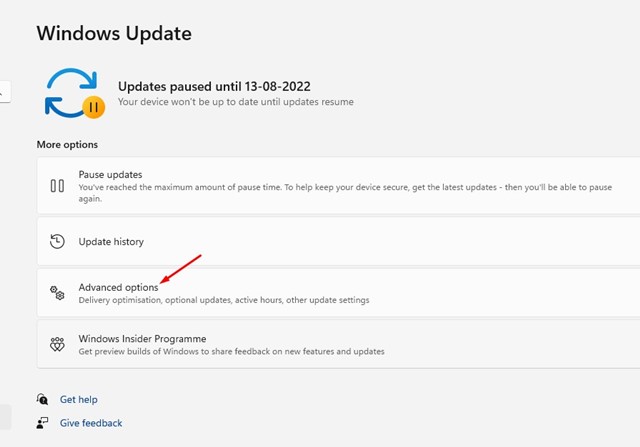
4. Scroll down to the Additional Options and click Recovery.
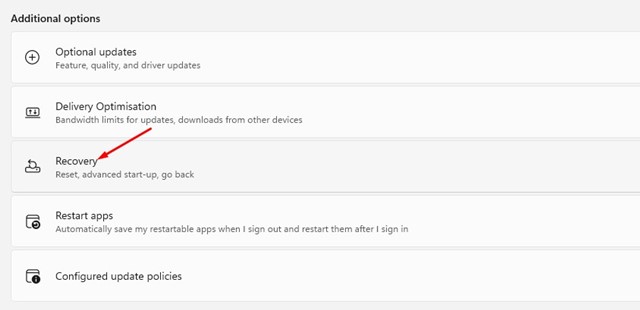
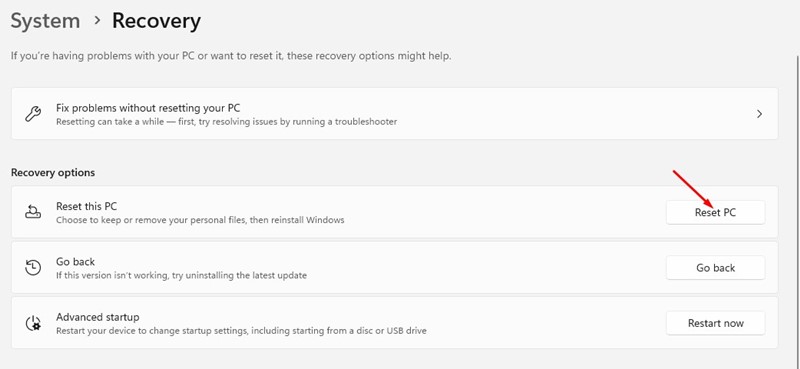
5. Find the Reset this PC.
6. Click Reset PC.
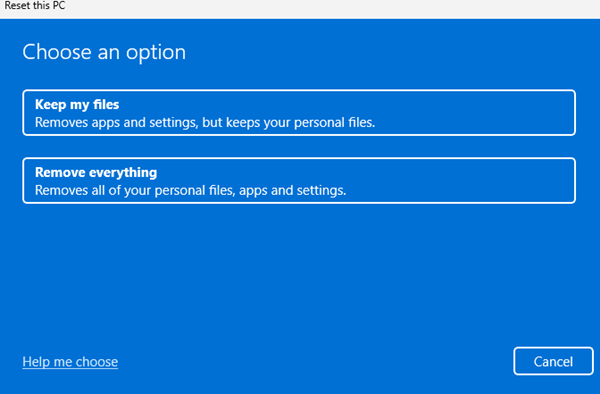
7. On the Reset this PC prompt, choose Keep my files.
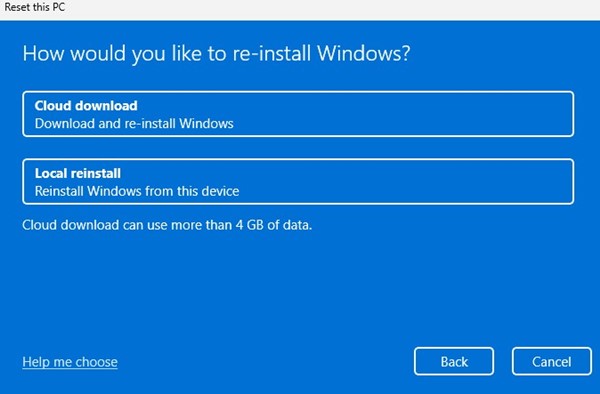
8. On How would you like to reinstall Windows? Prompt, select Local reinstall.
You need to start the Reset process. It may take a few minutes to complete, so be patient and don’t restart the computer if it seems stuck.
2. Reset Windows 11 Without Losing Data Using Advanced Startup
You can access Windows 11’s Advanced Startup option to reset Windows 11 without losing data.
1. Turn on your PC, and when it boots up, press & hold the power button. Repeat this step twice.
2. Let your PC boot normally on the third time. This will automatically take you to the Automatic Recovery screen.
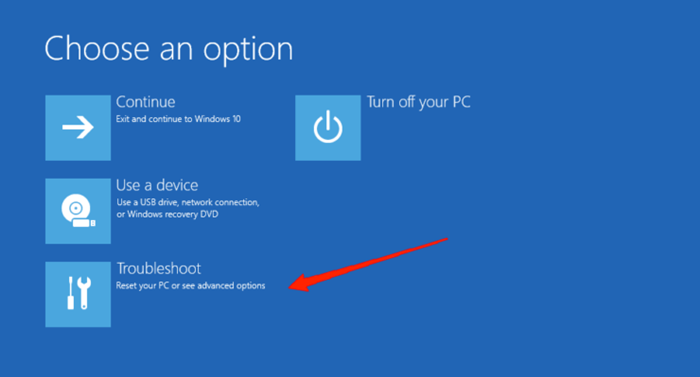
3. On the list of available options, click Troubleshoot.
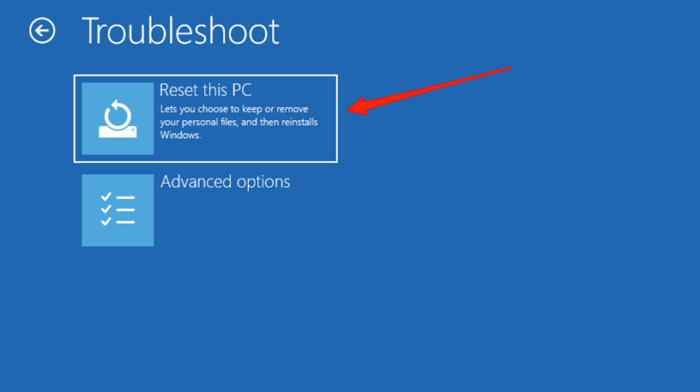
4. Click Reset This PC.
5. Select Keep my files.
6. On the How would you like to reinstall Windows prompt, select Local reinstall.
7. Click on Reset PC.
3. Reset Windows 11 Using Installation Media
The Installation Media is required to cleanly boot Windows 11 on a PC. You can also use it to reset Windows 11 without losing data.
1. Connect the Windows 11 Bootable USB to your PC.
2. Open the USB drive from the File Explorer and launch the Setup.exe.
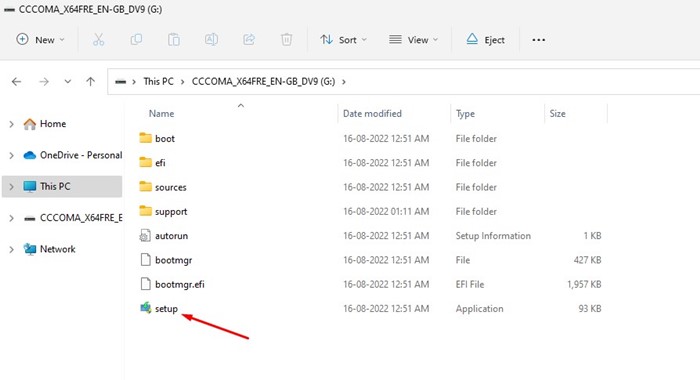
3. On the Windows 11 Setup Wizard, click Next.
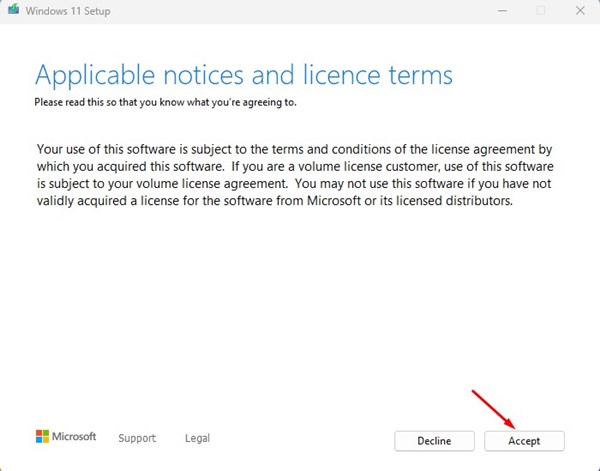
4. Accept the terms and conditions.
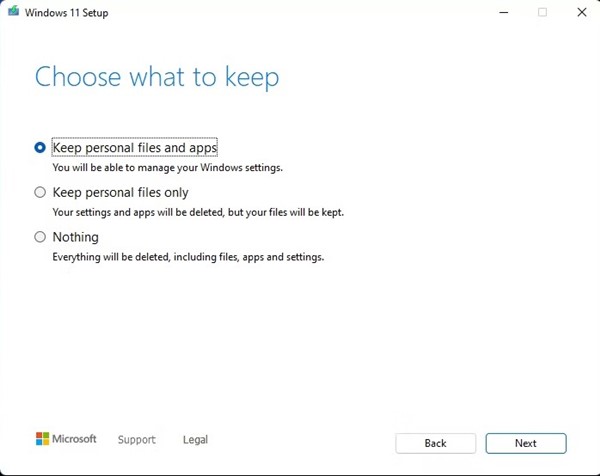
5. On the Ready to Install screen, click Change what to keep. Select Keep personal files and apps. Click Install to perform a clean installation.
Frequently Asked Questions
You can follow our shared methods to reset Windows 11 without losing data. However, if you reset Windows 11, you will lose your App Settings.
The Keep My Files option allows you to store all your files. If you select this, the Reset tool won’t remove them. The Remove Everything option will remove your personal files, apps, games, and everything stored on the system installation drive.
The Cloud download option downloads the required Windows files from the Internet and requires an active Internet connection to function. On the other hand, the Local Reinstall uses the same files on your system installation drive to reinstall Windows 11.
The Reset time depends on the number of files you have, the processing speed, RAM, and other factors. However, the usual time to reset Windows 11 is 30-45 minutes.
This guide is about resetting Windows 11 without losing data. Let us know if you need more help resetting your Windows 11 PC.
The post How to Reset Windows 11 Without Losing Data appeared first on TechViral.
from TechViral


0 Comments