
Chrome users have reported that the ‘ysearcher’ URL pops up when performing a new Google Search on a new tab page. Due to its nature, users have been confused whether Ysearcher.com is malware or a browser hijacker. If it’s so, how to get rid of it?
Is Ysearcher.com a virus?
There is little information on whether Ysearcher.com is a virus. But since you don’t need the Ysearcher.com redirection, it’s safe to assume that it’s malware or a browser hijacker.
Whatever it is, you should take proper steps to remove the Ysearcher.com redirection on your Chrome browser.
How to Remove Ysearcher.com from Google Chrome?
The Ysearcher.com browser hijacker mainly gets installed due to the extensions. Here’s how you can remove it from your web browser.
1. Disable the Recently Installed Extensions
Browser extensions are the main reason for ysearcher.com blank websites appearing when you open Google Chrome.
Even if the blank page doesn’t show up, you will still notice ysearcher.com redirecting you to the Google Search page.
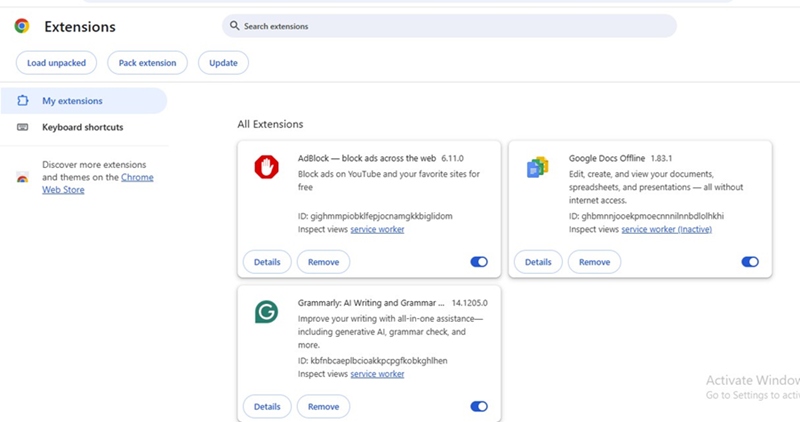
You will have to open the Chrome Extensions page and turn off all extensions that you have recently installed. Simply click on the three dots > Extensions > Manage Extensions and review all extensions that you’ve recently installed.
2. Remove the AdBlock for YouTube Extension
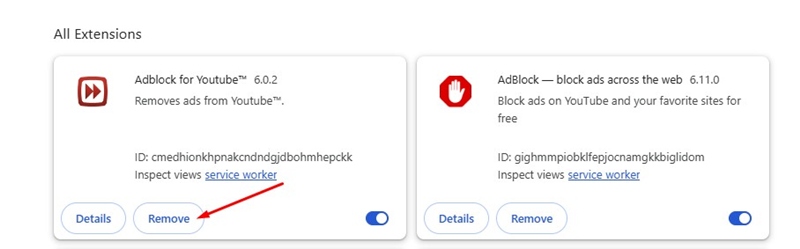
The AdBlock for YouTube needs special mention because it’s responsible for the ysearcher.com redirection.
To fix the Ysearcher.com problem, open Chrome Extensions and uninstall AdBlock for YouTube extensions (if you’re using it).
3. Run a Full Antimalware Scan with Malwarebytes
Malwarebytes is a leading anti-malware tool available for both Windows and Mac. It effectively deals with browser hijackers, malware, adware, and PUPs.
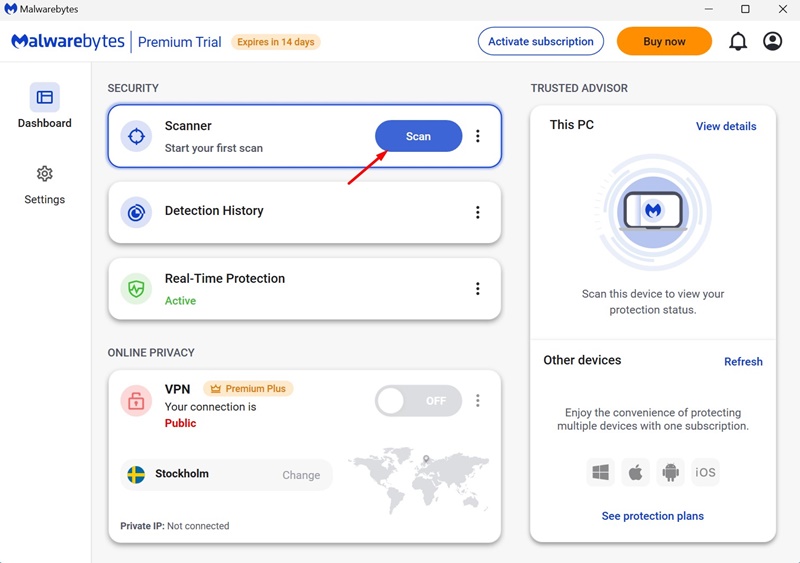
If you can’t find the problematic extension, you should run a full scan using Malwarebytes. The tool will find and remove all sorts of malicious programs automatically.
The latest version of Malwarebytes has a rootkit scanner that scans and removes hidden rootkits.
4. Reset the Chrome Browser
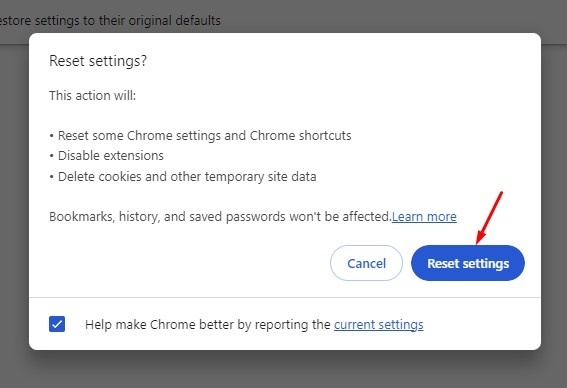
Resetting the Chrome Browser should be your last choice, especially if nothing has worked until now. Doing so will delete some important data, such as some Chrome Settings and shortcuts, disable extensions, and delete cookies and other site data.
1. Launch the Chrome browser on your computer.
2. Click the three dots at the top right corner.
3. Select Settings.
4. Click Reset Settings.
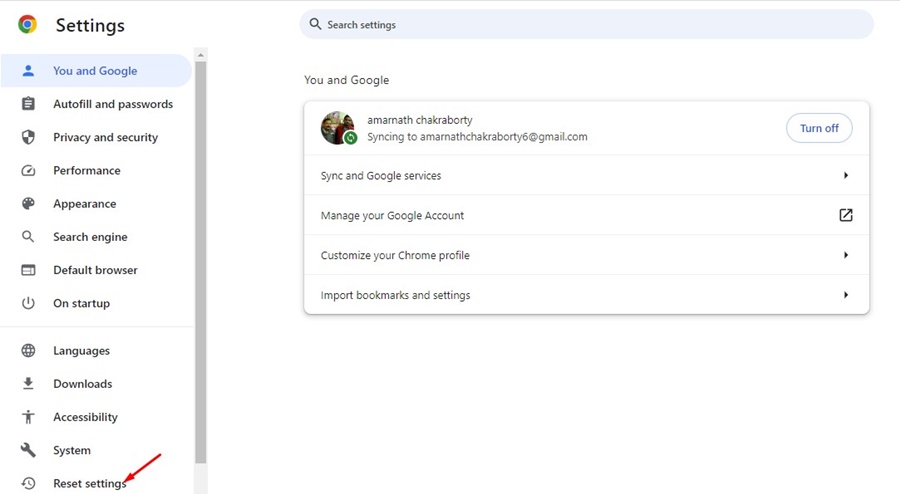
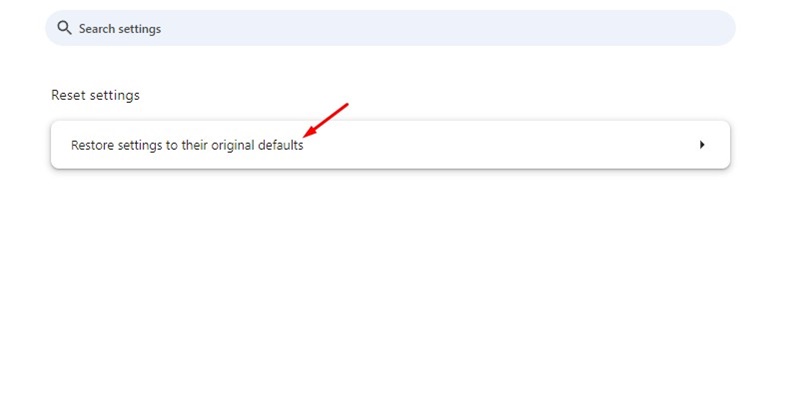
5. Click Restore settings to their original defaults.
6. Click Reset settings.
These are the best ways to remove the Ysearcher.com malware from Chrome. If you need more help in removing this, let us know in the comments.
The post What is Ysearcher.com in Chrome Browser? How to Remove it appeared first on TechViral.
from TechViral


0 Comments