
PUA, or Potentially Unwanted Applications, don’t do much harm; they just run in the background and slow down your device. If you’re relying on Windows Security to safeguard your PC, you can check its Protection History page to see how many PUAs it has blocked until now. Here’s how you can view apps that Windows Security identifies as PUA.
View Apps that Windows Security Identifies as PUA
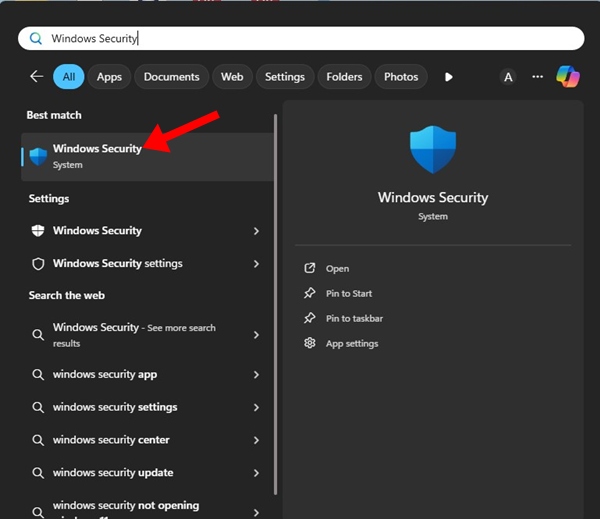
1. Open the Windows Security app from the Windows Search.
2. Switch to Protection History.
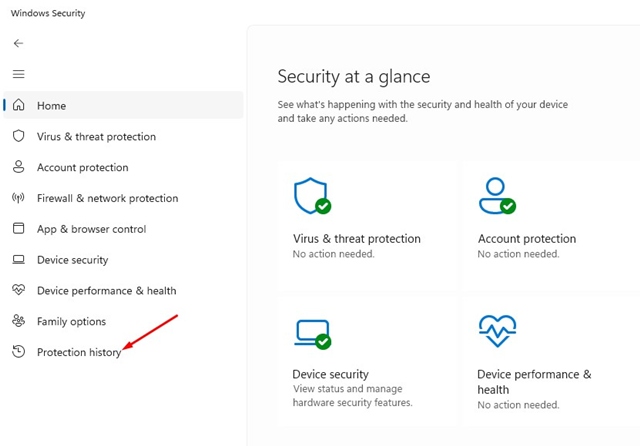
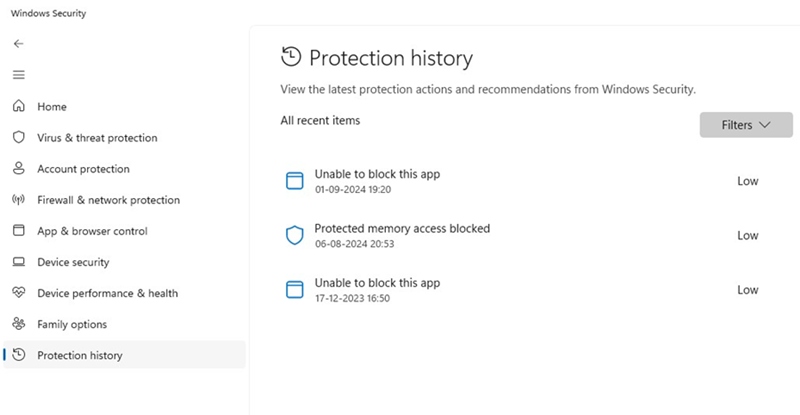
3. You will be able to see how many threats it has blocked, along with the detection time. The list will also have the PUPs.
Potentially Unwanted App Found, Can’t Remove?
Whenever Windows Security detects a PUA, it automatically adds the entry to the Protection history list. This means that if you check the Protection History screen in Windows Security, you can view the previous detections.
Currently, there’s no option to remove the previous detections from the Protection history unless you reset the Windows Security app. You may be checking Windows Security’s Protection History page and assuming that the threat is still there.
However, it’s not. The file in question is no longer available on your PC; it’s just the previous entry you noticed on Windows Security’s Protection History page. If Windows Security fails to remove a specific PUP or PUA, you can try running a full PC scan with Malwarebytes and ADWCleaner.
This article explains Potentially Unwanted Programs and how the Windows Security app handles them. If you need more help with this topic, let us know in the comments.
The post How to View Apps that Windows Security Identifies as PUA appeared first on TechViral.
from TechViral


0 Comments