
Modern web browsers block websites based on what they consider unsafe. However, that doesn’t mean every website it blocks is unsafe to visit or download. If you think the website you are about to visit is safe but is blocked, you need to add that site to the Trusted Sites list. Here’s how you can do it.
Add Trusted Sites in Windows
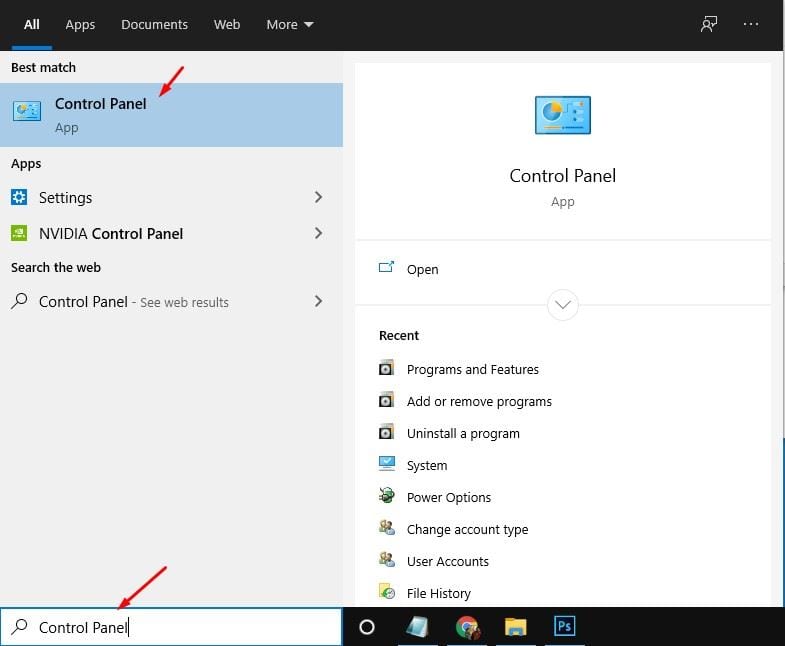
1. Open Control Panel.
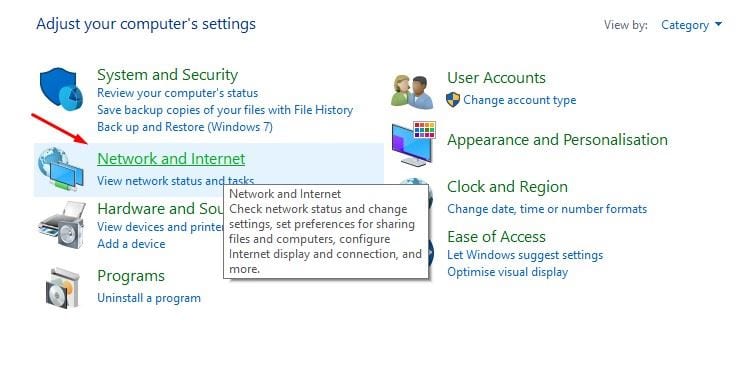
2. Click Network and Internet.
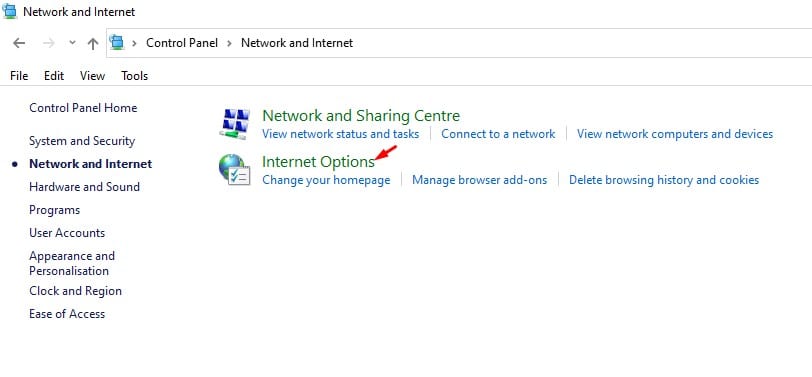
 3. Click the Internet Options.
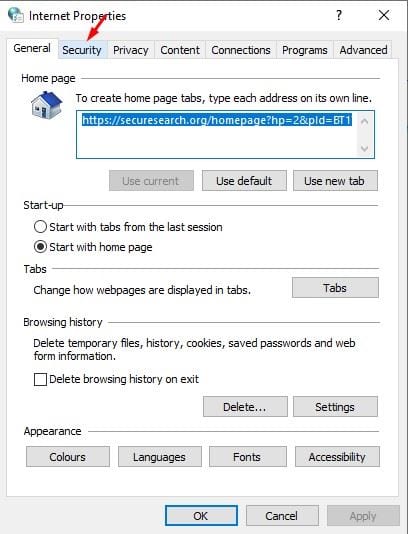
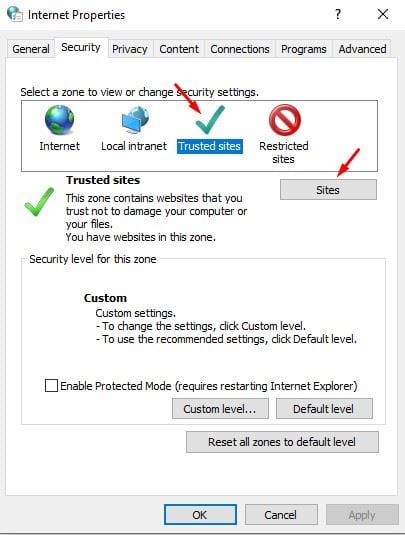
4. Switch to Security.
5. Select the Trusted sites and then click Sites.
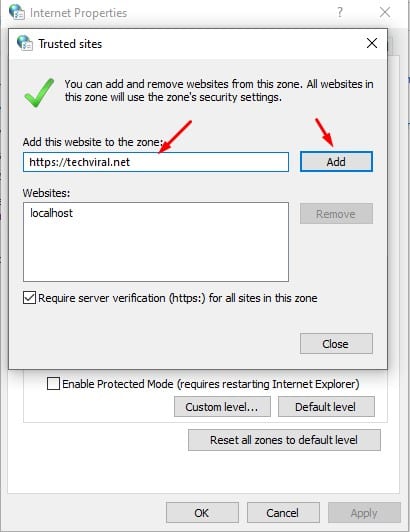
6. Enter the full URL of the website that you think is safe to visit and click on the Add button.
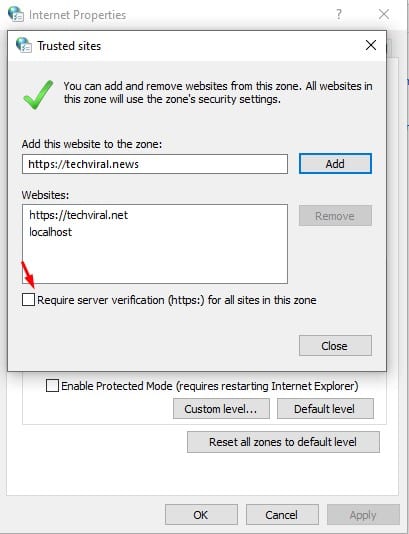
7. Make sure to uncheck the box at the bottom for the Require server verification for all sites in this zone.
8. Click the Close button and OK.
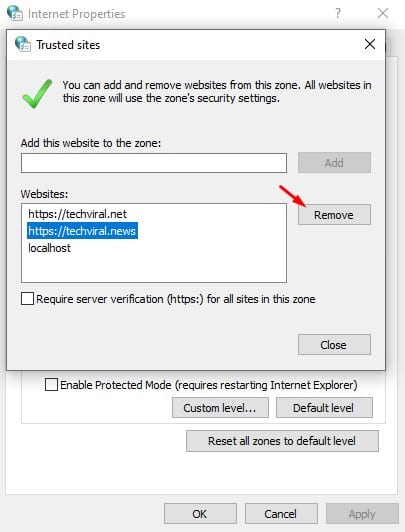
9. To remove any trusted site, select the website and click Remove.
How to Add a Website to Google Chrome Trusted List
Google Chrome sometimes blocks websites when it detects something malicious. However, the block can sometimes be a false positive. Hence, if you trust a website, you can add it to the Google Chrome Trusted list.
1. Open the Google Chrome browser.
2. Visit the site you want to add to the Trusted list.
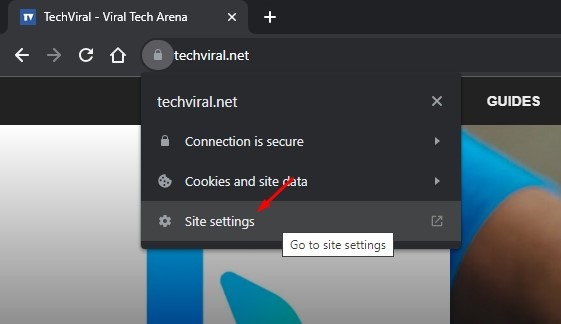
3. Click on the padlock icon before the URL.
4. Select Site Settings.
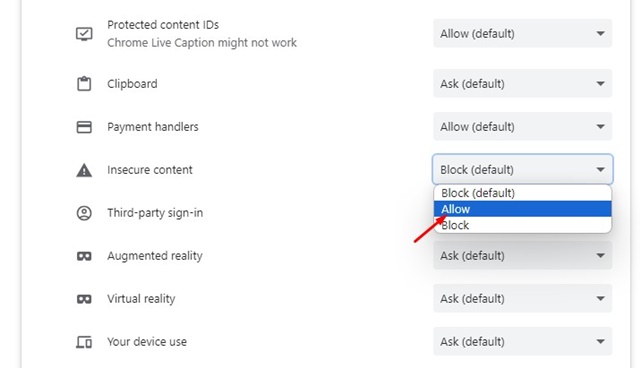
5. Scroll down to the Insecure Content. Click on the drop-down and select Allow.
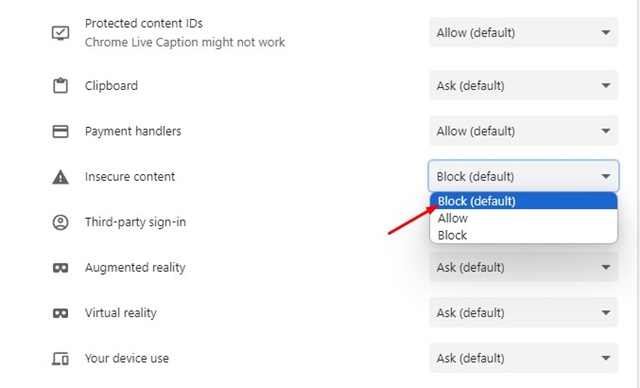
6. To remove the site from the trusted list, choose Block (default) in the Insecure Content drop-down menu.
This article is about adding trusted sites on Windows. If you need more help with this topic, let us know in the comments.
The post How to Add Trusted Sites in Windows appeared first on TechViral.
from TechViral


0 Comments