
It can be frustrating when the Windows 11 Settings app appears blank or refuses to open. So, why does this happen? Well, there are various reasons behind this problem, and we need to find and troubleshoot the most likely problems.
If Windows Settings is Blank or Missing, here’s what you should immediately do to fix the problem.
1. Restart the Windows Explorer Process
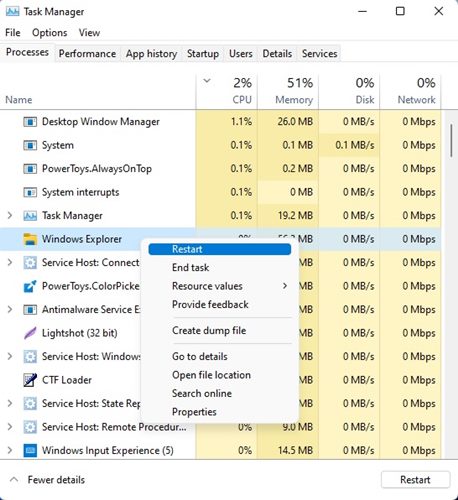
Windows Explorer is responsible for handling the graphical interface of your PC. If it malfunctions, it can lead to the Settings app going black issue. Hence, you should restart the Windows Explorer Process from the Task Manager.
- Open Task Manager from the Windows Search.
- Find Windows Explorer. Right-click on it and select Restart.
- The display will go black for a second. This confirms that the restart is done.
Now check whether the Settings app still shows the black screen.
2. Restart your PC
If restarting the Windows Explorer didn’t help, you should restart your PC.
Restart will remove the bugs & glitches that may be conflicting with the Settings app of your PC.
Open the Windows Start Menu, click the Power button, and select Restart.
3. Register your settings from the PowerShell
If the Settings app still appears blank after the restart, you need to re-register your Settings via PowerShell. Here’s what you need to do.
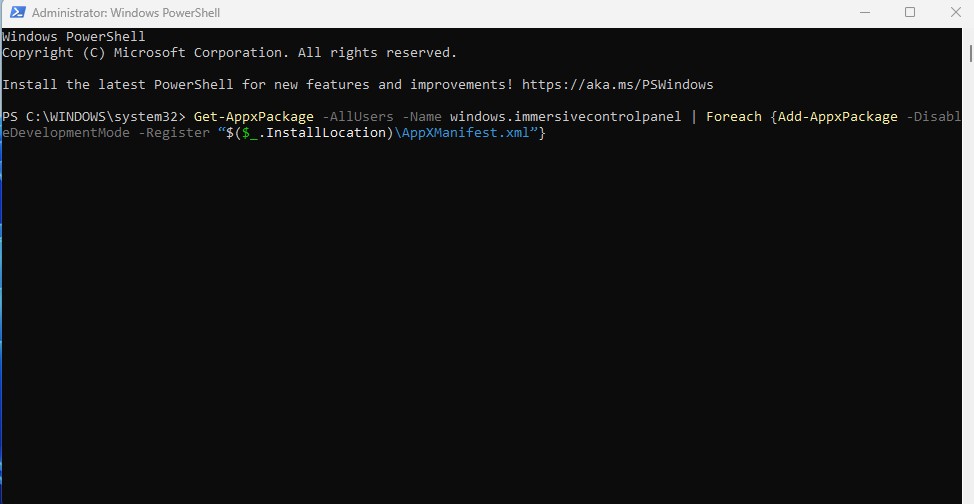
- Open PowerShell with admin rights.
- When PowerShell opens, execute this command:
Get-AppxPackage -AllUsers -Name windows.immersivecontrolpanel | Foreach {Add-AppxPackage -DisableDevelopmentMode -Register “$($_.InstallLocation)\AppXManifest.xml”}
Once done, restart your PC to apply the changes. This should fix the problem you’re facing.
4. Run SFC scan
System file corruption is one of the prominent reasons for the Settings blank or missing problem. You should run the SFC scan to fix corrupted system files.
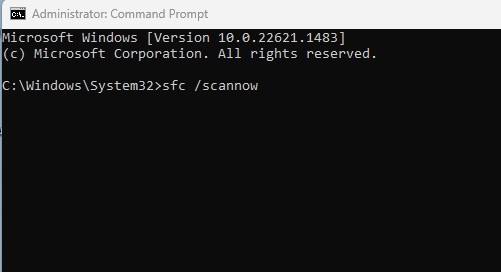
- Open Command Prompt with admin rights.
- When the Command Prompt opens, type sfc /scannow and press Enter.
- Now wait until the scan completes.
If the scan returns with an error, you should run the DISM scan.
5. Run the DISM scan
If the SFC scan returns with an error or can’t fix the corrupted files, you should run the DISM scan.
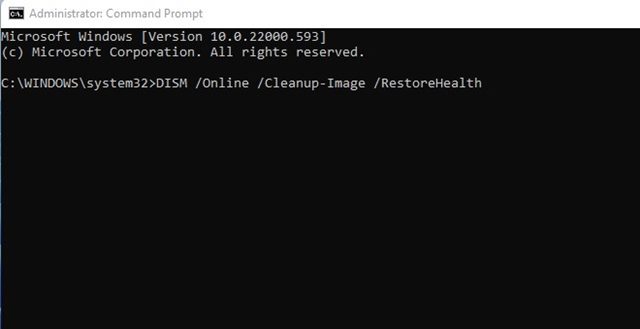
- Open Command Prompt with admin rights.
- When the command prompt opens, execute this command and press Enter.
DISM.exe /Online /Cleanup-image /RestoreHealth
This command should fix the problem.
These are the best ways to fix the Settings app appearing blank or missing. If you need more help in fixing this problem, let us know in the comments. Also, if you find this guide helpful, share it with your friends.
The post How to Fix Settings Blank or Missing on Windows 11 appeared first on TechViral.
from TechViral


0 Comments