
While the Clipboard history feature is great, it can expose your copied items to other users and apps. So, if you care about your privacy, you should clear the clipboard history periodically. Here’s how you can clear it.
1. Clear Clipboard History via Windows Terminal
We will use the Windows Terminal app to clear the Clipboard history in Windows 11.
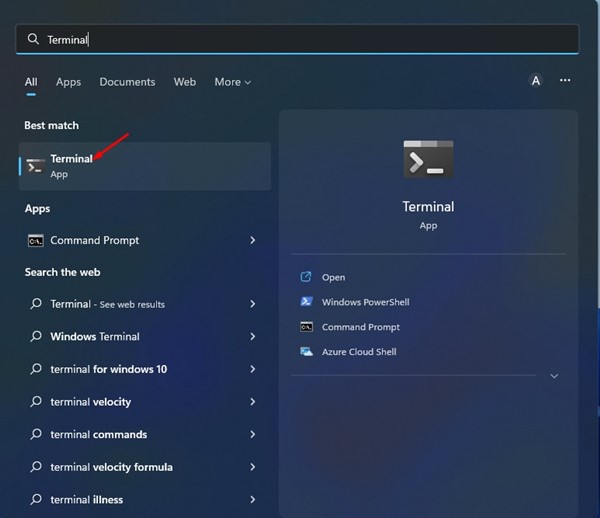
1. Open the Terminal app from the Windows 11 Search.
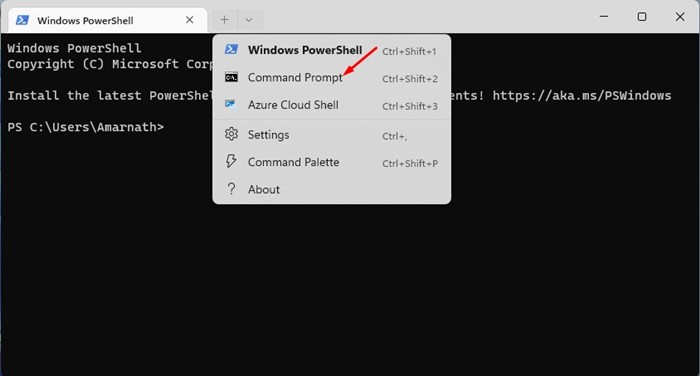
2. Click the drop-down arrow and select Command Prompt.
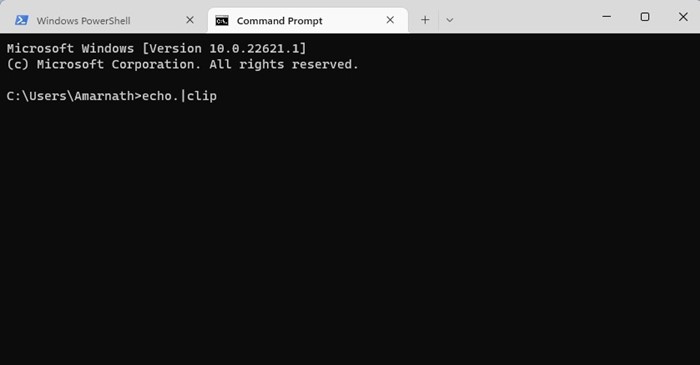
3. Type in echo.|clip and press Enter.
2. Clear a desktop shortcut to clear Clipboard data
You can create a desktop shortcut and run it whenever needed to clear your clipboard data.
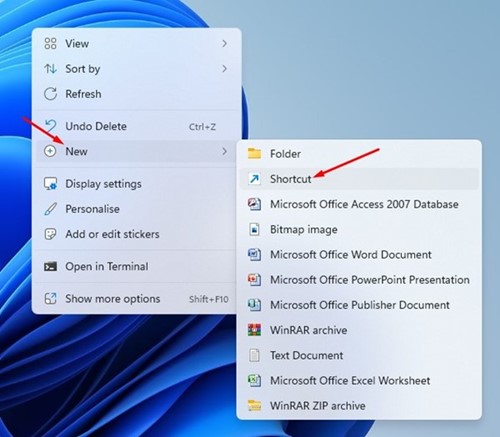
1. Right-click on a blank screen and select New > Shortcut.
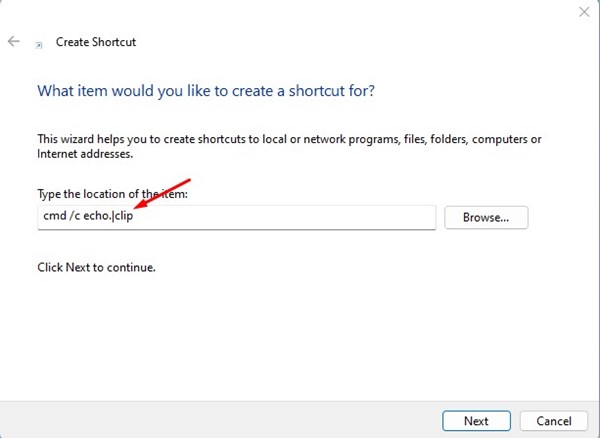
2. On the Create Shortcut window, type in cmd /c echo.|clip in the target field and click Next.
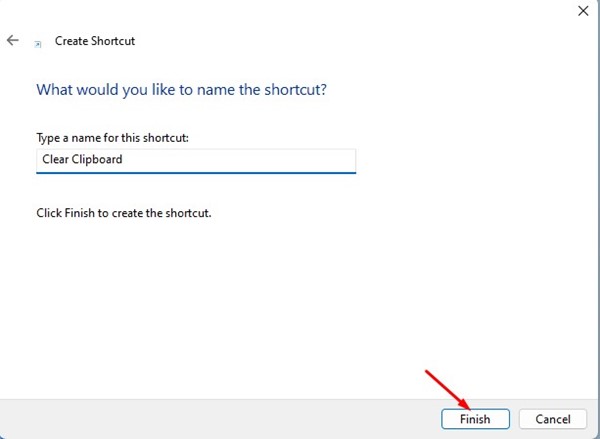
3. Name your shortcut and click Finish.
3. Clear Clipboard History from Clipboard Flyout
The Clipboard manager provides you with an option to clear all saved items. You must press the Windows + V button to bring the Clipboard flyout to the front.
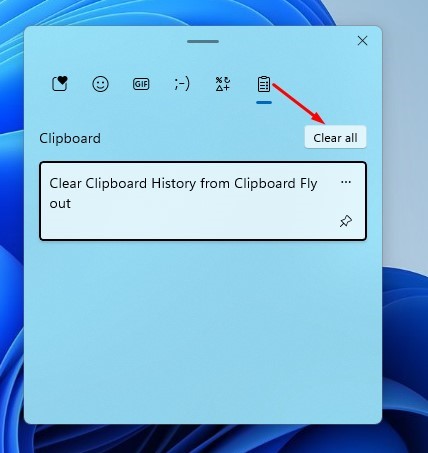
Now you can see all saved items; click on Clear all.
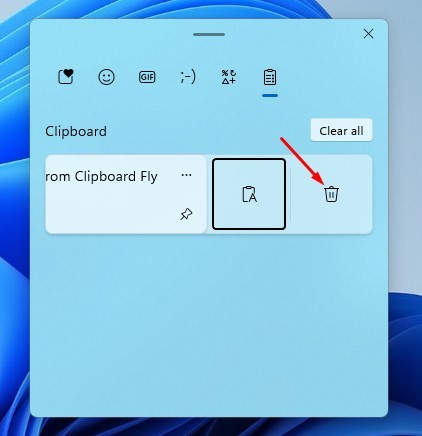
You can also remove a specific item; for that, click on the three dots next to the item you want to remove and click on the Delete icon.
4. Clear Clipboard History on Windows 11 via Settings App
You can clear your clipboard history from the Settings app as well. Here’s what you need to do.
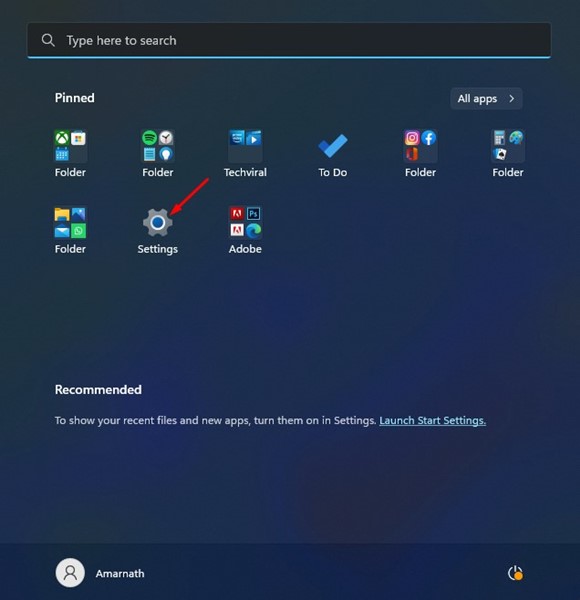
1. Click on the Windows 11 Start button and select Settings.
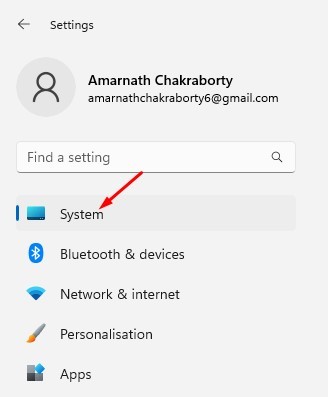
2. Switch to System.
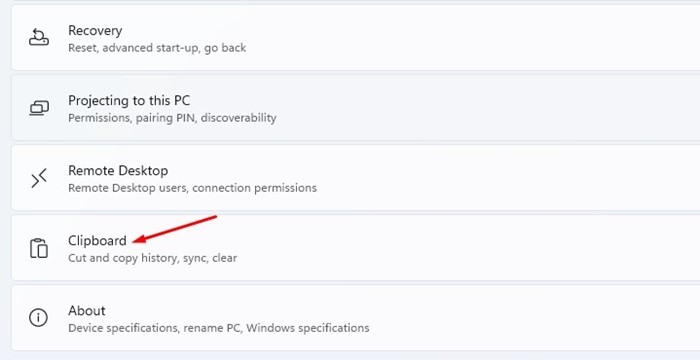
3. Scroll down and click Clipboard.
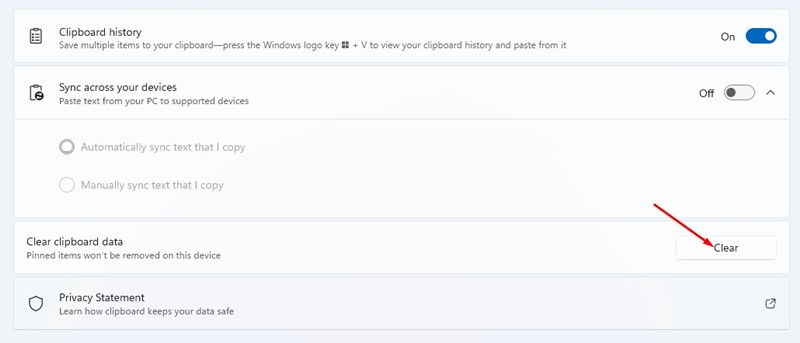
4. On the Clipboard screen, click on the Clear button behind the Clear clipboard data.
Also Read: Download Windows 11 ISO
These are the best ways to clear your clipboard data on Windows 11. If your PC is often left unattended, it’s best to remove the clipboard data periodically.
The post How to Clear Clipboard History in Windows 11 appeared first on TechViral.
from TechViral


0 Comments