
You can take a few appropriate steps to reclaim space on Windows 11. One of the best ways to reclaim storage space on Windows 11 is by removing temporary files. These temporary files don’t do anything; they just sit on your drive and consume storage space. You can easily delete these files to free up some storage space on your Windows 11 computer.
If you are looking for ways to free up storage space on your Windows 11 operating system, here’s what you should do.
1. Delete Temporary Files via Settings
We will use Windows 11’s Settings app to delete the temporary files.
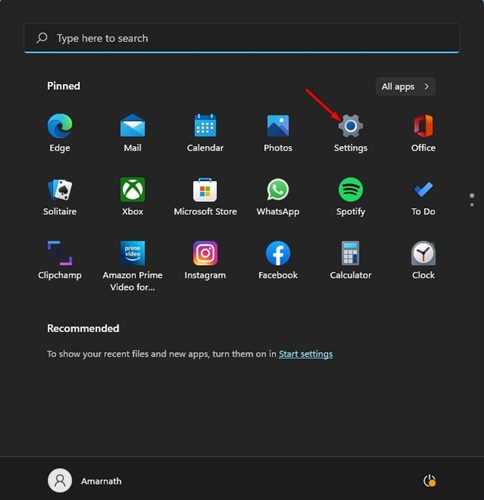
1. Click on the Windows 11 Start button and select Settings.
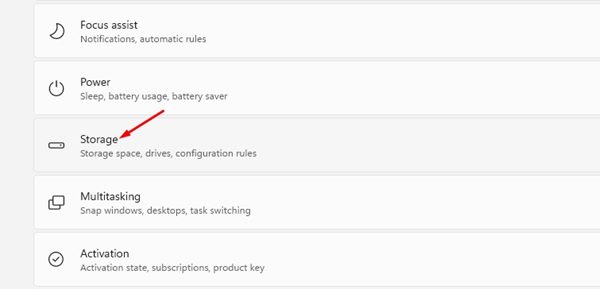
2. Click on the Storage section.
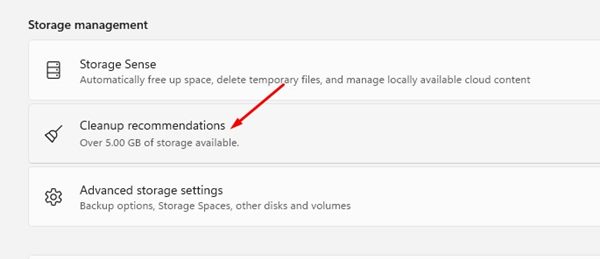
3. Scroll down and click on the Cleanup recommendations section.
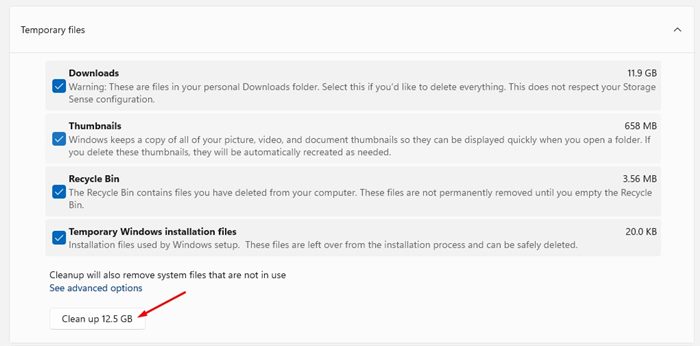
4. Expand the Temporary files option and check all options. Once done, click on the Cleanup button to remove those temp files.
2. Remove Temporary Files via Disk Cleanup Utility
We will use the Disk Cleanup Utility of Windows 11 to clean up the temporary files.
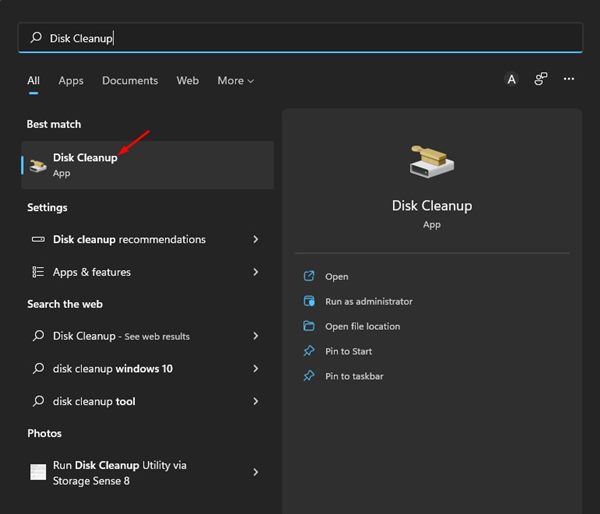
1. Click on the Windows 11 search and type in Disk Cleanup. Now open the Disk Cleanup app from the list. Next, select the drive.
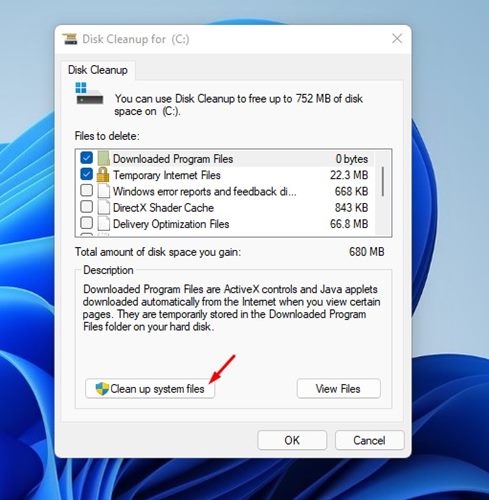
2. Click on the Clean up system files button as shown below.
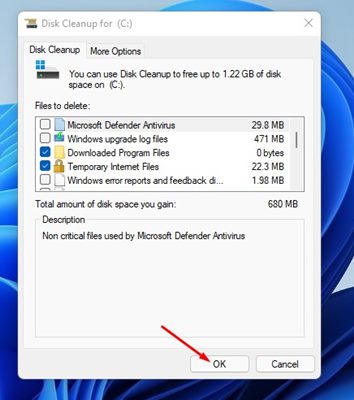
3. Disk Cleanup will return with all the files that can be deleted. Once done, click Ok.
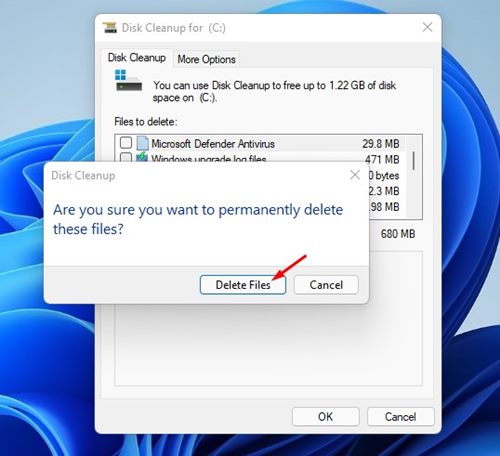
4. Click on the Delete Files button.
3. Manually Delete the Temp Folder on Windows 11
We are going to delete the temporary files manually. For that, you need to delete all the files stored in the Temp folder.
1. Press the Windows Key + R on your keyboard. This will open the RUN dialog box.
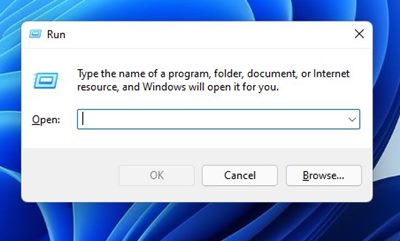
2. On the RUN dialog box, enter %tmp% and press Enter.
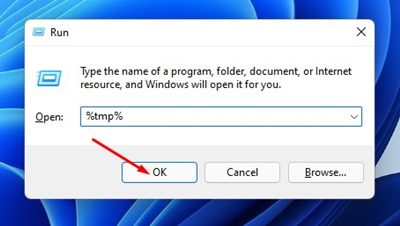
3. This will open the Temp folder on your Windows 11.
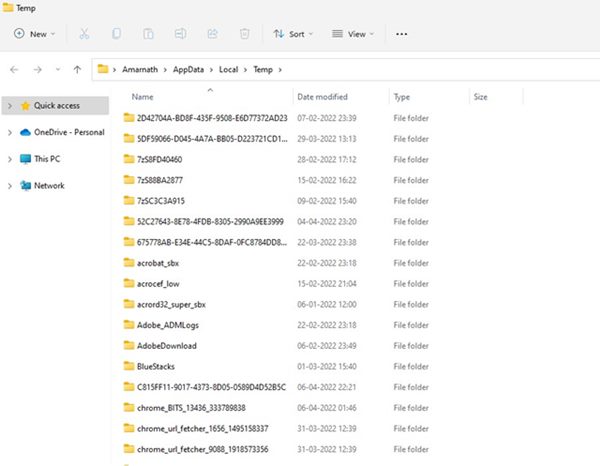
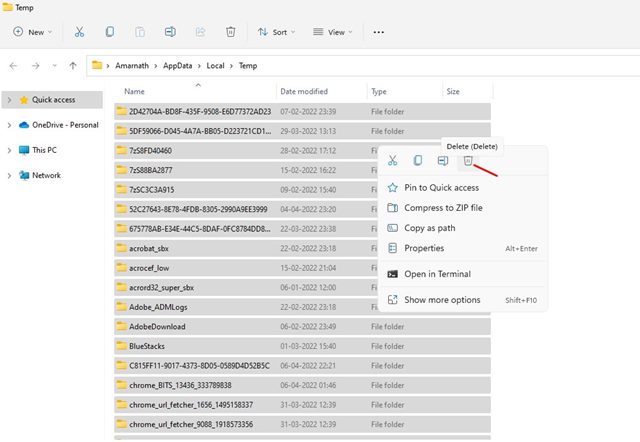
4. Press the CTRL+ A button to select all the files. Once selected, right-click on the file and select the Delete option.
4. Delete Temporary Files via Command Prompt
In this method, we will use the Command Prompt on Windows 11 to delete the temporary files.
1. Open the Windows 11 search and type in Command Prompt. Next, right-click on Command Prompt and select Run as administrator.
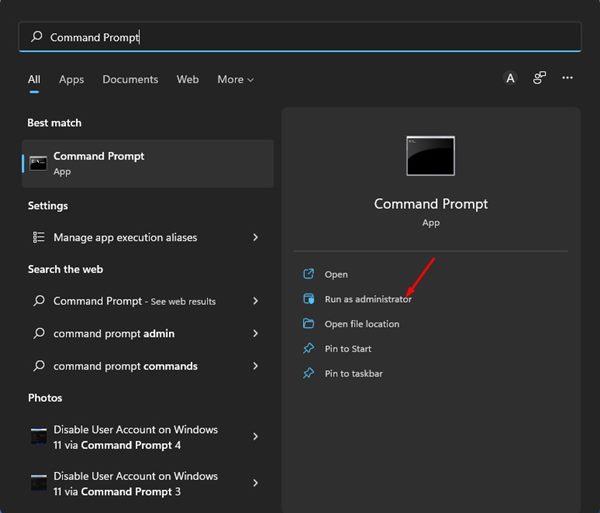
2. This will open Command Prompt with admin privileges. In Command Prompt, execute the command:
del /q/f/s %TEMP%\*
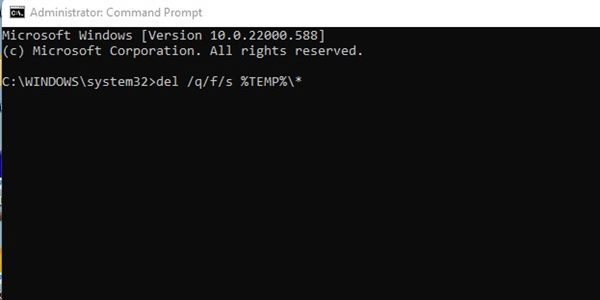
3. Upon executing the command, you will see several lines of code indicating that the temp files have been deleted from the Temp folder of your C drive.
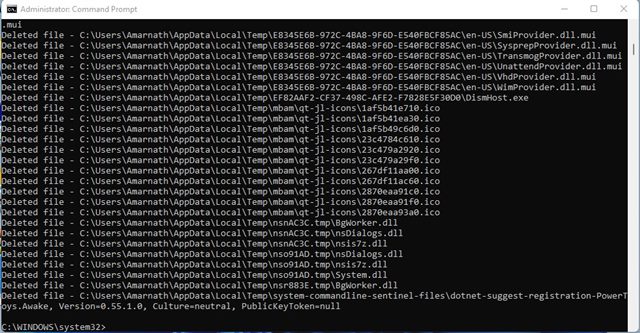
Make to restart your computer after executing the command. This is how you can delete the temporary files on Windows 11 via Command Prompt.
Clear the Cache in Windows 11 to free up more space
If you are still running low on storage space even after cleaning all temporary files, you need to clear the cache file of Windows 11. We have already shared a detailed guide on how to clear the cache in the Windows 11 operating system.
Make sure to follow that guide to know the best methods to clear up the cache in Windows 11. The article includes how to clear the Microsoft Store cache, app cache, and more.
It’s pretty easy to delete all temporary files on Windows 11. You can use any method to remove the temp files & to free up storage space. I hope this article helped you! Please share it with your friends also. If you have any doubts related to this, let us know in the comment box below.
The post How to Delete Temporary Files on Windows 11 (4 Methods) appeared first on TechViral.
from TechViral


0 Comments