
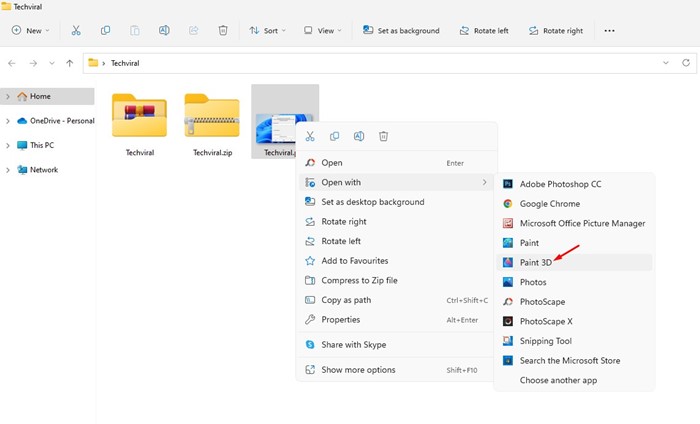
Compared to JPG or JPEG, the PNG file format is larger, and you may want to convert it before uploading it to the cloud storage. Converting PNG files to JPG is easy, and here’s how you can do it.
1. Convert PNG to JPG via Paint
On Windows 11, you can use the Paint or Paint 3D application to convert PNG images to JPG.
1. Right-click on the PNG file you want to convert and select Open With > Paint. You can also use the Paint 3D application.
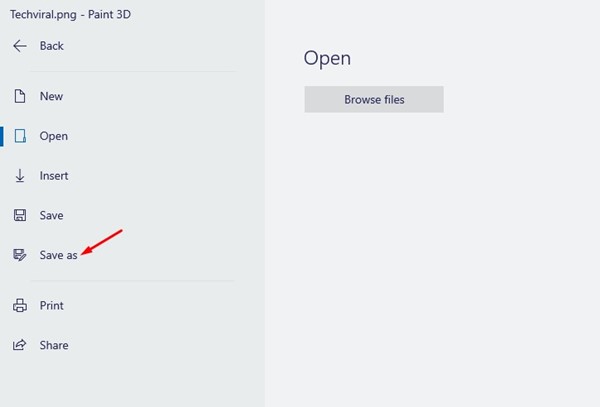
2. Click the File button.
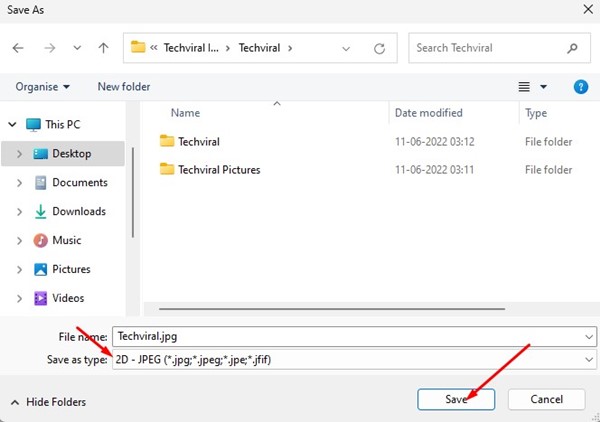
3. Select Save as > JPEG picture.
4. Select the save location.
2. Convert PNG files to JPG via Photoscape
Photoscape is a full-fledged photo editing tool for the Windows operating system. Here’s how you can convert PNG files to JPG using it.
1. Download & install Photoscape on your Windows 11 PC.
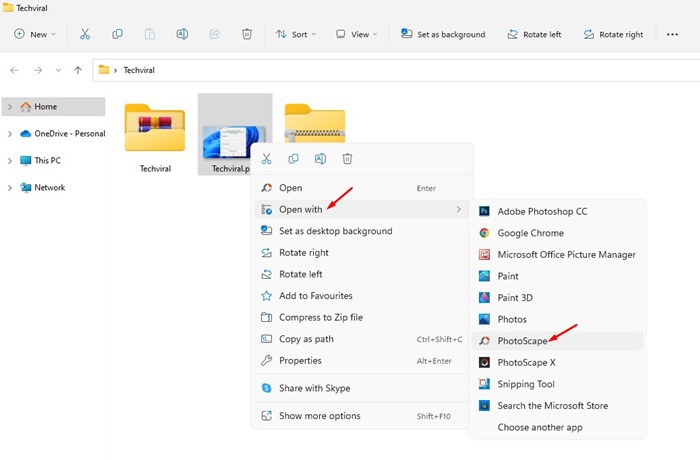
2. Right-click on the PNG file you want to convert and select Open With > Photoscape.
3. The PNG file will open in Photoscape. Click Save.
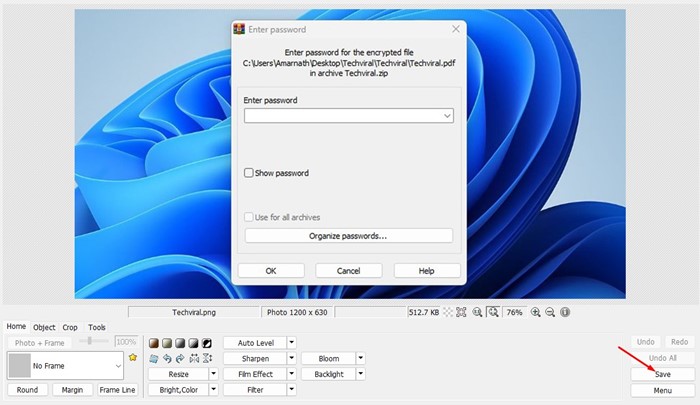
4. Click on the Save As.
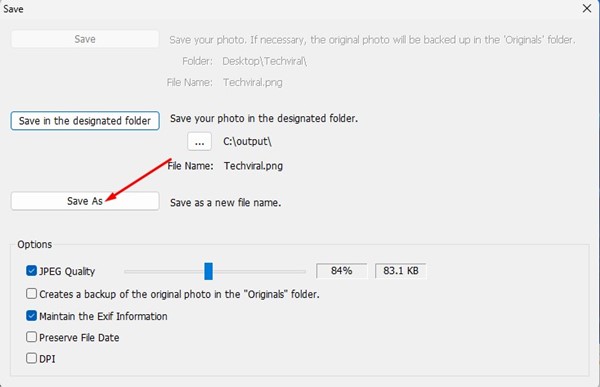
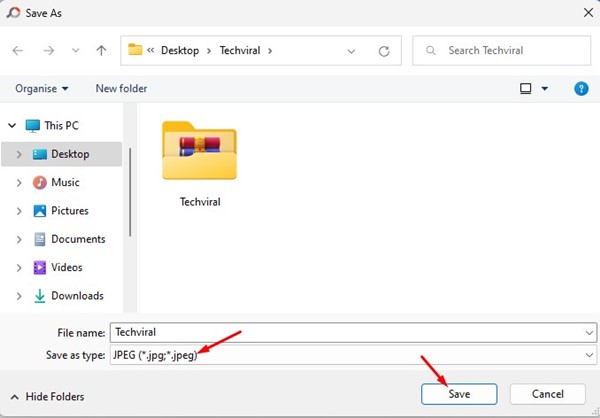
4. Select JPEG and click on the Save button in the Save as type.
3. Convert PNG files to JPG using Photoshop
Converting PNG files to JPG using Photoshop is pretty easy. So, if your PC has a Photoshop app installed, you can also use it to convert your PNG files to JPG.
1. Right-click on the PNG file you want to convert and select Open With > Photoshop.
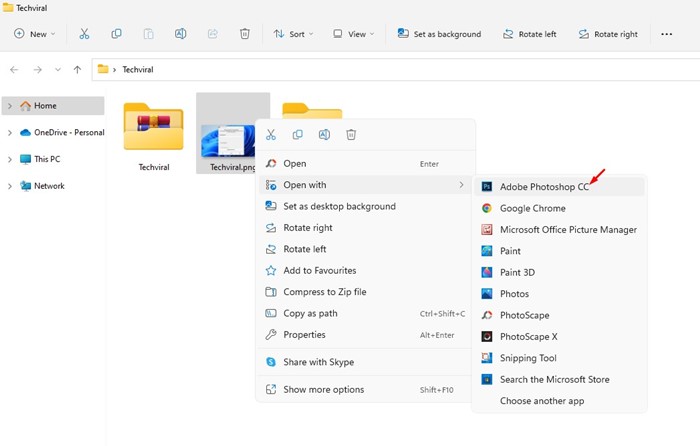
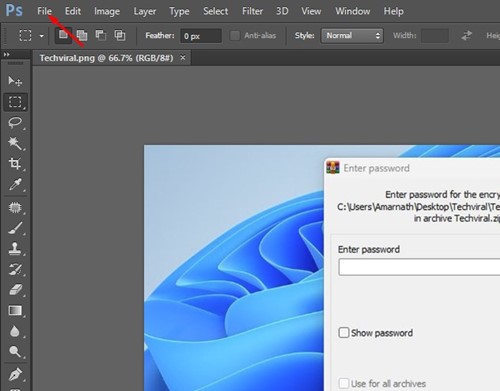
2. The image will open in Photoshop. You need to click on the File menu.
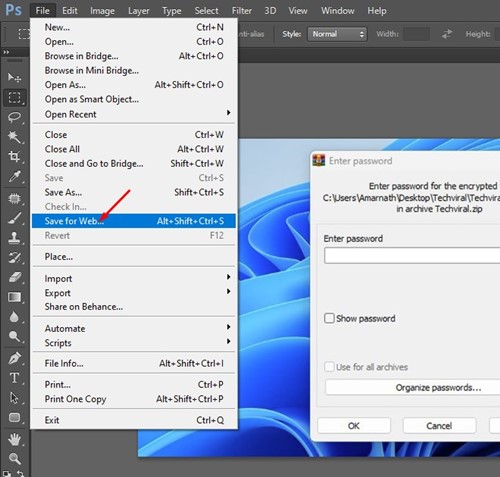
3. Select the Save for Web option.
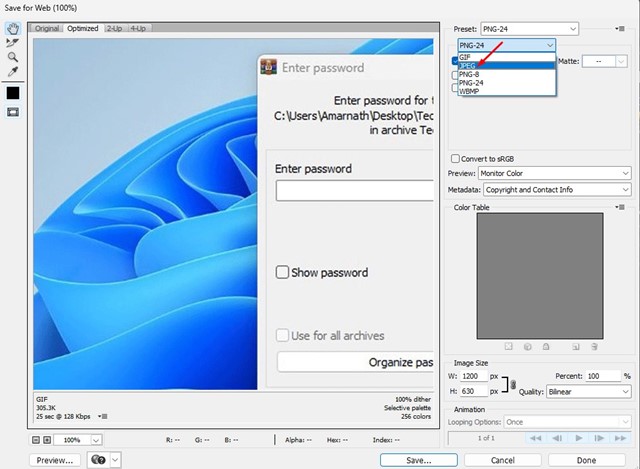
4. Select ‘JPEG’, set the image quality, and click Save.
4. Convert PNG to JPG using Pixroll Image Converter
Pixroll Image Converter is a great way to convert images to other formats. It’s free to download from the Microsoft Store.
1. Launch the Microsoft Store on your PC. Next, search for Pixroll Image Converter Lite.
2. Open the relevant app and click Get.
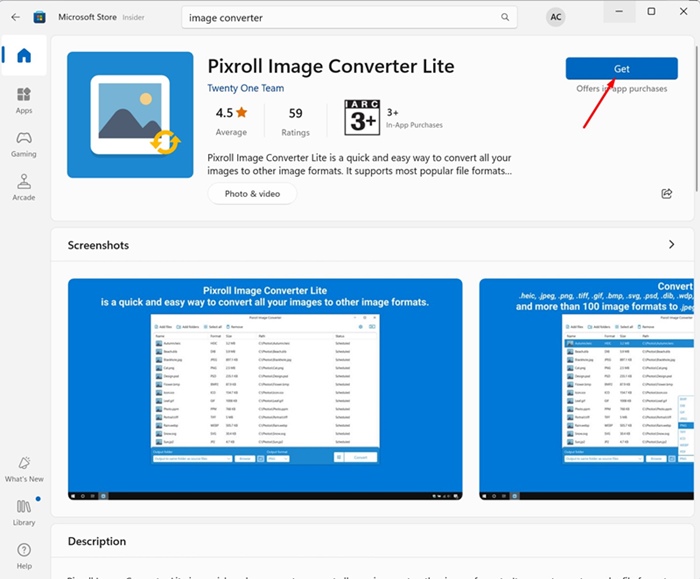
3. Wait until the Pixroll Image Converter installs on your device. Once installed, open it.
4. Click the Add Files button and select the PNG images you want to convert.
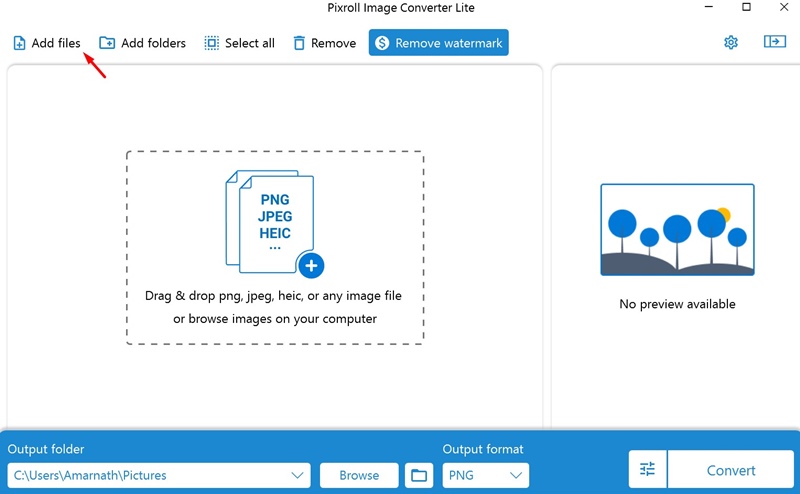
5. Select JGP as the output format and click Convert.
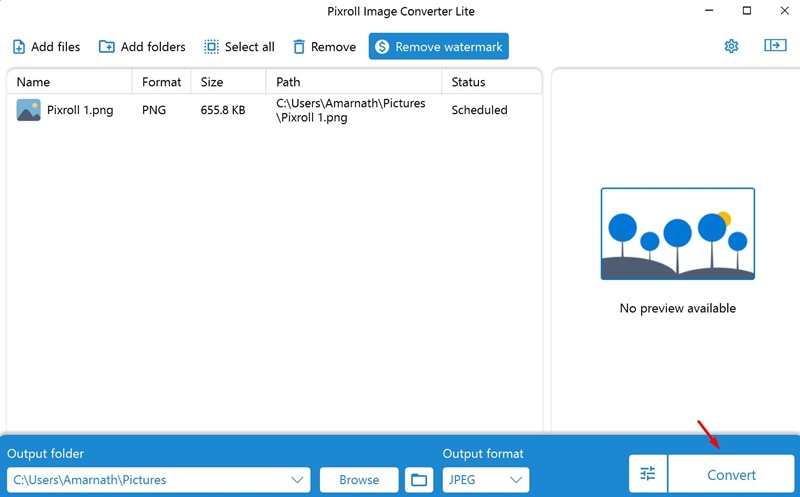
The converted pictures will be saved in the Pictures folder on the C: drive. The only problem with this tool is that it adds a watermark to the converted images.
5. Convert PNG files to JPG using PNG2JPG
PNG to JPG is an online image converter that can convert your PNG images to JPEG format. The good thing about the online converter is that it can convert your images without compromising their quality.
1. Open your favorite web browser and head to png2jpg.com.
2. Click on the Upload files and select the PNG file you want to convert.

3. Once uploaded, wait until the tool converts your PNG file.
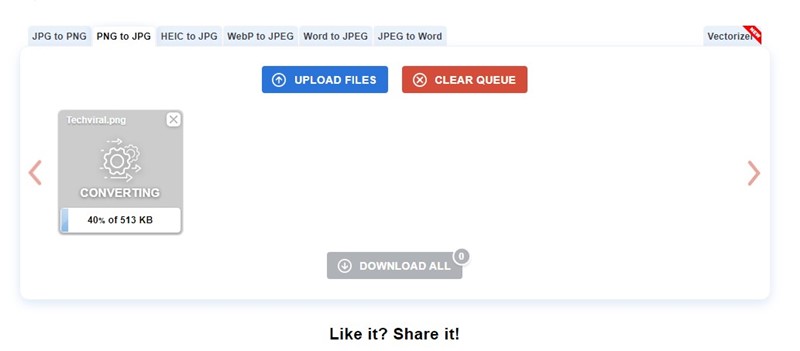
4. Click the Download button underneath your PNG image to download the converted file.
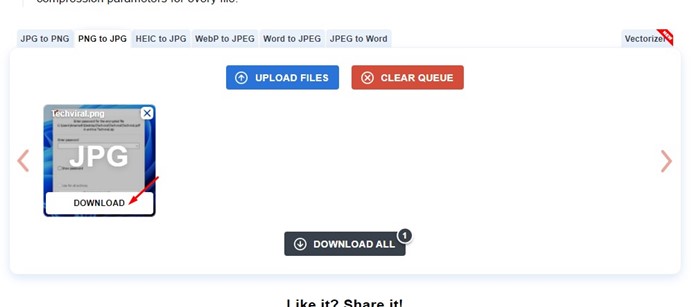
You can use PNG2JPG to convert your PNG files for free. You can also use other online image converters to convert your PNG files to JPG. Web-based image converters can convert PNG to JPG, WebP to JPG, JPG to PNG, and more.
These are the best ways to convert PNG files to JPG in Windows 11. You can follow these methods to convert PNG files to JPG for free on your Windows 11 computer.
The post 5 Ways to Convert PNG Files to JPG on Windows 11 appeared first on TechViral.
from TechViral


0 Comments