
Google Play Store has a robust storage management feature that can help you find recently uninstalled apps on your device. Here’s how to find uninstalled apps on Android.
See Recently Deleted Apps on Android
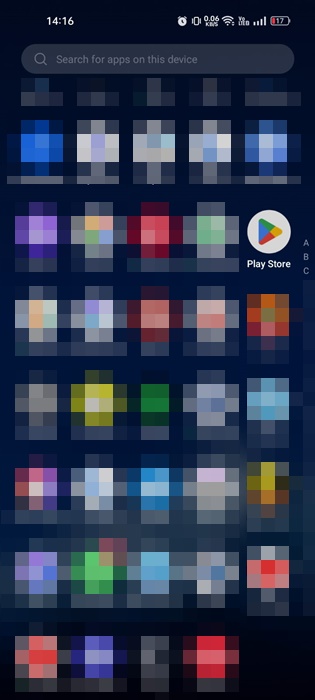
1. Open your Android App Drawer and tap Google Play Store.
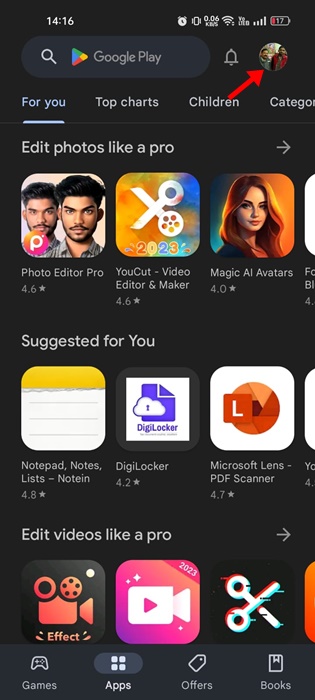
2. Tap on your Profile Picture at the top right corner.
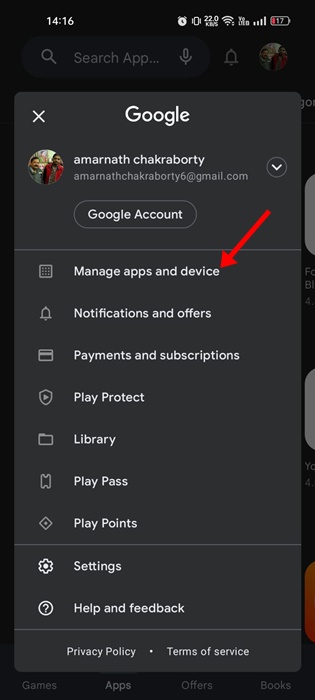
3. Select Manage Apps & Devices.
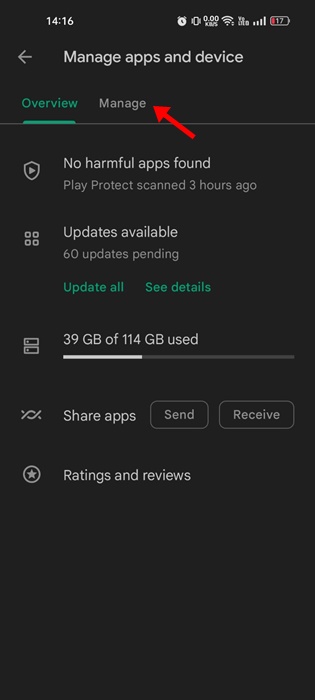
4. Switch to the Manage tab at the Manage Apps & Devices screen.
5. Select the Installed drop-down at the top left corner.
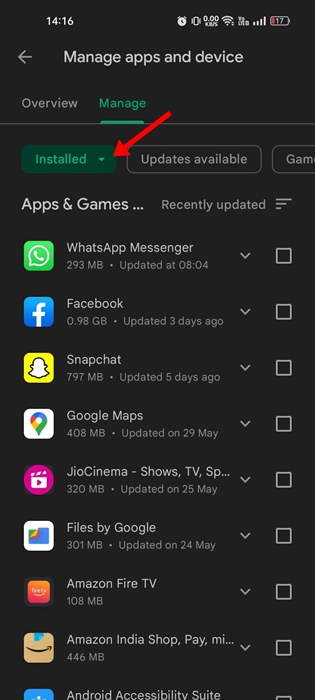
6. Select Not Installed.
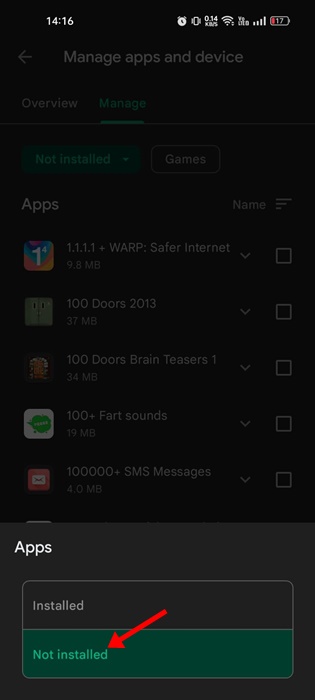
7. Selecting the Not Installed option will show you the apps & games that are uninstalled from your device.
8. Tap on the Filter icon.
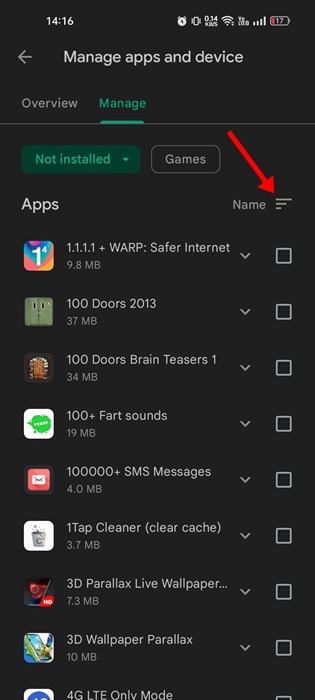
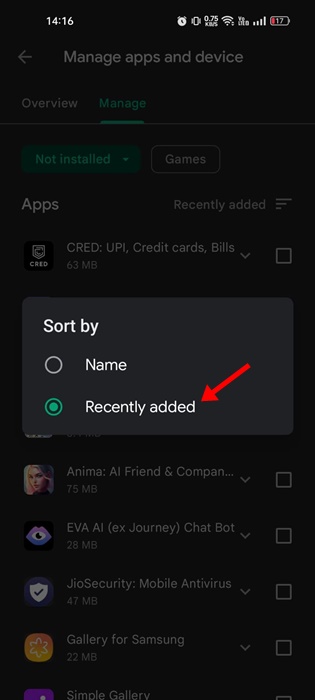
9. Select Recently Added.
How to Find Uninstalled Apps on Samsung?
Samsung Galaxy phones have a Galaxy Store that provides Android apps and games. If you rely on it to download apps and games for your Samsung Galaxy phone, here’s what you should do.
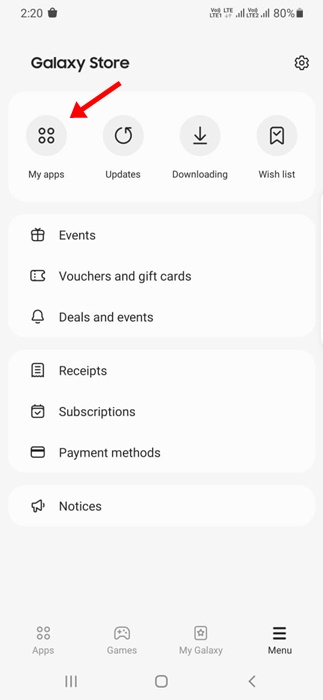
- Open the Galaxy Store on your Samsung phone, then tap the Menu icon in the bottom-right corner.
- On the Galaxy Store Settings, tapMy Apps.
- Tap the filter icon beside My Apps and select Show Installed Apps.
This will list all apps you have uninstalled from your Samsung Galaxy phone. You will also have the option to reinstall those apps.
Find Recently Deleted Apps Using App Manager
App Manager is a third-party app that lets you manage the installed apps on your Android. It also lets you easily track recently removed apps. Here’s how to use it.
1. Download & install App Manager on your Android.
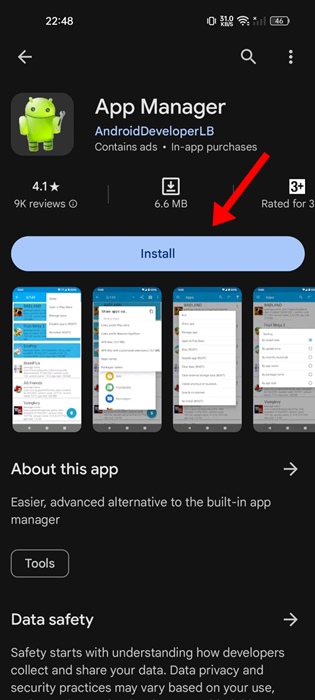
2. Open the App Manager app on your Android and grant the permissions.

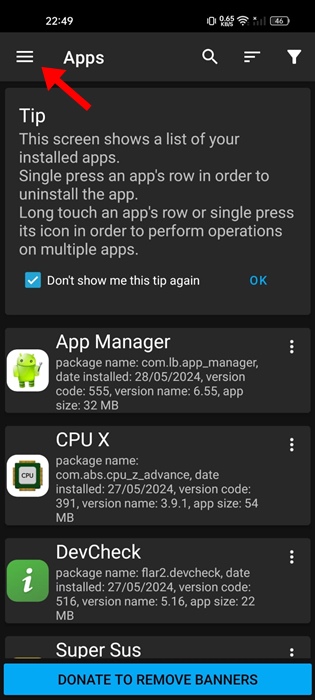
3. Once done, you will be able to see the main interface of the app. Tap on the hamburger menu.
4. Select Removed apps.
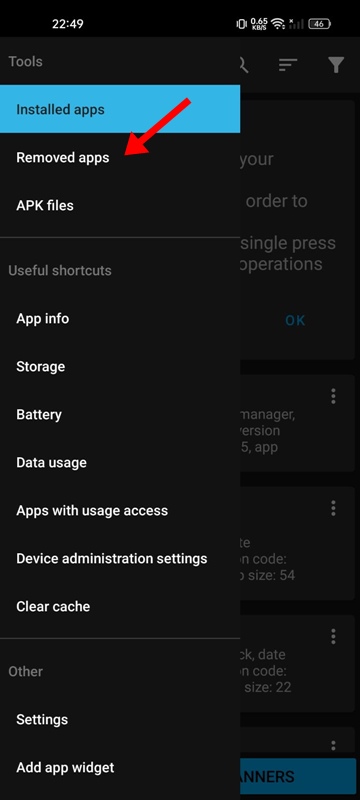
5. You can see all apps removed after installing the App Manager.
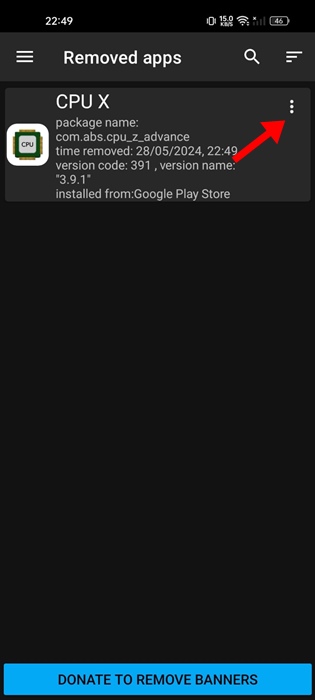
6. Tap the three dots next to the app name and select Open in Play Store.

Frequently Asked Questions:
All Apps are missing on Android
If all apps are missing on your Android smartphone, you need to restart your device. Press the Power button and select Restart. This will remove the bug that removes app icons.
Google Play Store is missing on Android.
If the Google Play Store is missing, someone might have disabled the app. You must head to Settings > Apps and find the Google Play Store.
After finding Google Play Store, select Enable, and the icon will reappear on your home screen.
How to Recover Uninstalled Apps on Android?
Google Play Store can recover all apps you’ve uninstalled. We have shared a detailed guide on recovering uninstalled Android apps. Go through that post to discover the steps.
Can’t download Apps from the Google Play Store
If you cannot download certain apps & games from the Google Play Store, you need to rule out compatibility issues. Make sure the app you want to download is compatible with your Android version. If that didn’t help, try downloading apps from third-party app stores.
How to recover deleted app data on Android?
There’s no way to recover the deleted app data on Android. You can log in with the same account on the apps/games you’ve used before. You can recover the deleted app data if you already have a backup set.
Also read: 12 Best Photo & Video Locker Apps for Android
So, that’s all about finding uninstalled Android apps. Using these steps, you can easily see a list of apps uninstalled from your Android device. If you need more help finding all uninstalled Android apps, let us know in the comments.
The post How to See Recently Deleted Apps on Android= appeared first on TechViral.
from TechViral


0 Comments